Eden
Platform: Nintendo Switch · Games: Let's Go Pikachu / Eevee, Sword, Shield, Brilliant Diamond, Shining Pearl, Legends: Arceus, Scarlet, Violet · Save files: main, or .bin for Brilliant Diamond / Shining Pearl
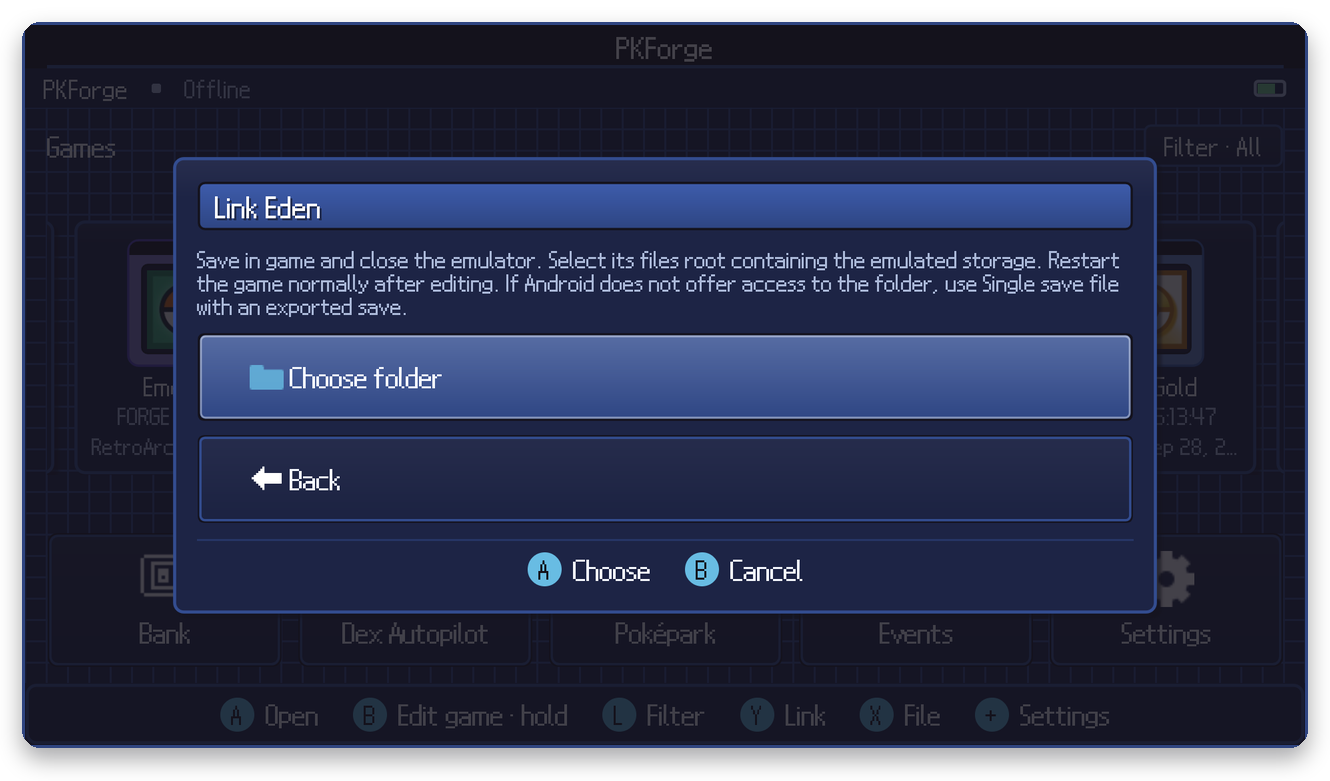
- Save in game and close Eden.
- In PKForge: Y (Link) > Nintendo Switch > Eden > Choose folder.
- In the Android picker, open the side menu (☰). Eden adds its own entry there:
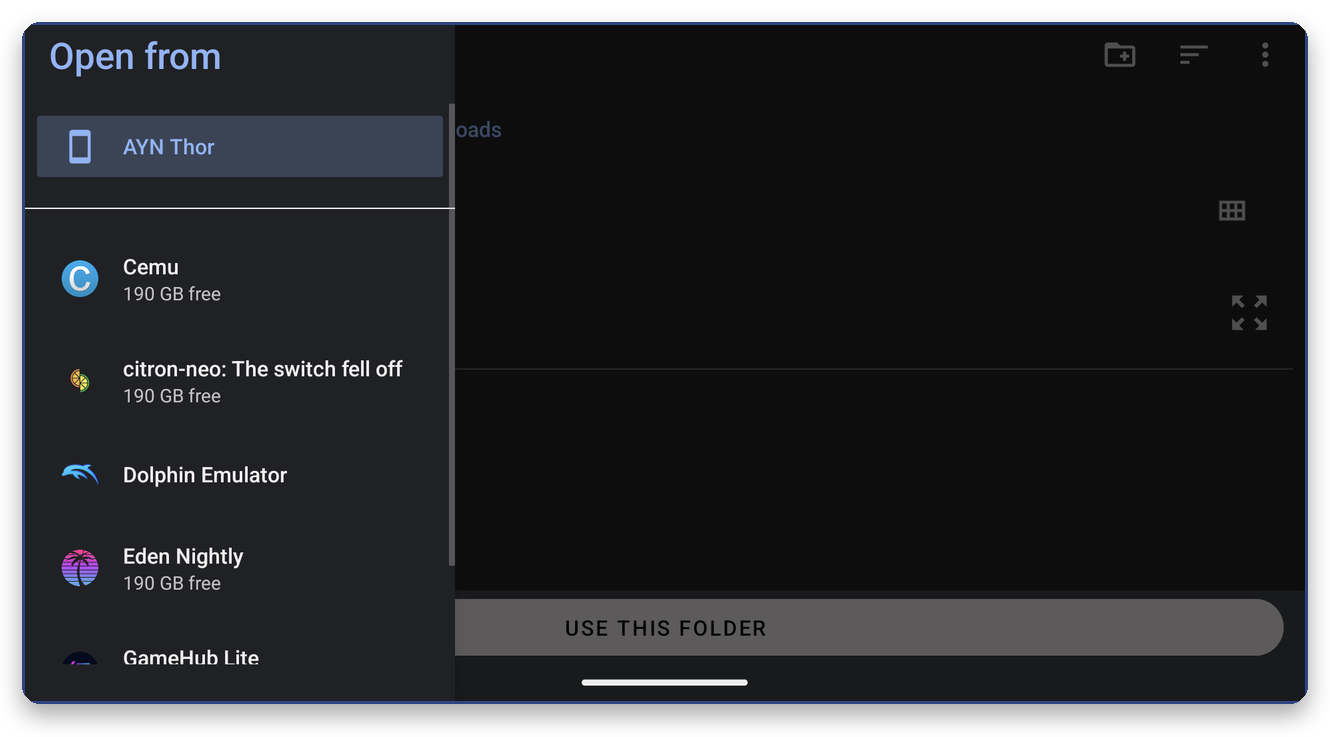

Tap Eden Nightly (or Eden), and press Use this folder at the top level, where nand is visible. Picking nand or nand/user also works.
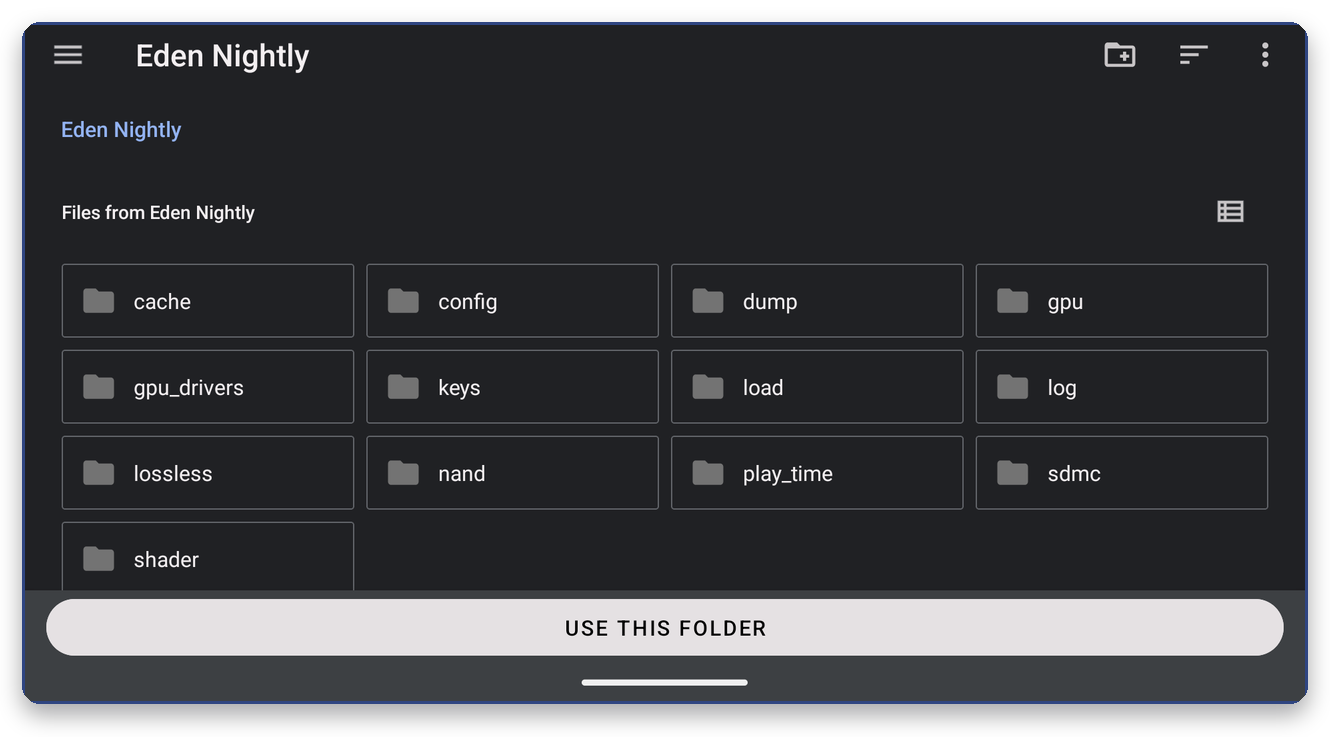
PKForge looks under nand/user/save and recognises each game by its title ID folder:
| Game | Title ID |
|---|---|
| Let's Go Pikachu / Eevee |
010003F003A34000 / 0100187003A36000
|
| Sword / Shield |
0100ABF008968000 / 01008DB008C2C000
|
| Brilliant Diamond / Shining Pearl |
0100000011D90000 / 010018E011D92000
|
| Legends: Arceus | 01001F5010B28000 |
| Scarlet / Violet |
0100A3D008C5C000 / 01008F6008C5E000
|
ROM hacks built on these games, such as Luminescent Platinum (Brilliant Diamond) and Compass (Scarlet / Violet), are found the same way. See ROM hacks.
Like 3DS saves, Switch saves live in the emulator's emulated storage and are edited in place: PKForge asks you to confirm and backs up before every write.
Start the game normally from Eden.