RetroArch
Platforms: Game Boy, Game Boy Color, Game Boy Advance, Nintendo DS · Save files: .srm
One RetroArch link covers every core and every platform: link it once, from any of the three platform menus.
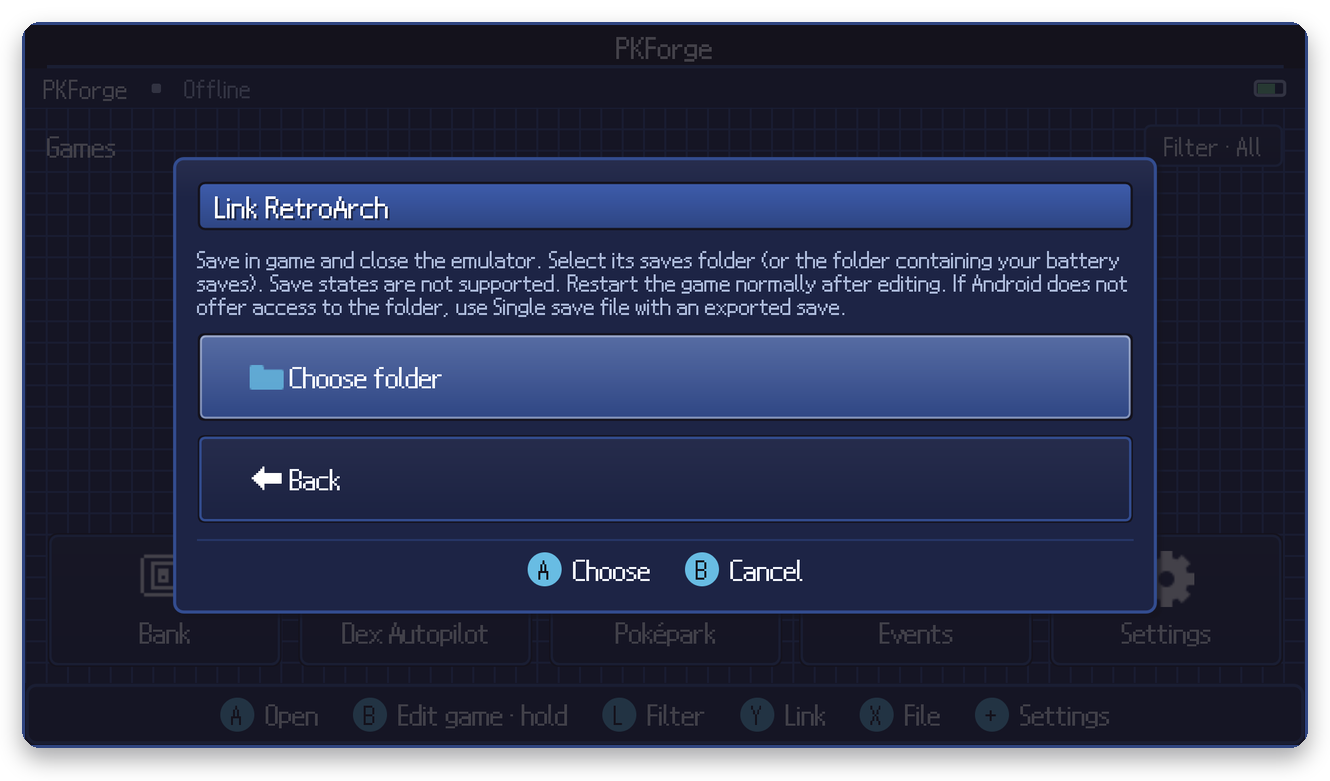
- In RetroArch, play until you can save, save in game, then close the content and quit RetroArch.
- In PKForge: Y (Link) > Game Boy Advance (or GB/GBC, or DS) > RetroArch > Choose folder.
- Pick your RetroArch
savesfolder, or the wholeRetroArchfolder, and allow access.

Warning
The picker's side menu has a RetroArch (AArch64) entry. It shows RetroArch's internal files, not your saves. Use your device's storage instead. See Choosing the right folder.
The default location on Android is RetroArch/saves at the root of internal storage. If you changed it, the current one is under RetroArch Settings > Directory > Save Files.
-
Per-core folders are fine. With Sort Saves into Folders by Core Name enabled, saves sit in
saves/mGBA,saves/Gambatte, and so on. PKForge walks those subfolders. -
Compressed saves are supported. RetroArch can compress
.srmfiles (#RZIPv1#). PKForge reads them and writes them back compressed the same way. -
The
romsfolder is skipped when you link the whole RetroArch folder, so linking the root stays fast. - Turn off Auto Load State. If Settings > Saving > Auto Load State is on, RetroArch loads a save state at boot, and that state brings the old save back. Start the game from its battery save after editing.
Start the game normally (Load Content) and load your in-game save. Do not load a save state made before the edit.