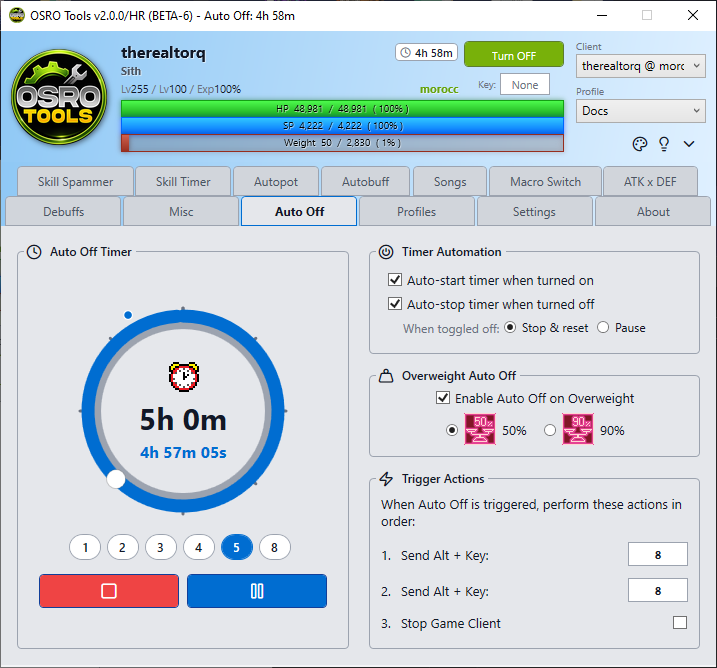
auto off
The Auto Off tab helps you automatically pause your character, send in-game chat macros, or close the game when certain conditions are met.
You can trigger the Auto Off macro based on two conditions:
- Timer: Set a countdown. When the time runs out, the macro triggers.
- Overweight Limit: The macro triggers when your character's weight reaches either 50% or 90%.
The left side of the tab features a large timer dial. You must have the global OSRO Tools toggle turned ON before you can start the timer.
- Setting the Time: Drag the dial to set your desired duration, or click the 1h, 2h, 3h quick buttons below the dial for easy setup.
- Start / Pause: Use the large Start and Pause buttons below the dial to manually control the countdown.
The top right box allows you to automate the timer so you do not have to manually click the Start/Stop buttons every time.
- Auto Start on Enable: If checked, simply turning OSRO Tools ON globally will instantly start the countdown.
- Auto Stop on Disable: If checked, turning OSRO Tools OFF globally will halt the countdown.
- Toggle Behavior: If the above box is checked, you can choose whether turning OSRO Tools off should Pause the countdown (so it resumes where it left off) or completely Stop it (resetting it to your initially selected time).
- Open the Auto Off tab in OSRO Tools.
- Select your trigger condition (configure the Timer, or check the box under the Overweight Header and choose 50% or 90%).
- Choose your actions on the right side of the screen.
- To trigger an in-game chat macro, enter a number (0-9) into Send Alt Key 1 or Send Alt Key 2.
- To close the game entirely, check the box for Stop Game Client.
Note: The Send Alt Key feature is specifically designed to trigger the built-in
Alt + 0-9chat macros in the Ragnarok Online client (which you configure in-game by pressingAlt + M). A common use case is saving an@aaoffcommand toAlt + 8in the game, and putting8into OSRO Tools. This ensures your character automatically stops attacking and saves auto-attack time when the timer finishes.