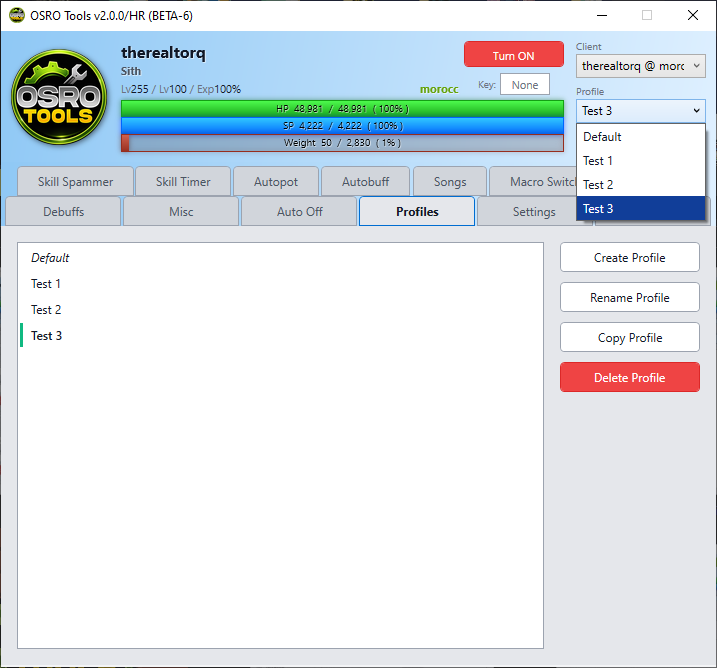
profiles
The Profiles tab helps you manage all your saved configurations. You can create different setups for different characters and instantly load them.
- Open the Profiles tab in OSRO Tools.
- Type a new name into the box and click Save to create a profile.
- Select a name from the dropdown list and click Load to restore those settings.
- Click Delete to remove the selected profile.
You do not need to open the main window to switch profiles.
- Right-click the OSRO Tools icon in your Windows system tray.
- Select your desired profile from the context menu to instantly load it.
- You can quickly load a profile while in the Profiles tab by simply double-clicking its name in the list.
- Changes made to the Per-Profile section in the Settings tab are saved to your active profile. Interface settings apply globally to the whole app.