getting started
Welcome to OSRO Tools! This guide will help you understand the basics and set up the app for the first time.
OSRO Tools requires Administrator privileges to work properly.
- Why? The app must read the game's memory to know your character's exact HP, SP, and active buffs. It also needs to send keyboard presses directly to the game window. Windows security blocks these actions otherwise.
-
How to do it: Just double-click the OSRO Tools executable (
ORTools.exe). Windows will automatically show a UAC prompt asking for permission. Click Yes.
Note: If your HP and SP display
0 / 0while logged into the game, you may have clicked No on the prompt. See the Troubleshooting guide for help.
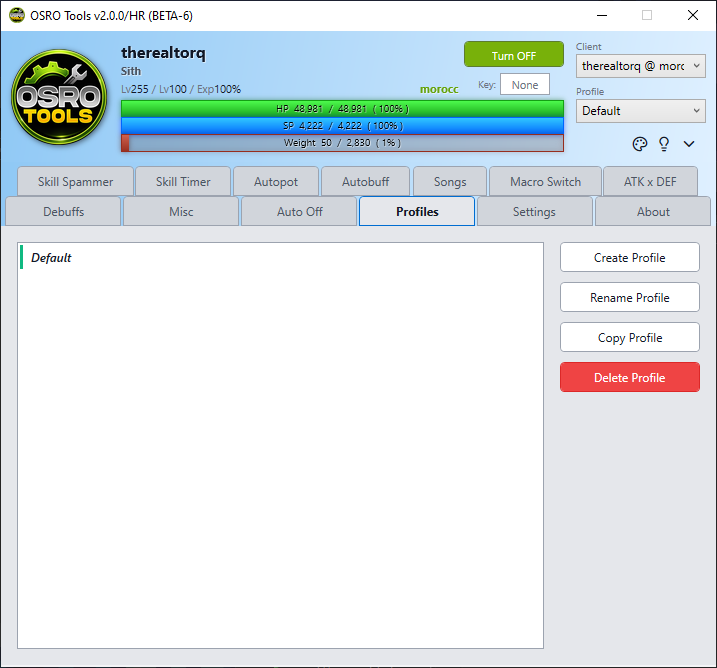
When you open OSRO Tools, you will see a top bar and a Tab Bar.
- Top Bar: This displays your character's live HP, SP, and your global toggle hotkey.
- Tab Bar: This allows you to navigate between all the different feature tabs, like Autopot and Autobuff.
A profile saves all your settings across every single tab. You should create different profiles for different characters (for example, a Knight profile will need different settings than a Priest profile).
- Click the Profiles tab on the left Tab Bar.
- Type a new name into the profile box (e.g., "MyKnight").
- Click Save to create it.
- Always remember to click Save in this tab before you close the app so you do not lose your recent changes!