Repository navigation
Veranda Composer
Veranda Composer is a music sketchpad for the X16: eight tracks on the
YM2151 sound chip, a piano roll and a step drum machine with
velocity on every note, a Tone panel of knobs, a Sounds browser of
pictured instruments, and Samples: short recordings played through
VERA's PCM channel next to the FM music. The music keeps playing while you
edit, open menus and boxes. A Mixer shows every track's fader at once.
Songs are saved as .VCS files and can be exported as ZSM files for
MIDI Player and games. Version 0.5.
MIT licence.
It is in /VERANDA/APPS as Veranda Composer.cvt. Demo songs are in
/DOCUMENTS/Composer Songs: the music of BLAST GRID, converted for
Composer (Music from BLAST GRID by Marcin Spoczynski; what each song
leaves out of the game's own playback is in LOSSES.TXT there).
- Double-click a
.VCSfile: Composer opens the song. - Or double-click Veranda Composer in
/VERANDA/APPS: it starts with a new song of eight tracks (Drums, Bass, Keys, Lead, Pad, Strings, Arp and Bells), two bars of 4/4 at 120 BPM in A minor. - File > New first asks what to start from (see Files).
-
The menu bar shows the song's name; a
*after it means it has changed since it was saved. - The control bar: Sounds (the browser for the chosen track), Tone (shows or hides the Tone panel), Rewind, Stop, Play (green while playing), Cycle (yellow while on: the song plays round from its loop start; off: it stops at its end), Record (red while armed or recording) and Q beside it (the takes' quantize), the display (the position as bar:beat, the tempo: drag it up or down; the metre: click it for 4/4 or 3/4; the key: click for the next root, Shift and a click for major or minor), the metronome and the master volume (drag it).
- The view bar at the bottom: Tracks, Notes, Drums, Sounds, Samples and Mixer, with the voices in use and a tip at its right.
- A line, the playhead, shows where the song is while it plays; in Drums the step playing is yellow.
One lane a track, its regions on it: named stretches of its notes, each drawn in the track's colour with its notes small (a drum region its hits, a sample region small waves). Its header shows the instrument's picture, the name, the sound, a volume slider (drag it), M (mute) and S (solo; when any track is solo, only the solo tracks play), each inverted when on, and four note lights: how many notes the track sounds now. A muted track's regions are shaded. Above the lanes, the cycle band: yellow while Cycle is on; drag its ends to set where the song plays round from and to, click it for Cycle on or off. Under it, the bars.
Click a track's header to choose it and hear it; click its picture for Sounds. A long song is shown at two bars, then one bar a card; Left and Right move along it.
- Click a region to select it (its title strip turns dark). Double-click it to edit its notes (Notes or Drums open at it).
-
Drag it along its lane to move it, notes and all. Shift and a
drag makes a linked copy: change a note in one and the other
follows (an
=in the title shows a linked region). Drag its right edge to make it shorter or longer; notes past a shorter end go. - Double-click an empty place on the chosen track for a new region of a bar.
- Track menu: Rename the region..., Copy it after (Ctrl+D: a linked copy right after it), Make unique (its notes its own again), Delete the region (with its notes; Delete on the Tracks view too).
A new song has one region a track over the whole song. Songs saved by Composer 0.2 open with a region for each of their sections. A song holds 64 regions, and a region moves or copies up to 160 notes.
Under the lanes (the Tone button shows or hides it), for the chosen track: its picture, large, and six knobs (drag up or down): Volume, Pan, Bright, Attack, Release and Vibrato. They change the sound over its patch, which stays as it was, so a sound can always be brought back by setting the knobs to 0. Octave - and + moves the whole track; Velocity Feel plays notes as loud as they are written, Flat plays them all alike. Try it is a keyboard to play the sound: click a key, or type A to K (W E T Y U for the black keys). A drum track has Volume and Pan.
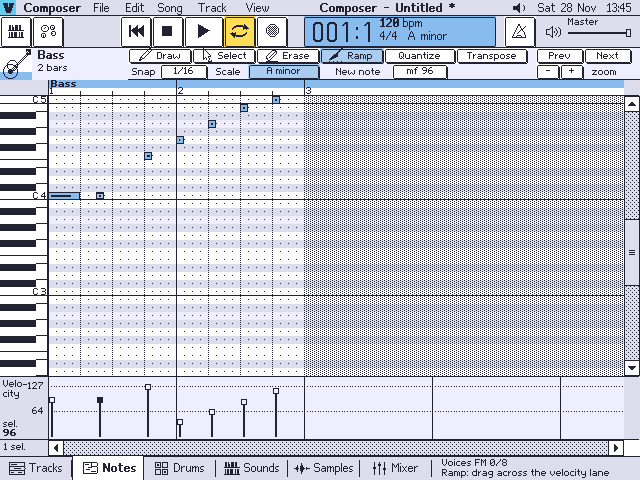
The chosen track's notes: one row a semitone, one column a step. With Scale on, the rows of the song's key are white, the others shaded and the root's rows marked. Each note shows its velocity as a line inside it: the longer the line, the louder the note.
-
Draw (
D): click an empty place to add a note (at the New note velocity; click it for pp, p, mp, mf, f, ff); drag right while holding the button to make it longer. Drag a note to move it; drag its right edge to change its length. -
Select (
S): click a note to select it, Shift and a click to add or take one away; drag a selected note to move all of them. Drag on an empty place for a rubber band: the notes it covers are selected (with Shift, added to the selection). -
Erase (
E): click or drag over notes to delete them. -
Ramp (
R): drag across the velocity lane: each note under the line takes the line's height (a crescendo, a fade, accents). -
Snap (
G): 1/4, 1/8, 1/16 or 1/32. Quantize moves the selected notes (all, when none is selected) to the snap. Transpose moves the selected notes up a semitone, Shift and a click down. -
Prev and Next: the track before or after; - and + (or
,and.): zoom. - Delete (or Backspace) deletes the selected notes, Esc selects none, Ctrl+A selects all. With notes selected, Up and Down move them a semitone and Left and Right a snap step; with none, the arrows, Page Up and Page Down scroll.
- Ctrl+X, Ctrl+C and Ctrl+V cut, copy and paste the selected notes; a paste goes at the playhead while the song plays, else at the first tick shown, and stays selected.
The velocity lane: a stalk for each note, its height the velocity (0-127). Drag a stalk's head up or down; dragging a selected note's stalk moves every selected note's velocity together. The selected notes' value is shown at the left.
A drum track's notes as steps.
- Rows: each a drum, with its picture, name, sound, M, S and a volume slider. A kit has up to 16 rows (Add a row, Remove the row); eight are shown, Up and Down (or the scroll bar) show the others. Click a row's name to choose it and hear it.
- Steps: click a step to switch it on (you hear it) or off. A step's rungs (1 to 8) show its velocity; drag up or down on a step to change it.
- Velocity: the chosen row's lane: drag a bar up or down, or brush across several; Even gives them all their mean, Ramp a rise from the first to the last, Random a spread.
- Bar tabs choose the bar shown (+ adds one); Copy bar copies it to the next bar (Shift and a click: to every bar); Clear empties it; Humanize moves each hit's velocity a little at random.
- Swing (50-75 %): every second sixteenth plays later; the notes stay where they are. Steps: 1/16 or 1/8.
- Repeats and flams: Shift and a click on a step that is on gives it 2, 3 or 4 quick hits in its sixteenth (a roll; one more each click, then back to one); dots above the step show them. Alt and a click gives it a flam: a soft hit just before the main one (a tick above the step). The row's panel sets both for the chosen step too.
- The row's panel: the row's drum (click: the next of the ROM's 61 drums, Shift: the one before), Use a sample... (click: the next sample slot, then back to the FM drum) and its volume; Repeat (1-4) and Flam (Off, On) for the step last clicked; Steps in row (- and +): a row can have its own length, from 2 steps to the bar's; its steps then repeat through the song, so a 3-step row against a 16-step bar drifts across the beat (the steps past its length are hatched); Cuts off: the row's choke group (none, 1, 2 or 3): a hit cuts off the other rows of its group still sounding, as a closed hat cuts an open one (a new song's two hats are in group 1).
A sound for the chosen track. The family tiles show the 16 General MIDI families, the drum kit and the samples; click one to see its sounds at the right. Click a sound's name to hear it on the track; its play button plays it too, the star marks a favourite (Favourites shows only those, while Composer runs). Use this sound keeps it; Cancel goes back to the track's sound, Undo to the one before the last change. The knobs under the tiles are Tone's Bright, Attack and Release. The keyboard below plays the sound across three and a half octaves.
Short sounds of your own, played through VERA PCM with the FM music: two at once, mixed by Composer at 12,207 Hz, 8 bits. A song has 16 slots and 64 KB for them (taken from RAM only when the song has a sample).
- Import... a WAV (8 or 16 bits, mono or stereo, any rate from 4 to 48 kHz) or a ZCM file into the slot shown (or the first empty one). It is turned into Composer's rate once and made as loud as it can be. Other kinds of WAV are refused with a message.
-
From a pack (or Veranda Kit): the kit made for Veranda, in
/VERANDA/SAMPLES/VKIT, into the empty slots: kick, snare, hats, clap, tom, crash and a plucked bass. - The waveform shows the slot; drag the S and E handles to trim its start and end (the shaded parts are not played). Play plays it; the keyboard plays it at pitch.
- Plays as: Hit (whole, whatever the note's length), Note (pitched from its Root, ending with the note) or Loop (round while the note is held). Volume: 100, 75, 50 or 25 %.
- Rename, Delete (the rows that used it go back to their FM drums).
A drum row plays a sample with Use a sample...; a whole track plays one at pitch when its sound is a sample (Sounds, the Samples tile). Samples sound about a thirtieth of a second after the FM notes of the same beat.
Play the chosen track on the computer's keyboard and Composer writes the notes down.
- Choose the track and press Record (or Ctrl+R): the button turns red, the track is armed, and the keys play it straight away: A S D F G H J K are the white keys from middle C, W E T Y U the black ones, Z and X move an octave down and up. Hold Shift for an accent (a louder note). For the kit, A to K play rows 1 to 8 and Q W E R T Y U I rows 9 to 16.
- Press Play (Space): a bar of clicks counts you in (the display shows bar 0), then the song plays from its start and records. A note lasts from the key's press to its release; hold several keys for a chord, up to the track's voices.
- Press Stop (or let the song end) to end the take. The notes are drawn and put in the track; the track is disarmed.
- Q beside Record sets where the notes' starts and ends go when the take ends: 16 (sixteenths, the default), 8 (eighths), 16T (sixteenth triplets) or off (as played). A kit's hits always land on the Drums view's steps, and a hit on a step that is already on sets its velocity.
- The notes are played at the New note velocity of the piano roll (Shift adds an accent); the velocity lane changes them afterwards.
- Recording adds to the notes already there. With Cycle on the song plays round, and each pass adds what you play.
- The notes go into the region under them on the track; where there is none, a region is made, and a region is lengthened to hold the take.
- Edit > Undo (Ctrl+Z) takes the last take back, as any other change.
- The metronome button clicks on the beats while the song plays; a take always clicks.
- While armed, the recording keys belong to Composer; other keys (Space, Esc, the arrows, Ctrl and Alt shortcuts) work as usual. Alt+Tab and Quit end the take.
A strip a track, side by side (F6, or the Mixer tab): the instrument's picture, the name and sound, a Pan knob (drag it up or down: left, centre, right), a fader for the volume (drag its thumb, or click on its track), the value under it, M and S, and the note lights. The Master strip at the right is the control bar's master volume. They are the same values as the track headers, Tone and the control bar: change one and the others follow. Click a strip's picture or name to choose the track and hear it.
-
Song menu: Play or stop (Space), Record (Ctrl+R), Rewind (Home), Cycle on or off
(
L), Faster (+), Slower (-), A bar longer (]), A bar shorter ([), 3/4 or 4/4. A shorter song asks first if notes would be lost. -
Track menu: the track before or after (Ctrl+Up, Ctrl+Down), Mute
(
M), Solo (Soutside the piano roll). - View menu: Tracks (F1), Notes (F2), Drums (F3), Sounds (F4), Samples (F5), Mixer (F6); Tab goes to the next view.
Limits: 8 tracks, songs of 1-128 bars, 40-250 BPM, 1,000 notes a track, 16 drum rows, 16 sample slots of up to 32 KB in 64 KB. Notes start and end on ticks of 1/96 of a quarter note; the music is played 60 times a second.
File menu: New (Ctrl+N), Open... (Ctrl+O), Save (Ctrl+S), Save As..., Revert, Export ZSM.... Before changes would be lost, Composer asks whether to save them.
New shows four templates; click one:
- Empty: eight tracks, no notes yet (as Composer starts).
- Band: a rock beat, bass, piano, guitar, organ, strings, brass and a lead at 110 BPM.
- Electronic: four on the floor, a sub bass, pads, a stab, an arp and a lead at 124 BPM, a little swing.
- Chiptune: square and saw sounds and a fast beat at 150 BPM.
Each sets the tracks' names and sounds, the tempo, the key and the swing,
and puts two bars of drums in; everything can be changed afterwards. Songs are saved as .VCS files, normally in /DOCUMENTS; long
names are kept.
Saving writes the new file first and keeps the one before it as
name.vcs.bak, so a failed save never loses the song on the card. Each
track's instrument, Tone's knobs, the drum kit's rows and the samples are
saved in the file, so a song sounds the same on a later ROM. A damaged
file is refused with a message. Songs of earlier versions open as they were.
Edit > Undo (Ctrl+Z) takes back the last change, and the item names it ("Undo Add notes", "Undo Volume", "Undo Region edit", "Undo Take" ...); Edit > Redo (Ctrl+Y or Ctrl+Shift+Z) does it again. Composer keeps up to 8 steps: notes drawn, moved, deleted or changed in Notes and Drums, regions on Tracks, a track's volume, pan, mute, solo and Tone in the headers and the Mixer, the kit's rows, and recording takes. The steps use the RAM banks left free; a song with samples leaves fewer (on a 512 KB X16 about three). Opening a song, starting a new one or Alt+Tab clears them. Sounds has its own Undo. Revert goes back to the song as it was saved.
File > Export ZSM... writes the song as a .zsm file, the format
MIDI Player and many X16 games play (with ZSMKit). Composer plays the song
once through itself, quickly and silently, and writes down every change
it makes to the YM2151, frame by frame, 60 a second; with Cycle on the
file loops from the loop start, as Composer does. The samples the song
uses go into the file too, as its PCM instruments, and each hit as a PCM
command. The status line then says how many sample hits there were and
how many were cut short.
What does not carry over:
- One sample at a time. ZSM has one PCM voice; Composer mixes two. A hit that comes while another sample is still sounding cuts it off (the status line counts these). The FM music is not affected.
- A pitched sample's pitch (Note and Loop) is VERA's nearest playback rate: close for notes near its root, up to about half a semitone off for notes far below it.
- Timing: everything already falls on Composer's own 60 Hz frames, so swing, repeats and flams sound as in Composer; a ZSM's ticks are exactly 60 a second, Composer's frames 59.52 (the X16's screen), so the file plays about 0.8 % faster. At the loop the patches are loaded again, which may move a note to another of the YM2151's channels (it sounds the same).
- Tracks that are muted, or not solo while another is, are left out, as when Composer plays.
- A very busy frame (more than 255 changes at once) loses some of them; the status line says so.
- Alt+Tab stops the music, and the samples, while Composer is set aside.
- Quit (Ctrl+Q) silences the sound chips and VERA PCM.
Planned: PSG instruments, MIDI export.