Repository navigation
Making Mods
Every mod you have ever played started as a few text files. A mod is a small program that the game loads next to its own code: it can add a sword, a boss or a whole biome, or quietly change how something that is already in the game behaves. This page is where making your own begins. It shows what a Bunny Loader mod is made of, explains the two ways you can write one, and suggests the order in which to read the rest of the wiki.
Note
Before you start, Bunny Loader and Terraria need to be installed on your phone; Installing Bunny Loader walks you through it. You do not need to know how to program. The guides explain every line they show, and C# for modders covers the parts of the language you will meet along the way.
Almost anything the game itself does. Most mods start by adding content: new items and weapons, armor and accessories, enemies, bosses with their own music, town NPCs who move into your houses and sell things, blocks and furniture, even a whole biome. Other mods add nothing new and change what is already there instead: a global class can make every sword swing faster, and a hook can step into any method of the game and change what it does. Mods can also talk to the player, with options in the settings, buttons of their own on the touch screen or a whole interface.
You do not have to learn all of this at once. Each of those pages stands on its own, and you will open them when your mod needs them.
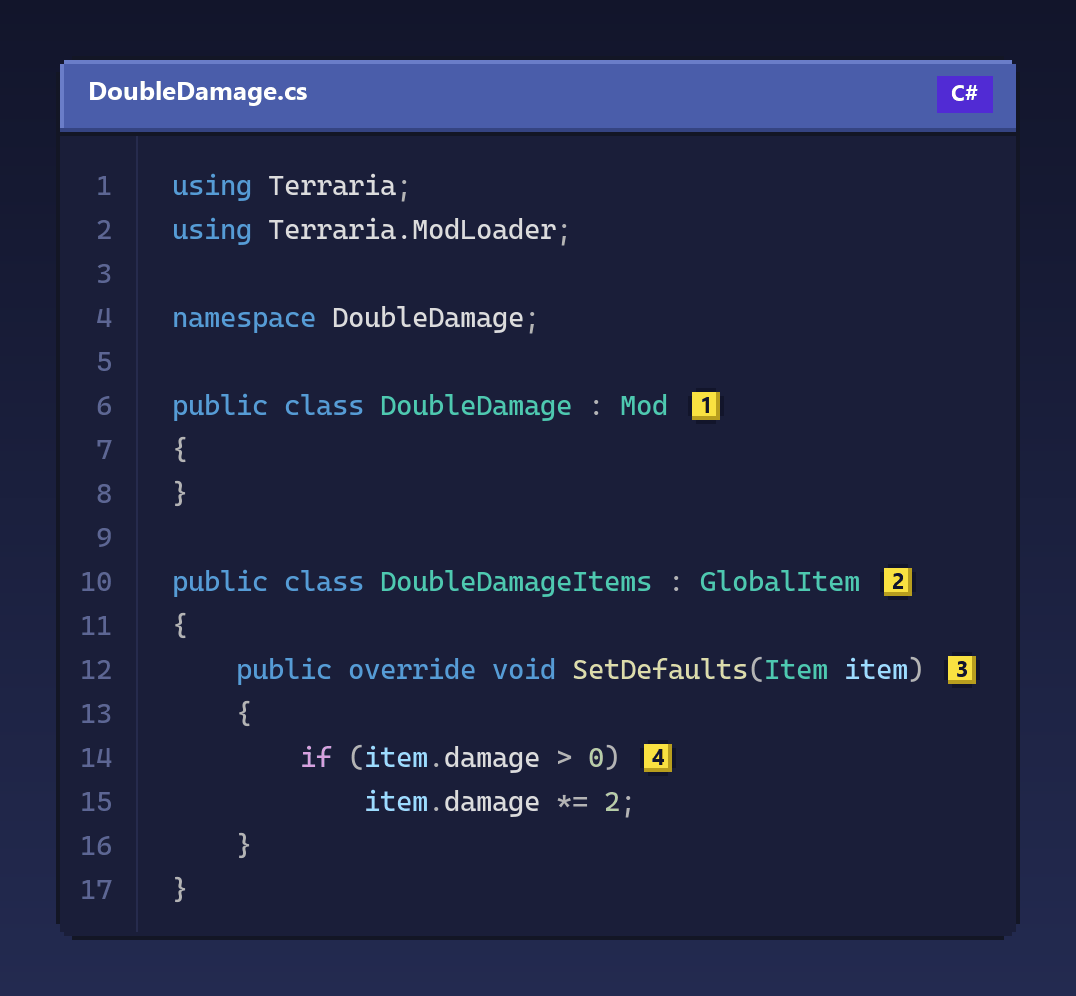
Mods are written in C# (pronounced "C sharp"), the same programming language Terraria itself is written in. To get a feel for it, here is a complete mod. It is only a few lines long, and it doubles the damage of every weapon in the game:
Copy this code
using Terraria;
using Terraria.ModLoader;

namespace DoubleDamage;

public class DoubleDamage : Mod // (1)
{
}

public class DoubleDamageItems : GlobalItem // (2)
{
    public override void SetDefaults(Item item) // (3)
    {
        if (item.damage > 0) // (4)
            item.damage *= 2;
    }
}
Let's read it from the top. The two using lines tell C# where to find the
names the file uses: Terraria holds the game's own classes, such as Item,
and Terraria.ModLoader holds the classes Bunny Loader gives you to build
mods with. The namespace line gives your code a family name, so that it never
gets mixed up with code from other mods.
The class at (1) is the heart of every mod. Each mod has exactly one class
that extends Mod, which is what the : Mod part means: "this class is a kind
of Mod". It can stay empty, as it does here. Its job in this mod is only to
say "this is a mod", and Bunny Loader creates it by itself when the game
starts.
The class at (2) is where the real work happens. GlobalItem is a class
that lets you change every item in the game, including the items that other
mods add. You never have to tell Bunny Loader about it: when your mod loads,
Bunny Loader looks through it, finds every class like this one and puts it to
work.
Inside it, the method at (3) is SetDefaults. The game calls it every
time it creates an item, right after filling in that item's numbers: its
damage, its speed, its price, its size. The word override means "when the
game runs this method, run my version too", and item is the item being
created at that moment. So every item that comes into the world passes through
our code first.
The if at (4) makes sure we only touch items that actually deal damage,
so a dirt block stays a dirt block. On the next line, *= 2 multiplies that
damage by two. That is the whole idea of modding: you write classes like
these, and the game calls them at the right time. Everything else in this wiki
builds on it.
Tip
If you already make mods for tModLoader, you could read this file without any
explanation, because Bunny Loader uses tModLoader's classes and names.
Bunny Loader vs tModLoader lists only what is
different on the phone, such as the Mod class above, which tModLoader would
create for you if you left it out.
You can make a whole mod using only your phone, or write it on a PC with a full development environment. Either way the result is exactly the same mod, so you can start on one and move to the other whenever you like.
On the phone, you use BL Editor, a free code editor made for Bunny Loader.
It knows the whole game: as you type, it suggests the names of classes, fields
and methods, and after override it writes the whole method for you. When you
want to try your mod, you press Test. BL Editor saves everything, Bunny
Loader builds and installs the mod, and the game opens with it. If something
is wrong, the errors come back to BL Editor explained in plain words, often
with a button that fixes them.
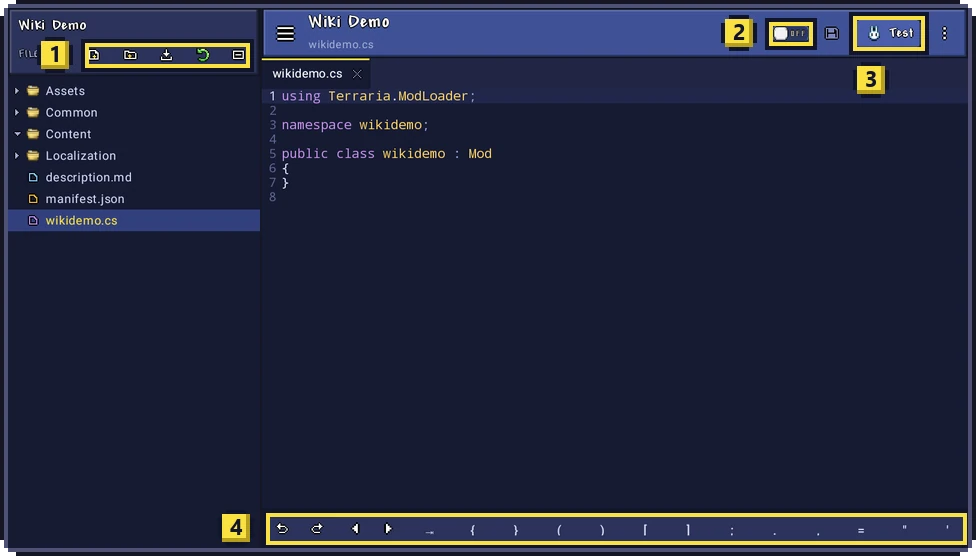
The picture above is a brand-new mod in BL Editor. The buttons at (1)
create files and folders and import files from your phone, and a long press on
any file in the list adds rename and delete. The switch at (2) turns on
autosave, which saves and installs your mod a moment after you stop typing.
(3) is the Test button, and the bar at (4) keeps the symbols C#
uses the most one tap away, so you do not have to dig through the keyboard for
every { and ;.
On a PC, you use Visual Studio 2026 Community, which is free as well. You get the same autocomplete, errors are shown while you type, and big mods are easier to organize and search. The price is the trip to the phone: after building the mod, you copy it over and open the game there. Visual Studio runs on Windows; on macOS or Linux, VS Code and Rider do the same job.
If you are not sure, start with the phone. It needs nothing else, and you will see your mod in the game a few minutes from now. You can move the project to a PC later without changing a line.
Set up your phone → or Set up your PC →
The pages follow the order of the sidebar, and each one uses what the earlier ones taught. After setting up your phone or PC, Your first mod takes you from an empty project to a new sword in your hand, in the game. Mod structure then explains what each file and folder of a mod is for, and Testing and errors shows where your mod writes its log and how to fix the errors everyone runs into at the start.
From there, the Basics section has one page for each kind of content, beginning with Items. The Intermediate and Advanced sections are not meant to be read from top to bottom: open them when your mod needs a boss, a step of world generation or an interface of its own.
While you read, keep the Example Mod at hand. It is tModLoader's
ExampleMod, ported to Bunny Loader, and it has a working example of almost
every class these pages talk about:
samples/ExampleModCSharp.
When something goes wrong, Testing and errors explains the log and the most common error messages. If you are still stuck, ask on Discord. Paste the error from the log and say what you expected to happen: it is the fastest way to a useful answer.
