Repository navigation
Mod Settings
Many mods have options of their own: a feature you can turn off, a number you can tune, a choice between two behaviors. Bunny Loader gathers them in one place, Mod Configuration, which you can open from the game's pause menu or from its title screen.
In a world, open the pause menu (the wrench and hammer button next to your inventory) and tap Mod Configuration:
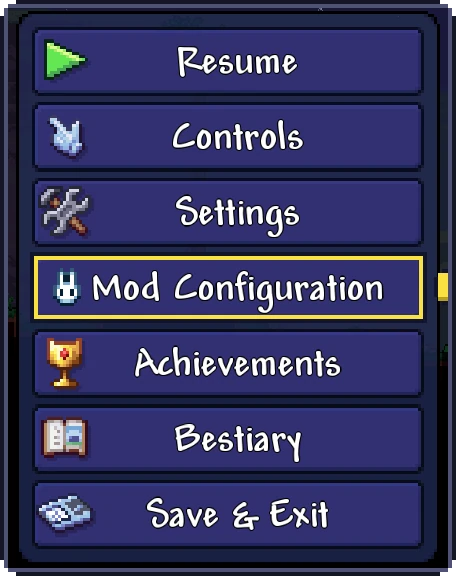
On the title screen, the same screen opens from Settings, in the Mod Configuration row. If none of your mods has options, Bunny Loader says so instead.
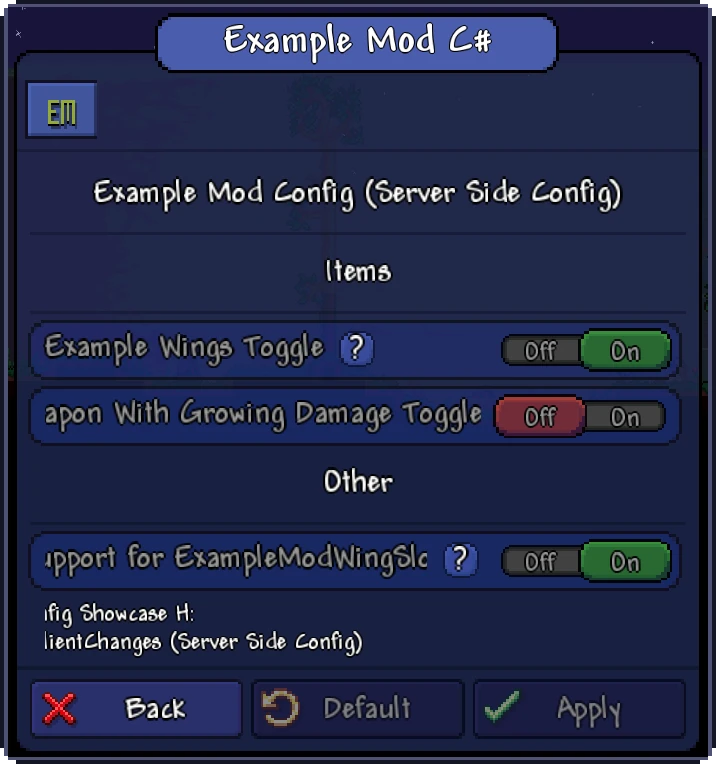
The row of icons at the top has one tab per mod with options; tap a mod's icon to see its options. Mods group their options under headings, and each option is a switch, a slider, a list to choose from or a color, depending on what it controls. A ? next to an option shows a longer explanation when you tap it. Long names scroll by themselves so you can read them whole.
Nothing changes until you tap Apply. Default puts the options of the current mod back to the values its author chose, and Back leaves without saving what you changed.
Some options only take effect when the game starts, because they change what the mod loads. When you change one of those, Bunny Loader tells you that the change needs a restart; use the Restart button of the Mod Menu, or close the game and open it again.
Mods have two kinds of options. Client side options are yours alone: how things look or sound on your screen. Server side options change the game for everyone, so they belong to the host. On someone else's server, those options are not shown, and only the host can change them. When the host uses values that need a restart on your side, Bunny Loader tells you when you join.
