Repository navigation
Saves and Backups
Mods add things to your world and your character: a sword in your inventory, a block in your house, an NPC in your town. Bunny Loader saves all of that next to your game's saves, in files of its own, so that your character and your world still open without the mod, and nothing is lost when a mod is turned off. This page explains where your saves are, how to bring saves in from Terraria, and how to back everything up.
Bunny Loader keeps its own characters and worlds, separate from the ones of the Terraria app. They live in Bunny Loader's folder on your phone:
Android/data/com.bunnyloader/        (com.bunnyloader.beta for the beta)
  Players/
    Bunny.plr              the character, as Terraria saves it
    Bunny.plr.bl           what the mods saved about it
    Bunny.plr.bak          the previous save, kept by the game
  Worlds/
    Wiki_World.wld         the world, as Terraria saves it
    Wiki_World.wld.bl      the mods' world data
    Wiki_World.wld.tiles.bl   the mods' blocks and objects
  bunny_packs/             your installed mods
The .plr and .wld files are plain Terraria saves, with only the game's own
content in them. Everything that comes from mods goes into the .bl files
next to them, by the name of the mod and of the thing it added.
If you open a character or a world while one of its mods is off or removed, the game still loads it. The mod's items become unknown items, shown with a question mark, and keep their place in your inventory; the mod's blocks and NPCs are left out of the world for now.

Nothing is thrown away. When you turn the mod back on, everything returns: the question marks become the items they were, and the blocks and NPCs come back where they were, unless you built something else in their place meanwhile. The one thing that breaks this is a mod renaming one of its items or blocks in an update, since the new name no longer matches what your save remembers.
To play a character or a world you already have, import it in the launcher:
Settings → Worlds and characters → Import world (or Import
character). Choose the .wld or .plr file, and, if the save comes from
another Bunny Loader, its .bl files too, all at once; without them, the
mods' content in that save is not there.
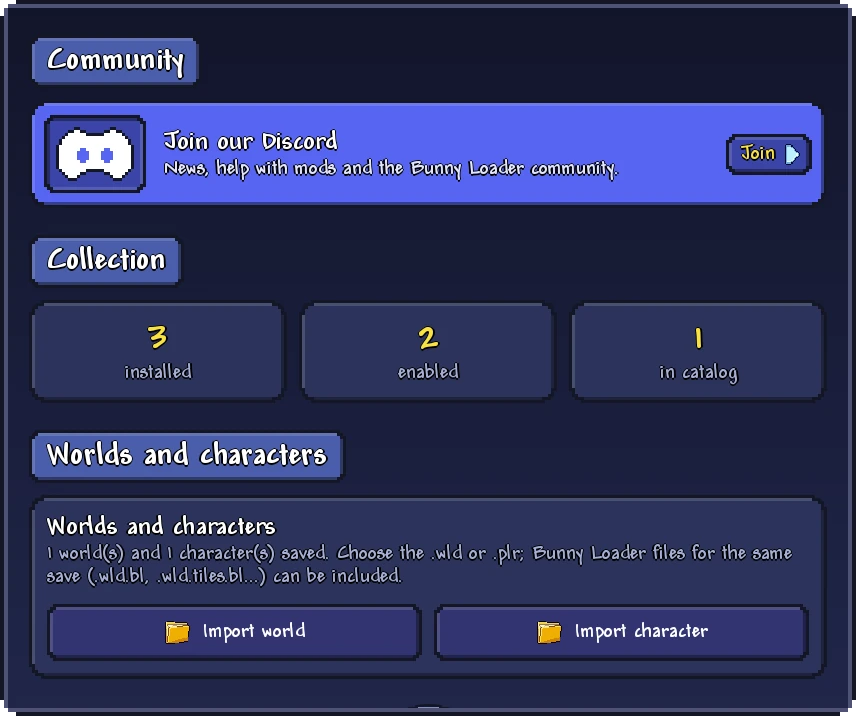
Close the game before importing: an open game may save over the file you just
brought in. Nothing is overwritten by an import: if you already have a save
with the same name, the imported one gets _2 at the end. Journey worlds only
open with Journey characters. The imported save shows up in the game's lists
and in Quick start.
The safest backup is a copy of the whole Bunny Loader folder,
Android/data/com.bunnyloader (or com.bunnyloader.beta): it holds your
characters, your worlds, your installed mods and their settings. Connect the
phone to a computer with a USB cable and copy the folder to it; on recent
versions of Android, file managers on the phone itself often cannot open
Android/data, so a computer is the easiest way.
Back up before uninstalling Bunny Loader, before installing a build that Android refuses to update (see Installing Bunny Loader), and before trying a mod that changes your world in a big way. To restore, copy the folder back while Bunny Loader is closed.
You can also take a single character or world to plain Terraria: copy its
.plr or .wld file into Terraria's saves. The game opens it normally, and
everything that came from mods simply is not there.
