Repository navigation
Connecting
Double-click a server, press Return, or use the connect button in the connection bar or the menu bar panel. V2Mac starts Xray-core with a local proxy on 127.0.0.1:10808 (SOCKS5 and HTTP on the same port).
There are three ways to send traffic through it:
| Way | What goes through | Needs |
|---|---|---|
| Manual proxy | Only apps you point at 127.0.0.1:10808
|
Nothing |
| System Proxy | Apps that follow the macOS proxy settings (browsers, most apps) | Helper approval |
| TUN | Every app and every DNS lookup | Helper approval |
The connection bar's address menu copies 127.0.0.1:10808, socks5://…, http://… and export lines for a terminal.
Turn on TUN in the connection bar or the menu bar panel. A virtual network interface then carries all traffic of the Mac, including apps without proxy settings and DNS. The choice is remembered; changing it while connected restarts the connection.
- Your servers' configs never run as root. A small, fixed root process (the forwarder) passes the tunnel's traffic to the normal core, which runs as you.
- Apple-signed builds use a privileged helper: V2Mac explains it first, then you approve it once in System Settings → General → Login Items & Extensions.
- Ad-hoc builds (the DMG and Homebrew) ask for your administrator password once per app session in a macOS dialog. V2Mac never sees or stores the password. If you close the dialog, the TUN switch turns into Give Access: click it to be asked again.
- In TUN mode apps are not identified, so app rules do not apply; host and IP rules do. See Routing.
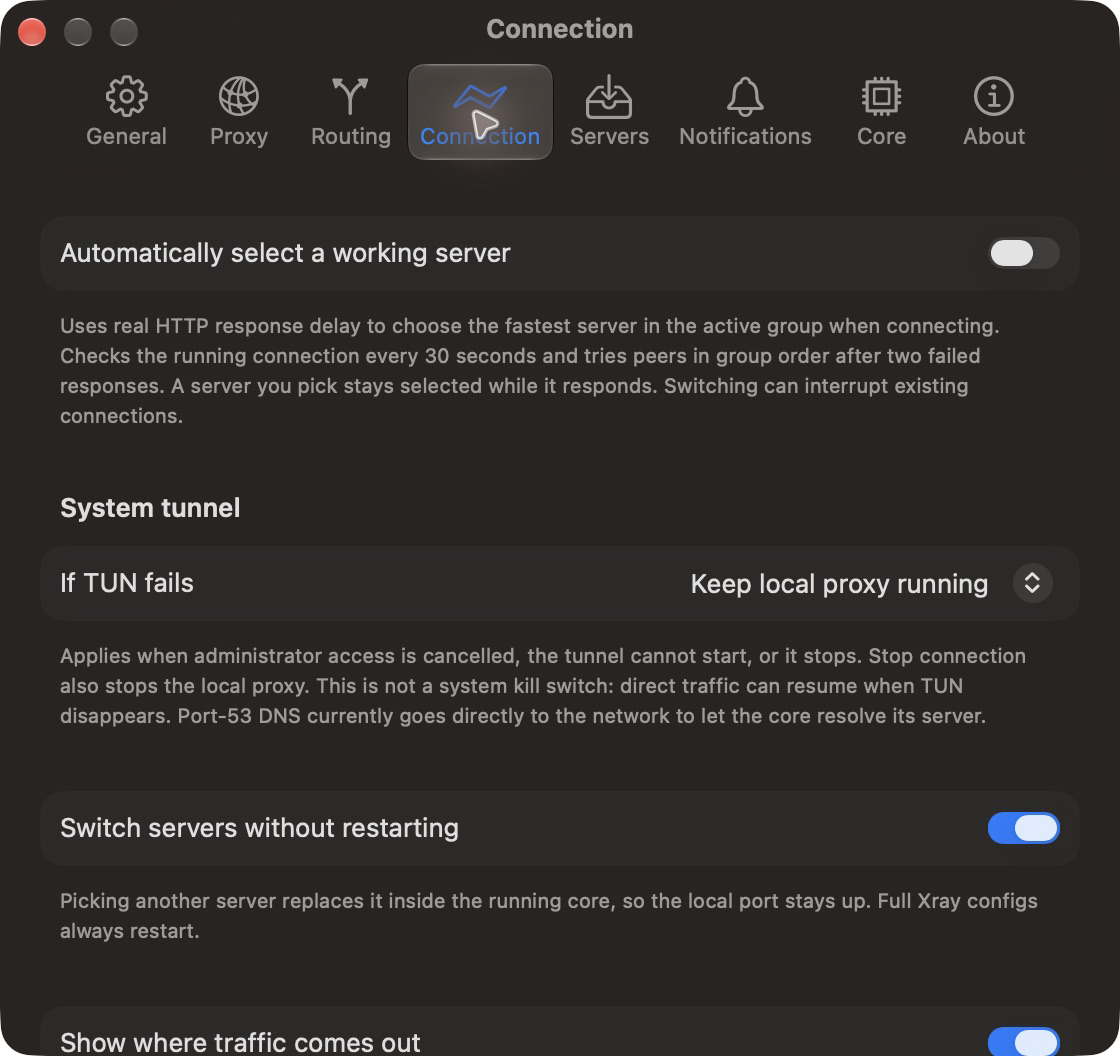
- If TUN fails (Settings → Connection): keep the local proxy running (default), or stop the connection.
The Proxy switch (connection bar), System Proxy (menu bar panel) or Settings → Proxy points the web, secure web and SOCKS proxies of every network service (Wi-Fi, Ethernet, …) at V2Mac. Local addresses and *.local are bypassed. Disconnecting or quitting turns them off again.
A dot beside the switch shows what the system uses right now: green for V2Mac's port, red for something else, grey for no proxy.
Settings → Connection → Kill switch (off by default). While a connection is wanted, the Mac can reach only your server: everything else is refused, also while the core restarts or if V2Mac crashes. It uses the macOS firewall (pf) in its own anchor and leaves your firewall rules alone.
- Always allowed: loopback, the TUN interface, DHCP, DNS, and the local network.
- With it on, Direct mode, bypassed regions and "without proxy" downloads cannot reach the internet.
- If V2Mac stopped unexpectedly, the block stays up. The next launch shows "Kill switch is blocking all traffic" with Allow Traffic. A reboot also clears it.
After every connect and server switch, V2Mac asks a public IP service (ipwho.is, ipinfo.io or Cloudflare) through the server where your traffic comes out. You then see:
- the flag, city, country and IP in the connection bar and the menu bar panel;
- the two-letter country code in a green badge on the menu bar icon.
If no service answers, the bar says "No answer through this server": the core runs but traffic is not passing. The check is skipped in Direct mode. Both the check and the badge can be turned off in Settings → Connection.
With Switch servers without restarting on (default), picking another share-link server swaps it inside the running core: open connections finish on the old server, new ones use the new one, and the traffic counters continue. Full JSON configs, TUN mode and any settings change restart the core.
Settings → Connection → Automatically select a working server (off by default).
- On connect, V2Mac tests the active server's group and picks the lowest real delay.
- Every 30 seconds it checks the connection through the proxy. After two failures it tests the group again and moves to the first server that answers, in group order.
- Every 3 minutes it moves to a faster server only if that one is at least 100 ms and 25% faster. In Low Power Mode it skips this and switches only away from a failing or slow server.
- Optional switch conditions: delay over a limit (default 1000 ms) twice in a row, or download under a floor (default 100 KB/s) for some minutes (default 2) while traffic is flowing.
- A server you pick by hand stays until it fails.
V2Mac restarts the core after a crash (with backoff), after sleep and after a network change (Settings → General), and reconnects on launch if you were connected when you quit.
All in Settings → Connection, off by default:
- TLS fragment: splits the TLS hello (or the first packets) into pieces with pauses. Helps on some filtered networks, breaks handshakes on others.
- Noise packets: sends random UDP packets before the connection.
- Custom DNS: your own DNS servers (default Cloudflare and Google DoH) and IPv4/IPv6 preference for the core.
-
Allow insecure servers: for servers whose link says
allowInsecure. V2Mac pins whatever certificate the server shows at connect time, because Xray no longer skips the check.
Settings → WARP registers a free Cloudflare WARP device (MASQUE). You can enter a WARP+ license key, then:
- Add WARP to Servers: adds "Cloudflare WARP" to Custom Configs as its own server.
- Send traffic out through WARP: chains WARP behind your active server, so sites see a Cloudflare address. Routing and rules are unchanged.
Registration goes through your proxy when connected, because the WARP API is often blocked. Some servers refuse WARP traffic.
With Count traffic usage on (Settings → General), the panel and connection bar show this session's data. Click it for session and total download and upload, and Reset Total.