Repository navigation
Servers and Subscriptions
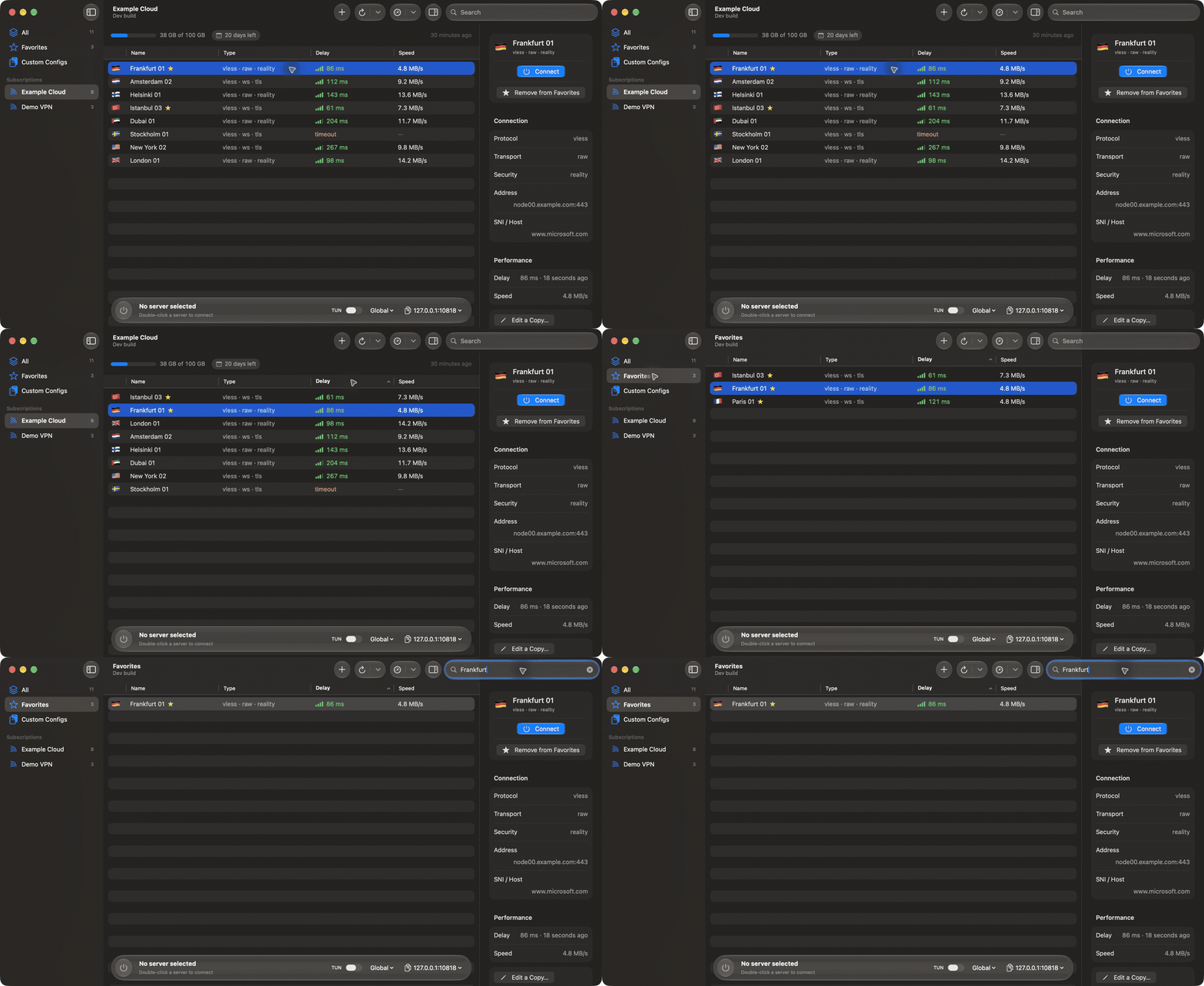
- Sidebar: All, Favorites, one row per subscription (with server count and a warning sign when its last update failed), and Recent (the last five servers you connected to). Drag subscriptions to reorder them.
- Server table: Name, Subscription, Type (protocol, transport, security), Address (hidden by default), Delay and Speed. Click a column to sort; ⌘F searches by name, address and type.
- Inspector (⌘I): the selected server's details, favorite, copy share link, QR code, edit, delay and speed, and live traffic for the active server.
-
Connection bar: connect button, active server, routing mode, local address with a copy menu (also shell
exportlines), live rates and the exit country. - Log panel (⇧⌘L): the core's log plus V2Mac's own events, with filter, search, Clear and Copy All.
| Way | How |
|---|---|
| Subscription | Add Subscription (⌘N), paste the URL. The group is created only if the download works. |
| Single link | Paste a vless://, vmess://, trojan://, ss://, hy2:// (and WireGuard, SOCKS, HTTP) link in the same sheet. It goes to Custom Configs. |
| Click a link | Share links and a provider's v2mac://install-config?url=… button open in V2Mac. |
| QR code | Paste a QR screenshot, or drop QR images on the window. |
| Files | Drop Xray JSON configs on the window. |
| By hand | Enter Details Manually… in the Add sheet, or File → New Server… (⇧⌘N). |
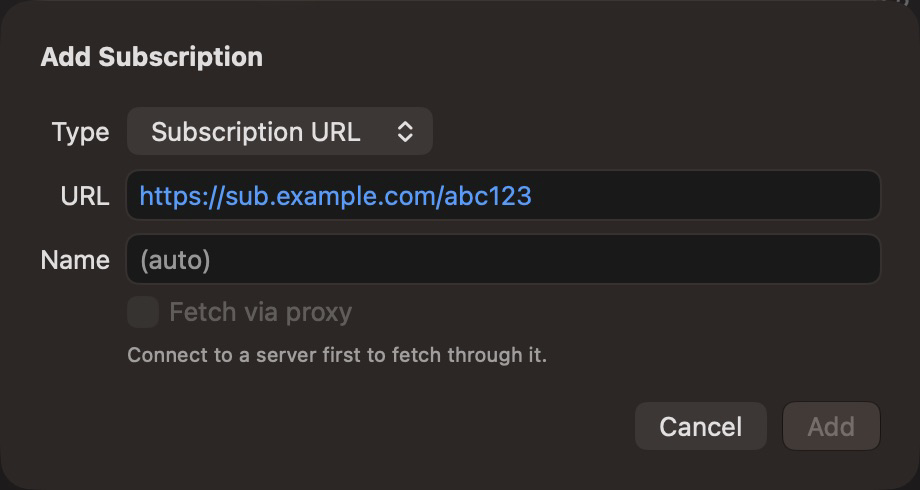
Supported subscription bodies: a list of share links, base64 of such a list, or Xray JSON (one config, an array of configs, or a single outbound). Clash / Mihomo YAML and sing-box JSON work too, as a subscription, pasted text or a dropped file: their VLESS, VMess, Trojan, Shadowsocks, Hysteria2, SOCKS and HTTP servers are read, the rest (TUIC, WireGuard) are skipped and counted.
Each subscription can have its own name, colour (tints its icon, tags and dots) and User-Agent.
- Manually: right-click a subscription → Update via Proxy or Update without Proxy (⌘R / ⌥⌘R). In All, the toolbar updates every subscription. "Via Proxy" needs a running connection.
-
Automatically: every 12 hours by default, or as often as the provider asks (
profile-update-interval). Turn it off per subscription (context menu → Auto-update) or for all in Settings → Subscriptions, where you also choose the route. - An update keeps each server's identity, so your active server, selection and favorites survive. A server the provider removed disappears, except the active one and favorites.
When the provider sends it, the group header shows traffic used, total and the expiry date. V2Mac notifies you 3 days and 1 day before expiry and at 80%, 95% and 100% of the quota.
Star a server from its context menu or the inspector. Favorites in the sidebar lists them across all groups. An update never deletes a favorite: if the provider drops it, it stays, marked "Removed from subscription", and a manual update asks whether to Remove or Keep it.
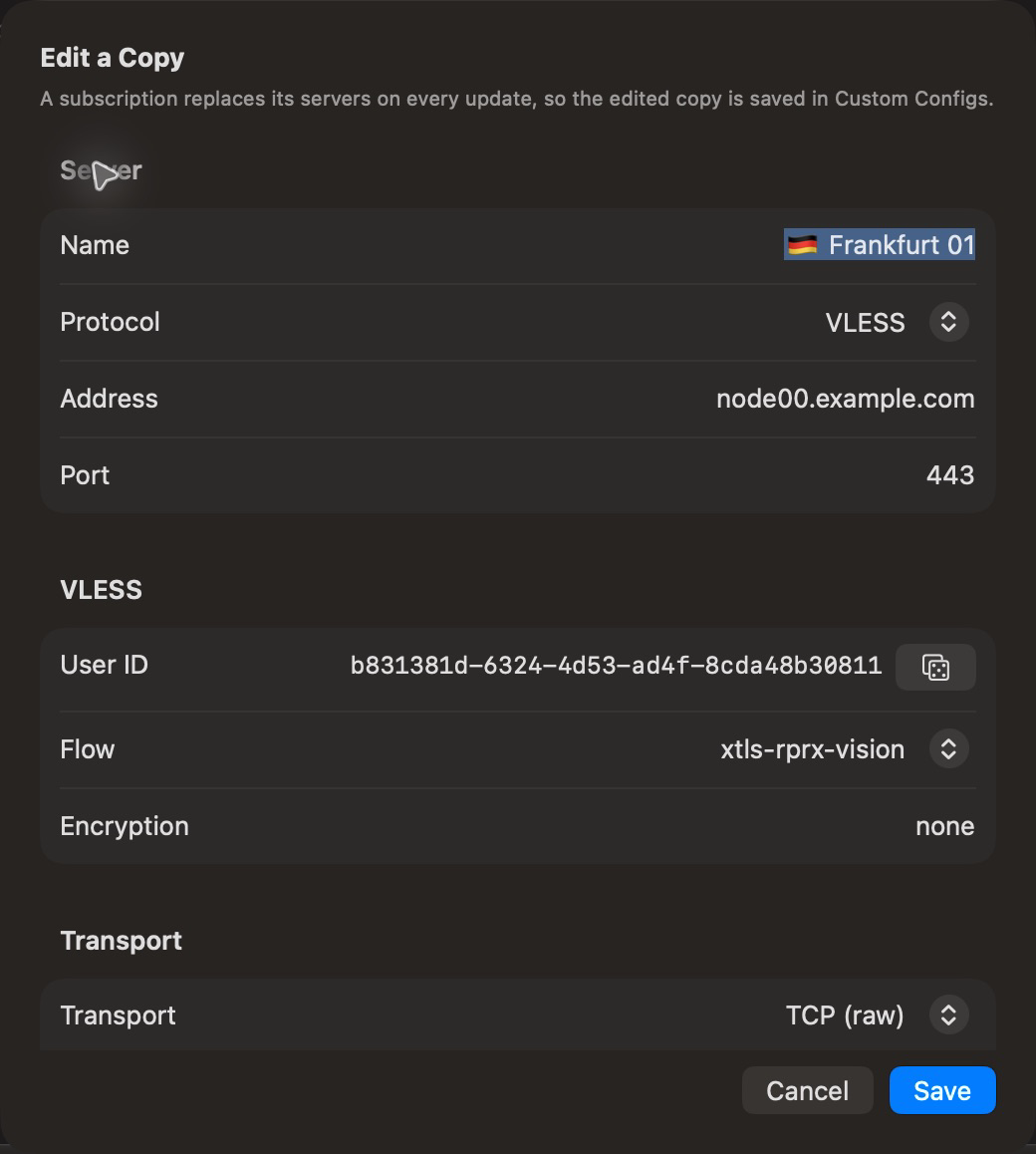
Edit… (⌘E) opens the server editor with every option: protocol, address and port, user ID or password, transport (raw, WebSocket, gRPC, HTTPUpgrade, XHTTP, mKCP), security (TLS or REALITY with all their fields) and Mux. Full Xray configs and unknown protocols are edited as JSON.
- A pasted server is changed in place. If it is active, the connection restarts with the new details.
- A subscription's server would be overwritten by the next update, so its menu says Edit a Copy… and saves the copy in Custom Configs.
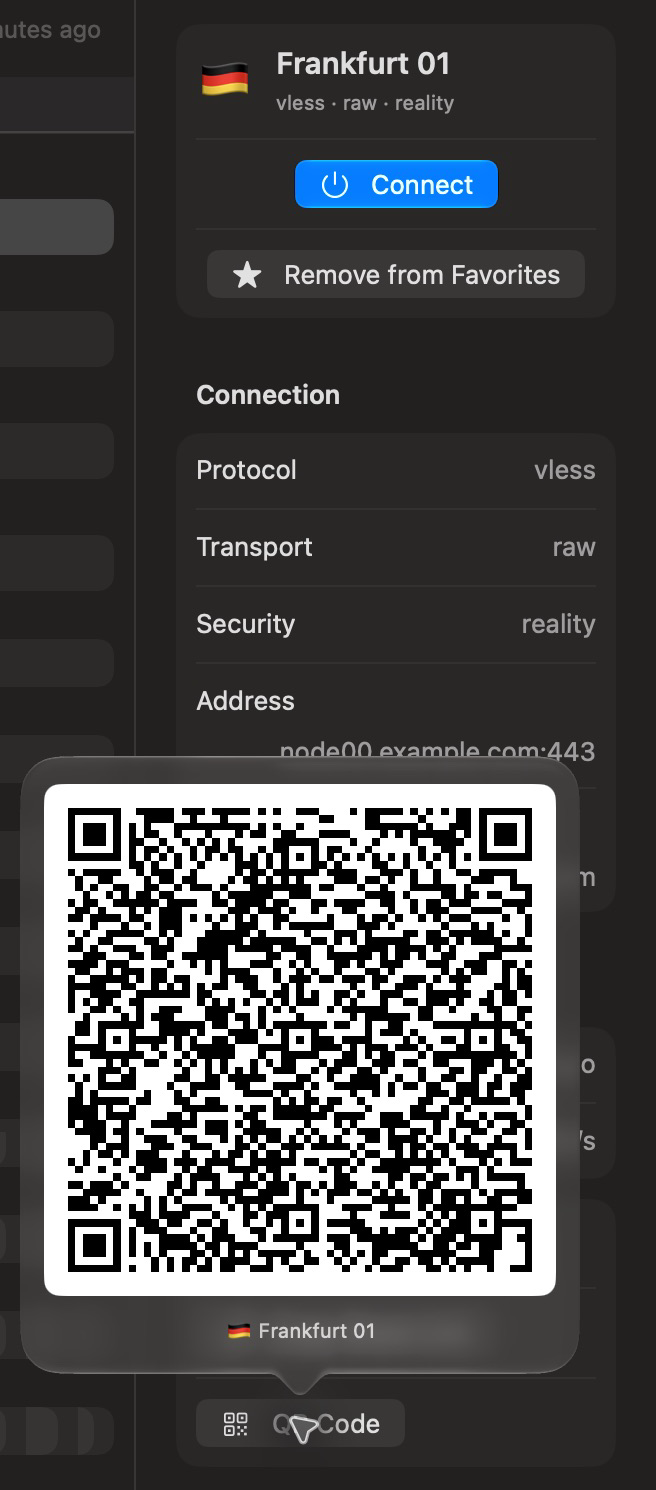
Copy Share Link and Show QR Code in the context menu or inspector. Edited servers get a new link when one can describe them; full JSON configs have none.
For servers behind Cloudflare's CDN (VLESS, VMess or Trojan over WebSocket, gRPC, XHTTP or HTTPUpgrade, with a domain name), right-click the server and choose Find Clean IP….
- 200 random Cloudflare addresses are pinged on the server's port.
- The 16 fastest are tried through the server itself, with its domain kept as SNI and Host.
- Pick an address and click Add as New Server. It goes to Custom Configs as " · "; the original server is left as it is.
If nothing gets through, the server may be down or its domain blocked; try Find Settings for TLS fragment too.
-
Real delay (⌘T): an HTTP request through each server to the test URL (default
https://www.wikipedia.org, timeout 8 s, 32 at a time). The first request opens the connection; the second one is timed, so the number is one round trip, like other clients show. - TCP ping: only checks that the server's port answers. Shows "n/a" for UDP servers (Hysteria2, WireGuard, mKCP) and full configs.
- Speed: a download test through the server.
Tests act on the selected rows, or on every visible row when nothing is selected. Delay is green under 300 ms, amber under 800 ms, red above, or "timeout" / "invalid". Tests never touch the running connection. A test started while another runs waits its turn; Stop cancels all.