Repository navigation
Using The Application
Published from
_docs/02-using-the-application.md— edit it there, not here. Changes made in the wiki are overwritten on the next sync.
Moving around the twin, and the controls. For installing the toolchain, see 01 · Setup.
- Download the
.ziparchive from the latest release. - Extract it on your local machine.
- Start the
.exefrom the archive folder. - The launcher opens. Pick a demo scene and press Start (or double-click it). Only MIL runs on its own; Beckhoff and Siemens need their control platform running first.
Open the project in Unity and load the scene for the control platform you are using. Scenes live in
Unity/Assets/Demo_1/Scenes/.
| Scene | Use it for |
|---|---|
Launcher (in Unity/Assets/Launcher/Scenes/) |
The entry point of the built application — lists the three scenes below and loads the one you pick |
VC_Demo_1_MIL |
MIL — the twin on its own, no PLC. Needs nothing else installed |
VC_Demo_1_Beckhoff_1 |
Running against the TwinCAT PLC. Adds the Beckhoff operator panel |
VC_Demo_1_Siemens_1 |
Running against the TIA Portal PLC on PLCSIM Advanced. Adds the Siemens operator panel |
With a PLC, start the runtime first, then enter Play mode. The twin binds its devices on connect, so a runtime that appears later is a runtime the twin never found. The rest of that procedure is 04 · PLC connectivity.
| Input | Does |
|---|---|
| Right click + drag | Rotate the view |
| Middle click + drag | Pan the view |
| Scroll wheel | Zoom in / out |
| Right click + WASD | Move the camera forward, backward and sideways |
| Right click + Q/E | Move the camera down / up |
Left click on an object to select it. Selection has to be enabled first — turn on Interaction Mode in the left side panel.
Left click buttons, sliders and other UI elements.
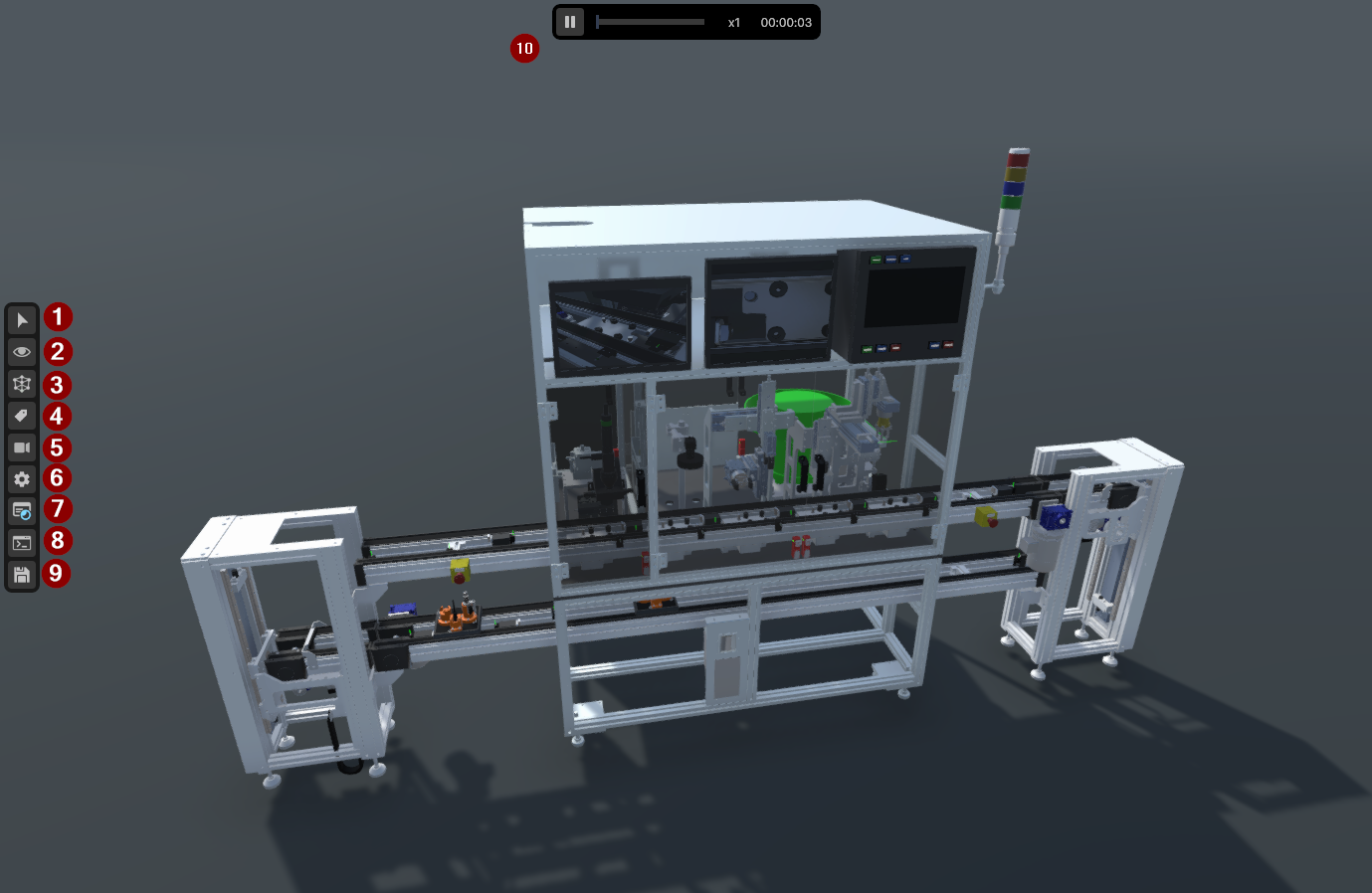
The interface has three main operating modules, numbered in the picture above. Press F4 to hide all of it and show only the scene — see 4.1 Hiding the interface.
| # | Tool | Does |
|---|---|---|
| 1 | Interaction Mode | Activates selection of and interaction with objects in the scene |
| 2 | Hide Menu | Show or hide the geometry of specific parts of the model |
| 3 | Material Flow | Show or hide the material flow collision bodies |
| 4 | Label Menu | Show or hide the labels in the scene |
| 5 | Camera Menu | Jumps the camera to a predefined position |
| 6 | Settings Menu | Show or hide the scene settings |
| 7 | Macros | Project-defined action buttons |
| 8 | Console Menu | Show or hide the scene console |
| 9 | Save / Load | Save and restore the component layout |
Pause the application, or use the time factor slider to change the simulation speed. The panel also shows the elapsed run time.
Shows or hides the predefined industrial HMIs — the operator panel and the monitors modelled on the machine itself.
| Key | Does |
|---|---|
| Selection + F | Jumps the camera to the selected object in the scene |
| F4 | Hide or show the whole user interface |
| F12 | Switch between full screen and windowed mode |
| ESC | Exit the application |
F4 hides every UI element at once — the left side panel, the time panel, the industrial panels, tooltips and any open windows — and leaves only the 3D scene, for screenshots, recordings or a clean view of the machine. Press F4 again to bring it back.
- It works in every scene, the launcher included.
- While the interface is hidden, clicks go to the scene. The camera controls in 2.1 still work.
- Hiding only changes what is drawn. Panels keep their state, and the machine keeps running.
- Loading another scene always shows the interface again.
What operates the machine depends on which scene you opened, and the difference matters more than it looks — MIL and the PLC scenes do not implement the same machine.
In VC_Demo_1_MIL no control system is involved: C# coroutines under
Unity/Assets/Demo_1/Scripts/MIL/ drive the devices directly, so the line runs by itself. Useful
for showing the machine, checking geometry, or working on the twin with nothing else installed.
Do not read the machine's behaviour out of the MIL scripts. They are the twin's animation and implement an older contract — no transfer latch, no check that a lift is at a level before running its carriage belt, and no reset path at all. A handshake copied from them reproduces bugs that have already been fixed. The behaviour that counts is written down in the behaviour contracts, and the control program is master for it.
In a vendor scene, nothing in Unity decides what the machine does — every motion is commanded by the control program, and the twin only reports its sensors back. Operate it from the on-screen control panel, or from the platform's own HMI.
Each platform's panel is different, because each scene adds its own. The Beckhoff scene carries eight PackML buttons; the Siemens scene carries seven controls including a rotary switch. How to actually run the sequence belongs to the platform:
| Platform | How to run it |
|---|---|
| Beckhoff / TwinCAT | Beckhoff usage guide |
| Siemens / TIA | Siemens framework guide — first steps and machine startup |
| Your own | 04 · PLC connectivity |
Every device on screen has a name and a PLC path, and both are documented:
- Turn on Label Menu (tool 4) to see the names in the scene itself.
- The figure and device table for each group — the machine pages.
- Every twin device in one table — devices and PLC paths.