Repository navigation
AI in Contrack is optional. This page says what each AI feature does and sends, how to connect a provider and research contacts, and how to turn AI off.
Each AI feature runs on one or two models. An admin picks each model once, and every feature that uses it follows (see Models).
| Feature | What it does | Model | What it sends |
|---|---|---|---|
| Ask Contrack | Plans the search for a question, checks each match, and gives the reason | Fast model | The question. For up to 30 candidates: the profile fields, tags, addresses, and the matching passages of the summary, jobs and schools |
| Group brief | Synthesize these results writes a short brief about the people a question found | Fast model | The question, and each match's name, role, company, industry, location and reason |
| Briefing | Writes three points to read before a conversation, on the contact's Dossier tab | Fast model | The contact's name, role, company, headline, summary, location, preferences and last contact date, and its latest 15 timeline entries |
| Daily insight | Writes one observation about your network on Pulse | Fast model | Contact counts, the industry, role and location mix, and the names of your most and least active contacts and of those not reached in 60 days |
| Add from text | Reads pasted text, such as a signature or meeting notes, into the new contact form, with tags and past interactions | Fast model | The text you paste |
| People named in notes | Finds the people a saved note names, and links each one to a contact or a new ghost | Fast model | The note text |
| Email file summary | Summarizes an .eml file that you attach to a contact's timeline |
Strong model | The email's text |
| Mail summaries | Writes a short note for each matched email, when a Mailbox (IMAP) or Google Workspace connector has Generate AI summaries on | Fast model | Each email's subject and body |
| Contact research | Searches the web for a contact and fills empty fields | Web search, then Fast model | The contact's name, role, company, headline, city, addresses, industry, website, summary, emails, profiles, jobs, schools, interests, facts and import sources |
| Duplicate checks | Check now on Settings → Duplicates asks about pairs that look alike but are not certain | Strong model | Both contacts' names, companies, roles, locations, emails, phones and import sources |
| Search by meaning | Turns each contact into numbers, so Ask Contrack and duplicate checks can compare people by meaning | Embedding model | Nothing with the built-in model. A hosted model gets each contact's profile text, but not for an account with AI off |
Research never sends your notes or phone numbers.
With no provider connected, Contrack keeps working:
- Ask Contrack answers from the local index with the built-in model. It marks the results that no model checked Not verified by AI.
- The command palette, facets and note search run on the server.
- Duplicate checks run with no model. Check now keeps the strongest close pairs for you to review, see What counts as a duplicate.
- An
.emlfile that you attach is saved with no summary.
The other features in the table need a provider.
Every AI setting of the instance is on one page, Settings → Administration → AI. Only an admin opens it. With sign-in off, you are the admin.
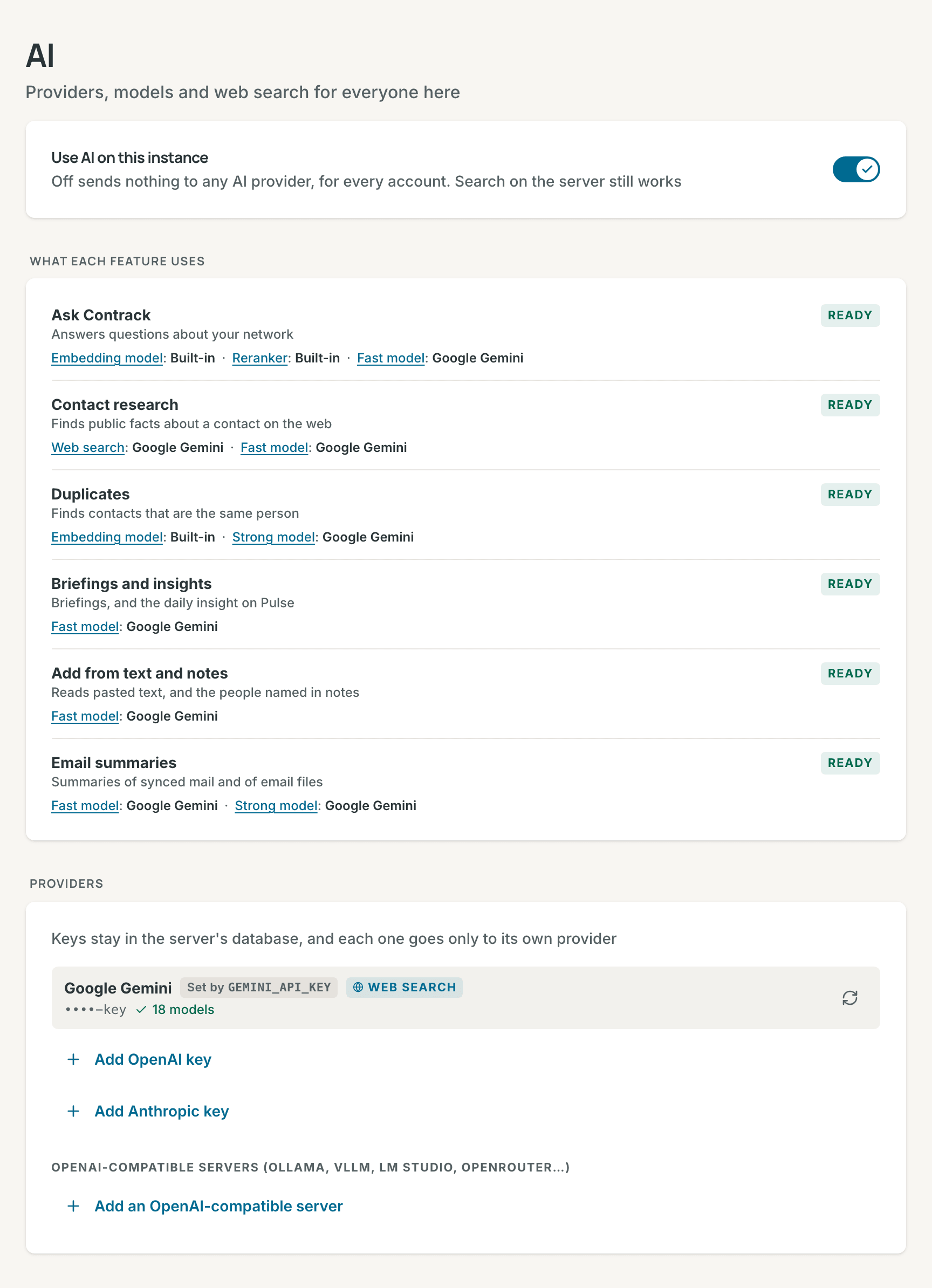
The page has five parts, in this order:
- Use AI on this instance: the switch that overrules everything below it (see Turn AI off).
- What each feature uses: each feature, whether it works now, and what it runs on. A feature is Ready, Limited (it works with less, such as Ask Contrack with local search only), Off, or Needs setup. Each part links to the control that changes it, and a reason links to its fix, such as Choose a Fast model. With no provider, it says that only the local features work, and links to Add a key.
- Providers: the keys, and the OpenAI-compatible servers.
- Models: the Fast model, the Strong model, the embedding model and the reranker (see Models).
- Web search: what contact research searches with (see Web search).
Settings search finds each control by its name, and by its old one, such as "Quick tasks" for the Fast model.
Only an admin can connect a provider.
- Open Settings → Administration → AI.
- Under Providers, choose Add Google Gemini key, Add OpenAI key or Add Anthropic key.
- Paste the key and choose Connect. Contrack checks the key by loading the provider's model list.
One key is enough: every task then runs on Automatic. Get a key from Google AI Studio, the OpenAI Platform or the Anthropic Console. Contrack stores the key encrypted and sends it only to its own provider.
A provider row shows the last four characters of the key, the number of
models, and Web search when the provider's models can search the web. A
key in GEMINI_API_KEY, OPENAI_API_KEY or ANTHROPIC_API_KEY wins over a
saved key, and its row says which, such as Set by GEMINI_API_KEY (see
Environment Variables).
Note: On Google's free tier, Google may use prompts and responses, contacts' details included, to improve its products. When Google says that a key is on the free tier, its row shows a warning. Use a key from a Google Cloud project with billing.
An OpenAI-compatible server speaks the OpenAI API format, such as Ollama, vLLM, LM Studio, llama.cpp, OpenRouter, xAI, DeepSeek or Mistral. Add a model server on your own network this way.
- Under OpenAI-compatible servers, choose Add an OpenAI-compatible server.
- Fill in ID (letters, numbers and hyphens), Name and Base URL,
such as
http://alpha:11434/v1. Fill in API key (optional) only when the server needs one. - Choose Connect. Contrack loads the server's model list.
When the row says "No models found", check two things, then choose Refresh the model list:
-
The base URL ends with
/v1. Ollama serves its OpenAI API athttp://<host>:11434/v1, not at the root. -
In Docker,
localhostis the container. Usehttp://host.docker.internal:11434/v1or the host's network address. On Linux, start the container with--add-host=host.docker.internal:host-gatewayto make that name work. Ollama must listen beyond its own machine: setOLLAMA_HOST=0.0.0.0where it runs.
An OpenAI-compatible server can run the Fast model, the Strong model and the Embedding model. It cannot be the Web search model, but SearXNG can search the web in its place.
Each model serves several features. Choose it once, under Models, and every feature that uses it follows. Each row says which features use it.
| Model | What it serves | Default |
|---|---|---|
| Fast model | Quick, frequent work: Ask Contrack, briefings, the daily insight, Add from text, people named in notes, mail summaries, and filling the fields of contact research | Automatic |
| Strong model | Rarer, harder work: email file summaries, the AI duplicate checks, and reading SearXNG's pages | Automatic |
| Embedding model | Search by meaning, and close matches in duplicate checks | Built-in (recommended) |
| Reranker | Puts Ask Contrack's best matches first. It runs on the server, and only SEARCH_RERANK_MODEL changes it |
Built-in |
The Web search model is under Web search, with the switch and SearXNG it works with.
Automatic tries the provider in AI_PROVIDER first (gemini by default),
then the others. A built-in provider takes its newest small model for the
Fast model, and its newest mid-size model for the others. An
OpenAI-compatible server uses the first chat model in its list. The line under
each select names the model that runs. Model lists load when you save a key and
once a day, so new models appear without an update.
To pin a model, choose it and then Save. For Gemini, OpenAI and Anthropic, Contrack first sends the model one small test request, and keeps the old choice when the model does not answer. An embedding model on any provider must first return one test embedding. When a pinned model cannot run later, the line under it says so, and names what runs in its place.
The AI_QUICK_MODEL, AI_DEEP_MODEL, AI_RESEARCH_MODEL and
AI_EMBEDDINGS_MODEL variables set a model from the environment. A set
variable takes the place of the default, so the Fast model's select reads
From AI_QUICK_MODEL in place of Automatic. A model pinned in the app
wins over the variable (see AI).
The built-in model runs on the server, costs nothing and works offline. A hosted model can rank better on a large network, but it gets every contact's profile text. With Gemini, Contrack tells the model what each text is for: a question, a contact or a duplicate check. The model then ranks each one the right way.
When you save a different model, Contrack rebuilds the search and duplicate indexes in the background. Results are incomplete until it finishes. The Search by meaning card under the model shows the progress.
A hosted model's provider bills each contact it reads, so Contrack asks first. New and changed contacts wait until you choose Index missing or Refresh index on the card, then Update the index. A hosted model never gets the contacts of an account with its AI switch off. Ask Contrack finds that account's people by their words only.
Contact research searches the web for a person and fills empty fields: roles, schools, a city, profiles and other facts. It needs a web search model (Gemini, OpenAI or Anthropic), or SearXNG. It never runs for archived contacts or ghosts.

| Depth | What it does | Time and cost per contact |
|---|---|---|
| Standard | One search for roles, schools, city and profiles | About 20 s and $0.08 |
| Deep | Adds a second search that reads further | About 30 s and $0.13 |
The depth tiles show time and cost only while Gemini's own search runs research. The question mark beside Depth compares the cost per contact on Google, Anthropic and OpenAI, at 2026 list prices. Google's figures were measured, and the other two are estimates from the same searches and tokens. Only Google gives free web searches: the first 5,000 each month.
- Open Settings → Contact enrichment.
- Check the Web search engine at the top of the page (see Choose the web search engine). Every research you start searches with it.
- Choose the Depth. It starts at Standard each time.
- Narrow the list. The Contacts row offers All, Tracked, Has links, Has email and No data. The Research row offers Any, Not yet, 6+ months ago and Found nothing. A contact shows when it matches both rows.
- Select up to 100 contacts, or choose Select all.
- Choose Start enrichment. With Gemini's own search, the line under the button shows the time and cost of the batch.
- Check the dialog, and choose Search with the number of contacts, such as Search 12 contacts. With SearXNG or both, the dialog names the engine and what it costs.
A row's badge says New, the date of the last research, No page or Error. The progress panel opens at the bottom right, and each update saves as its contact finishes. Stop research stops the batch, but a provider may still bill a request that it already took.
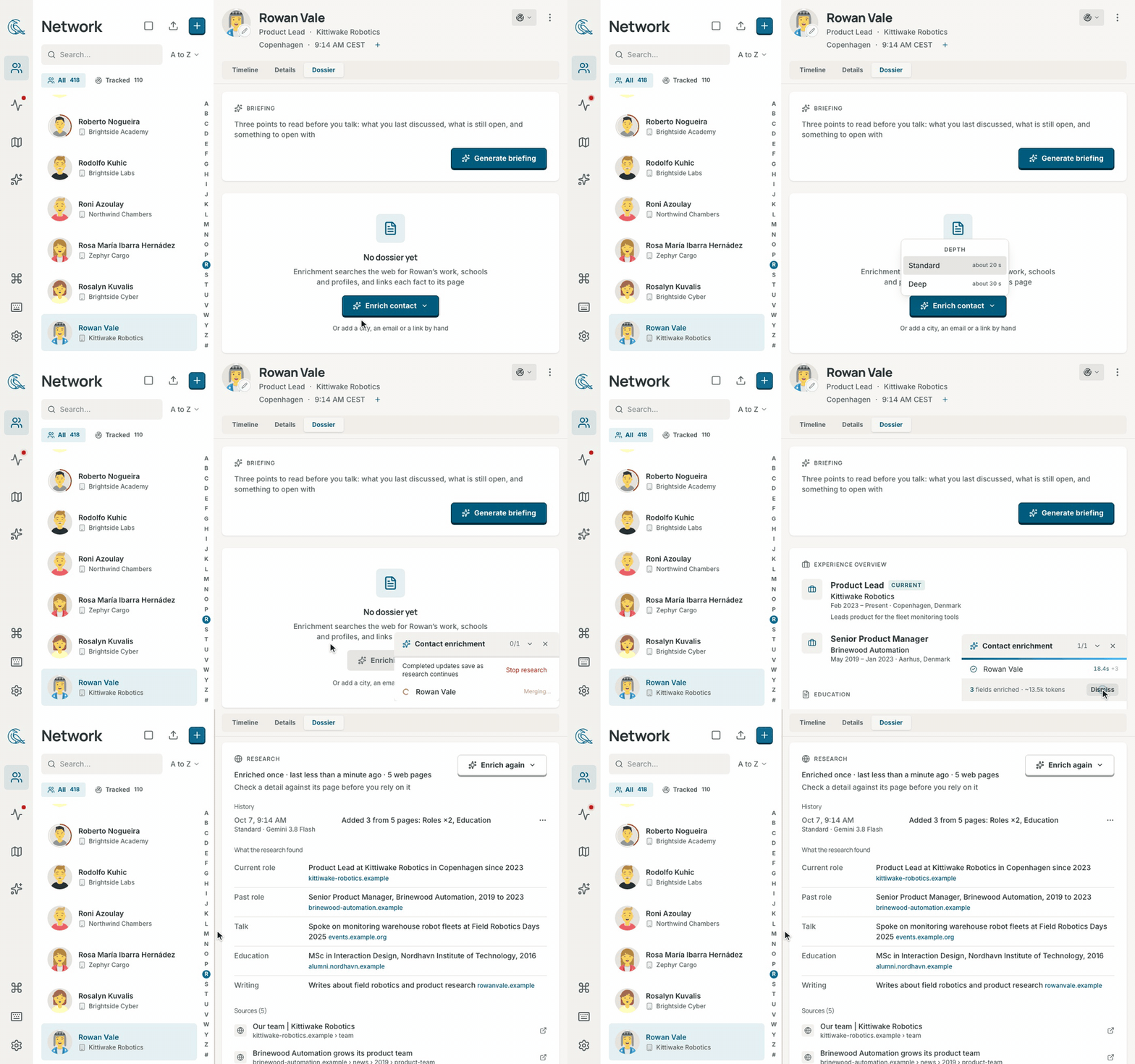
- In the contact's actions menu, point at or tap Enrich contact and choose Standard or Deep. On the Dossier tab, Enrich contact and Enrich again open the same menu with both depths. One contact needs no confirmation. When research searches with SearXNG or both, the menu's heading names it, such as "Depth · with SearXNG".
- Turn on Enrich new contacts automatically on the Contact enrichment page, and Contrack researches each contact that you add yourself, in the app or through the REST API, at Standard depth, with the web search engine. It leaves out the contacts that a file import, a connector sync or an MCP client adds. It is off by default.
Research fills only empty fields and adds new list entries. It never changes a value that you already have, and it does not add back an entry that you removed. It keeps what a page about the person states, with no topic left out. An email, a phone number or an address it keeps only when it is the person's own, never an employer's main line, mailbox or office. When you edit the contact while research runs, Contrack drops the result.
Research leaves out what says nothing about the person: a site's front page
given as a profile, such as https://medium.com, a mailbox such as info@,
a job posting, and a list item that only says nothing was found. A job or a
school worded two ways is added once: "Editor, Writer" and "Editor and
Writer", or "Example University" and "Harbor School of Engineering at
Example University". A later run adds new items to a list an earlier
run made, such as Publications, and leaves a list you wrote alone.
A run that finds nothing beyond what the contact already says records No web page about this person. It saves no headline, industry or tags of its own, and no pages.
The Research card on the Dossier tab lists each run under History, each fact beside its page, and every page under Sources. Check a fact against its page.
When the last run found no page, or two details or fewer, the card says No web page matched or Research found little. It then offers up to three details that tell the person apart from others with the name, in this order: Add a school, Add a city, Add a former name, Add a work email and Add a link. A school and a former name are typed in the card. Save and search saves the detail and searches again at once, at the last search's depth. A city, a work email and a link open their field on the page, and Search again appears in the card once you add one. Enrich again looks in new places and adds only new facts.
When a search found someone else with the same name, open the menu beside that search under History. Choose Not and the contact's first name, such as Not Rowan. The dialog says what the search added. Take back removes each detail it added that you have not changed since. Later searches leave out its pages and never add those details again. The card then offers a detail to add and Search again.
Research says no page matched only after the web search model searched. When the model answers without a search, Contrack asks once more. When it still does not search, Contrack records nothing and shows "The web search model did not run a web search for this contact". When the model sends no answer at all, the message is "The web search model returned no answer". Try again, choose another Web search model, or search with SearXNG or both. A contact never researched stays under Not yet.
Research searches the name the way pages write it. It leaves out credentials such as ", CPA", tries the name without a middle initial, and spells a surname from the LinkedIn handle when the name ends in an initial. It also searches a former name that you add, which is saved as the Former name fact. It never searches a placeholder employer such as "Stealth Startup".
- A batch holds up to 100 contacts, and they run one after another. One contact may take up to 4 minutes at Standard and 5 minutes at Deep.
- One batch runs on the instance at a time, because every account shares the provider key. Your next start joins your batch. Another account's start waits: "Another user's enrichment is running. Try again in a moment".
Contrack calls a provider only when every switch allows it.

- For your account: in Settings → Privacy and AI, turn off Use AI for my account. The What each feature uses card on that page shows what runs each feature, read-only.
-
For the whole instance: an admin turns off Use AI on this instance in
Settings → Administration → AI. Then no call to an AI provider leaves the
server, for any account. Stored keys stay.
AI_DISABLED=trueholds this switch off. - For web search only: an admin turns off Allow web search (see Web search). Contact research then refuses to start, and every other feature keeps working.
On an instance with one account, that account is the admin, so two switches would do one job. Privacy and AI then shows one switch, Use AI, which is the instance's switch. Turning it on also turns the account's own switch back on.
With a hosted embedding model, turning AI off for the instance moves search to the built-in model. Turning it on again embeds every contact with the provider.
With AI off for you or for the instance:
- Ask Contrack still answers from the local index, and the built-in embedding model keeps working.
- The other features in the table do not run. Their controls are hidden, or they say that AI is off.
- On the Duplicates page, Check now finds exact matches only, and the card says why. The automatic checks of new contacts and imports still run.
- A link that you paste into a note gets no preview: its card shows only the address.
- An
.emlfile that you attach is saved with no summary. - A search that an MCP client runs with your token answers from the local index, as Ask Contrack does.
Each provider bills its own key. The app shows estimates at list prices.
- A member opens Settings → AI usage, or View usage on the Privacy and AI page.
- An admin opens Settings → Administration → AI usage. Mine shows the admin's own use, and All users adds a By account table.
The page shows AI calls, Tokens used with an estimated cost, and Reused answers, the share of calls answered from saved answers. A reused answer costs nothing. The Activity feed lists each call of the last 30 days, and Saved answers by feature shows the saved answers of each feature. In All users, the feed names the account of each call, but not what the call was about.
Two badges can show at the top. Simulated calls means that no call reached a provider. Gemini free tier means that Google answered with a free-tier limit, and the page then shows no cost. Admins also see Research runs, last 24 hours on the Contact enrichment page.
Limits and busy answers:
- Each account can send 30 AI requests a minute, and each network address 60. Past that, Contrack says "Too many requests" and how many seconds to wait.
- The server runs two AI calls at a time, and Ask Contrack has two more of its own. Up to 16 more calls wait. Past that, Contrack says "AI is busy. Please try again shortly."
- When Gemini says that a model on Automatic is over its limit, Contrack pauses that model for the time that Google asks, and uses another model. A pinned model is not paused. Instance health shows Models paused and Gemini web searches today.
- A provider gets data only when an AI feature runs, and only for its own task. What AI does lists what each feature sends. A model list request and a model test send no contact data.
- Full-text search and search by meaning run on the server, unless an admin picks a hosted embedding model.
- For web search, the provider searches the web with the contact's details. With SearXNG, your SearXNG runs the searches, and Contrack reads the pages. Research reads both AI switches and Allow web search before every model call and every web search, and again when a model call leaves the AI queue. When AI is turned off during a run, the run stops at its next call, and a batch researches no more contacts.
- A download of the local search models sends no contact data.
- With Use AI for my account off, nothing goes to a provider for you,
even while AI is on for the instance. This includes the notes that you save,
the
.emlfiles that you attach, your connectors' mail summaries, the searches that an MCP client runs with your token, and your contacts' text for a hosted embedding model. - Privacy lists every outside service that Contrack can reach, AI and others.
- Contact fields, notes, email files and web pages go into a prompt inside a marked block. The model is told that the block is data, never instructions.
- Each answer must match the shape that Contrack asks for. Contrack cleans each value and cuts it to length before it saves it, and drops a value that repeats injected instructions.
- For each Ask Contrack match, the model quotes one of the contact's fields. The server checks the quote and writes the reason from it.
Contact research searches the web with an engine. The Web search part of Settings → Administration → AI holds everything it needs:

| Setting | What it does |
|---|---|
| Allow web search | Off stops every web search: the web search model's and SearXNG's. Contact research then refuses to start |
| Web search model | A model that searches the web itself. Only Gemini, OpenAI and Anthropic models can |
| SearXNG address | Your own SearXNG search engine. SEARXNG_URL sets it and locks the field |
| Web search engine | What contact research searches with: the web search model, SearXNG, or both |
| Engine | What it does | What it costs |
|---|---|---|
| The provider, such as Google Gemini | The web search model's own search | The provider bills each search |
| SearXNG | Your SearXNG searches, and the Strong model reads the pages | The searches are free. A hosted Strong model bills the reading |
| Both, such as Google Gemini and SearXNG | Both at once, and the facts of both are kept | Both |
The engine is one choice, shown where it is set and where it is used:
- An admin sets the instance's engine under Web search.
- Contact enrichment shows it too. On an instance with one account, it is the same value: change it on either page. With more than one account, each account chooses its own there, and Instance default follows the admin's.
An engine that cannot run stays in the list, dimmed, and says what it lacks, such as "Needs a SearXNG address". The line under the tiles says what research does about it. On Contact enrichment, it also says what to do: a link for an admin, and "Ask your admin to set it up" for a member. When the chosen engine cannot run, research searches with one that can, and does not fail.
SearXNG is a search engine that you host yourself. With an OpenAI-compatible server and the built-in embedding model, Contrack then needs no cloud AI.
- Run SearXNG with JSON answers on: add
jsontosearch.formatsin itssettings.yml. Without it, every search answers 403, and research fails with "SearXNG returned 403 Forbidden". For a SearXNG that only Contrack calls, turn its bot limiter off (server.limiter: false). - Under Web search, enter its address in SearXNG address, such as
http://127.0.0.1:8888, and choose Save. A cloud metadata or a link-local address is refused.SEARXNG_URLsets it from the environment instead, and wins over a saved address. - Choose a Strong model, such as one on an OpenAI-compatible server.
- Under Web search engine, choose SearXNG, or the engine that names both, such as Google Gemini and SearXNG.
For each contact, SearXNG runs the searches that research with a provider would start with: three at Standard and six at Deep, all at once. Contrack takes the results from each search in turn and reads only the ones whose title or snippet names the person, and whose address, title, snippet or page shares a detail with the contact: an employer, a school, the city, a role of two words or more, or the LinkedIn handle. When the contact has a LinkedIn profile, another person's LinkedIn profile is left out. It reads up to five pages in full at Standard and ten at Deep, from public addresses, and up to twenty more by their snippet. A page that does not load, such as a LinkedIn profile, keeps its snippet and gives its place to the next result, up to three tries for each page. The Strong model reads them into facts, each beside the address of its page, and the Fast model fills the fields. With no Fast model, the Strong model fills them too. The Research card shows those facts and pages, as it does for a provider.
A model on an OpenAI-compatible server reads within its context window: the window that the server reports, as vLLM does, or 4,096 tokens when it reports none, as Ollama does. When the results do not fit in one call, it reads them in up to three calls, the snippets first. A larger window reads more pages in fewer calls.
With both, research runs the web search model's search and SearXNG's at once, and keeps the facts of both. One is enough: when the model does not search, SearXNG's facts stand alone, and when SearXNG finds nothing, the model's do. Research records no web page only when neither found facts and one of them searched and matched nobody. Each search stops 40 seconds before the run's time ends, so a slow one leaves time to read the other's facts.