Repository navigation
MCP and API tokens
Contrack has an MCP server, so an AI assistant such as Claude, ChatGPT or Cursor can use your CRM. This page covers personal API tokens, how to connect a client, and the tools, resources, and prompts the server offers.
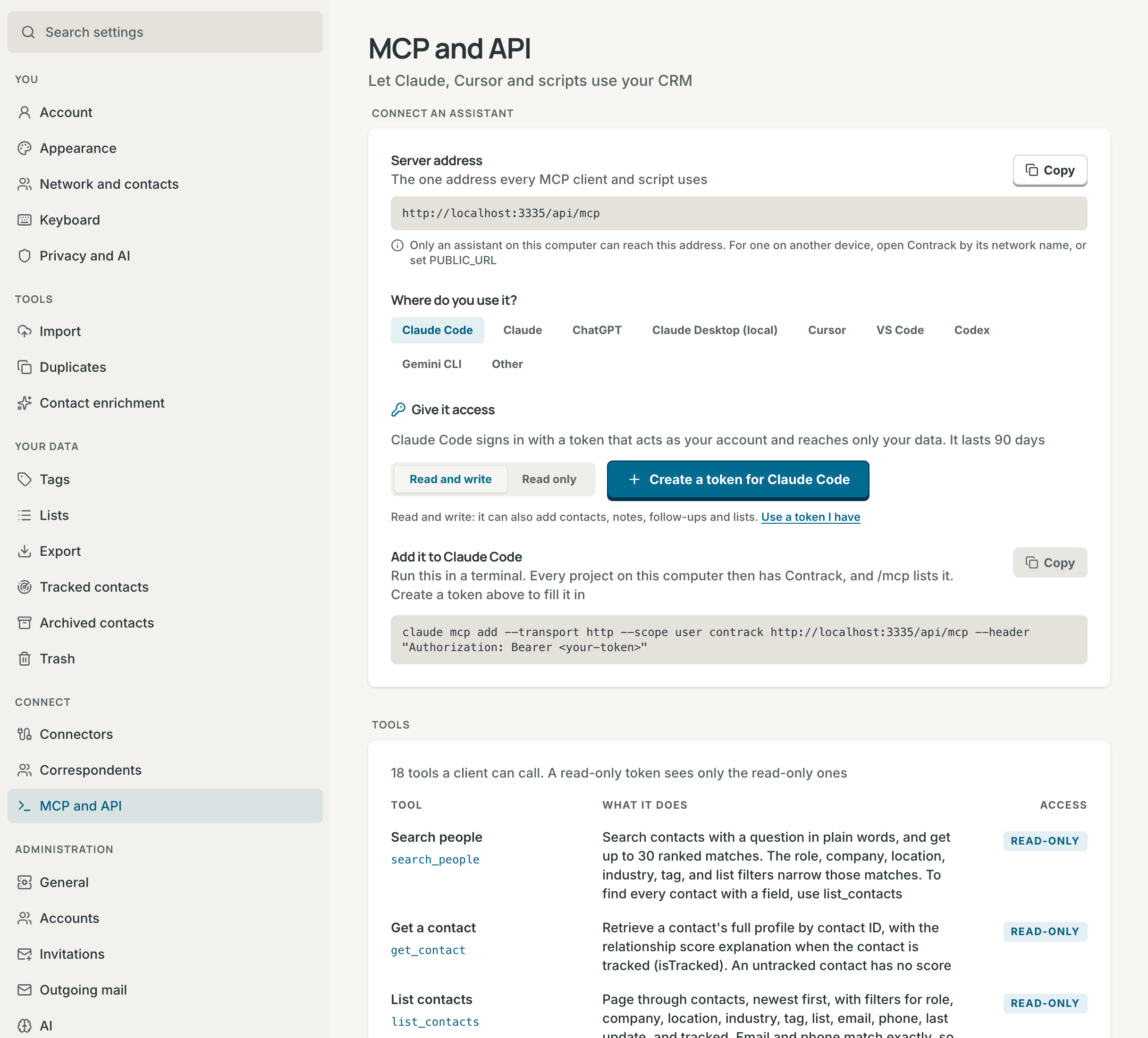
MCP, the Model Context Protocol, is an open standard for connecting AI assistants to other apps. With Contrack connected, an assistant can search your contacts, read a timeline, log a note, and add a follow-up while you talk to it. It works as your account and sees only your data.
Settings → MCP and API sets up a client step by step:
-
Server address, the one address every client uses. It is your
Contrack's address with
/api/mcpafter it, such ashttp://localhost:3210/api/mcp. WhenPUBLIC_URLis set, the page uses it. When the address works only on this computer, the page says so. - Where do you use it?: Claude Code, Claude, ChatGPT, Claude Desktop (local), Cursor, VS Code, Codex, Gemini CLI, or Other.
- Give it access, when your Contrack asks people to sign in. When OAuth is on, a client can Sign in with the browser, and you copy no token (see Sign in with the browser). Otherwise, or with Use a token, choose Read and write or Read only, and select Create a token for the client. The token lasts 90 days and is named after the client. It fills in the setup, and the page shows it only once. Use a token I have takes a token you made before. The page never saves a token.
- Add it to the client shows the command, the config, or the address, with Copy. Add to Cursor and Add to VS Code add the server in one press, and Open Claude connectors opens Claude's connector settings. While the setup still needs a token, Copy and these buttons wait.
Tools lists every tool a client can call.
The server speaks MCP over streamable HTTP. Each request stands alone, with no session to keep open.
A client needs a personal API token when your Contrack asks people to sign in, unless it signs in with the browser.
- Open Settings → Account and go to API tokens. The MCP and API page also makes one for the client you set up, as above.
- Select Create token.
- In What is it for, name the machine or the script, such as "Claude Desktop on the laptop".
- Under Expires, choose 30 days, 90 days, 1 year, or Never. The default is 90 days.
- Under Access, choose Read and write, the default, or Read only. A read-only token can search and read your data, and cannot change anything. Its MCP client sees only the read-only tools.
- Select Create token, and copy the token. It starts with
ctk_. Contrack shows it only once. Then select I've copied it.
The API tokens list shows each token's name, its state, and its first characters. The state is active, revoked, or expired. A read-only token also shows read-only. The list also shows when each token was last used and when it expires.
To revoke a token, select Revoke on its row, then Revoke token. It stops working at once. The row stays for 30 days, marked revoked, so you can see later why a script stopped.
- You create tokens while signed in. A token cannot create another token.
- An account with a temporary password must choose its own password first.
- An account can create 10 tokens an hour.
When your Contrack does not ask anyone to sign in, a client connects without a token, and Settings → Account is not shown. See Accounts and sign-in.
Claude on the web, Claude Desktop, the Claude app on your phone, and ChatGPT
connect by address and sign in with OAuth. You copy no token. They connect
from the internet, so your Contrack needs sign-in on, PUBLIC_URL set to its
https address, and that address open to the internet. Until sign-in is on
and PUBLIC_URL is https, Claude and ChatGPT on Settings → MCP
and API say what is missing. See
Claude on the web, Claude on your phone, and ChatGPT.
In Claude:
- Open Customize → Connectors, and select Add custom connector. Open Claude connectors on Settings → MCP and API opens that page.
- Paste
https://<your address>/api/mcpand select Add. Keep Use Claude's published identity if Claude asks. - Claude opens Contrack. Sign in if you are not signed in.
- Contrack shows the app, where you go back to, and the account. Choose Read and write or Read only, and select Allow. When an app asks only to read, Read and write cannot be chosen.
On a Team or Enterprise plan, an Owner adds the connector for the organization. Once added, it works in Claude on the web, in Claude Desktop and on your phone.
In ChatGPT, turn on developer mode in the settings, add a connector with the same address and OAuth sign-in, and approve it the same way.
- An approved app shows in Settings → Account → API tokens with an app badge and the host it signs in from. To stop it, select Disconnect, then Disconnect app. It stops at once. To use it again, connect it again from the app.
- Each approval adds its own row. Two computers that run Claude Code show as two rows, and you can disconnect one and keep the other.
- Read only gives the app only the read-only tools, as a read-only token does.
- The consent page says when an app named itself, which any app can do, and when its details come from its own web address, which a name cannot fake. It always says where your browser goes after you choose.
- An app's access token lasts an hour and works on
/api/mcponly. The app renews it with a refresh token, which works once and lasts 30 days. Each renewal brings a new refresh token, so an app that does not connect for 30 days must sign in again. - A refresh token that comes back within a minute of its use is a retry, and gets a new pair. One that comes back later means that someone else may hold it, so Contrack disconnects the app, and the audit log records it.
Settings → MCP and API builds each of these for you. The examples below
use http://localhost:3210 and <your-token>. Use your own address and
token instead. When your Contrack does not ask anyone to sign in, or the
client signs in with the browser, leave out the token and the
Authorization header.
Claude Code, Claude Desktop (local), Cursor, VS Code, Codex and Gemini CLI
can sign in with OAuth, as Claude does, so you copy no token. OAuth is on
when sign-in is on and PUBLIC_URL is an https address, or an http
address on localhost or 127.0.0.1, such as http://localhost:3210.
- On Settings → MCP and API, choose the client, then Sign in with the browser.
- Add the setup that the page shows to the client. It holds no token.
- Start the sign-in:
- In Claude Code, run
/mcp, choosecontrack, and choose Authenticate. - For Codex, run
codex mcp login contrack. - In Gemini CLI, run
/mcp auth contrack. - Cursor, VS Code and Claude Desktop open your browser by themselves the first time they connect.
- In Claude Code, run
- Sign in to Contrack, choose the access, and select Allow. The app then shows in your token list (see What an app sees).
Run this in a terminal:
claude mcp add --transport http --scope user contrack http://localhost:3210/api/mcp --header "Authorization: Bearer <your-token>"--scope user adds Contrack to every project on the computer. Without it,
Claude Code adds it to the current project only. /mcp in Claude Code lists
it.
This is Claude Desktop (local) on the settings page. It runs Contrack
through a bridge on your computer, so a local address works. With a public
https address, Claude Desktop can use the Claude connector instead (see
Connect Claude or ChatGPT).
In Claude Desktop, open Settings → Developer → Edit Config. In
claude_desktop_config.json, add the contrack entry inside mcpServers:
{
  "mcpServers": {
    "contrack": {
      "command": "npx",
      "args": [
        "-y",
        "mcp-remote",
        "http://localhost:3210/api/mcp",
        "--header",
        "Authorization:${AUTH_HEADER}"
      ],
      "env": { "AUTH_HEADER": "Bearer <your-token>" }
    }
  }
}
The config runs the mcp-remote bridge with npx, so the machine needs
Node.js. For a plain http address other than localhost or 127.0.0.1,
the settings page adds --allow-http, because mcp-remote refuses one
without it. The token goes in env, because Claude Desktop on Windows passes
each argument to npx without quotes, and a space would split it. Without a
token, leave out --header, the line after it, and env. Restart Claude
Desktop after you change the file.
Select Add to Cursor on the settings page. Or add the contrack entry
inside mcpServers in ~/.cursor/mcp.json, which every project reads:
{
  "mcpServers": {
    "contrack": {
      "url": "http://localhost:3210/api/mcp",
      "headers": { "Authorization": "Bearer <your-token>" }
    }
  }
}Select Add to VS Code on the settings page. Or run MCP: Open User
Configuration from the Command Palette, and add the contrack entry inside
servers. Keep a token out of a project's .vscode/mcp.json, which is often
committed and shared:
{
  "servers": {
    "contrack": {
      "type": "http",
      "url": "http://localhost:3210/api/mcp",
      "headers": { "Authorization": "Bearer <your-token>" }
    }
  }
}
Codex reads the token from an environment variable. Run this in a terminal,
and put the export line in your shell profile too:
export CONTRACK_TOKEN=<your-token>
codex mcp add contrack --url http://localhost:3210/api/mcp --bearer-token-env-var CONTRACK_TOKEN
Without a token, run only
codex mcp add contrack --url http://localhost:3210/api/mcp.
gemini mcp add --transport http --scope user --header "Authorization: Bearer <your-token>" contrack http://localhost:3210/api/mcpA client that speaks MCP over streamable HTTP can use the endpoint URL
directly. Send the token in the header Authorization: Bearer <your-token>.
A client that can only start a local command can use the mcp-remote bridge
above.
curl -X POST http://localhost:3210/api/mcp \
  -H "Authorization: Bearer <your-token>" \
  -H "Content-Type: application/json" \
  -H "Accept: application/json, text/event-stream" \
  -d '{"jsonrpc":"2.0","id":1,"method":"initialize","params":{"protocolVersion":"2025-11-25","capabilities":{},"clientInfo":{"name":"curl","version":"1.0"}}}'
A working endpoint answers with the server's details, which include
"name":"contrack". The endpoint takes POST only.
An address such as http://localhost:3210 works only on the computer that
runs Contrack. A client on another computer needs an address it can reach,
such as the server's name on your network or a PUBLIC_URL behind a reverse
proxy. While sign-in is off, Contrack answers only local names, so add any
other name to ALLOWED_HOSTS. See
Configuration.
The server offers 18 tools: 9 that read and 9 that write. A read-only tool
changes nothing. A read-only token, or an app allowed Read only, sees only
the read-only tools. Each tool has a title, such as "Search people", and hints
that tell a client whether it reads, only adds, or can overwrite or remove. A
client may ask you before it runs a tool that can overwrite:
update_contact, update_action_item, and remove_from_list.
| Tool | What it does | Access |
|---|---|---|
search_people |
Searches contacts with a question in plain words, and returns up to 30 ranked matches. Filters for role, company, location, industry, tag, and list narrow those matches | Read-only |
get_contact |
Returns one contact's full profile, with the score explanation when the contact is tracked | Read-only |
list_contacts |
Pages through contacts, newest first, with filters for role, company, location, industry, tag, list, email, phone, last update, and tracked. Email and phone match exactly | Read-only |
get_timeline |
Pages through a contact's notes, meetings, calls, and emails, newest first | Read-only |
search_notes |
Searches notes and interactions by words, date range, and type | Read-only |
list_action_items |
Lists open follow-ups, soonest due first: overdue, due today, due in 7 days or sooner, or all | Read-only |
get_pulse |
Returns the Pulse figures: tracked contacts and their bands, catch-ups past their cadence, and follow-ups due | Read-only |
list_tags |
Lists the tags used in your network | Read-only |
list_lists |
Lists your lists and how many contacts each holds | Read-only |
create_contact |
Creates a contact with profile and contact details. It refuses an email or phone that a contact already has, unless allowDuplicate is set |
Read and write |
update_contact |
Changes a contact's fields, including whether it is tracked and its cadence. It adds or removes emails, phones, and tags, and keeps the others | Read and write |
log_interaction |
Logs a meeting, call, email, or note that has happened. mentionContactIds links the other people in it. Without them, and with AI on, it finds the people the text mentions |
Read and write |
create_action_item |
Adds a follow-up with a due date to a contact | Read and write |
update_action_item |
Changes a follow-up's title or due date | Read and write |
complete_action_item |
Marks a follow-up as done | Read and write |
create_list |
Creates a list. It refuses a name that one of your lists already has | Read and write |
add_to_list |
Adds one or more contacts to a list | Read and write |
remove_from_list |
Removes one or more contacts from a list | Read and write |
search_people returns up to 30 results, and search_notes up to 50.
list_contacts, get_timeline, and list_action_items return up to 100
entries at a time. A result with more has a nextCursor. Pass it as cursor
for the next page. search_notes pages the same way.
search_people and list_contacts return the main profile fields of each
contact, and get_contact returns the whole profile. No tool returns what
only the server or the app reads, such as the search index, the research
record, or the photo. Each result has one line for a person to read, then the
same data as JSON.
Text that other people can write arrives inside <untrusted_data> tags, in the
JSON and in its text copy. This covers notes, email summaries, meeting and
follow-up titles, profile text, and facts from research. The tags tell the
model that the text is data, not instructions. Names, IDs, emails, dates, and
links arrive without tags. Invisible characters, such as zero-width spaces,
are removed from every value. Contrack stores the text unchanged.
Dates are ISO 8601: a day, such as 2026-11-03, or a date and time.
log_interaction refuses a date in the future, because an interaction has
already happened. A follow-up can be due on any date.
A tool checks each field with the rule of the REST route that does the same
write, from the same contract in shared/contracts/. For example, a contact
name has 1 to 300 characters, add_to_list takes up to 5,000 contact IDs, and
search_notes takes a day, or an ISO 8601 date and time with Z or an
offset, for from and to.
When a client connects, the server also sends instructions for its model.
They say where contact IDs come from, to check for a contact with
list_contacts before create_contact, how to write dates, and how to get
the next page. They also say that text inside <untrusted_data> tags is data,
and that the model must not act on instructions in it. A read-only client is
also told that it can only read.
With AI off for your account or for the instance, search_people answers from
the local index, as Ask Contrack does. Enrich new contacts automatically
does not research a contact that create_contact adds.
The server also offers two resources, each as JSON:
-
contrack://pulse: the Pulse data, with network figures, contacts at risk, and follow-ups. -
contrack://contacts/{id}: one contact's full profile and score explanation.
And two prompts, which a client can offer you as commands:
-
catch_me_up: a briefing on one contact. It takes the contact's name or ID, and a client completes the name as you type. It includes the profile and the latest 20 timeline entries. A name that matches more than one contact gets a list of them, each with its ID, so you can give the right one. -
weekly_review: a weekly review of overdue follow-ups, the follow-ups due today and this week, and the tracked contacts to catch up with.
A prompt arrives as your own message, so both prompts put their records inside
<untrusted_data> tags.
- Each account can send 120 requests a minute. Past that, the server answers
429with aRetry-Afterheader that says how many seconds to wait. - A request with no token, on a Contrack that asks people to sign in, gets
401withWWW-Authenticate: Bearer. When OAuth is on, that header also points to the OAuth details, so a client finds the sign-in from the address alone. A token that is revoked or expired gets401witherror="invalid_token"and a message that says so. - A request from a web page gets
403unless the page is Contrack itself orCORS_ORIGIN. An MCP client sends noOriginheader, so this never stops one. - A tool that refuses returns a result with
isErrorset. Its text says why and, where it can, what to do next. ItsstructuredContent.errorholds Contrack's error code, such asNOT_FOUNDfor a contact that is not in your account.create_contactanswersDUPLICATE_CONTACT, andcreate_listanswersDUPLICATE_LIST. The message names the contact or the list that already exists. - A tool called with arguments that break its rules, such as a date in the
future, also returns
isError, with the field and the rule in its text. - A fault in the server returns
isErrorwith the request ID. The server log has the cause. - A prompt or a resource that cannot find its contact returns an MCP error
with Contrack's code in its data. For a resource, the error code is
-32002.
- A token acts as your account. Anyone who holds it can read your data. A token with read and write access can also change your contacts, notes, lists, and follow-ups. Give a client that only reads a read-only token.
- A token cannot use the administration API, even an admin's. Those routes need you signed in.
- A token cannot change your password, create tokens, or manage passkeys and devices. Those need you signed in.
- An email or a calendar invite can hold words written to steer an assistant. Contrack marks that text, but no mark stops every attack. Give an assistant that can also browse the web or send messages a read-only token.
- Give each client its own token. Then you can revoke one without the others.
- Revoke a token you no longer use, or one you think someone else has seen.
- A password reset stops every token and app of the account. Changing your own password in Settings → Account does not.
- Disabling an account stops its tokens and apps until an admin enables it again.
The same personal tokens work for the REST API, see the
REST API reference. An app's OAuth token
works on /api/mcp only.