Repository navigation
Import sync and export
This page covers three ways data moves: import a contacts file, sync your calendar, mail, and Google account with connectors, and export your data.
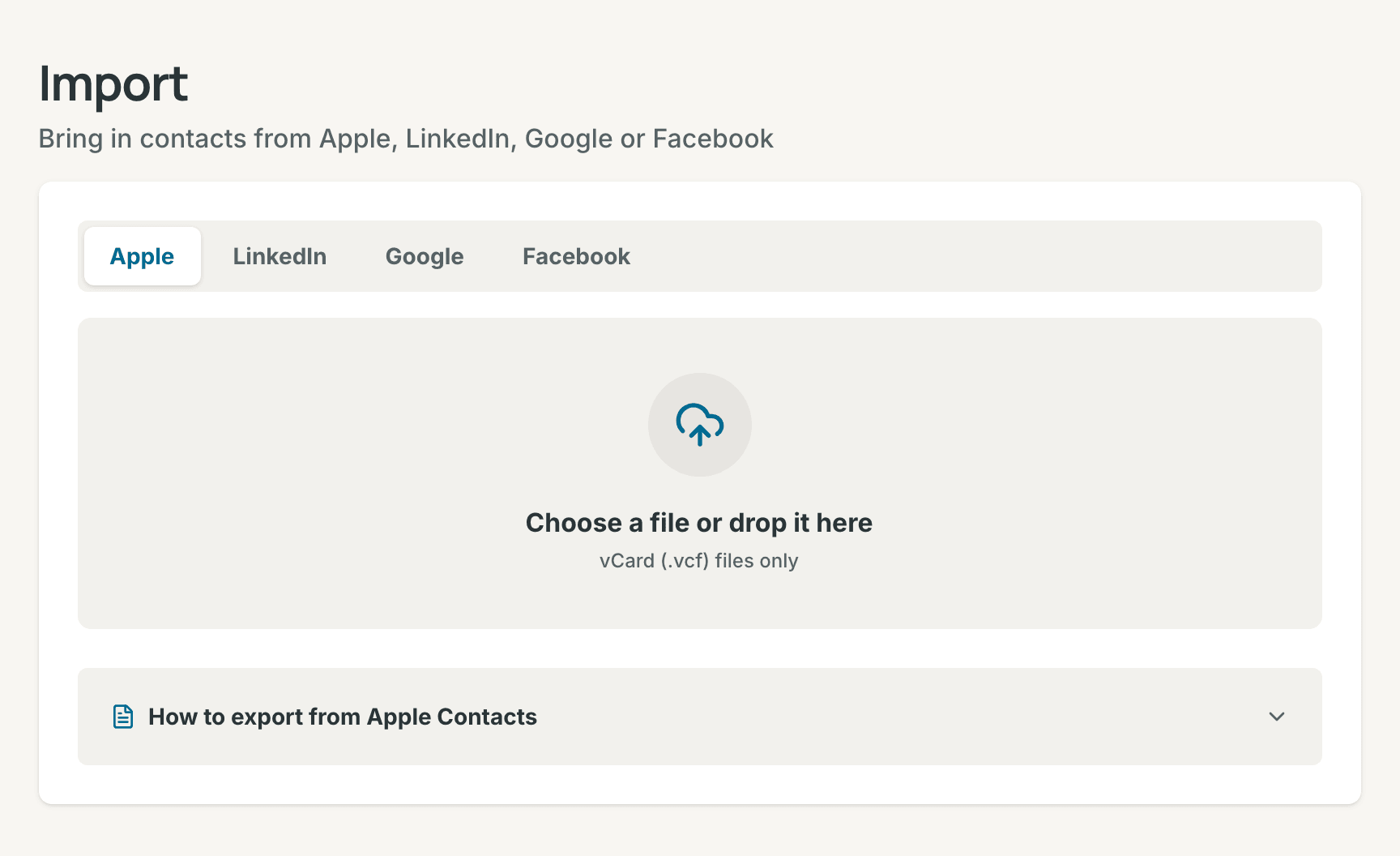
- Open Settings → Import, or select Import (the upload button) in the Network list's header.
- Choose the tab for your source: Apple, LinkedIn, Google, or Facebook.
- Select the box to choose the file. On a computer, you can also drop the file on the box.
Contrack remembers the tab you used last in this browser. The tabs take the
arrow keys. Contrack reads the file type in any case, so Contacts.VCF works.
| Tab | File | What comes in |
|---|---|---|
| Apple | vCard (.vcf) |
Names, emails, phones, addresses, company, job title, birthday, the note as About, websites, social profiles, categories as tags, and photos |
Connections.csv |
Name, company, position, email, profile URL, and the date you connected | |
Google CSV (.csv) |
Name, emails and phones, company, role, addresses, birthday, notes as About, website, and labels as tags | |
friends.json |
Friend names and the date you connected. Facebook exports no emails or phone numbers |
A vCard from any other address book, such as Outlook or an Android phone, works on the Apple tab. The Google tab reads the current Google CSV (with First Name and Last Name columns) and the older one (with Given Name and Family Name).
- One import holds up to 5,000 contacts, and up to 50 MB with the photos. Split a larger file.
- Contrack skips an entry with no name, and the summary counts these entries. A Google entry with no name takes its nickname or its company as its name.
- A photo inside a vCard is saved on your server. A photo that the vCard gives as a web address stays a link to that site, see Privacy.
Select How to export from under the drop zone to see these steps in the app.
-
Apple Contacts: open the Contacts app on your Mac. Select the contacts,
or press
⌘Afor all. Choose File > Export > Export vCard…, and save the.vcffile. -
LinkedIn: open Settings & Privacy, then Data privacy > Get a
copy of your data. Choose Connections and request the archive.
Download it, extract it, and use
Connections.csv. - Google Contacts: go to contacts.google.com. Select Export, choose Google CSV, and select Export.
-
Facebook: open Settings & Privacy > Settings > Accounts
Center > Your information and permissions > Download your
information. Choose the JSON format and the Friends and Followers
category. Download, extract, and use
friends.json.
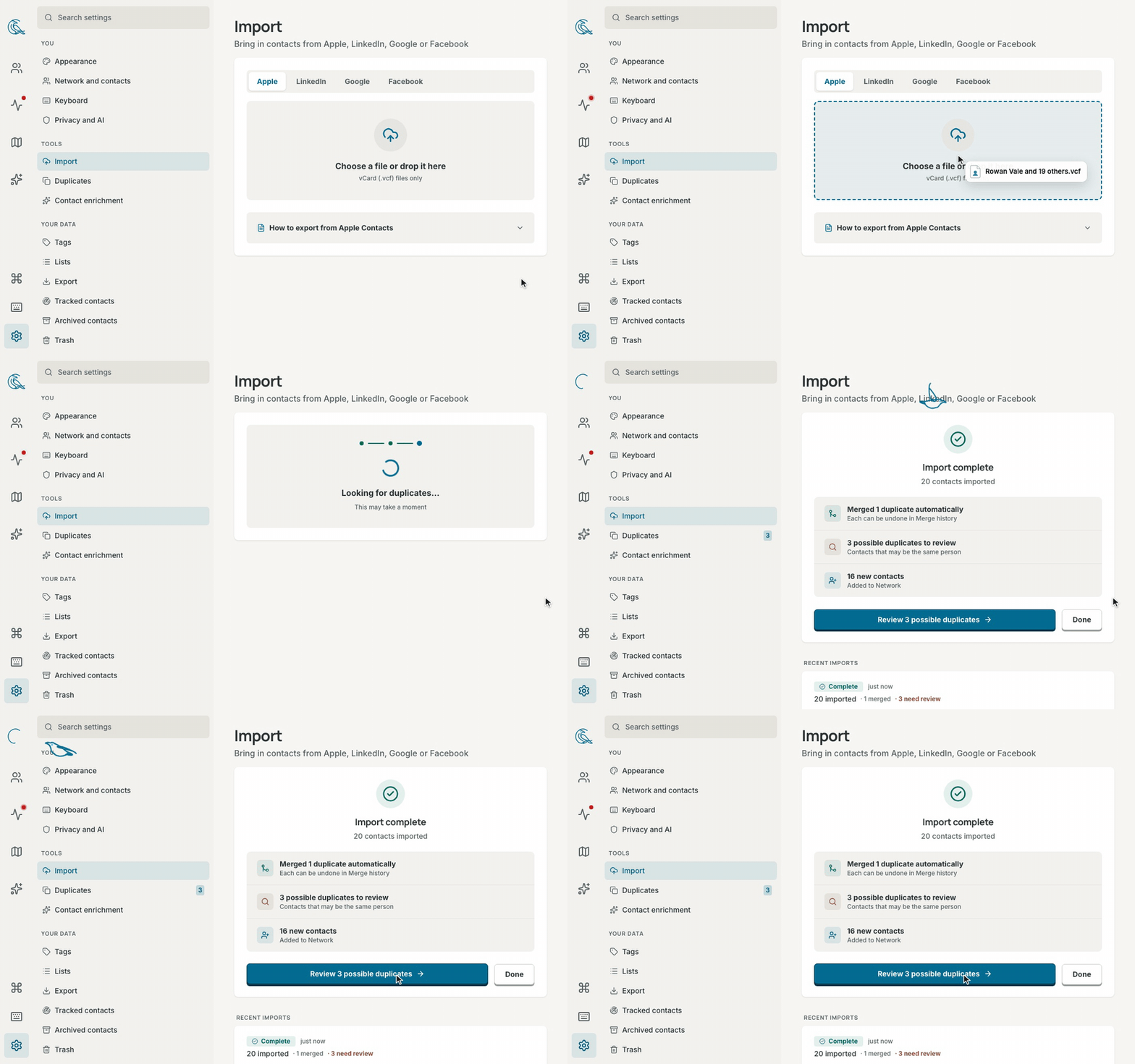
Your browser reads the file and sends the contacts to your Contrack server. The import then runs in up to three steps:
- Importing contacts. Contrack saves each photo in the file on your server, then saves the contacts.
- Preparing the contacts for search. Contrack makes the embeddings that the duplicate check compares. This step shows only when an embedding model is ready.
- Looking for duplicates. This step runs when Check imports automatically is on in Settings → Duplicates.
The summary counts the contacts imported, the duplicates that merged by themselves, the possible duplicates to review, and the new contacts. If the duplicate check did not finish, the summary says so, and the contacts stay saved. Select Check now in Settings → Duplicates to look for duplicates again.
Imported contacts start untracked, see Track a contact. Enrich new contacts automatically does not research them.
If the connection drops, the import goes on, and nothing is imported twice. Contrack shows Reconnecting to your import, or Lost contact with the server with Check again. If you leave the page, open the import again to see where it got to.
If nothing could be saved, the panel shows Import did not finish. Try again sends the file again while the page still holds it. After a reload, choose the file again. If the import stopped part way, the contacts it saved stay, and the rest wait for Retry failed rows.
A row that cannot be saved stays on the server with its reason, and the summary lists it. Retry failed rows runs these rows again, with no need for the file.
Settings → Import also lists Recent imports, newest first, with each status and its counts. Checking means that the contacts are saved and the duplicate check still runs. The other statuses are Complete, Running, and Failed. Select Try again on a row with failed rows. If an import saved nothing, import the file again. Contrack keeps an import's record for 30 days after the import ends.
The import's duplicate check compares the new contacts with your other contacts and with each other. It sends no pair to an AI model. A pair at or above your auto-merge sensitivity merges by itself, and Merge history can undo each merge. The other pairs it finds wait in Possible duplicates. The summary's button with the count, such as Review 3 possible duplicates, goes there, see Review possible duplicates.
A connector syncs who you talk to. It reads your calendar, a mailbox, or a Google account on a schedule, and adds meetings and email to your contacts' timelines. Contrack connects from your own server.
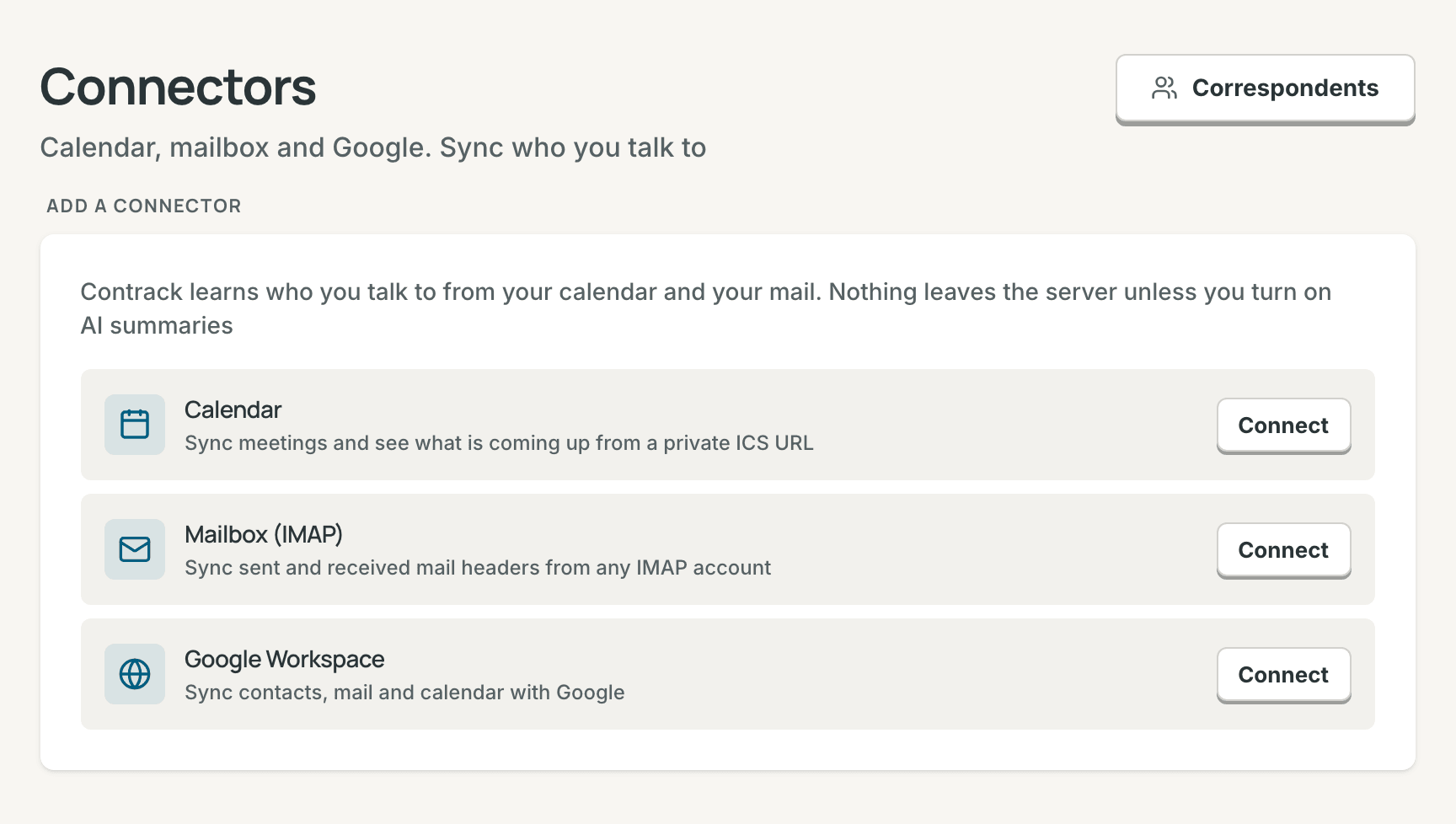
To add a connector:
- Open Settings → Connectors.
- Select Connect beside Calendar, Mailbox (IMAP), or Google Workspace. If you already have a connector, select Add connector and choose the kind.
- Fill in the form. For a calendar or a mailbox, select Test connection to check it.
- Select Connect. Google has its own steps, see Google Workspace.
The first sync starts within about a minute. Sync now starts one at once.
The Calendar and Mailbox (IMAP) connectors refuse an address on a
private network, such as a server in your home. The server variable
CONNECTORS_ALLOW_PRIVATE_HOSTS=true turns this check off for both, see the
Configuration reference.
The Calendar connector reads a private calendar address in iCalendar format. Past meetings with your contacts become meetings on their timelines. Upcoming meetings appear in the Coming up card on Pulse.
Find the private address:
- Google Calendar: on the web, open Settings, choose the calendar under Settings for my calendars, and go to Integrate calendar. Copy Secret address in iCal format.
-
Apple iCloud: in the Calendar app, share the calendar and turn on
Public Calendar. Copy the address, and change
webcal://at the start tohttps://. Anyone with this address can read the calendar. - Fastmail: in the calendar settings, copy the calendar's private iCalendar address.
- Outlook: on the web, open the calendar settings, then Shared calendars > Publish a calendar. Copy the ICS link.
Paste it into Private ICS calendar URL. Contrack reads only http:// and
https:// addresses, and a feed of up to 5 MB.
The Mailbox connector reads mail headers from any IMAP account. Each message with a contact becomes an email on that contact's timeline.
- In your mail provider's settings, create an app password, so your main password stays out of Contrack. Gmail and iCloud offer one once two-step verification is on.
- Enter IMAP host, Port, Username / email, and App password. Port 993 connects over TLS.
- In Folders to sync, list the folders to read, separated by commas. The
default is
INBOXonly. Add your sent folder, such asINBOX, Sent, so the mail you send counts too. Test connection names the folders it finds. - In Also treat these addresses as mine, list your other addresses and aliases. Mail from them counts as sent by you.
Common hosts are imap.gmail.com, imap.mail.me.com (iCloud), and
imap.fastmail.com, each on port 993.
The Google connector syncs your Google Contacts, Gmail, and Google Calendar. An admin sets it up once for the instance. Then each person connects their own Google account.
For an admin: set up the Google OAuth client.
- Open Contrack at the address people use, then Settings → Administration → General, and go to Integrations. Copy the Authorized redirect URI from the Google OAuth client row.
- In the Google Cloud Console, create a project. Turn on the People API, the Gmail API, and the Google Calendar API.
- Set up the OAuth consent screen. For a Google Workspace domain, choose an Internal app, which Google does not need to verify. For personal Gmail, choose an External app and set it to In production. It takes up to 100 users.
- Create an OAuth client of type Web application. Paste the redirect URI under Authorized redirect URIs.
- Copy the client ID and the client secret into Client ID and Client secret in Contrack, and select Save.
GOOGLE_OAUTH_CLIENT_ID and GOOGLE_OAUTH_CLIENT_SECRET can set the client
instead. Behind a reverse proxy, set PUBLIC_URL, see
Remote access. Remove on the same row
stops every Google connector on the instance.
For everyone: connect your Google account.
- Open Settings → Connectors and choose Google Workspace.
- Turn on Generate AI summaries now if you want them. Google then gives Contrack read access to message bodies. Without it, Contrack asks only for message headers.
- Select Connect Google Workspace and sign in with Google.
- If Google warns that it has not verified the app, select Advanced, then the link to go to the app. This is normal for a self-hosted server.
Contrack asks for read-only access to your contacts, calendar events, email address, and Gmail headers, or whole messages with summaries. A sign-in can fail, for example when you do not give access or take longer than 15 minutes. The Connectors page then says why, and nothing changes.
Each Google account has its own connector: connect a second account and it gets a second connector, and the first keeps its own access. To add summaries later, connect the same account again with Generate AI summaries on, and Contrack updates its connector. The AI message summaries switch under Edit works only after such a sign-in. Without one, Google refuses the message bodies, and the sync writes no summary.
Edit also sets Synced data types (Google Contacts (People API), Gmail messages, Google Calendar events) and the options below.
Google Contacts become untracked contacts, with their photos copied to your server. A Google contact that shares an email address or a phone number with one of your contacts is linked to that contact, not added again. When Google sends a synced person again, such as after a change in Google, the sync writes Google's details over the linked contact, its emails and phones included. Change those details in Google, not in Contrack. A new contact from Google gets the same duplicate check as a contact you add, when Check new contacts automatically is on.
| Option | Connectors | Default |
|---|---|---|
| Sync schedule: 15 min, 30 min, Hourly, or Daily | All | 30 min |
| First sync goes back: 30 days, 90 days, or 1 year | All | 90 days |
| Skip events with more than a number of attendees | Calendar | 25 |
| Include event descriptions: copy agenda and notes into the meeting | Calendar | Off |
| Roll up emails per contact per day: one timeline entry a day for each person | Mailbox, Google | On |
| Suggest a new person after a number of meetings or messages, from 1 to 10 | All | 3 |
| Generate AI summaries (Google: AI message summaries) | Mailbox, Google | Off |
An AI summary is one or two sentences about a message with one of your contacts. The Fast model writes it into the message's timeline entry. It needs the connector's summary switch and an AI provider. AI must also be on for your account and for the instance, see Turn AI off. Otherwise the sync downloads no message body and sends nothing to a provider. A sync writes at most 50 summaries.
- Contrack matches each person in a meeting or message to your contacts by email address or phone number. The first match owns the meeting or email. Other matched contacts are mentioned in it.
- Your own addresses never become a contact: your account's email, the address of the connected mailbox or Google account, and the addresses you list as yours.
- A meeting or message with none of your contacts in it goes on no timeline. Contrack counts the people in it. After the number of times set in Suggest a new person after, the person becomes a ghost, see Ghosts.
- Meetings and email from a connector carry a badge on the timeline, such as "via Calendar", "via Email", or "via Google".
The people Contrack counts are on Settings → Correspondents, most often seen first. The Correspondents button on the Connectors page shows how many wait. For each person:
-
Add as contact makes a contact with their email or phone and the name
their mail or meeting gave, for example "Rowan Vale". When there was only an
address, it asks for the name first, filled in from the address, for
example "Rowan Vale" for
rowan.vale@example.com. - Ignore hides them. They do not come back, and they never become a ghost.
Each connector card shows a status:
| Status | Meaning |
|---|---|
| Active | It syncs on its schedule. |
| Paused | It does not sync until you select Resume. |
| Error | The last sync failed. The card shows why, with Retry now. Each failure waits longer before the next try, up to 4 hours. |
| Signed out | The service refused the password or the sign-in, or the server cannot open the stored credentials. Select Reconnect. |
The card's menu holds Sync now, Pause or Resume, Edit, Run history, and Remove. Run history lists the last 20 syncs: how and when each started, how long it took, what it brought in, and any error.
Remove stops the connector and keeps what it brought in. To delete that too, tick "Also delete the interactions it brought in, and the people it found who are not contacts". The contacts that a Google connector brought in from Google Contacts stay either way.
- Calendar: event times, titles, and attendee email addresses. Descriptions only with Include event descriptions.
- Mailbox: the From, To, Cc, Date, and Subject headers. A message body only for an AI summary of a message with one of your contacts.
- Google: contacts with their photos, calendar events, and Gmail headers. Message bodies only for AI summaries.
Contrack stores the mailbox password and the Google sign-in encrypted with the
instance's key. The key is the file secret.key in the data folder, or the
CONTRACK_SECRET_KEY variable. Backups hold the database but not the key, so
keep a copy of secret.key with them, see
Backups and restore. Without the key,
connectors cannot read their stored credentials, and they show Signed out.
Contrack stores the private calendar address in the database as it is. Treat
it like a password.
Open Settings → Export and select a format. Each file holds your own data only, never another account's on the instance.
| Format | What it holds | Use it for |
|---|---|---|
| vCard (.vcf) | Your contacts, archived ones included. Not the Trash, ghosts, or contacts merged into another | Apple Contacts, Google Contacts, Outlook, a phone, or an import back into Contrack |
| Spreadsheet (.csv) | The same contacts as the vCard file, one row each | A spreadsheet |
| Everything (.json) | Every contact, archived, trashed, ghost, and merged ones included, with interactions, lists, follow-ups, and merges | A record of your contacts and notes |
The CSV has the columns Name, First Name, Last Name, Company, Role, Location,
Industry, Website, Emails, Phones, Addresses, Social Links, Birthday, About,
and Tags. Then come Archived, Tracked, Cadence Days, Tracked At, Added At, and
Last Contacted At. A contact's emails, phones, addresses, links, and tags each
share one cell, separated by semicolons. A cell that starts with =, +, -,
or @, such as the phone number +1 555 0100, gets a ' in front, so a
spreadsheet does not run it as a formula.
The JSON file holds your contacts with every field, their notes and interactions, your lists and who is on them, your follow-ups, and the merges you can still undo. It does not hold your search history, saved map views, settings, connectors, imports, AI usage, or API tokens. Attached files and photos appear as their addresses on the server, not as the files.
vCard is the only format that Contrack imports again, on the Apple tab. The JSON file is a record to keep, not a restore: to restore an instance, use a backup. An admin also sees a link to the Backups page, for a copy of the whole database. Scripts can download the same files with a personal token, see the REST API reference.