Repository navigation
Duplicates
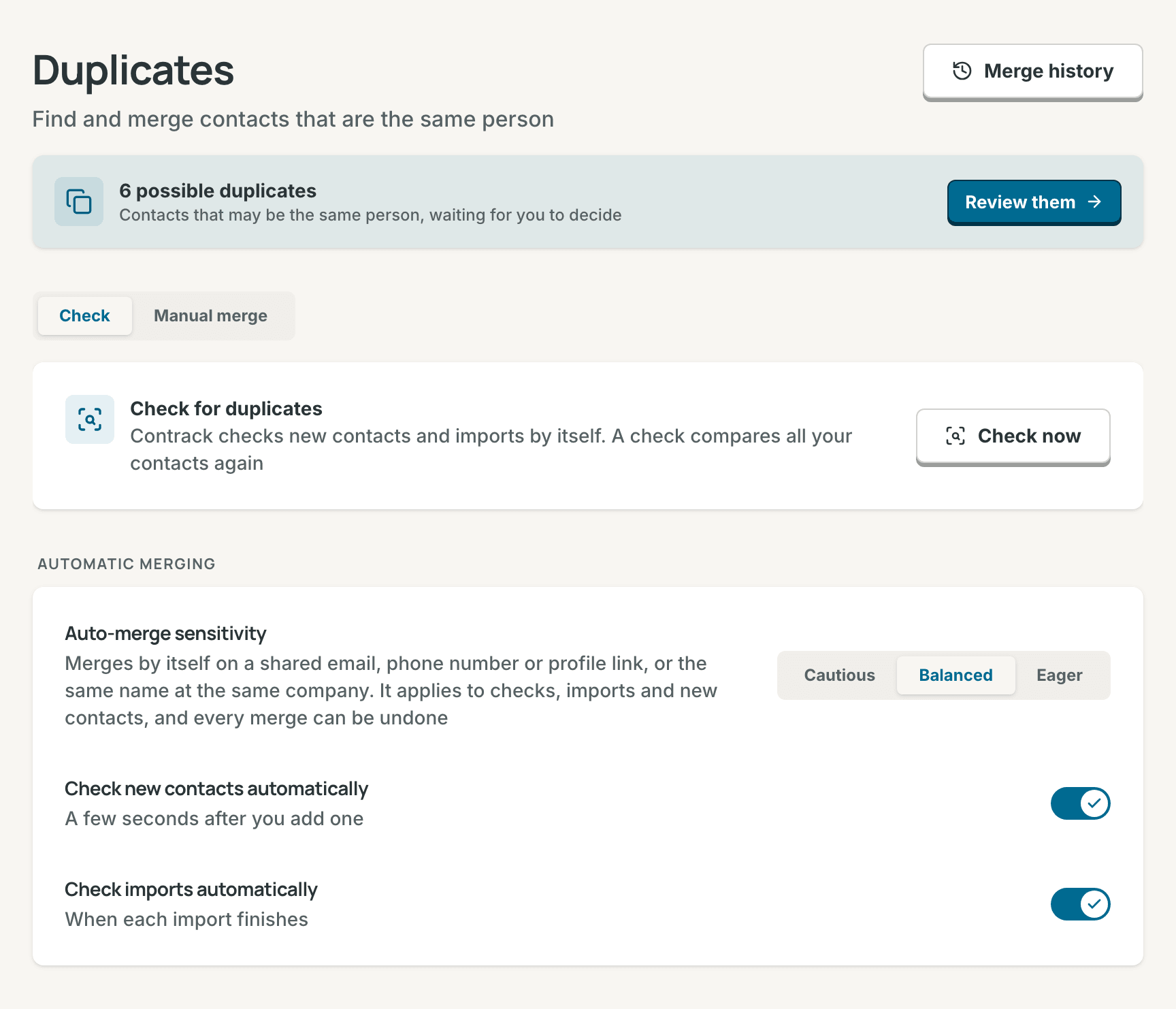
Contrack finds contacts that are the same person and helps you merge them. It merges the sure pairs by itself and asks you about the rest. This page covers what counts as a duplicate, when Contrack checks, how you review a possible duplicate, what a merge keeps, and how to undo a merge.
Contrack compares the contacts in your own account. Contacts in other accounts on the same instance never take part.
These matches are exact. Each one gives the pair a confidence:
| Match | Example | Confidence |
|---|---|---|
| Same email address |
ada@example.com on both |
98% |
| Same phone number | one number, written two ways | 95% |
| Same name at the same company | two "Ada Park" at Northwind | 95% |
| Same profile link | one LinkedIn profile, with or without the www
|
93% |
| Same name from two import sources | "Ada Park" from Google and from LinkedIn | 92% |
| Same name and nothing else | two "Ada Park" | 90% |
| Nickname | "Bob Hale" and "Robert Hale" | 88% |
| Middle name added | "Anton Kovacs" and "Anton Peter Kovacs" | 88% |
A profile link matches however it is written: with or without https://,
www. or a slash at the end. Links to a company, a school or a group page do
not count.
A pair that is close but not exact gets a score from several signals:
- Names that are spelled nearly the same, or that sound the same, such as "Smith" and "Smyth". Two names sound the same only when the last names agree too.
- The same company, or a very similar company name.
- The same city.
- Two different import sources.
- How alike the two profiles read as a whole, from the embedding model. The built-in model runs on your server. An admin can choose a hosted model instead, see Models.
With a provider connected, a check asks the Strong model about the pairs that stay unclear. With no provider, a check keeps the strongest of those pairs, at a lower confidence, so they always wait for you.
A note can also add a pair. With AI on, Contrack finds the people a saved note names. When a name is close to one of your contacts, but not a sure match, Contrack makes a ghost for it. The ghost and the contact then wait as a pair, and the reason gives the name the note used.
The screens never show the percentage. A possible duplicate shows the reason in plain words, such as "Same phone number", and a caution when there is one. See Review possible duplicates.
- A new or changed contact. About five seconds after a contact is added in the app, through the REST API, by an MCP client, or by a connector sync. The check runs again when you change a contact's name, company, role, or location. The switch is Check new contacts automatically, on by default. When a contact you added in the app merges by itself into one you had, a message says so, such as "Ada Park was already in your contacts". Its Undo brings the contact back and marks the two as different people.
- An import. When each import finishes. The switch is Check imports automatically, on by default. The check compares the new contacts with your other contacts and with each other.
- A check you start. See Check for duplicates.
The two automatic checks do not ask an AI provider. A pair at or above your auto-merge sensitivity merges by itself. A close pair that is not exact waits only when it scores 75% or more, so an import does not fill the list with weak guesses. Every pair that waits is in Possible duplicates.
- Open Settings → Duplicates.
- Select Check now.
The card shows the check's steps: Same email, phone or name, Close matches, checked by AI, and Grouping. You can leave the page, and the check goes on. When it finishes, the card says how many contacts it checked, how many merged automatically, and how many possible duplicates wait. The "merged automatically" link opens Merge history. Review them, above the card, opens the possible duplicates. Check again runs a new check.
A check reads your active contacts. It skips ghosts, archived contacts, and contacts in the Trash. Its results replace the pairs that wait, except the pairs from notes. A check merges by itself only a pair of two contacts. A group of three or more waits for you, even when each pair in it is sure.
Only one check runs at a time on an instance. If another account is checking, yours waits and starts by itself. Possible duplicates also offers Check now while its list is empty.
Note: With AI off for your account or for the instance, a check finds exact matches only, and skips Close matches, checked by AI. The card says so. The automatic checks still run. See Turn AI off.
Possible duplicates is the one place where pairs wait for your decision. It opens from:
- Settings: Review them on Settings → Duplicates, and the line under Needs attention on the first Settings page.
- Pulse: the Inbox card has a line with the count, such as "Review 4 possible duplicates".
- The command palette: when it opens empty, it can show a line such as "Review 3 possible duplicates".
- The end of an import: the button with the count, such as Review 3 possible duplicates.
Settings, Pulse, and the command palette count the same thing: the groups that wait. Two pairs that share a contact are one group of three. The count at the end of an import counts only that import's pairs.

The list has three parts, the easy decisions first:
| Part | What is in it |
|---|---|
| Very likely | Pairs with a strong match and nothing against it |
| Likely | Pairs with a good match, such as a nickname or an AI match |
| Check carefully | Pairs with a caution, and close pairs with little behind them |
Each row shows the contacts, with a company and city to tell them apart, the reason, and the caution when there is one. A caution says why to look twice:
| Caution | Meaning |
|---|---|
| "First names differ: Ada and Ben" | One phone or email, two first names: often a household |
| "One is Jr. and the other Sr." | Two generations of one name |
| "Different companies", "Different cities", or "Different companies and cities" | The same name at two places, often two people |
| "3 contacts share this phone number" | A value that several contacts carry |
| "A shared inbox" | An address such as info@ that several people share |
A reason that a model wrote shows the AI glyph. A reason from a fixed rule, such as "Same email address", does not.
The list loads the 200 most likely pairs at a time. More appear as you decide.
On a wide window, the list and the open group sit side by side, with Keep separate and Merge at the top of the group. The first group is open when the page opens. Select a row to open another. On a narrower window, such as a phone, a row opens in a sheet, with the buttons at the bottom.
The open group shows:
- Contact to keep: one column for each contact, each with a radio. The contact kept stays, and the others merge into it. Contrack chooses the most complete contact first: a photo you added, a full name over an initial, and more details.
- The fields side by side. The rows that every contact agrees on fold into one line, such as "Same: email, phone", and Show all fields opens them. A dot marks a field with two different values, where the merge keeps one. A line goes through each value the merge drops.
- The caution, under the row it is about.
- After the merge: what moves to the kept contact, such as "3 notes, 1 follow-up and 1 list", the values that are not kept, and that Undo brings everything back for 90 days.
A group of three or more also shows How they connect, the reason for each pair in it. When one contact in the group is someone else, select Different person under its name. That contact leaves the group, and Contrack keeps it separate from the contacts it was paired with. The others stay in the list while a pair still links them. A group of more than 5 contacts warns that it is often more than one person.
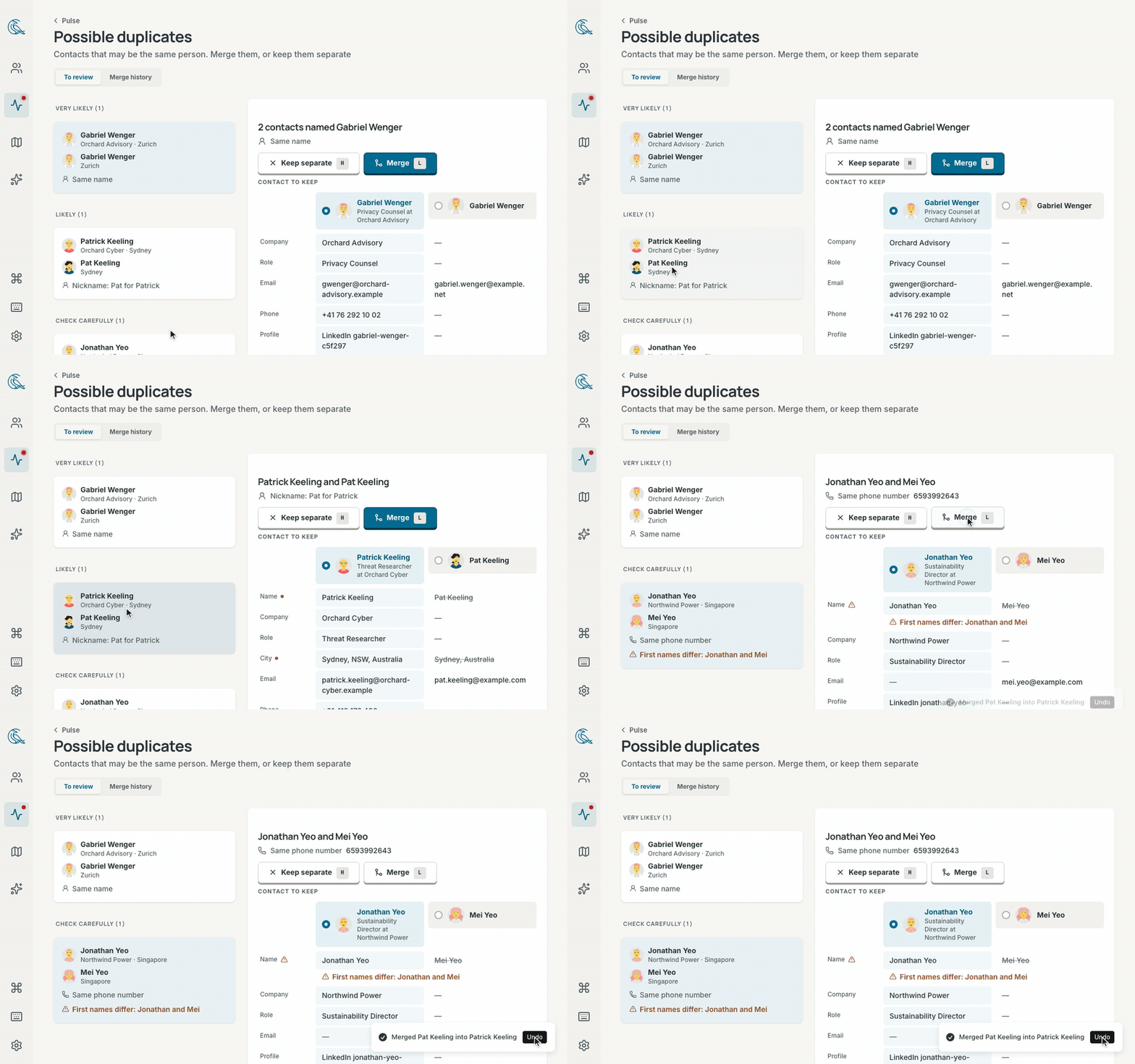
- Merge merges the group into the contact to keep.
- Keep separate marks the contacts as different people. The pair does not come back to Possible duplicates, and no check or import merges it.
- Merge all, at the top of Very likely when it holds two groups or more, merges every group in that part, each into its contact to keep. No group in Very likely has a caution, so a pair with a caution never merges in a batch.
- On a narrower window, each row has its own Keep separate and Merge buttons. A row in Check carefully offers Compare in place of Merge, and Merge waits in the comparison. A group in Check carefully never merges from one press, and its Merge is never the main button.
After each decision, focus moves to the group that takes its place. The
message has Undo, and Z undoes the last decision too. Undo after a
merge brings the contacts back, and the pair waits in the list again.
Undo after Keep separate puts the pair back in the list.
| Keys | What they do |
|---|---|
↓ or J
|
Next group |
↑ or K
|
Previous group |
→ or L
|
Merge into the contact to keep |
← or H
|
Keep them separate |
Z |
Undo the last decision |
On a group in Check carefully, the first → or L opens its comparison
and moves focus to Merge, and the line "Check the differences, then press
L again or Enter" shows. Enter merges. On a wide screen, a second L or →
merges too. On a narrow screen the comparison opens in a sheet, where only
Enter on Merge merges.
The letter keys are single-key shortcuts. They stop when you turn off Single-key shortcuts in Settings → Keyboard, but the arrows keep working. The letters work with Caps Lock on. No key acts while a menu or a dialog is open, or while you type in a field. In Contact to keep, the arrows choose the contact, and only the letters decide.
When a pair waits for a contact, its page shows a banner, such as "Ada Park may be the same person as A. Park", with the reason and any caution. Compare opens the same comparison as Possible duplicates, with this page's contact as the one to keep. Merge and Keep separate work as they do there, with Undo. When the merge keeps the other contact, the page moves to it.
A link to a contact that merged into another one opens the kept contact. A message says so, with Undo. That Undo brings the contact back, opens it, and marks the two as different people.
- Open Settings → Duplicates and select Manual merge.
- Search for the contacts and choose 2 to 5 of them. Select Compare. The
button shows how many contacts you chose. From the search box,
↓goes to the first contact. The list is oneTabstop:↑/↓move, andSpaceorEnterchooses. - Choose the contact to keep, and check After the merge. Select Merge 2 contacts, or the number you chose.
The list shows your active contacts. Ghosts and archived contacts are not in it. The message after the merge has Undo.
- The kept contact keeps its own name, company, role, and other fields. A field that is empty on it takes the other contact's value.
- The kept contact keeps its own picture, even its cartoon face. To keep the other contact's photo, choose that contact as the one to keep.
- The merge combines email addresses and phone numbers. A value that both contacts hold appears once. The kept contact's primary email and phone stay primary.
- Addresses, profile links, tags, interests, work history, education, import sources, and custom fields move to the kept contact. A custom field that the kept contact already has keeps its value.
- Every note and interaction on the timeline moves to the kept contact, and so do mentions in notes.
- Every follow-up moves, the done ones too.
- The kept contact joins every list the other contact was on.
- The kept contact takes the earlier of the two "added" dates.
- Tracking stays as the kept contact had it. If only the other contact was tracked, track the merged contact again.
The merge hides the other contact and does not delete it, so you can undo the merge for 90 days.
Merge history lists your latest 50 merges under Today, Yesterday, This week, and Older. Open it with the Merge history tab on Possible duplicates, with the Merge history button on Settings → Duplicates, or with the "merged automatically" link after a check.
Each entry says Merged automatically or Merged by you, when it happened, both contacts with their company and city, and the reason.
- Find the merge.
- Select Undo.
Undo in Merge history brings back the other contact with its own records, and marks the two as different people, as Keep separate does. No check or import merges them again. An undone entry shows Undone. A group merge adds one entry for each contact that merged in, so you undo it one contact at a time there. The message right after a merge undoes the whole group at once.
If you changed or deleted a moved record after the merge, the kept contact keeps your change, and the restored contact gets the record as it was. The message after an undo in Merge history says how many records this happened to. An email or phone that was the restored contact's primary is its primary again.
An undo is all or nothing. If one step fails, nothing changes, the merge stays in Merge history, and you can try the undo again.
After 90 days the entry leaves Merge history, and Contrack deletes the hidden contact and the files that only it used. The kept contact keeps everything the merge gave it. Delete forever on the kept contact also deletes every contact merged into it, and their entries leave Merge history. See What a delete removes.
The Automatic merging section on Settings → Duplicates holds three settings. They apply to checks, imports, and new contacts.
Auto-merge sensitivity says which pairs merge with no one asked:
| Setting | What merges by itself | Confidence |
|---|---|---|
| Cautious | Only a shared email address | 97% or more |
| Balanced (default) | A shared email, phone number or profile link, or the same name at the same company | 93% or more |
| Eager | Also the same name, a nickname or a middle name added, when nothing argues against it | 88% or more |
First names that disagree, two generations, or one name at two places stop a pair at 85%, so it merges under no setting. With AI on, a check also merges a pair that the Strong model calls one person, when the model's confidence reaches the setting. When Contrack merges by itself, it keeps the more complete contact, and a photo you added counts most.
Check new contacts automatically and Check imports automatically turn the two automatic checks on or off. While a setting differs from its default, Reset to defaults appears at the end of the page.
- A value that many contacts hold. A phone number on three contacts is often one household. Each contact beyond the pair takes 3 points off the match. A number on three contacts drops from 95% to 92%, so under Balanced it waits for you, with the caution "3 contacts share this phone number". An email address on three contacts drops from 98% to 95%, still above Balanced. A name on three contacts counts the same way. No match drops below 60%.
- Names that disagree. "Ada Twin" and "Ben Twin" with one phone number are two people. So are "Robert Hale Sr." and "Robert Hale Jr.". A pair like this stops at 85%, below every setting, and waits for you with the caution. A nickname, an initial, a short form such as "Sue" for "Susanna", a near spelling, or the same sound is not a disagreement. Last names are not compared, so a married name changes nothing. Two different first names with no shared email, phone number or profile link are never suggested.
- The same name at different places. A match on the name alone (the same name, two imports, a nickname or a middle name) stops at 85% when both contacts name a company and the companies differ, or both name a city and the cities differ. "Contoso" and "Contoso Ltd", or "Austin" and "Austin, TX", are the same. The same name at the same company stays at 95%.
-
A shared mailbox. An address such as
team@,info@,sales@, or a household address such aspark.family@is not proof of one person. It counts like a shared company. - A known pair. Once you mark two contacts as different people, with Keep separate or with Undo in Merge history, the pair does not come back to Possible duplicates, and nothing merges it, even when the two share an email address or a phone number. Every check also leaves alone two people mentioned in the same note.
A pair whose contact is archived, in the Trash, or already merged leaves Possible duplicates and its counts.
Scripts can start a check, merge contacts, undo a merge and keep a pair separate too. See the REST API reference.