Repository navigation
Pulse and tracking
Pulse is your daily page. It shows the follow-ups that are due, the tracked people you need to catch up with, and the state of your network. Tracking decides who Pulse and the relationship score are about.

Track a contact when you want to keep up with that person. A tracked contact gets a cadence, which says how often you want to be in touch. It also gets a relationship score and a ring around its picture.
- Track is the action and Tracked is the state. Stop tracking is the reverse, and everybody else is Not tracked.
- A contact from an imported file or a connector starts not tracked.
- A contact you add by hand starts tracked only when Track new contacts is on (see Tracking settings).
- A ghost cannot be tracked. Press Add to Network on the ghost first (see Ghosts).
- When a tracked contact goes past its cadence, Pulse lists it under Catch up.
- Open the contact.
- Press Track in the header, beside the actions menu.
- In the Keep up menu, choose Weekly, Monthly, Quarterly or Yearly. Your default cadence carries the hint "Default".
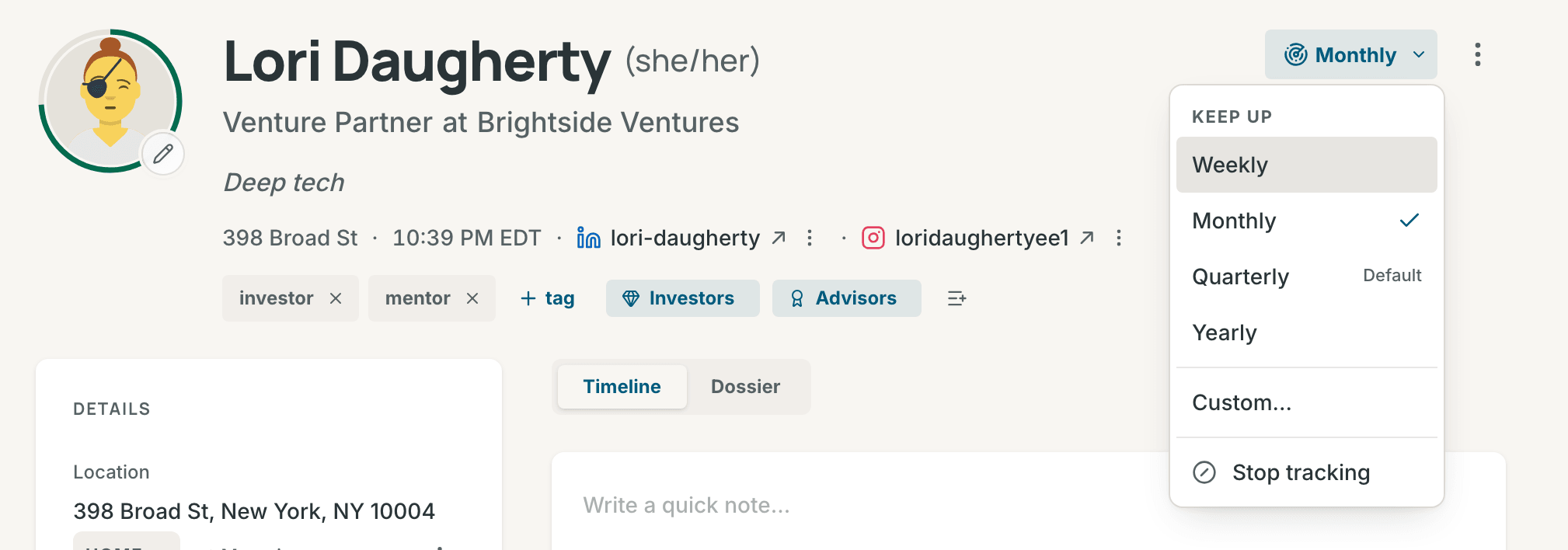
The ring appears around the picture. A toast says, for example, "Tracking Rowan Vale, quarterly" and offers Undo.
For another cadence, choose Custom…. In How often to keep up, type a number of days from 1 to 3650, and press Track.
On a tracked contact, the button shows the cadence, for example Quarterly. Open it and choose another cadence, or Custom…. The current cadence has a check mark. The toast names the new cadence, for example "Rowan Vale, monthly".
A cadence that is not one of the four shows in the menu as one more checked row, such as Every 2 months. The button shows it in short, as "2 months".
To stop, choose Stop tracking at the end of the menu. The ring goes away, and the toast "Stopped tracking Rowan Vale" offers Undo. Undo tracks the contact again at the cadence it had.
In the narrow layout of the contact page, for example on a phone, the button shows its icon, and the cadence once the contact is tracked.
On a contact page, press T to track the contact, or to stop tracking it. T tracks at your Default cadence, with the same toast and Undo. It also works on a contact open over the map. T is a single-key shortcut, so the Single-key shortcuts switch in Settings → Keyboard turns it off.
In the command palette, press → on a person, then T (see Command palette).
- Network list. Press Select, choose the contacts, and press Track in the bar at the bottom. The button reads Stop tracking when every selected contact is tracked. See Select several contacts.
- Map. Select people by area and use the same bar. See Select contacts on the map.
- Tracked contacts page. Use its select mode (see Change many at once).
Track changes only the selected contacts that are not tracked yet. It keeps the cadence of the others. The toast names the count, for example "Tracking 12 contacts", says how many were tracked already, and offers Undo. When you undo Stop tracking, the contacts come back at your default cadence.
The Tracked chip on the Network list shows only the people you track, with their count. To group them and change tracking in bulk, open the Tracked contacts page.
Open Settings → Network and contacts.
| Setting | What it does | Default |
|---|---|---|
| Default cadence | The cadence a contact gets when you track it without choosing one: with the T key, the bulk bar, the palette, or the button on a row of the Tracked contacts page. Each contact can have its own cadence. |
Quarterly |
| Track new contacts | Contacts you add by hand start tracked. Imports and connectors never do. | Off |
The relationship score is a number from 0 to 100. Only tracked contacts have one. The ring around the picture shows it:
- The length of the arc is the score. A score of 72 fills 72 percent of the ring, clockwise from the top.
- The color of the arc is the band.
| Band | Score | Color |
|---|---|---|
| Strong | 70 to 100 | Green |
| Fading | 40 to 69 | Amber |
| At risk | 0 to 39 | Red |
- A contact that nobody tracks has no ring. The picture fills the whole circle.
- A tracked contact with no logged interaction shows an empty ring. Its tooltip says "No interactions yet".
- Color is never the only sign. The tooltip says the score in words, for example "Score 72, strong".
- Open a tracked contact that has a score.
- Press the ring around the picture.
- Read the panel. It says, for example, "Scored 72 out of 100, from five signals". It lists each signal with its share of the score, its value and what it measured.
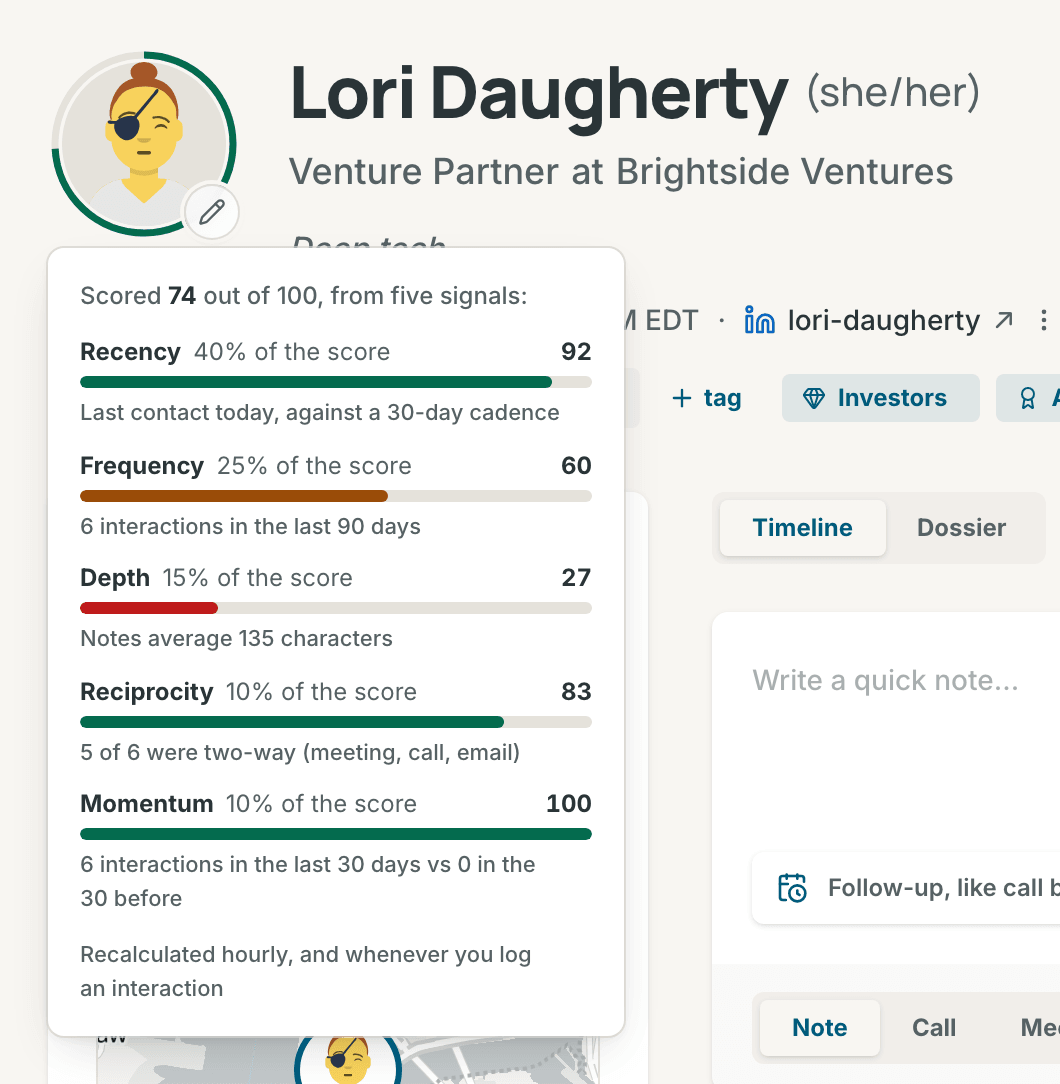
| Signal | Share | What it measures |
|---|---|---|
| Recency | 40% | The days since your last interaction, against the contact's cadence. It is highest just after you talk, half on the day the cadence runs out, and under 10 a month after that. With no interaction, it is 0. |
| Frequency | 25% | The interactions in the last 90 days. Ten or more give full marks. |
| Depth | 15% | The average length of your notes in the last 90 days. 500 characters or more give full marks. |
| Reciprocity | 10% | The share of meetings, calls and emails among the interactions of the last 90 days. With nothing in that time, it counts as half. |
| Momentum | 10% | The interactions in the last 30 days against the 30 days before. A rise of a fifth or more gives full marks. Half as much activity, or none at all, gives nothing. |
Interactions from imports and connectors count too. Contrack calculates the score again when you log an interaction, every hour for contacts that changed, and every day for all tracked contacts.
Open Pulse in the sidebar, or press Cmd+Shift+P (Ctrl+Alt+P on Windows and Linux). To open Contrack on Pulse, set Where Contrack opens to Pulse in Settings → Network and contacts.
Pulse counts days in your device's time zone: the groups in Up next, the streak, Activity and Coming up. When Pulse cannot load, it says "Could not load Pulse" and offers Try again.
The heading shows today's date. Under it, one line sums up the day, for example "2 overdue · 2 due today · 3 birthdays this week · 12 days in a row".
- With nothing overdue, nothing due today and no birthday this week, the line says "Nothing due today" while the queue holds other rows. It says "All caught up" when the queue is empty.
- "12 days in a row" is your streak: the days in a row on which you logged at least one interaction yourself. Imports and connectors do not count. The streak shows from two days. Until you log something today, it counts up to yesterday.
- On a wider screen, each count jumps to its group in Up next.
Log note opens the Log an interaction dialog. More holds New contact and Customize layout.
With no contacts yet, Pulse shows Welcome to Pulse with four first steps: Import contacts, Log your first note, Connect AI and Connect a calendar.
Up next ranks everything that needs you, in five groups:
| Group | What it holds | The chip says |
|---|---|---|
| Overdue | Follow-ups whose due day has passed, the oldest first | "3 days overdue" |
| Today | Follow-ups due today | "Today" |
| This week | Follow-ups due in the next seven days | "Tomorrow", "Wednesday" |
| Birthdays | Birthdays, anniversaries and custom dates in the next seven days | "Today", "Friday" |
| Catch up | Tracked contacts past their cadence, the furthest first, ten at most | "3 weeks past due" |
The Catch up clock starts at your last interaction with the contact. With nothing logged, it starts on the day you tracked the contact. A contact comes due the day after its cadence ends. When more than ten contacts are past due, the heading shows the total, for example "10 of 14".
Each row shows the name, the chip and what to do. A row that is not a catch-up also says when you last spoke, for example "Last spoke 2 weeks ago" ("Spoke 2 weeks ago" on a phone). Press a row to open the contact. The round button at the start of the row does the row's job:
- On a follow-up, the check marks it done.
- On a birthday or other date ("Wish Rowan Vale a happy birthday", "Wish Rowan Vale a happy anniversary", or "Rowan Vale · Work anniversary"), the cake opens a note to log.
- On a catch-up ("Check in with Rowan Vale"), the button opens a note to log.
A follow-up row also has a snooze button. It opens Snooze until with Tomorrow, In 3 days, Next week and Next month. A toast says the new day, for example "Follow-up snoozed to Thursday, Oct 8", and Undo puts the old date back. On a computer, the button shows when you point at the row or focus it. On a touch screen, it always shows. Birthday and catch-up rows have no snooze.
On a wide screen, Up next scrolls inside its card. In a narrower window, such as a phone, it shows its first eight rows and a button such as Show all 14, so the other cards are not far down the page. When the queue is empty, it says "Nothing due today" and offers Log note. To add follow-ups, see Follow-ups.
| Key | What it does |
|---|---|
J |
Next item in Up next |
K |
Previous item in Up next |
D |
Mark item done |
S |
Snooze item |
L |
Log note for contact |
C |
Toggle customize layout |
The first press of J, K, D, S or L only shows which row is highlighted. It does nothing else, so D never completes a row you cannot see. D and S work on follow-up rows only, and S snoozes the follow-up until tomorrow.
D, or the check on a row, takes the follow-up out of the queue at once. The toast "Follow-up done" offers Undo for 10 seconds, and the follow-up is marked done when the toast closes.
You can also press Tab to move into the list. The list is one Tab stop. Then:
-
↑/↓move between items in Up next. -
Enteropens the highlighted contact. -
Spacedoes the row's action. It completes a follow-up, or it opens a note for a birthday or a catch-up. -
Tabgoes to the highlighted row's check, its name and its snooze, and then out of the list.
The letter keys do nothing while a dialog or a menu is open, or while you type in a field. The Single-key shortcuts switch in Settings → Keyboard turns them off. See Keyboard shortcuts.
The Completed line says "Nothing completed yet", or for example "3 completed recently". Show lists your last 50 completed follow-ups: each title struck through, the contact, and when you finished it. Hide closes the list.
Keeping up shows the people you track. A bar splits them into Strong, Fading, At risk and No interactions yet, and each part of the legend opens that group on the Tracked contacts page. The large number says how many are within their cadence, for example "31 of 42 within cadence". When anybody is past cadence, 11 to catch up jumps to Catch up. After four weeks of weekly score records, Rising and Cooling each show up to three tracked contacts whose score moved by 3 or more in four weeks. Manage opens the Tracked contacts page. With no one tracked, the card says "No one is tracked yet" and offers Choose people.
Activity shows the last 12 weeks as squares, one for each day. A stronger color means more interactions. Each column is a week that starts on the day Week starts on sets in Settings → Network and contacts. Point at a square, or tap it, to read the day, for example "Wed, Sep 17: 2 notes, 1 call". Under the squares, a line shows the weekly totals, the last four weeks against the four before, and this week by type.
Daily insight shows one observation that AI writes about your network, drawing on your contacts' industries, roles, locations and recent activity. AI writes a new one each day, and again after your contacts change. Without an insight, the card says why in one line:
- With AI off for your account, it reads "AI is off for your account", with a link to Settings → Privacy and AI.
- With no Fast model set up, an admin reads "Set up a Fast model to get one", with Open AI settings. A member reads "Your admin has not set up AI yet".
- When the provider fails, it reads "Could not write today's insight" and offers Try again.
See Connect a provider.
Inbox lists clean-up jobs. Each row opens the place where you do the job:
- "6 new this month, 2 untracked" opens the Network list at
added:<30d tracked:no, the untracked people added in the last 30 days. - "Review 3 possible duplicates" opens Possible duplicates.
- "2 contacts have stale data" opens the contacts that nobody updated in six months (
updated:>6m). - "1 person is mentioned but not in your network" shows the names of the most mentioned ghosts, up to five. Each name opens the ghost.
- "4 without a company", "2 without a location" and "1 without an email" open the list at
missing:company,missing:locationandmissing:email. - "5 people you talk to are not contacts" opens Correspondents (see Who becomes a contact).
With nothing to do, the card says "Nothing to clean up".
Coming up lists the birthdays, anniversaries and custom dates eight to fourteen days away and the meetings in the next seven days from a connected calendar, in date order. Each row has a chip such as "Tomorrow", "Thursday" or "In 10 days". A birthday row says, for example, "Turns 34", or "Birthday" when the year is not known; an anniversary or custom date shows its years or its label. A meeting row shows its title, its time and the people in it. An all-day event shows its day and "all day". With nothing to show, the card says "Nothing coming up". When no calendar is connected, it also offers Connect a calendar.
Composition is a ring chart of your network by Industry, Role or Location. It shows the six largest groups and Other. Each group opens the Network list filtered to it. See all or Other opens Network composition, which lists the eight largest groups by industry, location and role, each with its count and share.
- Open More and choose Customize layout, or press
C. A bar with Reset layout and Done shows under the top line, and each column shows its name. - Move a card in one of three ways:
- Drag it by its handle. On a touch screen, hold the handle for a moment, then drag.
- Open the menu beside the eye and choose Move up, Move down, Move to Focus column, Move to Network column or Move to Intelligence column.
- Focus the handle and press
SpaceorEnterto lift the card.↑and↓move it one place, and←and→move it to the next column. PressSpaceorEnteragain to put it down, orEscto put it back.
- To hide a card, press its eye button. A hidden card goes to the Hidden cards tray at the top. Press the eye in the tray to show the card again, at the end of its first column.
- Press Done. Reset layout puts every card back in its first place, and its toast offers Undo.
Contrack saves your layout to your account, so it is the same on every device.
- On a wide screen, Pulse has three columns: the Focus column (Up next and Completed), the Intelligence column (Daily insight, Inbox, Coming up and Composition) and the Network column (Keeping up and Activity).
- On a medium screen, Focus and Network share the first row. The Intelligence cards sit two across under them.
- On a phone or a narrow window, the cards form one column in the order Focus, Network, Intelligence. On a phone, the counts in the top line are plain text, not links.
The Tracked contacts page lists everybody, grouped by the state of each relationship. Open it from Settings → Tracked contacts (under Your data), or from Manage on the Keeping up card.

- The search box finds contacts by name, company or role.
- Tracking shows All, Tracked or Not tracked.
- Last spoke reads the date of your last logged interaction. Its pills are Any, Past month (the last 30 days), Past year (the last 365 days), Over a year ago and Never.
- A contact shows when it matches both rows. Each pill shows how many contacts it would show with the choice in the other row and the search.
- The order is Name, Last spoke or Recently tracked. Name runs from A to Z. Last spoke puts the newest first and never last. Recently tracked puts the newest first, and keeps the Not tracked group from A to Z.
Combine the two rows to find who to track next. Not tracked with Past month lists the people you spoke to this month and do not track yet.
The page keeps your choices in its address. The browser's Back button, and the Back button on a contact you opened from the list, return you to the same list.
The groups come in this order: At risk, Fading, Strong, No interactions yet and Not tracked. The first four hold the tracked contacts by their band. An empty group is left out. Archived contacts and ghosts are not listed.
Each row shows the ring, the name and the company. It also shows the cadence ("quarterly"), how far past due the contact is ("3 weeks past due"), and when you last spoke ("spoke 3 weeks ago"). The button at the end of the row tracks the contact at your default cadence, or stops tracking it.
- Press Select, the square button in the page header.
- Choose the contacts, or press Select all in a group heading.
- Use the bar: Track, Stop tracking, or Cadence to give every selected contact one of the four cadences.
- Press Done to leave select mode.
Track and Stop tracking show the same toasts and Undo as the Network list. Cadence says, for example, "12 contacts, monthly". A new filter clears the selection, so the bar never acts on a contact you cannot see.
With no one tracked, the page says "No one is tracked yet". With Tracked chosen, Show people to track switches to Not tracked. When the filters leave no one, Clear filters resets them. When the search finds no one, Clear search empties it.
Contacts that may be the same person wait in groups on the Possible duplicates page. The Inbox row, such as "Review 3 possible duplicates", counts the groups and opens the page. See Review possible duplicates.
Track a contact with PATCH /api/contacts/:id and the fields isTracked and cadenceDays (see Tracking). GET /api/contacts/:id/score returns the five signals of a score. GET /api/dashboard returns what Pulse shows (see Pulse).