Repository navigation
Contacts
Your contacts live on the Network page. This page covers the list, the contact page, notes and follow-ups, and the tools that keep a network tidy: lists, tags, the archive and the trash.

Open Network from the sidebar or the tab bar. On a wide screen the list sits beside the open contact, and you can drag its edge to resize it. Under 1024 px wide, such as on a phone, a contact slides in over the list.
-
Search: type in the search box, or press
/. It matches names, companies, roles, locations, industries, tags, emails and phones, and shows the count, such as "12 matches". Facets such ascompany:Acmeortracked:nowork here too. See Facets.Escclears the box. When no one matches, the list says what to try and offers Clear search. - Chips: All, Tracked and one chip for each list, each with a count. Press a pressed chip again to show everyone. A mouse wheel scrolls the row of chips. A tag that you open from Settings → Tags shows as a chip of its own while it filters. When you press Tracked and no one is tracked, the list offers Choose people, which opens Settings → Tracked contacts.
- List order: drag a list's chip with a mouse, or open its menu with a right click or a long press and choose Move left or Move right.
- Sort: A to Z and Z to A by name, Newest and Oldest by the day you added the contact. Default sort in Settings → Network and contacts sets the first order, A to Z or Newest. A sort you choose holds until you close the browser tab.
- Recent: the contacts you opened last in this browser tab, at the top. The row hides while you search or filter. Recent contacts on the same settings page sets how many, from 0 to 10, and 0 hides the row.
- Letter rail: in a list sorted by name, with no search and 15 or more people. Tap or drag a letter to jump to it. A short window, such as a phone on its side, has no room for it and does not show it.
- Row menu: right-click a row for View contact, Copy email and Archive. For the list's keys, see Keyboard shortcuts.
- Refresh: on a touch screen, pull the list down.
- Command palette: on a touch screen, the first button above the list opens the command palette. With a mouse, the sidebar's Command palette button does.
- Press Select, the square button above the list. On a touch screen, you can also press and hold a row, which selects that row. A checkbox appears on the right side of each row so avatars and names stay in place.
- Press the rows you want. Shift-click (or
Shift+Spacefrom the keyboard) selects every row between two rows, and Select all selects every contact the list shows. - Press a button in the bar at the bottom. Select mode ends when the action is done.
Done or Esc leaves select mode with no change.
| Button | What it does |
|---|---|
| Track or Stop tracking | Tracks the selection at your default cadence, with Undo. The toast says how many were tracked already. Stop tracking shows when all are tracked. |
| Archive | Archives the selection, with Undo. |
| Add to list | Adds the selection to a list. |
| Edit field | Sets Role / title, Company, Industry or Location for all of them, with Undo. |
| Color | Sets the page color of each contact. |
| Copy CSV | Copies the name, role, company, location, first email and first phone to the clipboard. |
| Delete | Moves the selection to the trash, with Undo. |
On a phone the bar is one row of icons. Edit field, Change color and Copy CSV are in its More actions menu, the three dots.
Press New, the plus button above the list.
-
New contact opens a form. Only Full name is required. Press
Save contact. In the list,
Nopens the form too. -
Add from text: paste an email signature, a bio, or notes about someone,
such as
"Met at Sarah's wedding, loves natural wine, kids are Leo and Maya, catch up every quarter"or"Partner at Sequoia, follow up next Tuesday on seed round", and press Extract contact. AI fills in the New contact form for you to check. Below the fields are the tags and the past meetings, calls and emails that it found, each with a check box and each interaction with its date. Clear a box to leave one out. The other things it found, such as family or how-you-met facts, interests, jobs and links, save with the contact.Vopens it too. It needs AI. When AI is off or no model is set up, the dialog says what is missing, and links to the fix when you can make it. See Connect a provider. - New list: see Lists.
A contact you add by hand starts tracked when Track new contacts is on in Settings → Network and contacts. To bring in many people, see Import a file and Connectors.

In a wide pane, the page shows the header, the Details card on the left, and Timeline and Dossier on the right. In a narrow pane, such as a phone, it shows a short header and three tabs: Timeline, Details and Dossier. Under 1024 px wide, Back names the page it returns to, and returns to the same place in the list.
Each contact has a readable URL slug built from their name and a short random
suffix, such as /contact/lori-daugherty-8f3a1c2e. A link to a merged contact
opens the contact it merged into. When a contact does not load, the page says
"Could not load the contact" and offers Try again.
-
Name, role and company: click one to edit it.
Entersaves andEsccancels. Pronouns show after the name when research found them. - Headline: a line under the role, when it says more than the role and the company. Click it to edit it.
-
Meta line: the place, the local time with its time zone, and the links.
The local time needs a map pin. Each link has a menu with Copy link and
Remove link. To add a link, such as a profile or a website, press
+ link, paste the link and press
Enter. - Weather: follows the time in the wide layout, when Weather is on in Settings → Network and contacts. It is off by default. Your browser then asks Open-Meteo for the weather at the contact's place. Temperature unit on the same page sets °C or °F.
- Tags and lists: under the meta line. In the narrow layout, they and the headline sit at the top of the Details tab. See Tags and Lists.
- Track: reads Track, or the cadence, such as Quarterly. See Track a contact. On a tracked contact with a score, press the ring around the picture to see how the score works.
- Follow-up band: a band across the top shows a follow-up that is late, due today or due within 7 days, such as "Follow-up due Friday".
- Duplicate band: shows when another contact may be the same person, with the reason and any caution. Press Compare to see the two side by side and choose the contact to keep, then press Merge. Keep separate says that they are two people. Each choice offers Undo. See Review possible duplicates.
- Quick actions: on a touch screen, a row of buttons ends the narrow header. Call and Message use the contact's phone, and ask which number when there are two or more. Email uses the first email. Log note opens the Log an interaction dialog for this contact. Call, Message and Email show only when the contact has a phone or an email.
The Contact actions menu, the three dots, holds these items in order:
- Change color: paints this contact's page only, in Blue, Emerald, Amber, Rose, Pink or Teal.
- Enrich contact: opens a submenu with Standard and Deep contact research (point at it with a mouse, or tap it on a touch screen). It shows only when AI is on for you. See Research contacts.
- Copy basic details and Copy full details: the name, emails and phones, or also the role, company, birthday and addresses.
-
Share contact: sends the contact as a card (a
.vcffile) through your phone's share sheet, for example to Messages or to your phone's contacts. Where the sheet takes no card, as on Android, it gets the name, the phones and the emails as text. A browser with no share sheet shows Save contact card, which downloads the card. - Archive or Unarchive, and Delete. See Archive and trash.
| Field | What it holds |
|---|---|
| Location | Addresses, each labeled home, work or other. The first one places the map pin. |
| Email addresses, each labeled work, personal or other. | |
| Phone | Phone numbers, each labeled mobile, work, home or other. |
| Dates | Birthdays, anniversaries and custom milestones, with or without a year ("May 14" or "May 14, 1990"). Each has a label (birthday, anniversary, other or custom…) and shows a badge when it is within 30 days. |
| Industry | One industry. The box suggests common ones. |
| Preferences | Short notes, such as "Tea", "Natural wine" or "Morning calls". |
| Interests | Topics the person cares about. A topic that research found has a sparkle. |
| Next follow-up | The next open follow-up and its day. Its menu has Change date and Mark done. |
-
Edit: click a value, or give it focus and press
Enter.Entersaves andEsccancels. Press a row's label to change the label. An email must look likename@example.com, and a phone number needs three digits or more. - Call and write: on a touch screen, an email and a phone are links. Press an email to write to it in your mail app, and a phone to call it. To edit one, press the pencil after it. A number that would dial wrong, such as one with letters, is not a link, and a press edits it. The phone field opens the phone keyboard on a phone. With a mouse, a click on the value edits it.
- Row menu: Message (a phone, on a touch screen), Make primary, Show on map and Remove, with Undo for 10 seconds. The first email and phone are the primary ones, and the first address places the pin and says Map pin.
-
Order: open a row's menu and drag the row by its handle, or press
Alt+↑orAlt+↓(Optionon a Mac) on the value. -
+ Add: adds a value. For preferences and interests,
Enteradds a chip and keeps the box open for the next one, and a comma adds several at once.
A placed contact shows a small map with Open in map and Adjust pin. A contact with an address and no pin says "Not on the map yet" and offers Set location. See Move a pin by hand. The About text, schools and past jobs come from imports, Add from text and research, and have no box to type them in.
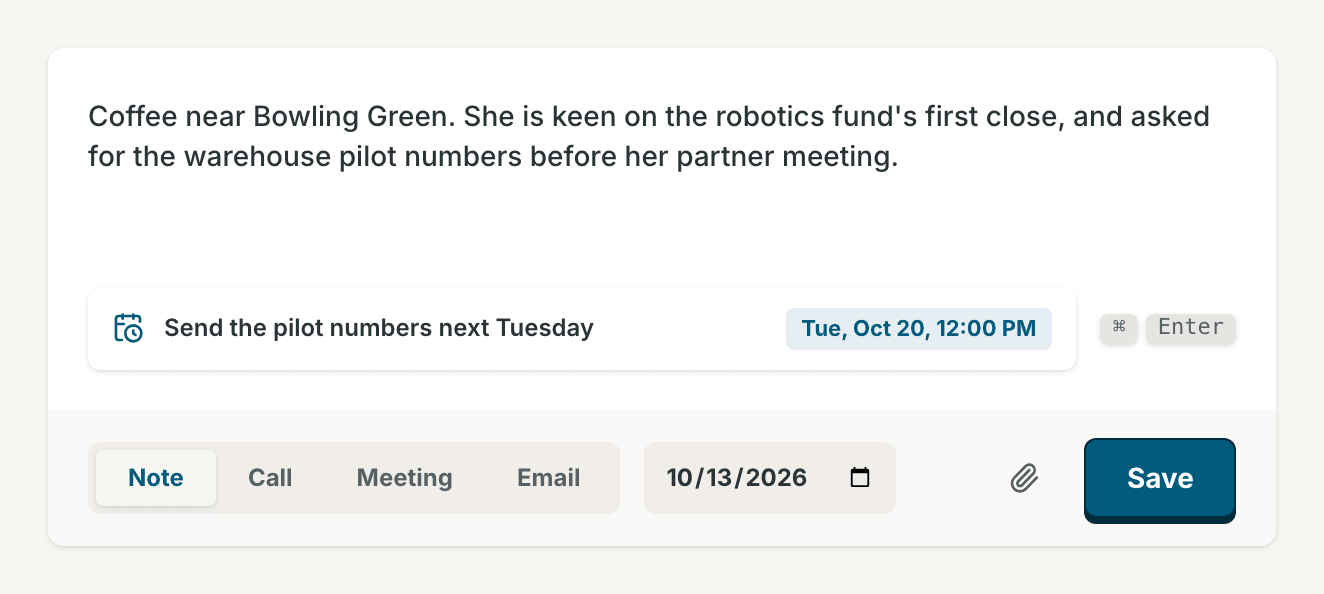
The Timeline tab lists every interaction with the contact, and every note that mentions the contact, newest first. The entries sit under This week and then one heading per month. The week starts on the day set in Week starts on, in Settings → Network and contacts.
- Open the contact. The composer is at the top of the Timeline tab. In the narrow layout it is one line, "Write a quick note…", until you tap it.
- Write the note. Type
@to mention someone by any part of their name. - Optional: write the next step with a date in the Follow-up line, such as "Send the deck next Tuesday". The line shows the date it read. A weekday is always the next one: on a Monday, "Friday" is this Friday. A follow-up needs a date. With only a follow-up and no note, Save adds the follow-up alone, and "last contacted" does not change.
- Choose Note, Call, Meeting or Email, and the date. The calendar button defaults to Today; for an interaction that happened before, press the calendar button to choose its day (press it again to close the picker).
- Press Save, or
Cmd+Enter(Ctrl+Enteron Windows and Linux).
The entry takes its type as its title: "Note", "Call", "Meeting" or "Email".
Until you save, your draft stays on this device for up to 30 days. To log from
any page, press Log note on Pulse, or Cmd+Shift+I (Ctrl+Alt+I on
Windows and Linux), and choose the contact in the Log an interaction
dialog. On a contact's page that dialog opens for that contact. It keeps an
unsaved note when it closes, for the next time it opens.
- Open: press an entry's title to see the full text, its follow-ups, Edit and Delete. The entry's menu has Edit and Delete too. Edit changes the title and the text, in the same editor as the composer. Press a follow-up to mark it done, with Undo.
- Delete: asks "Delete this interaction?". Press Delete interaction. The toast offers Undo for 10 seconds. After that the delete is final, and an attached file goes with the entry.
- Links: paste a bare link into the composer. With AI on, Contrack asks that page for its title and shows a card in the editor. The saved entry shows the link with the page's title. With AI off the card does not load, and the entry shows the address.
-
Files and images: press the paperclip button (Attach a file) in the
composer, drag and drop files onto the composer or the Timeline tab, or
paste an image from the clipboard into the note editor, up to 50 MB each.
Contrack takes PDFs, PNG, JPEG, GIF and WebP images,
.txt,.mdand.csvfiles, and.emlemail files. Each file becomes an entry of its own, titled "File:" and the file name, and an image shows in the entry. An.emlfile becomes an email entry, titled "Email:" and the file name. When AI is set up and on for you, AI writes a summary of the email into it. Otherwise the entry holds the file with no summary. - Badges: via Calendar, via Email and via Google mark entries from a connector. via and a name marks a note, logged on another contact, that mentions this person. Press it to open that contact.
A follow-up is a task with a due date for one contact. Write it with a date in the composer's Follow-up line, such as "Call about the offer on Friday". On Save, Contrack makes the task "Call about the offer", due on Friday, and the toast names the date. A line with only a date makes the task "Follow up". To give many people one follow-up, select them on the map.
- Pulse lists follow-ups under Up next. Complete and snooze them there. See The Pulse page.
- The contact page shows the follow-up band, and Next follow-up in Details. A Network row with an open follow-up has a calendar mark.
- In an entry's dialog, press a follow-up under Follow-up to mark it done. Next follow-up in Details has Mark done too. Each offers Undo. A due date names its weekday, such as "Fri, Oct 9", so a wrong day shows at once.
In the composer, type @ and the start of any word of a name: @vale and
@rowan v both find Rowan Vale. A list shows up to eight contacts, and marks a
ghost Not added. Press ↑, ↓ and Enter, or choose a name. Esc
closes the list. The note then shows on the mentioned person's timeline too,
with a via button that opens the contact you logged it on.
A ghost is a person Contrack has seen, but that you have not added yet.
- From notes: when AI is set up and on for you, Contrack reads each note you save for the names of people. A name that clearly matches one of your contacts links to that contact, and the note shows on that contact's timeline too. A name that matches nobody becomes a ghost. A name that only looks like a contact becomes a ghost, and the pair waits in Possible duplicates for you to decide.
- From connectors: a connector can add a ghost for a person in your calendar or mail. See Connectors.
A ghost's picture has a sparkle badge. Point at it to see where the ghost came from. Ghosts stay out of the Network list and the map, and you cannot track or research one. Under a note, the dashed names in Mentioned: are ghosts. To make a ghost a full contact, open it and press Add to Network, or press its dashed name under a note.
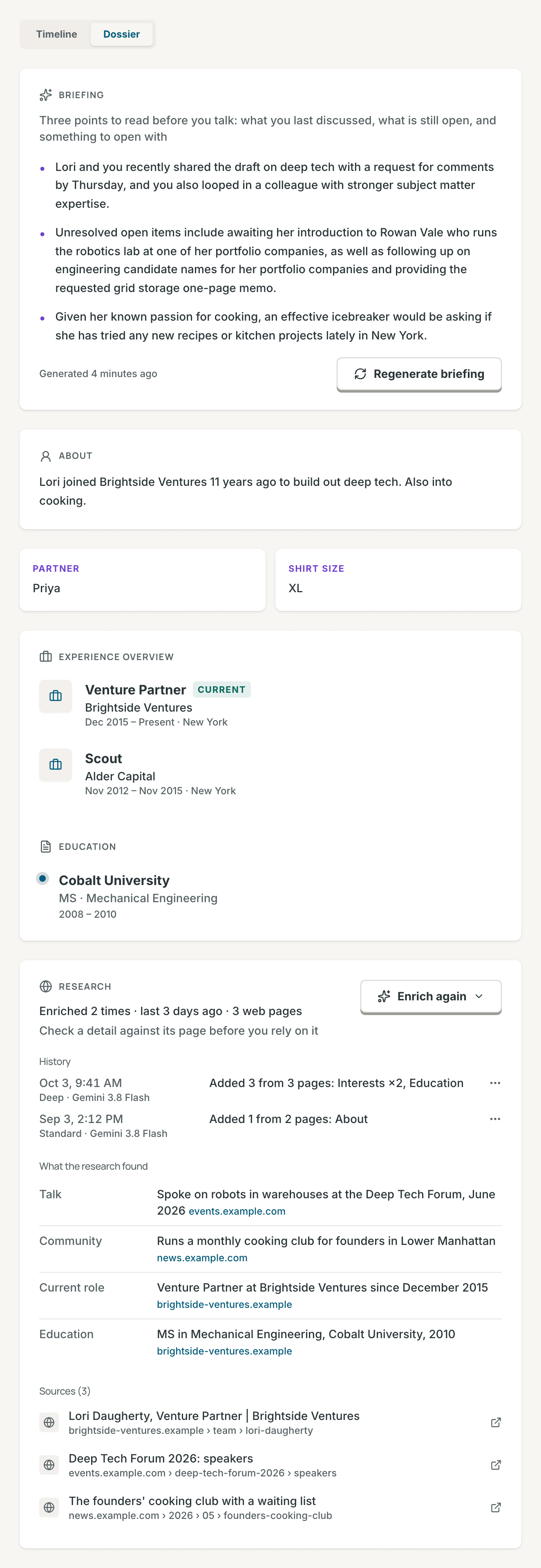
- Briefing: three points to read before you talk: what you last discussed, what is still open, and something to open with. Press Generate briefing, or Regenerate briefing to write it again. It reads the profile and the last 15 interactions. A briefing stays for three days, and a new, changed or deleted interaction clears it. It needs AI, and uses the Fast model.
- About, custom facts, Experience overview and Education: what imports and research found.
- Research: each research run with its depth, its model and what it added, the facts it found beside their pages, and every source. Enrich again runs it again. When a run found someone else, open its menu under History and choose Not and the contact's first name. See Not this person. A contact with nothing to show says "No dossier yet" and offers Enrich contact. See Research contacts.
- With AI off for your account, these AI buttons do not show. With no AI model or web search set up, Generate briefing, Enrich contact and Enrich again wait. A line under each says why, and an admin gets a link to the page that fixes it.
Press the pencil on the picture to open Edit avatar. Choose an avatar shows faces in the styles Cartoon, Illustrated and Bot. Upload a photo takes a JPEG, PNG, GIF, WebP or AVIF photo of up to 10 MB. Then press Apply.
A contact with no picture gets a cartoon face that your own server draws, so no name leaves your server. The pronouns, a title or the first name choose the look, and an unclear name gets a neutral one. A new name redraws this face.
A list is a named group of contacts with an icon, and a contact can be on many lists. To make one, press New, then New list, above the Network list, or New list on Settings → Lists. Choose an icon, type the List name and press Create list.
-
Add people: on a contact page, press Add to a list, the list button
after the tags. Or select several contacts and press Add to list in the
bar. Or open the list on Settings → Lists, type a name in
Add people, and press
Enteror choose the person. - See who is on it: press its chip in the Network list, or press View in Network on Settings → Lists.
- Remove someone: press the × on the list's chip on the contact page, or the remove button beside the person on Settings → Lists. The toast offers Undo.
-
Change a list: on Settings → Lists, drag a list to move it, or use
Move up and Move down in its row's menu. Open it to change its icon
and name. The name saves when you leave the field or press
Enter, andEscputs the saved name back. To delete it, press Delete list, then Delete list in the dialog that asks first. The contacts stay.
A tag is a short label on a contact, such as "investor". On the contact page,
press + tag, type the tag and press Enter. A comma adds several tags at
once. Press the × on a tag to remove it, and the toast offers Undo for 10
seconds.
Settings → Tags lists every tag with the number of contacts that have it, not counting archived and deleted contacts. Filter tags narrows the list, and a tag's name opens the Network list filtered to that tag.
- Rename: type a new name and save it. When another tag has that name, the rename joins the two tags, so it opens Merge into… to ask first.
- Merge into…: choose or type the Target tag and press Merge tags. The first tag's contacts get the target tag instead.
- Delete: asks first, then removes the tag. The contacts stay.
A rename, a merge and a delete change every contact with the tag, archived and deleted ones too. The dialogs say how many of those there are.
Archive, in the actions menu, the bulk bar or a row's menu, hides a contact and keeps its history. The toast offers Undo for 10 seconds. An archived contact leaves the Network list, the map, Pulse and Ask Contrack. Its page says Archived under the picture, and Unarchive in the actions menu brings it back. Settings → Archived contacts lists the archived contacts, newest first, with the day each was archived, Restore on each row, and Select to restore or delete several.
Delete moves a contact and its whole history to the trash. It does not ask first. The toast says how long the trash keeps the contact, such as "Restorable for 30 days", and offers Undo for 10 seconds.
- Settings → Trash lists each deleted contact, with the days it has left.
- Restore brings the contact back, with its history and its pin. A contact that was archived before the delete comes back unarchived.
- Delete forever asks first, then removes the contact and every interaction, note and follow-up it had. This cannot be undone.
- Empty trash asks first, then deletes every contact in the trash in the same way.
- Removing a contact for good also removes every contact that was merged into it, the merge history that names them, and their files: photos, attachments and link-preview images. A file that another contact still shows stays. See Privacy.
- The trash removes a contact for good after 30 days. An admin can choose 7 days, 30 days, 90 days or 1 year in Trash on Settings → Administration → General, unless the server's configuration sets the number. See Data lifecycle.
- Export: vCard, CSV or JSON, from Settings → Export
- Pulse and tracking
- Search and Ask Contrack
- Duplicates
- Keyboard shortcuts