Repository navigation
Keyboard shortcuts
Contrack works from the keyboard on every page. This page lists every shortcut, grouped by the page where it works.
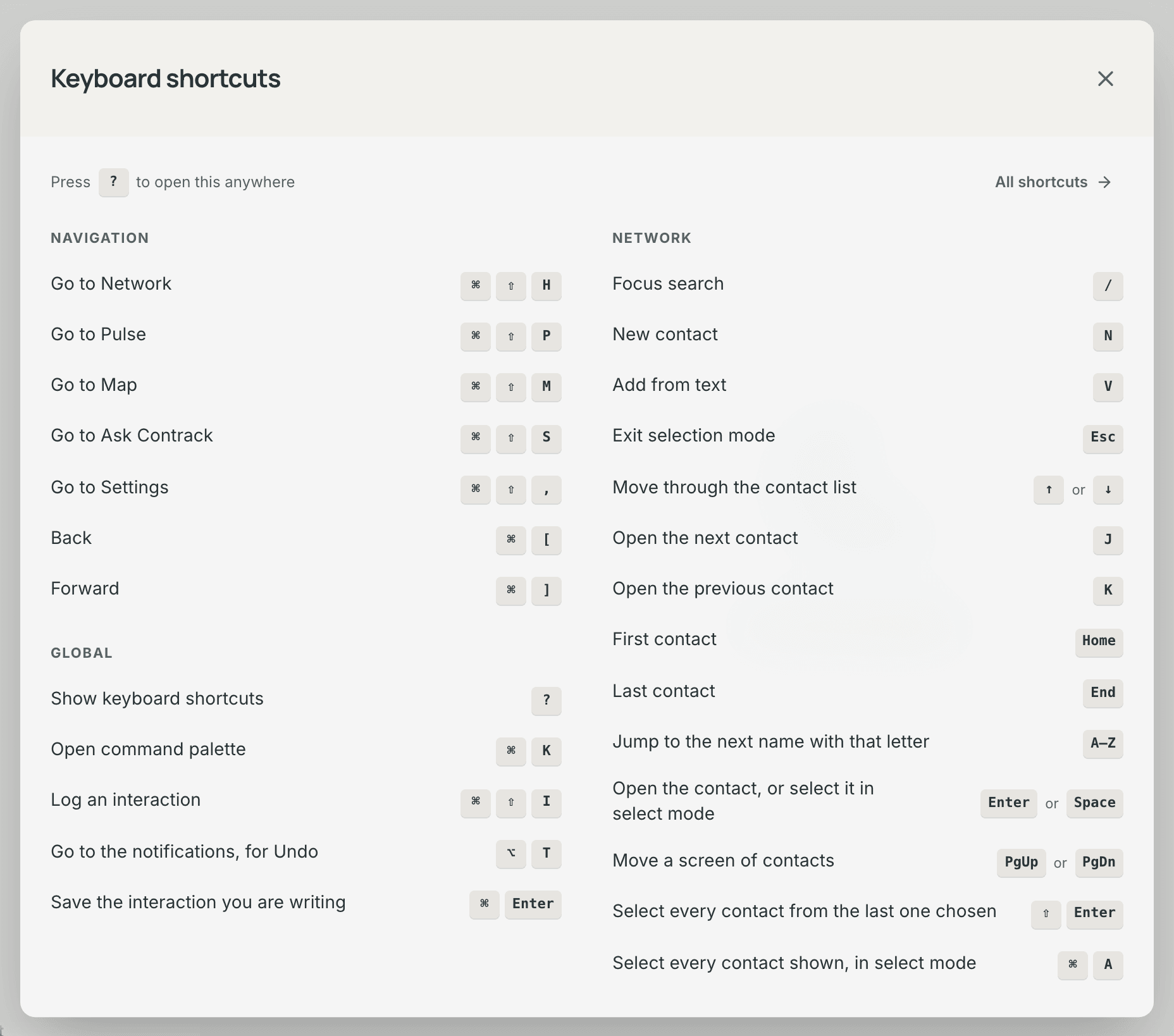
- Press
?on any page, when focus is not in a text field. - Or press Keyboard shortcuts, the keyboard button at the foot of the sidebar. It shows only with a mouse or a trackpad.
The left column holds Navigation and Global, which work on every page. The right column holds the keys of the page you are on, under the page's name. On a contact page the contact's keys come first, then the keys of the Network list or the map beside it. A page with no keys of its own says "No shortcuts of its own". On a narrow window the columns stack.
All shortcuts, at the top of the dialog, opens Settings → Keyboard,
which lists every shortcut in the app. Press ? again, or Esc, to close the
dialog.
- Keys shown together, such as
⌘ ⇧ H, are one combination. Hold the first keys, then press the last one. - Keys joined by "or", such as
↓orJ, are alternatives. Either key does the same thing. -
⌘is the Command key,⇧is the Shift key and⌥is the Option key. For the keys on Windows and Linux, see Windows and Linux. - A single-key shortcut never fires while focus is in a text field, or while
you hold
⌘,Ctrlor⌥. In a field, a letter you type is only a letter.
This page shows the keys of a Mac. On Windows and Linux, Contrack shows the keys of your computer in the shortcuts dialog, in Settings → Keyboard and in the hints beside buttons.
- Press
Ctrlin place of⌘:Ctrl Kopens the command palette,Ctrl Entersaves the interaction you are writing, andCtrl Aselects every contact in select mode. - Press
Ctrl Altin place of⌘ ⇧:Ctrl Alt Hgoes to Network,Ctrl Alt Pto Pulse,Ctrl Alt Mto Map,Ctrl Alt Sto Ask Contrack,Ctrl Alt ,to Settings, andCtrl Alt Iopens the Log an interaction dialog. - Press
Altin place of⌥, for exampleAlt Tto reach the notifications. - Press
Alt ←andAlt →to go back and forward. These are the browser's own keys.
The navigation keys do not use Ctrl ⇧. The browser keeps Ctrl ⇧ I
(developer tools), Ctrl ⇧ P (a private window in Firefox) and Ctrl ⇧ M
(the profile menu in Chrome) for itself, and a page cannot use them.
Some keyboard layouts type a character with Ctrl Alt (the AltGr key), for
example ś or @. In a text field that character goes into the field, and
the page stays where it is. Outside a field the key works as its letter.
A browser can keep a key for itself before the page sees it. On a Mac,
Firefox opens a private window on ⌘ ⇧ P, Chrome opens its profile menu on
⌘ ⇧ M, and some browsers open their home page or history on ⌘ ⇧ H. Then
press ⌃ ⌥ (Control and Option) in place of ⌘ ⇧: ⌃ ⌥ P goes to Pulse.
The ⌃ ⌥ keys work for every "Go to" key and for ⌘ ⇧ I. While VoiceOver
runs, it takes the ⌃ ⌥ keys for itself.
A single-key shortcut is one key with no modifier, such as N or /. You can
press one by mistake when focus is not where you think it is.
- Open Settings → Keyboard.
- Turn off Single-key shortcuts.
The switch turns off every shortcut that Settings → Keyboard marks Single key. The tables below mark them "Yes". While the switch is off, the settings page marks them Off, and the shortcuts dialog dims them and offers Turn them on. The switch is saved to your account, so it follows you to every device.
- Two single keys stay on, marked Always on:
?and the letter keys in the Network list. - For a shortcut with an arrow or a letter, such as
→orL, the switch turns off the letter. The arrow keeps working. - The arrow keys,
PgUp,PgDn,Enter,Esc,Space,Home,Endand every shortcut with⌘or⌥stay on.
These work on every page.
| Keys | What it does | Single key |
|---|---|---|
⌘ ⇧ H |
Go to Network | No |
⌘ ⇧ P |
Go to Pulse | No |
⌘ ⇧ M |
Go to Map | No |
⌘ ⇧ S |
Go to Ask Contrack | No |
⌘ ⇧ , |
Go to Settings | No |
⌘ [ |
Back | No |
⌘ ] |
Forward | No |
These work on every page.
-
⌘ Kopens the command palette, and pressing it again closes it. -
⌘ ⇧ Iopens the Log an interaction dialog, and pressing it again closes it. On a contact page the dialog opens for that contact. -
⌘ Entersaves the note you are writing: on a contact's Timeline, in the Log an interaction dialog and in the command palette. -
⌥ Tmoves focus to the notifications, where Undo waits for 10 seconds after a change. After Undo, focus goes back to where it was.
| Keys | What it does | Single key |
|---|---|---|
? |
Show keyboard shortcuts | Always on |
⌘ K |
Open command palette | No |
⌘ ⇧ I |
Log an interaction | No |
⌥ T |
Go to the notifications, for Undo | No |
⌘ Enter |
Save the interaction you are writing | No |
These work on the Pulse page. See The Pulse page.
- While no row in Up next shows the highlight, the first press of
J,K,D,SorLonly shows it. SoDnever completes a row you cannot see. -
DandSwork on follow-up rows only.Ssnoozes the follow-up until tomorrow. -
Up next is one
Tabstop. PressTabto reach the queue, then↑and↓move between its rows.Enteron a focused row opens its contact. On a button, a link or a menu item,Enterdoes what that control does.
| Keys | What it does | Single key |
|---|---|---|
J |
Next item in Up next | Yes |
K |
Previous item in Up next | Yes |
↑ or ↓
|
Move between items in Up next | No |
D |
Mark item done | Yes |
S |
Snooze item | Yes |
L |
Log note for contact | Yes |
C |
Toggle customize layout | Yes |
Enter |
Open the highlighted contact | No |
Space |
Mark the highlighted item done, or log a note | No |
These work on the Network page, and in the list beside an open contact. See The Network list.
-
/,N,V,JandKwork when focus is not in a field, a dialog or a menu, and Caps Lock does not stop them.Nopens New contact andVopens Add from text. -
JandKopen the next and the previous contact in the list. Outside the list,↓and↑do the same. - The list is one
Tabstop. In the search box,↓moves to the list andEscclears the search. Once a row has focus, the arrow keys,PgUp,PgDn,Home,Endand the letters move focus without opening a contact, andEnteropens it. There,JandKare letters like the others. - In select mode,
SpaceandEnterselect a contact,⇧ Enterselects every contact from the last one you chose, and⌘ Aselects every contact the list shows. - The letter rail, when it shows, is one
Tabstop. The arrow keys,Home,Endand a letter jump the list to a letter. - To move a list's chip, open its menu with a right click, a long press or the menu key, and choose Move left or Move right.
| Keys | What it does | Single key |
|---|---|---|
/ |
Focus search | Yes |
N |
New contact | Yes |
V |
Add from text | Yes |
Esc |
Exit selection mode | No |
↑ or ↓
|
Move through the contact list | No |
J |
Open the next contact | Yes |
K |
Open the previous contact | Yes |
Home |
First contact | No |
End |
Last contact | No |
A–Z |
Jump to the next name with that letter | Always on |
Enter or Space
|
Open the contact, or select it in select mode | No |
PgUp or PgDn
|
Move a screen of contacts | No |
⇧ Enter |
Select every contact from the last one chosen | No |
⌘ A |
Select every contact shown, in select mode | No |
These work on the Map page, also while a contact is open over the map. See Select contacts on the map.
-
Tabmoves to the pins. On a pin,Enteropens the contact andSpacemoves into its card's buttons. When the map itself has focus, the arrow keys pan it, and+and-zoom. - On a narrow window, or when an open contact leaves the map little room,
/opens Filters. -
Escin the filter box clears it. In Go to,Esc, orEnteronce the place is found, puts focus back in the filter box.Escon a stack's list puts focus back on the stack. -
Lturns the lasso on or off. You draw the lasso with a mouse or a trackpad. - The single keys do nothing while a menu is open or a dialog has the focus.
| Keys | What it does | Single key |
|---|---|---|
/ |
Focus the filter box | Yes |
F |
Fit all in view | Yes |
I |
Toggle insights pane | Yes |
L |
Lasso select | Yes |
Esc |
Clear the filter box, close the contact, or clear the selection | No |
Enter |
Open contact | No |
Space |
Card actions | No |
⌥ ↑ |
Move a view up, in Views | No |
⌥ ↓ |
Move a view down, in Views | No |
These work on a contact page, also on a contact open over the map. See The contact page.
-
Ttracks the contact at your default cadence, or stops tracking it. The toast offers Undo. -
Enteredits the value that has focus, in the header or in the Details card.Entersaves the edit, andEsccancels it. - Elsewhere on the page,
Enterstarts a note, except on a contact open over the map. -
⌥ ↑and⌥ ↓move an address, an email or a phone. The first one in each field is the primary one. - After a click on blank space,
Space,Page Downand the arrow keys scroll the page.
| Keys | What it does | Single key |
|---|---|---|
T |
Track this contact, or stop tracking it | Yes |
Enter |
Edit the value that has focus, or start a note | No |
Esc |
Cancel the edit | No |
⌥ ↑ |
Move the value up one place | No |
⌥ ↓ |
Move the value down one place | No |
These work on the Ask Contrack page, in People and in Notes mode. See History.
-
/puts the cursor in the search box, andEscin the box clears the search. - The results are one
Tabstop. The arrow keys,HomeandEndmove between them. -
Hshows or hides the history panel. On a narrow screen,Hopens the history as a sheet. -
Escin the history panel closes it. In the panel's filter box, the firstEscclears the words.
| Keys | What it does | Single key |
|---|---|---|
/ |
Focus search | Yes |
H |
Toggle search history | Yes |
Esc |
Clear the search | No |
↑ or ↓
|
Move between results | No |
These work on the Possible duplicates page, in To review. Open the page with Review them on Settings → Duplicates, or from the Inbox card on Pulse. See Review possible duplicates.
- In Contact to keep, the arrow keys choose the contact, and the letters still decide.
- A Check carefully group never merges from one key. The first
Lor→opens its comparison with focus on Merge, andEntermerges. On a wide screen, a secondLor→merges too. - The letters work with Caps Lock on. A key held down makes one decision, not many.
| Keys | What it does | Single key |
|---|---|---|
↓ or J
|
Next group | The letter |
↑ or K
|
Previous group | The letter |
→ or L
|
Merge into the contact to keep. A Check carefully group takes two presses | The letter |
← or H
|
Keep them separate | The letter |
Z |
Undo the last decision | Yes |
These keys are not in the shortcuts dialog, because they belong to one control.
- Command palette: the palette has keys of its own for results, filters and actions. See Command palette.
-
@mentions: in a note, type
@and the start of a name.↑and↓move through the names,Enterpicks one, andEsccloses the list. -
Menus:
Enter,Spaceor↓on a menu button opens the menu on its first item, and↑opens it on its last. In the menu, the arrow keys move and wrap,HomeandEndjump to the ends, and a letter moves to the next item that starts with it.Esccloses the menu and returns focus to the control that opened it, andTabcloses it and moves on. A right-click menu works the same way. While a menu is open, its letters never reach the page behind it. -
Dialogs: with a mouse or a trackpad, a dialog opens with focus in its
first text field, or on the dialog itself when it has none. On a touch
screen, the dialog itself takes focus.
Tabstays inside an open dialog.Esccloses it, and focus returns to the control that opened it. The page's keys wait while a dialog is open. -
Pulse cards, in customize mode: on a card's handle,
SpaceorEnterlifts the card.↑and↓move it one place, and←and→move it to the next column.SpaceorEnterputs it down, andEscputs it back. See Customize the layout. -
List edges: on a wide screen, the edge of the Network list and of the
Settings page list is one
Tabstop.←and→resize the list,Shiftwith an arrow takes bigger steps, andHomeandEndgo to the narrowest and the widest. -
Adjust pin: on the pin, the arrow keys move it, and
Shiftwith an arrow moves it five times as far. See Move a pin by hand. -
Manual merge, on Settings → Duplicates:
↓in the search box goes to the first contact. The arrow keys,HomeandEndmove through the list.