Repository navigation
Getting started
This page takes you from the install to your first note and follow-up. It also shows the main screens and the words Contrack uses.
On a machine with Docker, run this command:
docker run -d --name contrack \
  -p 127.0.0.1:3210:3210 \
  -v contrack-data:/app/data \
  --restart unless-stopped \
  ghcr.io/arvarik/contrack:latest
Then open http://localhost:3210 in your browser.
- The
contrack-datavolume holds everything Contrack keeps: the database, your uploads, the backups and the key that encrypts the credentials Contrack stores. Back it up. See Where your data lives. - The port is open to this machine only.
- You need no AI key to start. You can connect one later, in the app.
To install with a folder on the host, with Docker Compose, or without Docker, see Install with Docker and Install without Docker.
Sign-in is off by default. Contrack opens on the Network page, and everything you add belongs to one built-in account, Local account. That is safe while only this machine can reach Contrack.
To turn on sign-in, press Secure this instance in Settings → Account
(or Settings → Administration → Accounts), or add -e AUTH_REQUIRED=true
to the docker run command. Do this before other devices can reach Contrack.
See Turn on sign-in.
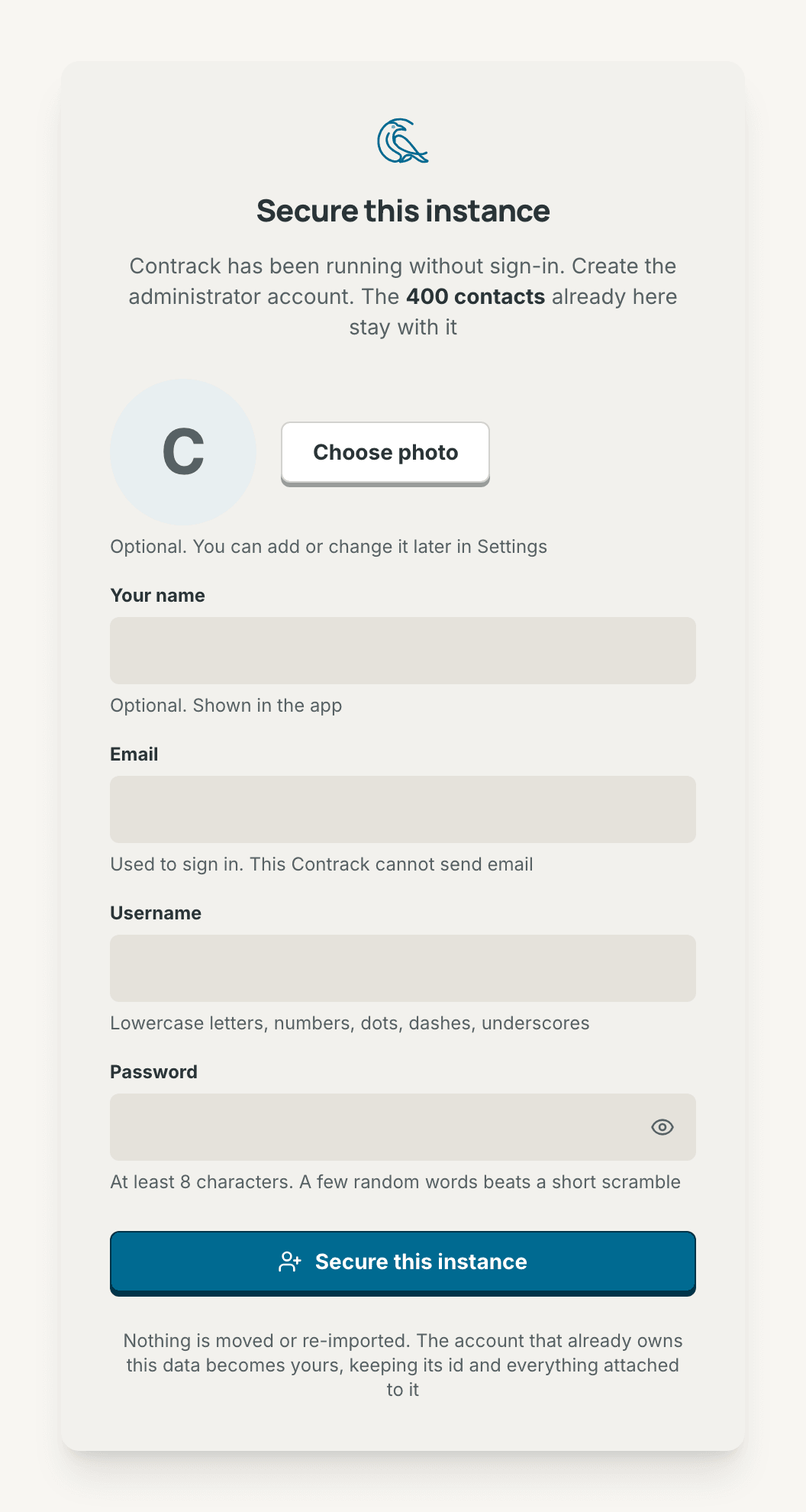
With sign-in on, the first visit shows Secure this instance:
- Optional: choose a photo, and type Your name.
- Type your Email. Contrack suggests a Username from it, which you can change.
- Choose a Password of at least 8 characters.
- Press Secure this instance. The first account is the admin, and every contact already in Contrack stays with it.
- When your browser supports passkeys, Contrack offers Add a passkey. Press Not now to skip it. See Passkeys.

The sidebar on a wide screen, and the tab bar on a phone, lead to five places:
| Place | What it is for |
|---|---|
| Network | Everyone you keep in touch with |
| Pulse | Follow-ups that are due and relationships that need you |
| Map | Your network by where people live and work |
| Ask Contrack | Ask a question about your network in plain words |
| Settings | Your preferences, your data and this instance |
- The Pulse icon shows a red dot when a follow-up is due today or late. Possible duplicates show their count on the Inbox card on Pulse.
- The foot of the sidebar holds Command palette and Keyboard shortcuts (with a mouse or a trackpad), then Settings. When sign-in is on, your picture comes last. It opens Account settings and Sign out.
- The corvid at the top of the sidebar is Contrack's mark. Press it to let the bird fly. Corvid motion in Settings → Appearance sets how much it moves.
- Contrack opens on Network. To open on Pulse, change Where Contrack opens in Settings → Network and contacts.

- The tab bar at the bottom holds the same five places.
- Command palette, at the top of each page, opens the palette.
- A contact opens full screen, with Timeline, Details and Dossier tabs, and Call, Message, Email and Log note under its name. It slides in over the list, and Back slides it out to the same place in the list.
- Dialogs rise from the bottom of the screen. Drag one down by its handle to close it.
- Pull the Network list down to refresh it.
- With sign-in on, your account and Sign out are at the top of Settings.
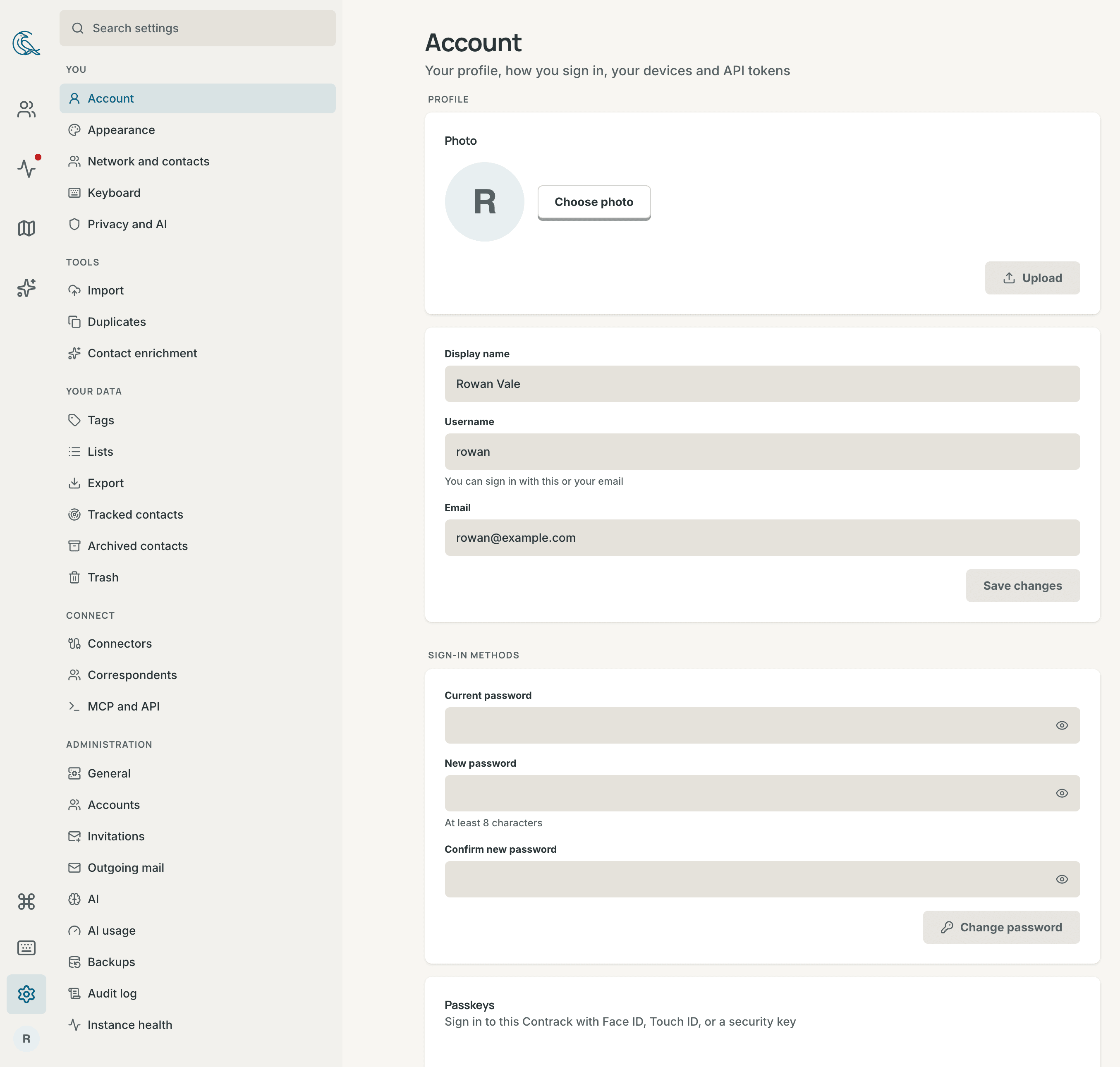
Settings is one list of pages in five groups. Type in Search settings to find a single setting.
| Group | Pages |
|---|---|
| You | Account, Appearance, Network and contacts, Keyboard, Privacy and AI and AI usage |
| Tools | Import, Duplicates and Contact enrichment |
| Your data | Tags, Lists, Export, Tracked contacts, Archived contacts and Trash |
| Connect | Connectors, Correspondents and MCP and API |
| Administration | General, Accounts, Invitations, Outgoing mail, AI, AI usage, Backups, Audit log and Instance health |
- Account shows in the list only when sign-in is on.
- On a wide screen, opening Settings goes straight to Account, and returning to Settings during a session reopens the last settings page you visited.
- Administration shows only to an admin. With sign-in off, you are the admin.
- An admin finds AI usage under Administration, where it covers every account.
- Import a file: press Import, the upload button above the Network list, or open Settings → Import. Choose Apple, LinkedIn, Google or Facebook, and drop the file you exported. Each choice says how to export the file. See Import a file.
- Connect a calendar, a mailbox or Google: open Settings → Connectors. A connector adds your meetings and email to your contacts' timelines, and suggests the people you meet or write to often. Google also brings in your Google Contacts. See Connectors.
-
Add one person: press New, the plus button above the list, then
New contact. Or press
Nin the list. -
Add from text: press New, then Add from text, and paste an email
signature, a bio, or notes from meeting someone, such as
"Met at Sarah's wedding, loves natural wine, kids are Leo and Maya, catch up every quarter"or"Partner at Sequoia, follow up next Tuesday on seed round". AI fills in the form, tags, facts, and dated interactions for you, so it needs an AI provider. Or pressV.
Contacts from an import or a connector start untracked. See Contacts for everything you can do with a contact.
Track the people you want to keep up with. A tracked contact gets a score, and Pulse tells you when you are due to talk.
- Open a contact.
- Press Track, beside the actions menu.
- Under Keep up, choose Weekly, Monthly, Quarterly or Yearly. Custom… asks for a number of days.
On a contact page, T tracks the contact at your default cadence, which is
Quarterly until you change Default cadence in
Settings → Network and contacts. To track many people at once, select
them in the Network list and press Track. See
Track a contact.
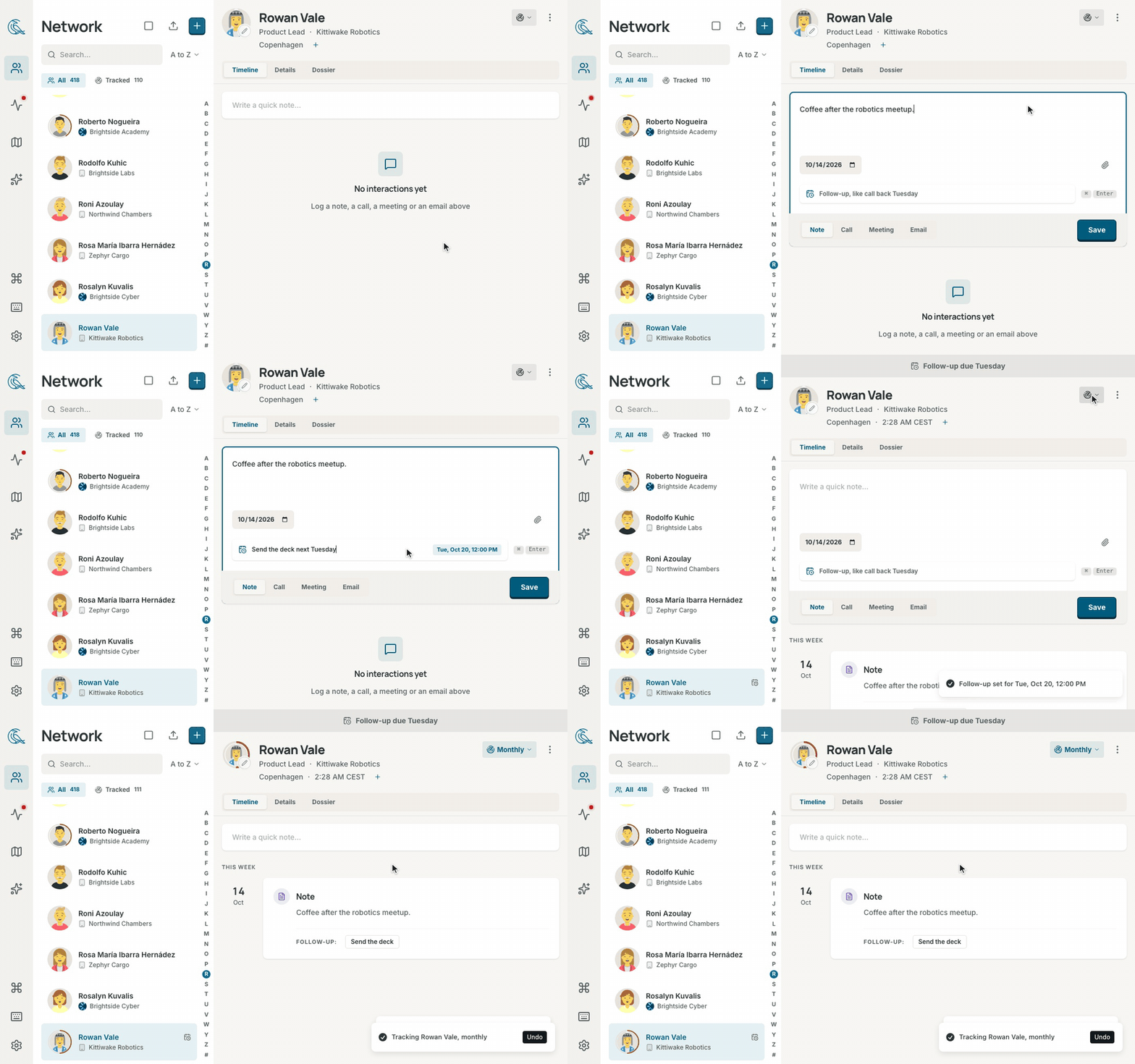
- Open a contact. The composer is at the top of the Timeline tab.
- Write what you talked about.
- In the Follow-up line, write the next step with a date, such as "Send the deck next Tuesday".
- Press Save, or
Cmd+Enter(Ctrl+Enteron Windows and Linux).
The note joins the timeline. The follow-up is due next Tuesday, and Pulse lists it under Up next. See Notes and the timeline and Follow-ups.
Open Ask Contrack, type a question in plain words, such as "Who do I know
in Sydney?", and press Enter. Contrack answers from your own contacts. You
can also press Cmd+K (Ctrl+K on Windows and Linux) and start with ?.
Search works without AI, and each person in the answer shows the fields that match. With an AI provider, Contrack also checks which people fit the question. See Ask Contrack.
AI is optional. Your contacts, notes, search, tracking and the map all work without it. AI adds briefings before a meeting, research on the web, reading of pasted text, and checked answers in Ask Contrack.
- Open Settings → Administration → AI. You need to be an admin.
- Press Add Google Gemini key, Add OpenAI key or Add Anthropic key.
- Paste the key and press Connect.
You can also connect an OpenAI-compatible server, such as Ollama. See Connect a provider. To turn AI off for your account, see Turn AI off.
| Keys | What they do |
|---|---|
Cmd+K |
Open the command palette, to find a person or run an action |
Cmd+Shift+I |
Open the Log an interaction dialog from any page |
? |
Show the keyboard shortcuts for the page you are on |
/ |
Go to the search box on Network, Map and Ask Contrack |
On Windows and Linux, Cmd+K is Ctrl+K, and Cmd+Shift+I is
Ctrl+Alt+I. Contrack shows the keys of your computer. See
Keyboard shortcuts.
- Contact: a person in your network.
- Ghost: a person Contrack saw in a note, a calendar or a mailbox, but that you have not added. Open a ghost and press Add to Network to make it a contact. See Ghosts.
- Tracked: a contact you chose to keep up with. Only tracked contacts get a score and a place in Pulse's catch-ups. Everyone else is Not tracked.
- Cadence: how often you want to talk to a tracked contact, such as Monthly.
- Score ring: the ring around a tracked contact's picture. Its length is the score, from 0 to 100. Its color is the band: Strong from 70, Fading from 40 to 69, and At risk under 40. A tracked contact with nothing logged says "No interactions yet". See How the score works.
- Interaction: an entry on a contact's timeline, such as a note, a call, a meeting or an email. You log them in the composer, and connectors add them by themselves.
- Follow-up: a task with a due date for one contact. Pulse lists it until you complete it.
- List: a named group of contacts that you make, such as "Investors". A contact can be on many lists.
- Tag: a short label on a contact, such as "advisor".
- Research record: what a contact research run found and added to a contact. It shows on the Research card of the Dossier tab.
- Bring in the rest of your people with Import a file.
- Work through your day on The Pulse page.
- Find people by place on the Map.
- Learn the search filters in Facets.