Repository navigation
Accounts and sign in
This page says when Contrack asks people to sign in, and how they sign in. It also covers your own account, password resets, and what an admin manages.

By default, Contrack asks no one to sign in. It runs as one built-in account, Local account, which owns your data and is an admin. Settings → Account is hidden from the list, and opening Settings on a wide screen shows No account needed with Secure this instance. MCP clients connect without a token.
This suits one person on one machine. A native install listens on 127.0.0.1
only, and the Docker command in
Self-hosting publishes the port there
too. The server log warns when Contrack listens on a network address with
sign-in off.
While sign-in is off, and until the first account exists, Contrack answers
only local names: localhost, an IP address, a name with no dot such as
nas, a name under a private suffix such as .local or .lan, and the host
of PUBLIC_URL. To use another name, add it to ALLOWED_HOSTS (see
Environment Variables).
Turn on sign-in before any other device can reach Contrack, and before you create a second account. You can do it in the app or in the server's environment:
- In the app: open Settings → Account (or Settings → Administration → Accounts), press Secure this instance, and create your account.
-
In the environment: set
AUTH_REQUIRED=truefor the server (-e AUTH_REQUIRED=trueindocker run, orAUTH_REQUIRED=truein.env), restart Contrack, and open it by a local name such aslocalhost. The setup screen appears.
Only after creating your account should you let other devices reach Contrack, see Remote access.
Until the first account exists, Contrack refuses every request for data when
AUTH_REQUIRED=true, and while sign-in is off it refuses to create other
accounts, invitations or open registration until you secure the local account
first. Once an account with a password exists, sign-in stays on, even if
AUTH_REQUIRED is false. After that, a person signs in, and a script or an
MCP client uses a personal token or OAuth (see MCP and API tokens).
Without either, only the health check, the app's own page and its sign-in
steps answer.
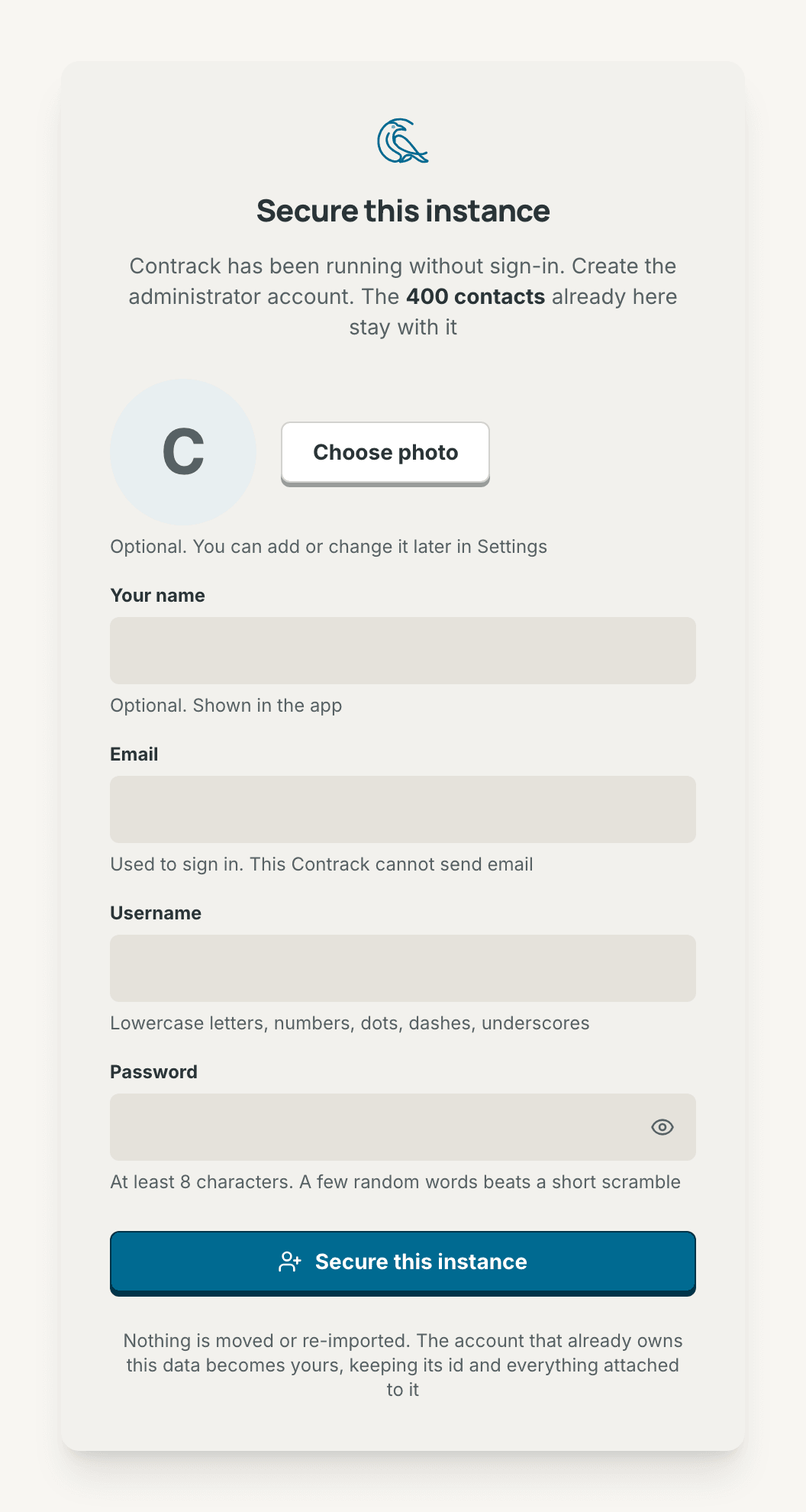
The setup screen appears once, on the first visit after you turn on sign-in. It says Secure this instance. The built-in account becomes yours, with everything attached to it, so the contacts already there stay.
Enter Your name (optional), your Email, a Username, and a Password of at least 8 characters. Contrack suggests the username from your email. A username has 2 to 32 lowercase letters, numbers, dots, dashes, or underscores, and starts and ends with a letter or a number. A photo is optional.
Select Secure this instance. The first account is an admin, and it is signed in at once. When the browser supports passkeys, Contrack then offers one: select Add a passkey, or Not now.
- Enter your Username or email and your Password.
- Leave Keep me signed in on this device on, or turn it off on a shared computer.
- Select Sign in.
With Keep me signed in on this device on, a sign-in lasts for the instance's session length, 30 days by default. With it off, the sign-in ends when you close the browser, and after one day at most.
Contrack remembers your username or email in this browser. Not you? clears it. A wrong username and a wrong password get the same message. After 10 tries in a minute from one address, Contrack asks you to wait.
The sign-in screen can also show:
- Sign in with a passkey, see Passkeys.
- Email me a sign-in link, when an admin turned on Sign in by emailed link and mail can carry links, see Outgoing mail. The link works once, for 15 minutes.
- Forgot your password?, see Reset a password.
- Create one, when an admin turned on Anyone can create an account.
A disabled account cannot sign in, and the screen says so. When a session expires, the screen says Signed out.
A passkey signs you in with Face ID, Touch ID, Windows Hello, or a security key. Your password still works.
- Open Settings → Account.
- Under Sign-in methods, find Passkeys and select Add a passkey.
- Follow your device's prompt.
To sign in with it, select Sign in with a passkey. The browser can also offer the passkey when you select the Username or email field.
Each passkey shows Synced or This device only, when you added it, and when you last used it. The pencil renames it. The trash can removes it, after you confirm with Remove passkey.
Passkeys need HTTPS or localhost. They do not work on an IP address, such as
http://192.168.1.50:3210, and the Passkeys card then says why. Behind a
reverse proxy, set PUBLIC_URL to the address in the browser's address bar,
see Remote access.

Settings → Account holds these sections:
- Profile. Photo takes a JPEG, PNG, GIF, WebP, or AVIF image up to 10 MB, cropped to 512 × 512 pixels. Upload saves it, and Remove photo goes back to your initials. Display name, Username, and Email save with Save changes.
- Sign-in methods. Your password and your Passkeys. Change password asks for your current password and signs out every other device. Your API tokens keep working.
- Devices. Each browser where you are signed in, how it signed in (Password, Passkey or Emailed link), and when it was last used. This device marks the one you are using. Sign out other devices ends the others.
- API tokens. Tokens for MCP clients and scripts, and the apps you approved with OAuth, see Create a token.
- Session length, for an admin only. A link to the instance's setting, which applies to every account.
- Session. Sign out signs out this device.
Reset by email. This works when outgoing mail is set up and PUBLIC_URL
is set.
- Select Forgot your password? on the sign-in screen.
- Enter your Email address and select Send reset link.
- Open the link in the email. It works once, for one hour.
- Choose a new password.
You are then signed in. Every other session ends, and your API tokens and MCP apps stop working. One address can ask 3 times in 15 minutes, and one account gets at most 3 links an hour. When mail cannot carry links, the screen says "This Contrack cannot send email, so an admin resets it for you", and I run this server shows the reset command.
Ask an admin. An admin can send you a reset link or give you a temporary password, see Accounts.
Run the reset command. On the server, run one of these:
# A native install, in the Contrack folder
npm run reset-password <username-or-email>

# Docker
docker exec -it contrack node scripts/reset-password.ts <username-or-email>
The command prints a temporary password. It also signs the account out everywhere, and its API tokens and MCP apps stop working. Use it when you are the only admin and you lost your password. The built-in Local account has no password to reset.
After a temporary password, the next sign-in opens Choose your own password. Enter the temporary password, then the new one twice. Nothing else works until you do.
| Role | What it can do |
|---|---|
| Member | Its own contacts, and nothing else |
| Admin | Also manages accounts and every page under Administration |
Each account, an admin's included, sees only its own contacts. An admin also sees facts about the other accounts: the name, the role, the number of contacts, the last sign-in, and AI usage. Two downloads give an admin other accounts' contacts: Export data, for one account, and a snapshot on the Backups page, which holds every account. The audit log records both.
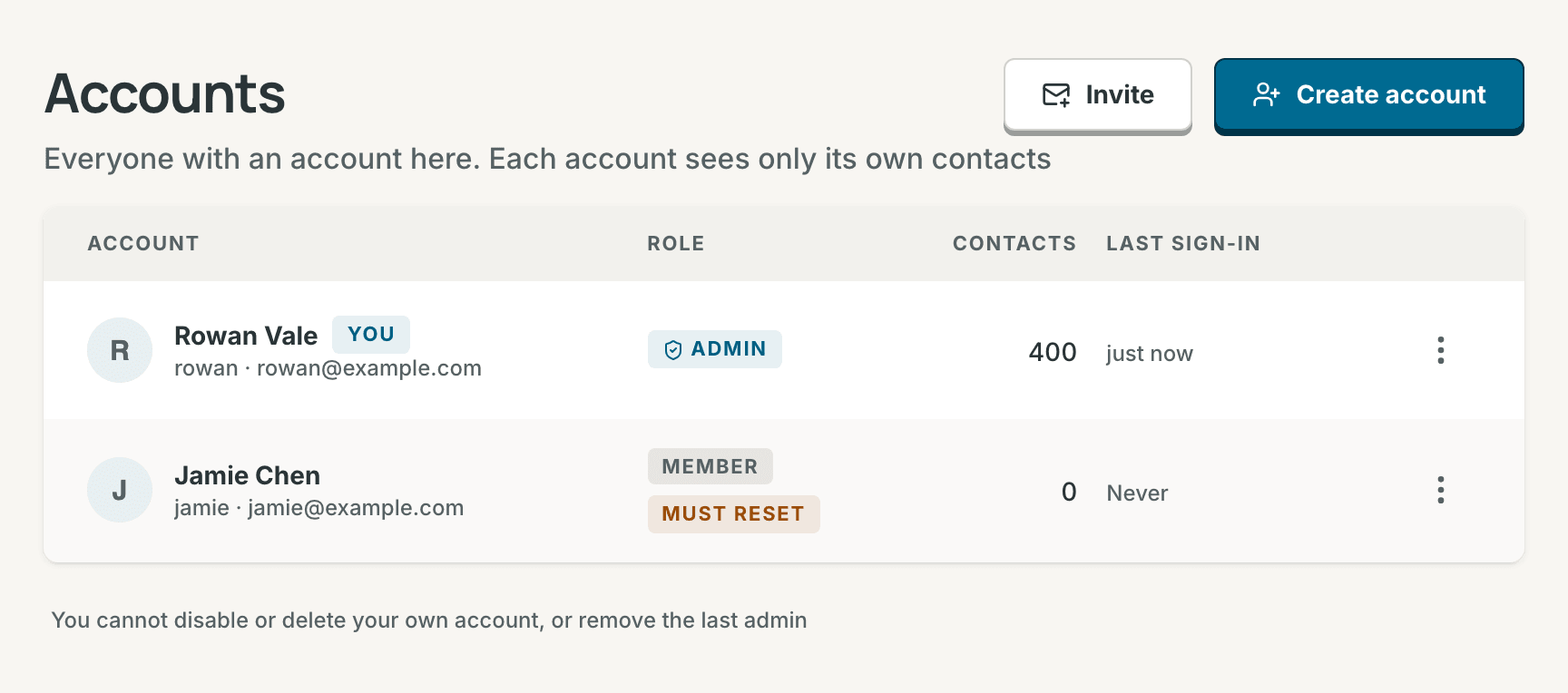
Settings → Administration → Accounts lists every account with its role, its number of contacts, and its last sign-in. Badges mark You, Local account (the built-in account), Disabled, and Must reset (a temporary password is still in use).
To create an account, select Create account. Enter the Email, the Username, and an optional Display name, choose the Role, and select Create account. Contrack shows a temporary password once. Give it to the person, who must replace it at the first sign-in. Invite opens Invitations, which add someone without a password from you.
Each row's menu holds these actions:
- Edit: the display name and the role. Your own row has no role choice. The person changes their own email and username.
-
Reset password: with outgoing mail set up and
PUBLIC_URLset, choose Email a reset link, which works for 24 hours, or Show a temporary password. Otherwise Contrack shows a temporary password. A temporary password signs the person out everywhere at once, and their API tokens and MCP apps stop working. A link does the same when they set the new password. When the mail does not go, Contrack says why and deletes the link. - Export data: downloads the account's data as one JSON file, for someone who leaves. The audit log records it.
- Disable: asks first, then signs the person out everywhere. Their API tokens and MCP apps stop working while the account is disabled. Enable undoes it at once, and their tokens work again. Disable an account before you delete it.
- Delete: two steps. The first shows what the account owns: contacts, interactions, lists, and files. Export their data first downloads it. Check I understand this cannot be undone, and select Delete account and data.
An invitation is a link that creates one account, once.
- Open Settings → Administration → Invitations, and select New invitation.
- Optionally enter an Email, as a reminder. The person picks their own. With outgoing mail set up, Send it by email also mails the link there.
- Choose the Role, and when it Expires: 3 days, 7 days (the default), or 30 days.
- Select Create invitation. Copy the link, and select I've copied it.
Send the link the way you would send a password. The person who opens it sees You've been invited, and chooses an email, a username and a password. The new account starts empty. A link that was used, revoked or expired says so before the form shows. The list shows each invitation as Pending, Accepted, Revoked, or Expired. Revoke stops a pending link at once. Deleting the admin who created a pending invitation revokes it too.
Settings → Administration → General holds these sign-in settings:
- Instance name: up to 60 characters, shown in the browser tab, the account menu, and the sign-in screen.
- Anyone can create an account: adds Create one to the sign-in screen. A new account is a member and starts empty. On a server open to the internet, send invitations instead.
-
Sign in by emailed link: lets people sign in with a link sent to their
email. Set up outgoing mail and
PUBLIC_URLfirst. Until both are set, the switch cannot turn on. - Session length: 1 day, 1 week, 30 days (the default), or 1 year, for every account. A change applies to new sign-ins. To end a session now, disable the account or reset its password.
The same page holds the Trash and backup settings, Look up addresses for the map (see Geocoding), and the Google OAuth client (see Google Workspace).
Settings → Administration → Audit log lists sign-ins, and changes to accounts, tokens, apps, connectors and instance settings, newest first. Filter it with Everything, Accounts, Invitations, Sign-in, Tokens, or Instance. Load more shows older entries.
The log never holds a password, a token, or an invitation secret. A failed sign-in records whether the name typed matched an account, and which account, never the text typed. So a password typed into the wrong field does not reach the log. Its row says for an existing account or for a name with no account. A row by an account that was since deleted says by a deleted account. Contrack deletes an entry after 90 days.
- While sign-in is off, the built-in Local account cannot be disabled or deleted, because it holds the data.
- The last active admin cannot be demoted, disabled, or deleted. Promote another account first.
- An admin cannot reset the password of, disable, or delete their own account. Ask another admin.
- Administration needs you signed in. An API token or an MCP client cannot use it, even an admin's.
Contrack sends mail for invitations, password resets, sign-in links, and tests. An admin sets it up once.
- Open Settings → Administration → Outgoing mail.
- Under SMTP server, enter the Host, the Port, the Username, the Password, the From address, and an optional Reply-to.
- Turn on Use TLS for TLS from the start. Port 465 usually needs it, and port 587 usually does not.
- Select Save. Then select Send a test, which mails your own address.
A badge shows Set up here, Set by the environment, or Not set up. Clear settings removes what you saved. You can send 5 tests in 10 minutes.
The environment can set mail instead. SMTP_URL holds the server, such as
smtp://user:password@smtp.example.com:587. For TLS on port 465, it starts
with smtps://. MAIL_FROM and MAIL_REPLY_TO set the From and Reply-to
addresses. While SMTP_URL is set, the page is read-only.
Links in mail need PUBLIC_URL. A reset, sign-in, or invitation link goes
to someone's inbox. Contrack builds its address from PUBLIC_URL only, never
from the request, because a request can claim any address. Without
PUBLIC_URL:
- Forgot your password? offers no reset link, and says to ask an admin.
- The sign-in screen offers no emailed link, and Sign in by emailed link cannot turn on.
- Reset password in Accounts offers only a temporary password.
- An invitation is created, but not mailed. Copy its link and send it.
The Outgoing mail page shows a warning while PUBLIC_URL is missing, and
the server log warns at start. See
Remote access and the
Configuration reference.