Repository navigation
Getting Comics Automatically
Paperbunkr can keep a want-list of the comics you're missing, look for them through your own Prowlarr, send the one you approve to your own qBittorrent, and import the finished file into your library. It is off until you turn it on, it downloads only what you approve unless you switch on automatic grabbing, and it never downloads anything itself: it drives the two tools you already run.
Everything is entered under Preferences → Connections. Each entry has a Test button.
-
Prowlarr. Its address (usually
http://localhost:9696) and its API key (in Prowlarr: Settings → General → API Key). Add at least one indexer in Prowlarr, or every search comes back empty. -
qBittorrent. The address of its Web UI (for example
http://localhost:9090) plus your Web UI username and password. Turn the Web UI on in qBittorrent under Options → Web UI. - A comic database. Save a ComicVine API key, a Metron login, or both. They are how Paperbunkr learns which issues exist. See "Which database" below.
- Preferences → Acquisition. Turn on Look for comics automatically, then choose how often to check, how big a release may be, where finished comics go, and how they are named. A preview shows the result of the name template.
Paperbunkr never needs Prowlarr to know about qBittorrent. If Prowlarr's own Download Clients page complains, it doesn't affect Paperbunkr.
Open Wanted from the left rail. It has three tabs.
| Tab | What it is |
|---|---|
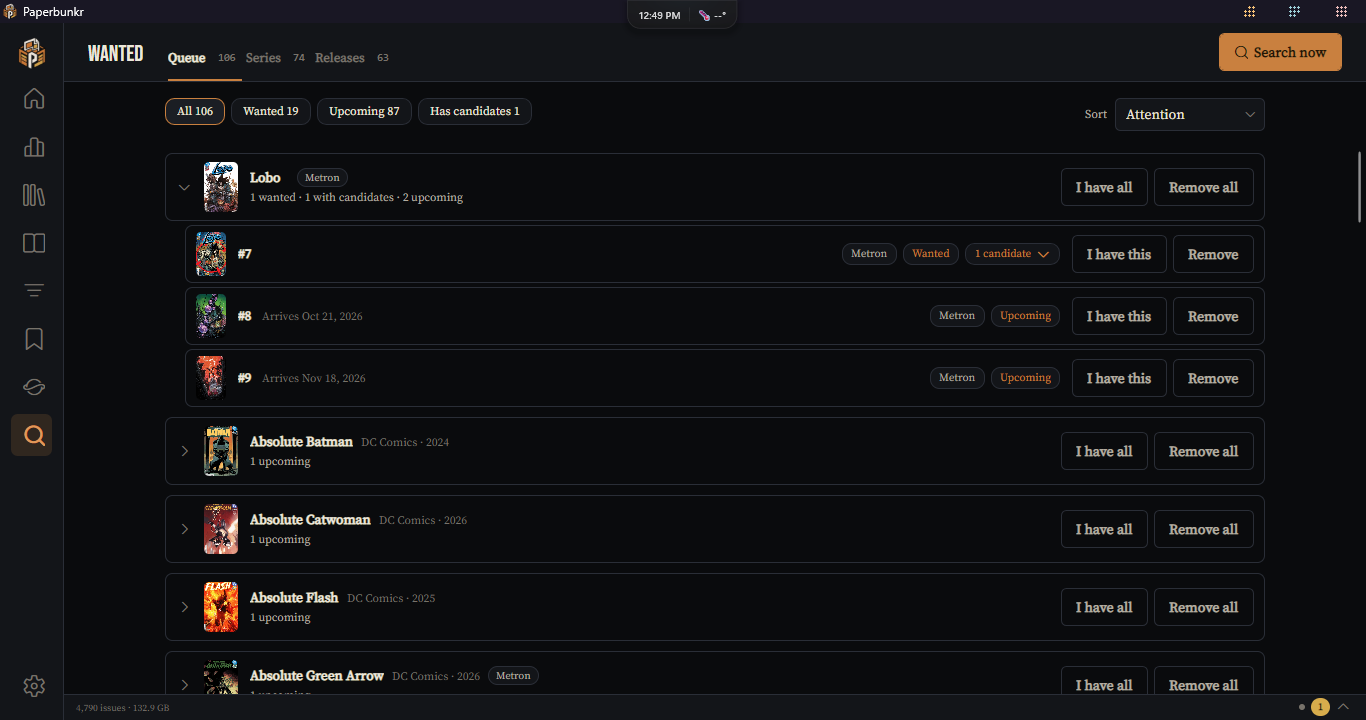
| Queue | Everything you want, grouped by series. Downloads in progress sit in a strip on top, with progress, speed and time left. |
| Series | The series you track. Track a series opens a search; Follow turns on automatic requests for a series' new issues. |
| Releases | The weekly pull list, described below. |
Working the Queue
- Each series is a group. Groups that need you (a failure, candidates to review, a download in flight) open on their own; the rest stay closed. Open or close any group with a click, and the screen remembers your choice.
- The chips under the strip filter by stage: Wanted, Upcoming (release date still in the future; on the day they come out they become Wanted on their own), Has candidates, Downloading, Failed and Needs details. Each shows how many issues it holds, and empty stages hide.
- Sort puts the series that need attention first, or A–Z, or newest first.
- An issue with candidates (the releases Prowlarr found, best match first) has a chip you click to show them. Grab sends one to qBittorrent; Copy link works with any client; Reject blocks a release for good.
- I have this stops wanting an issue without searching for it; Remove drops it back to the series' missing list. A series header has I have all and Remove all for the issues listed under it (they ask first, and never touch a download in flight).
- Right-click any row for the same actions.
Press Search now (top right) to check immediately. The Activity Center shows the run, and tells you when something needs your attention. Results such as "Cancelled" or "Link copied" appear as short notices instead of staying on the screen.
There are two ways in.
- On the Wanted → Series tab, press Track a series, pick a source (ComicVine or Metron), search, and press Track. To stop tracking a series, use the … button on its row (this also drops its wanted issues, never the ones already in your library).
- On a series' own page, the Missing Issues section lists what you don't own. Pick a source, search, and choose the right series. Then Request an issue, or Request all.
A series remembers the source it was tracked with (Metron series carry a small Metron chip). Results are ranked by name, start year, issue count and publisher, so the series you mean should come first. Show more reveals the rest, and the sort box re-orders them.
Follow requests a series' future issues automatically. Tracking alone never does that.
Both describe issues, and you can use either or both.
- ComicVine has the larger catalog, but lists new issues late and allows only 200 requests an hour.
- Metron lists releases earlier and by date, and has a much bigger allowance.
Nothing is merged between them: each series belongs to one. Existing series stay on ComicVine. Preferences → Organize & Scrape → Source sets which one Scrape starts on. The match dialog can switch a single run, and a re-scrape starts on the source the comics were scraped from before.
The Releases tab is a shelf of covers, one week at a time, grouped by day.
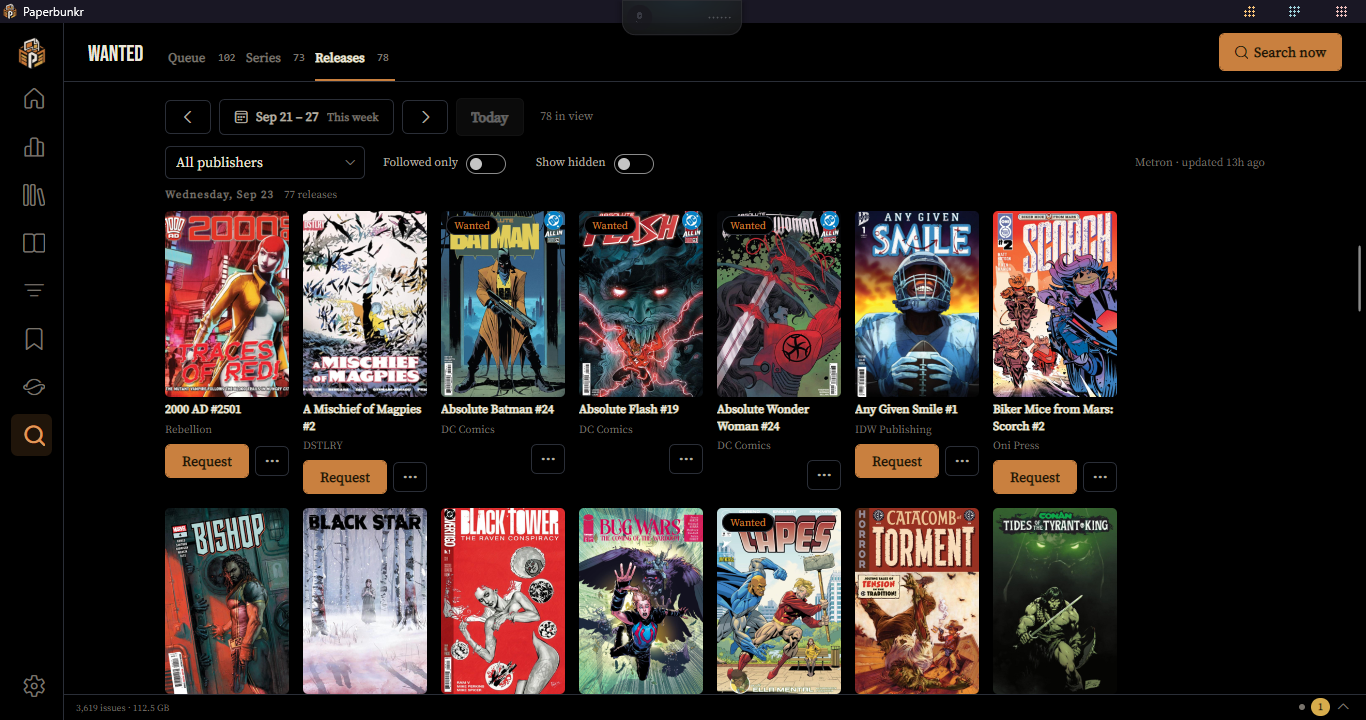
- Use ‹ and › to change week and Today to come back. Press the date to open a month calendar: a red dot marks a day with releases, a green dot a day with releases from a series you follow. Pick any day to jump to its week.
- The list is kept for last week to four weeks ahead. If you jump to a week outside that, Paperbunkr fetches just that week when you get there (this uses a few requests to your source) and remembers it until the next automatic refresh.
- Request wants one issue. Follow tracks its series and requests everything upcoming. The … button holds the rest: Hide removes a release you don't care about (turn on Show hidden to bring it back with Restore). Right-click a cover for the same menu.
- Releases of series you already follow become Upcoming wants on their own, so you don't wait for the database to list them. Issues you own, or already want, are skipped.
- A publisher filter and a Followed only switch narrow the list.
- The Activity Center tells you when new releases of followed series were added.
The list comes from Metron when its login is saved, and from ComicVine when only a key is saved (smaller, because ComicVine allows far fewer requests). It refreshes in the background about twice a day; Search now can refresh it after an hour. The first refresh takes a while because each new series is looked up once, then remembered.
With a Metron login saved, Preferences → Connections → Metron account can keep your account on metron.cloud in step with the library. It runs about once an hour, and nothing is sent while Sync with my Metron account is off. Each part has its own switch:
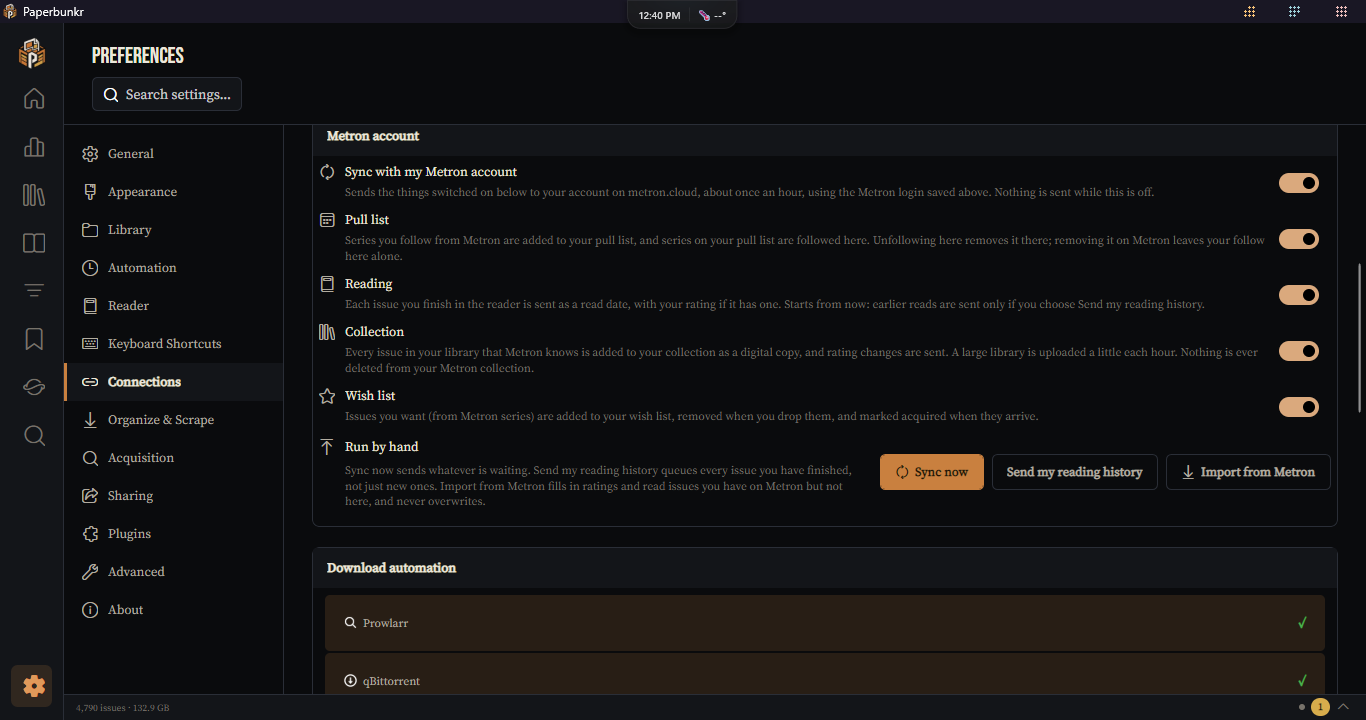
- Pull list. Series you follow on Metron are added to your pull list, and series on your pull list are followed there. Unfollowing here removes it on Metron; removing it on Metron leaves your follow alone.
- Reading. Each issue you finish in the reader is sent as a read date, with your rating if it has one. It starts from now.
- Collection. Every issue in your library that Metron knows is added to your collection as a digital copy, and rating changes are sent. A large library is uploaded a little each hour. Nothing is ever deleted from your Metron collection.
- Wish list. Issues you want from Metron series are added to your wish list, removed when you drop them, and marked acquired when they arrive.
Run by hand: Sync now sends whatever is waiting. Send my reading history queues every issue you have finished, not just new ones. Import from Metron fills in ratings and read issues you have on Metron but not here, and never overwrites.
When qBittorrent finishes, Paperbunkr copies the file into the folder you chose (the original keeps seeding unless you turn on Remove the download after importing), names it from your template, and adds it to your library. If Add details to downloads is on, it also fetches the credits, summary and dates for that exact issue from the source it was tracked on. Anything that fails is retried, and what is left appears under Wanted → Queue → Needs details with Retry and Dismiss (and Retry all / Dismiss all).
Story arcs work too: a reading list built from a story arc has Request missing issues and Follow this arc (a daily task, off until you turn it on under Preferences → Automation).
Some indexers in Prowlarr are behind Cloudflare and report "blocked by CloudFlare Protection". Prowlarr's fix is FlareSolverr, a separate program you run yourself: in Prowlarr add it under Settings → Indexers → Indexer Proxies, give it a tag, and add the same tag to the indexer. It is not always reliable, and many indexers don't need it.
- No issue shows candidates. Prowlarr has no working indexer, or none carries that title. Newer or niche comics often have no release yet.
- "Add your … login". The source you picked has nothing saved under Preferences → Connections.
- "Rate limited". ComicVine and Metron both limit requests. Background work backs off by itself and interactive actions keep working; try again in a minute.
- Downloads stuck at 0%. qBittorrent isn't reachable or has no seeders; check its Web UI address and login.