Repository navigation
Reading
Open any issue (click its cover in the Library, use Continue Reading, or pick it from a Reading List) to enter the reader.
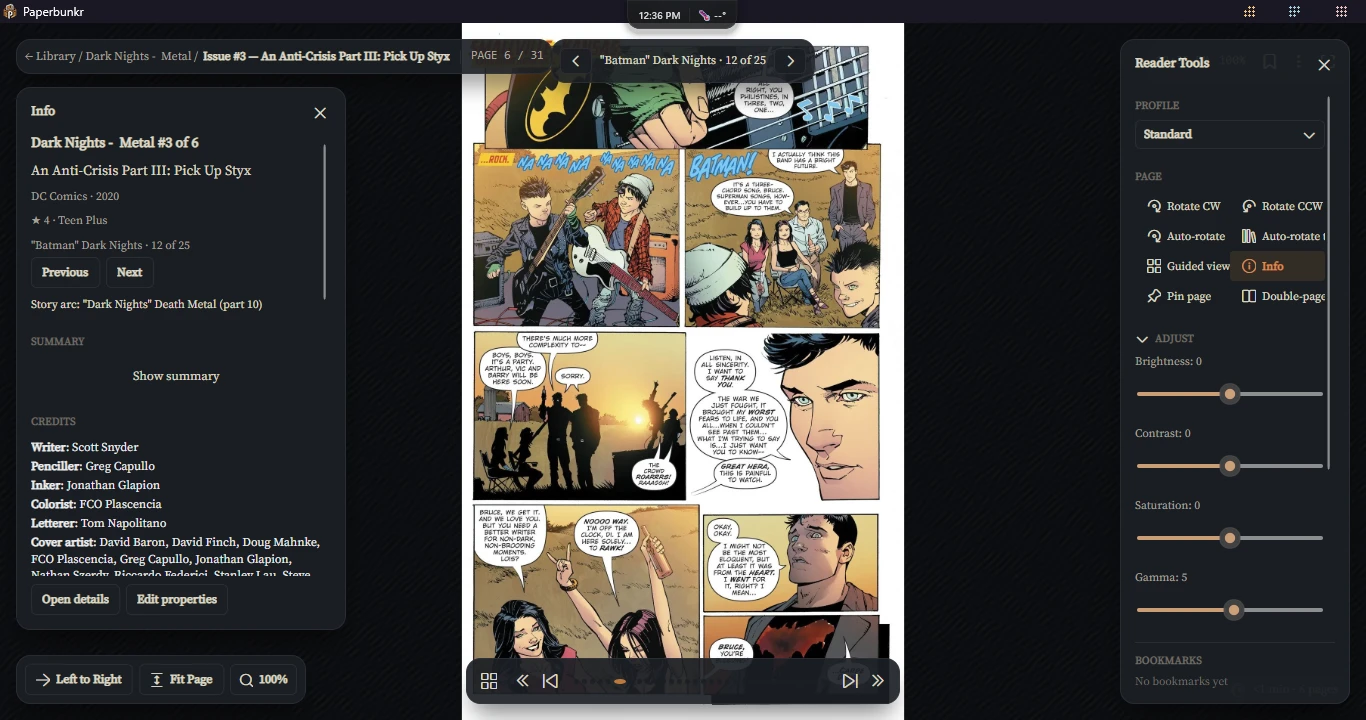
The reader is mostly full-bleed page. Move the mouse (or tap) to reveal the chrome:
-
Top bar — back breadcrumb (
← Series), issue title, page indicator, and the Reader Tools button. - Bottom bar — page scrubber, previous/next page, previous/next chapter, and the fit / zoom / fullscreen controls.
- The chrome auto-hides after a moment of no input (turn that off, or change how it reveals, under Preferences → Reader). Press F for true fullscreen.
- Save Page As — right-click the page and choose Save Page as PNG… or Save Page as JPEG… to save the page you're looking at as an image file. In double-page mode the menu also offers Save Spread as PNG… / JPEG…, which stitches the two pages into one image.
- Copy — Ctrl+C (or right-click → Copy Page / Copy Spread) puts the page you are looking at on the clipboard, ready to paste into another app. In double-page mode Ctrl+C copies the stitched spread.
- Reading stats — press H for a small chip in the bottom-right corner with your session time, pages read, pace and an estimate of the time left in the issue. Turn it on by default in Preferences → Reader → Comfort.
- Left / Right arrow keys, on-screen prev/next arrows, click/tap the page edges, or scroll — depending on the reading mode.
-
Next / previous page in reading order:
PageDown/Space/ a media remote's next-track key, andPageUp/Shift+Space/ previous-track. A presentation clicker works with no setup. - Mouse side buttons: the back button goes to the previous page and the forward button to the next (in the continuous modes they scroll a screen). A right or middle click never turns the page.
- Game controller (Xbox and other XInput pads; the rest of the app can be driven by pad too, see Keyboard Shortcuts). In the reader: A or the right bumper = next page, B or the left bumper = previous, D-pad / left stick = arrows, right stick pans or scrolls, triggers zoom, Y toggles the toolbar, X fullscreen, Start opens the command palette, Back leaves the reader.
- Tap zones: which parts of the page a tap or click turns from is configurable in Preferences → Reader → Tap Zones & Input (L-shaped, Kindle-like, Edge, Right and left, or disabled, with a live preview and left-handed inversion). They apply to touch, pen and the mouse. Show tap zones in the command palette flashes the current layout over the page.
- Page-turn direction follows the series reading direction (LTR vs RTL), so "forward" always means forward regardless of manga vs comic.
- In continuous modes, just scroll; chapter boundaries flow into each other with a "Previous / Current" chapter transition indicator.
Set via Reader Tools → VIEW, or per series (right-click in Library → Set Reading Direction). Available modes:
| Mode | Behaviour |
|---|---|
| Left to Right | discrete pages, western order |
| Right to Left | discrete pages, manga order |
| Vertical | one page at a time, stacked vertically |
| Vertical (Continuous) | free vertical scroll |
| Webtoon | continuous vertical with no gaps, for long-strip content |
| Horizontal (Continuous) | free horizontal scroll |
| Horizontal RTL (Continuous) | horizontal scroll, right-to-left |
Double-page spread is a separate toggle (Reader Tools → VIEW) that pairs facing pages in the LTR/RTL paged modes. Auto-rotate landscape pages rotates wide scans to fit.
Continuing to the next issue. In the last three pages of an issue PaperBunkr opens the next one in the background (the next in the reading list you came from, otherwise the next in the series), so continuing from the end card is instant. Turn it off with Pre-open the next issue in Preferences → Reader.
Command palette. Ctrl+K opens a searchable list of everything the reader can do (fit
modes, reading mode, profiles, save/copy, rate, report a bad page, …) with each command's shortcut.
Type a number (40, p40, page 40) to jump to that page, or press Ctrl+G to go straight to
the page prompt. A big jump shows the Back to page N chip.
Profiles. A profile is a named set of display settings: fit mode, adjustments, background, margin, toolbar behaviour and tap zones. Reader Tools → PROFILE (or the P key, which cycles through them) switches the profile for this reading session without changing anything you saved; Save current look as new profile… captures what you have on screen. Use for this series opens the series with that profile from then on, Use as my default applies it to every series without one. Three are built in: Manga night, Webtoon and Tablet. Manage them in Preferences → Reader → Profiles. Reading direction is not part of a profile: it stays a series setting.
Eye comfort. Optionally, after a stretch of reading (20 minutes by default) a reminder toast suggests looking at something far away for 20 seconds, with Snooze 10 min; time only counts while you are actually reading in the active window. A warm tint can also warm the page colours between two times (21:00 to 07:00 by default); W turns it on or off for this session. Both are off by default; see Preferences → Reader → Comfort.
-
Fit modes (toolbar, or keys
1–5): Original, Fit All, Fit Width, Fit Height, Best Fit. -
Zoom is smooth: any level from 25% to 400% (100% is the fit). Drag the slider in the zoom
pill (100% sits in the middle), turn the mouse wheel with Ctrl (each notch is the same
proportional change), use
Z/Shift+Z(about 10% a press), or pinch. There are no fixed steps; Fit (100%) in the zoom pill resets. Continuous modes use the same range. - When zoomed in, the arrow keys pan instead of turning the page; at the edge of the page the same key turns it (a fresh scroll of the wheel does too). A page zoomed to several screenfuls reads on part by part first.
-
Guided view (
G, or Reader Tools → PAGE → Guided view): next and previous (the arrow keys, Space, the wheel, or a click) step through the page panel by panel, zooming to each one, and turn the page after the last panel (the next page starts on its first panel; going back lands on the last). A panel too big for the screen is stepped through in screen-sized pieces. Panels are found with a simple gutter search, so pages without clear gutters (splash pages, borderless art) simply show whole. Works in paged, single-page reading; the label reads Panel 3/7. The command palette (Ctrl+K) has Show detected panels to see what was found. - Smart double-click: double-click (or double-tap) a page to zoom to the panel under the pointer, and double-click again to go back. If no panel is found there it zooms to 200% as before. In guided view a double-click switches between the panel and the whole page. Turn it off in Preferences → Reader → Panels & Zoom.
R rotates clockwise, Shift+R counter-clockwise. You can also set a fixed rotation
per page (Reader Tools → Rotate: 90° / 180° / 270°), which is remembered.
In continuous modes, press S (or Reader Tools → Auto-scroll) to start hands-free scrolling, and adjust Speed (px/s) in Reader Tools.
- Toggle bookmark on the current page from the reader chrome; give it a name.
- Jump between bookmarks with Ctrl+PageUp / Ctrl+PageDown.
- The BOOKMARKS panel in Reader Tools lists every bookmark in the issue.
Mark a page as Story / Cover / Advertisement / Deleted (Reader Tools → Page Type, or right-click a page thumbnail). A badge shows the current page's type.
Skipping pages. Turning the page passes over pages tagged Deleted, and a short "Skipped 2 pages" note tells you it happened. Pages tagged Advertisement are shown unless you turn on Skip pages tagged Advertisement (Preferences → Reader → Zoom & Navigation); Deleted skipping can be switched off in the same place. Skipping only applies to turning the page in paged mode: clicking a thumbnail, jumping to a bookmark and continuous scroll still go exactly where you point. If everything ahead is skippable, that is the end of the issue.
Finished at the story's end. An issue whose last pages are all ads or deleted counts as read as soon as you reach its last real story page.
Reporting a bad page. Press X (or right-click the page → Report Bad Page…), pick a reason (corrupt, blank, low resolution, other; keys 1–4, Esc cancels) and a "Reported page N · Undo" note appears. Reports collect under Preferences → Library → Library Health → Review → Reported pages, where you can open the page, tag it Deleted, or dismiss the report.
Finding ads automatically. Each time you tag a page Advertisement, PaperBunkr remembers what it looks like. The Detect advertisement pages task (Preferences → Automation, off by default; use Run now to scan straight away) compares the first three and last ten pages of your comics with those ads and lists look-alikes under Library Health → Review → Advertisement Pages, grouped by the ad they match. Nothing is tagged until you accept: Accept all / Reject all per group, or open a group to decide page by page. A page you reject is never suggested again, and removing the Advertisement tag from the page an ad came from forgets that ad.
-
Info panel (
I, or Reader Tools → Info). A read-only panel from the left with the issue's series line, credits, characters, teams, locations, genres, tags, story arc, rating and where it sits in its reading list or event (with Previous and Next). Open details and Edit properties are at the bottom. The summary is hidden behind Show summary because summaries can spoil; turn on Show the summary straight away in Preferences → Reader → Info panel. -
Pin a page (
Shift+P, the page right-click menu, or Reader Tools → Pin page). Keeps a small copy of the page in a corner while you read on, for a recap page, a map or a character lineup. Drag it to another corner, use the mouse wheel over it or its resize button to change its size, and click its X to unpin. It stays when you move on to the next issue and goes when you leave the reader. - Notes. Reader Tools → NOTES has a text box for the current page. Save it and the page's dot on the page-turn strip is tinted; every note is listed by page and clicking one jumps there. A named bookmark's own note is listed there too.
-
Clip a region (
Ctrl+Shift+C, the page menu, or NOTES → Clip a region). Drag a rectangle over the page and it is saved as a picture under NOTES, where you can name it, Copy, Save… or Delete it. Paged, single-page reading only. Export notes and clips… writes the issue's notes and clip images as one Markdown file with an images folder beside it.
Reader Tools → ADJUST gives live sliders for Brightness, Contrast, Saturation, Gamma, applied to the rendered page in real time, plus:
- Sharpen (0-3, ComicRack's levels): 0 is off, each step is stronger.
- Auto levels: stretches a washed-out page so its darkest and lightest parts use the full range (ComicRack's Auto Contrast). A page that already spans the range is left alone.
Both can also be set as defaults in Preferences → Reader; the drawer changes them for the book you are reading, and Reset to defaults puts them back. Background colour and page margins are in Preferences too.
Scanned pages often have a plain white or black border. Preferences → Reader → Auto-crop trims it so the page fills the window (off by default). It only acts on a page with a uniform light or dark border, never trims more than 15% from a side, and keeps a small margin round the art. A page that gets it wrong can be fixed from its right-click menu → Auto-crop this page (Follow the setting, Never crop, Always crop). The Ctrl+K palette can switch auto-crop for the current visit and has Show crop, which reports what would be trimmed from the page. Webtoon strips are never cropped.
Reader Tools → TRANSITION: None, Slide, or Crossfade animation between pages in the paged modes.
See Keyboard Shortcuts for the full list and how to remap them.
Tip: if the arrow keys don't respond right after opening an issue, click once on the page area to give it focus.