Repository navigation
Reading Lists
A Reading List is a hand-ordered sequence of issues: a reading order, a story arc, a crossover event. Unlike Smart Lists, you choose the contents and the order.
Open Reading Lists from the navigation rail.
The section opens on a gallery of your lists.
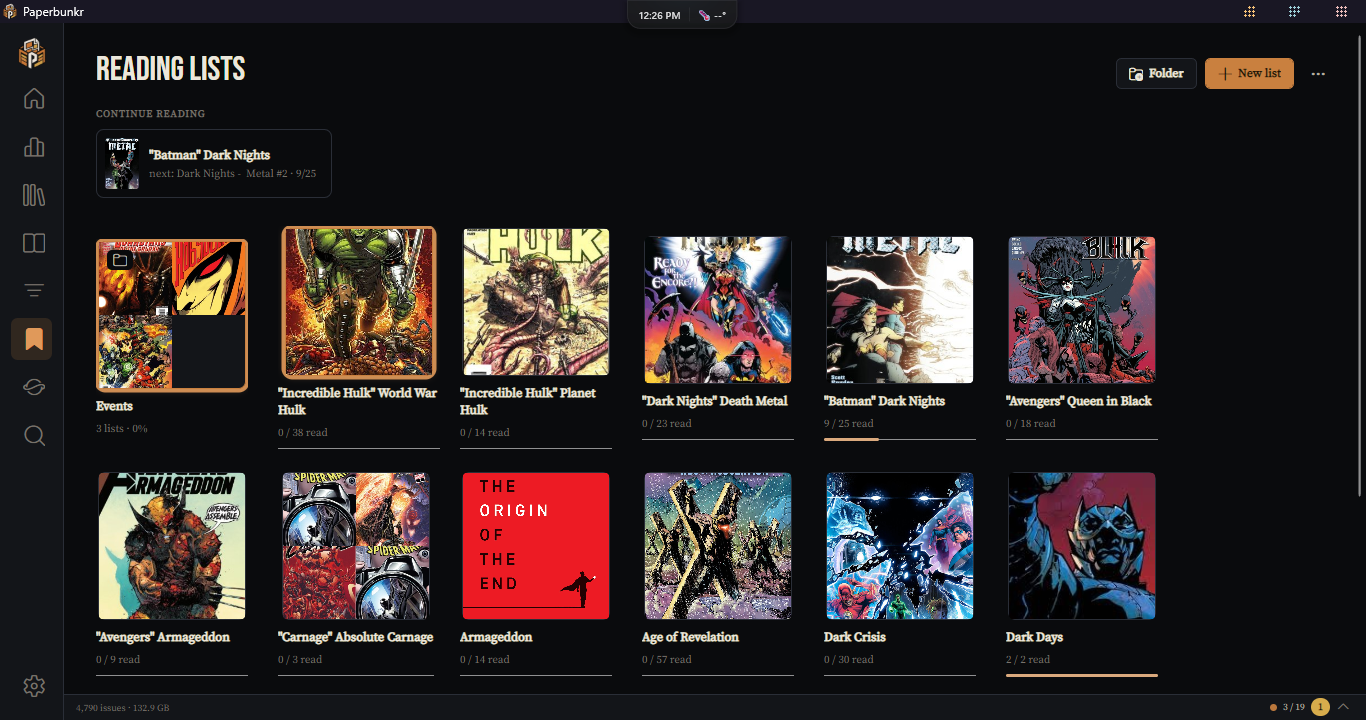
- Continue reading at the top shows the lists you've started and can keep reading, most recent first. Click one to jump straight to where you are.
- Below it, every folder and list is a tile: a list shows its cover (or a mosaic of its first covers) and how much you've read; a folder shows a mosaic of its lists and its overall progress.
- Click a folder to go inside it; the breadcrumb at the top takes you back out.
- Tag chips (#crisis, #x-men…) filter every list with that tag, whatever folder it is in.
-
+ Folder and + New list create things in the folder you're looking at. ⋯ imports a whole folder of
.cblfiles (sub-folders become folders) or exports this folder the same way. - Drag a tile to reorder it, or drop it onto a folder to move it inside. Right-click a tile to rename, move, export or delete it. Deleting a folder never deletes its lists; they move up a level.
Opening a list shows:
- a cover rail on the left with the other lists in the same folder (click to switch, ⌂ for the gallery);
- a hero with the list's cover, name, tags, progress and, once you've read a few comics, an estimate of when you'll finish it at your recent pace. ▶ Continue opens the next unread issue;
- the path: the issues in reading order along a line that fills in as you read. Sub-arcs are chapters (click a chapter to fold it away; chapters you've finished start folded). The next issue to read is expanded into an Up next card. The list opens scrolled to where you are.
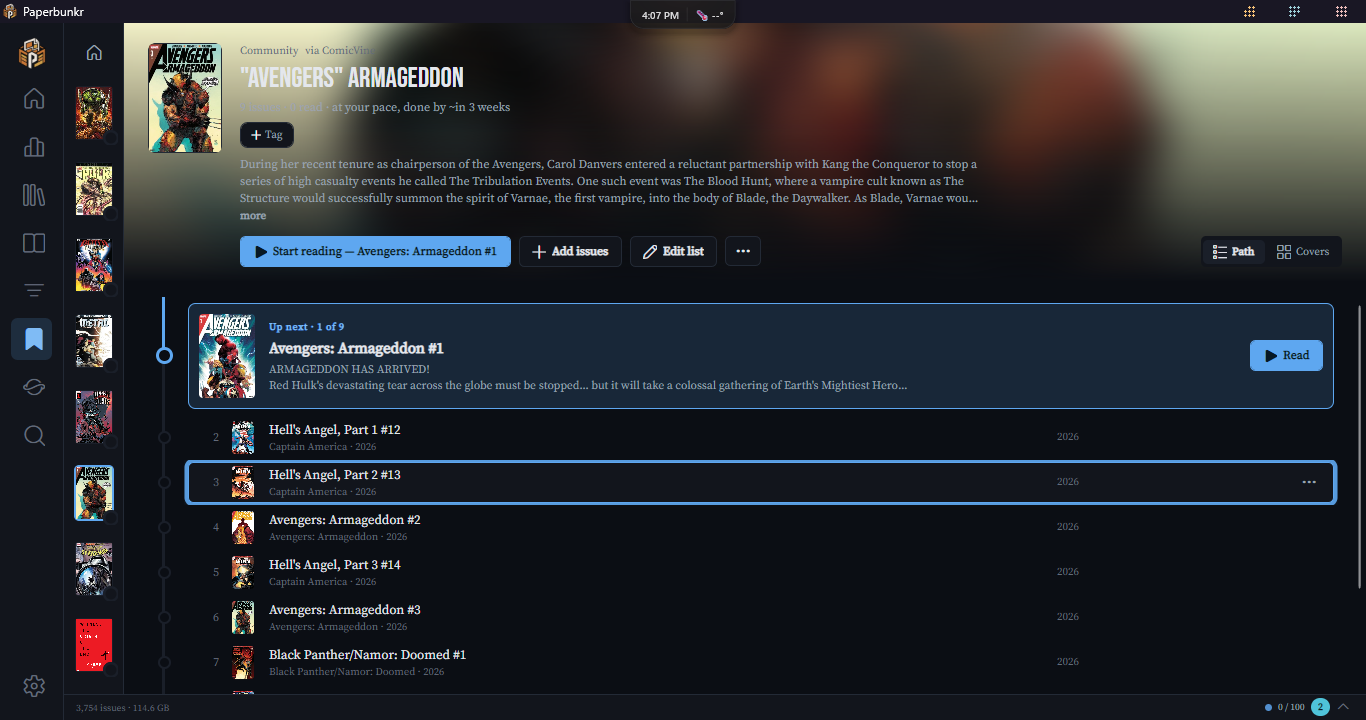
Click an issue to read it; the reader's previous/next follows the list's order. A missing issue offers Find & link (pick the real comic from your library) or Request it.
Path | Covers at the top right switches to a wall of covers, grouped by chapter; the app remembers your choice.
Click ✎ Edit list:
- drag the ⠿ handle to reorder (or use Ctrl+↑ / Ctrl+↓); dragging into another chapter moves the issue into it;
- tick issues to act on several at once: set a role, move them to a chapter, mark read or unread, or remove them;
- + Chapter from selection turns the ticked issues into a new chapter; click ✎ on a chapter to rename it;
- set each issue's role, add a note, or remove it.
Press Done (or Esc) to go back to reading.
+ Add issues opens a panel on the right: search your library and add issues (or a whole series), or switch to Story arc to build from a published arc.
A strip under the header appears when there's something to act on:
- Overlap: this list shares most of its issues with another one. Compare them side by side, Merge them, or say they're Not a duplicate.
- ComicVine / Metron: for a list linked to a story event, Check against ComicVine (in ⋯) compares it with the published order. Insert missing adds what it lacks; Reorder puts it in the published order. Nothing is ever removed.
- Rebuilt: after rebuilding a list made from a continuity, what changed.
| Item | What it does |
|---|---|
| Import .CBL / .CSV | import a list file |
| Build from a story arc | look an arc up online (ComicVine, Metron, and reading-order sites) and build a list from it |
| Link story event | tie the list to one of your Story Events |
| Refresh from source / Follow this arc | for arc lists: re-check the arc now, or automatically every day |
| Rebuild from continuity | for lists made from a continuity: rebuild it (your notes and roles stay) |
| Detect roles | mark issues as prologue, core, tie-in, epilogue… from their titles and formats |
| Request missing issues | for arc lists: ask for every issue you don't have |
| Export |
.cbl, .csv, plain text, a printable checklist (PDF), or copy as text |
| Edit details | name, type, description, cover and tags |
You can also make a list from a continuity: on the continuity's page, ⋯ → Create reading list in story order (as the continuity map reads) or publication order.