Repository navigation
Trackers
Trackers keep your reading progress in sync with online services. PaperBunkr supports eight: AniList, MyAnimeList, Shikimori, Bangumi, MangaBaka, MangaUpdates, Kitsu, and MangaDex.
Connecting is done once in Preferences → Connections → Trackers. After that you link each series to its entry on a service and PaperBunkr keeps them in step.
- Connecting each tracker
- Linking a series
- Per-tracker status, progress, score and finish date
- Tracking behavior settings
- Troubleshooting
Credentials are stored in your OS credential store, not in plain text.
Click a tracker in Preferences → Connections → Trackers and follow its dialog. Pick your service below.
- On AniList go to Settings → Developer and create a client.
- Set its Redirect URL to
https://anilist.co/api/v2/oauth/pin. - Paste the client's Client ID into PaperBunkr and click Connect. Your browser opens; approve the request.
- AniList's pin page shows an access token (a long string starting
eyJ…). Paste that token into PaperBunkr and click Complete.
Use the access token, not the client secret — this flow has no secret. If you copy extra text along with it (
access_token=…&token_type=…, or a leadingBearer), PaperBunkr strips it for you. AniList tokens last one year and cannot be refreshed; when one expires you reconnect.
- Go to
myanimelist.net/apiconfigand create an app. MyAnimeList reviews new apps manually, so it may not be approved instantly. - Choose app type other and set the Redirect URL to exactly
http://localhost:48197/callback. - Paste the Client ID (not the Client Secret) into PaperBunkr and click Connect. Approve in your browser.
- The page after sign-in fails to load — that is expected. Copy only the value after
code=from its address bar (stop before any&) and paste it into PaperBunkr, then click Complete.
The code is one-time and expires quickly, so paste it right away. If PaperBunkr says it couldn't connect, click Connect again for a fresh code.
- Register an app at
shikimori.one/oauth/applications. - Paste its Client ID and Client Secret into PaperBunkr and click Connect.
- Shikimori shows you a code after you approve. Paste it back and click Complete.
Generate a Personal Access Token at bgm.tv/dev/app and paste it into PaperBunkr. No browser
sign-in is needed.
Generate a Personal Access Token at mangabaka.org under My profile → Settings → API and
Apps and paste it into PaperBunkr. The token has full access to your MangaBaka account, so keep it
private.
Sign in with your mangaupdates.com username and password. The password is used once to connect
and is never stored — only the session it returns is.
Sign in with your kitsu.app username and password. As with MangaUpdates, the password is used once
and is never stored.
MangaDex needs both an API client and your login:
- On
mangadex.orggo to Settings → API Clients and register a Personal Client. - Paste its Client ID and Client Secret into PaperBunkr, along with your MangaDex username and password, and click Connect.
The password is used once and is never stored. PaperBunkr refreshes your session automatically when it expires.
Open a series and go to Details → Linking. Under Trackers:
- Click + Link for Tracking.
- Choose the service and search for the series.
- Click Link for tracking on the right result, then click again to Confirm. Linking writes to your account, so it always asks twice.
If the series already has an External Metadata link for the same service, that match is pinned to the top of the results, labelled From linked metadata. You still confirm before anything is written.
Sync with Trackers pushes your progress to every linked tracker, or pulls it in when the tracker is further along — PaperBunkr keeps whichever side is ahead. Remove a link with the ✕ on its chip.
Click a linked tracker's chip to open its details panel. It shows what that service currently has for the series and lets you edit it:
- Progress — chapters read.
- Score — on PaperBunkr's 0–5 scale. PaperBunkr converts it to each service's own scale (for example AniList's configured format, or 0–10 on MyAnimeList).
- Finish date — supported by AniList, MyAnimeList, MangaBaka and Kitsu. The other four show "Not supported by this tracker".
- Use this score — replaces the series' own rating with this tracker's score.
Click Save to tracker to send your edits to that one tracker right away. The result appears next to the button, including the service's real error text if it refuses.
A series' rating starts as the average of its rated issues. The bulk Sync with Trackers button never touches score or finish date — only Save to tracker does, so your ratings on the services are never overwritten by an ordinary sync.
Preferences → Connections → Tracking behavior controls what happens automatically. These are global settings.
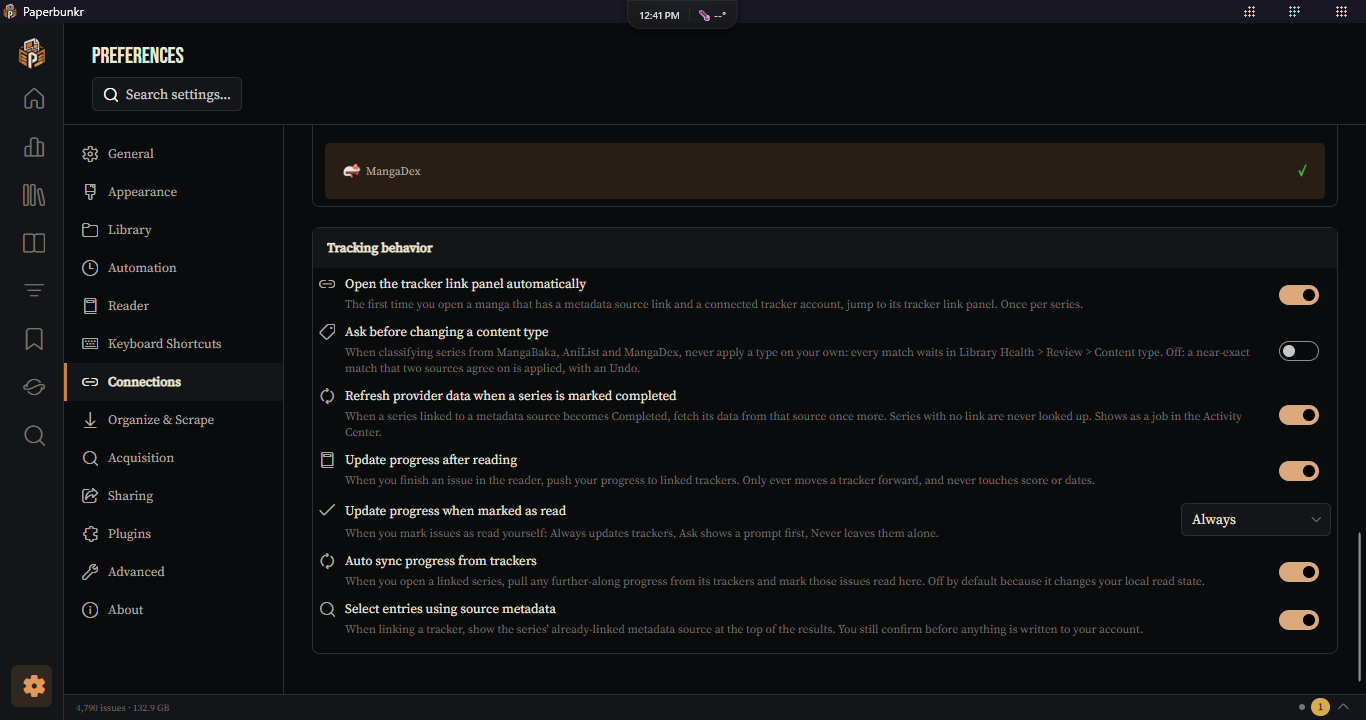
| Setting | Default | What it does |
|---|---|---|
| Open the tracker link panel automatically | On | The first time you open a manga that has an External Metadata link and a connected tracker account, jump to its tracker link panel. Once per series. |
| Update progress after reading | On | When you finish an issue in the reader, push your progress to linked trackers. Only ever moves a tracker forward; never touches score or dates. |
| Update progress when marked as read | Always | When you mark issues read yourself: Always updates trackers, Ask shows a prompt first, Never leaves them alone. |
| Auto sync progress from trackers | Off | When you open a linked series, pull any further-along progress from its trackers and mark those issues read. Off by default because it changes your local read state. |
| Select entries using source metadata | On | Pins a series' linked metadata source first when linking a tracker. |
| Ask before changing a content type | Off | When series are classified from MangaBaka, AniList and MangaDex, never apply a type on your own: every match waits in Library Health > Review > Content type. Off: a near-exact match that two sources agree on is applied, with an Undo. |
| Refresh provider data when a series is marked completed | On | When a series linked to a metadata source becomes Completed, fetch its data from that source once more. Series with no link are never looked up. Shows as a job in the Activity Center. |
Every automatic update shows in the Activity Center — a status-bar indicator while it runs, a toast when it finishes, and a persistent alert (linking to the series) if a tracker refuses. If a tracker already has more progress than you, nothing is written and nothing is announced.
-
Invalid tokenfrom AniList — the stored token is wrong, corrupted or revoked. Disconnect, then connect again and paste a fresh access token. -
MyAnimeList "Couldn't connect" — the
codeis one-time and short-lived. Click Connect again and paste the new code straight away; make sure the redirect URL matches exactly. - A tracker shows "sync failed" — the message includes the service's own error. Reconnect the tracker if it mentions an expired or invalid session.
- Nothing happens on a series — it must be linked to that tracker (see Linking a series) and the tracker must show as connected in Preferences.
See also: Preferences, Metadata & Editing, Troubleshooting.