Repository navigation
The Library
The Library (navigation rail → Library) is where you browse everything PaperBunkr has scanned. It shows your collection as a grid of covers with a two-row toolbar across the top, a sidebar on the left and a preview panel on the right.
- All Series — the whole library, with a count.
- Collections — buildable groupings you define (see Collections below). Hover a collection (or Tab to it) for its ⋮ menu (Edit, Move up / Move down) and a delete button.
Content type (Comic, Manga, Manhua, Manhwa) is no longer in the sidebar. It is the Content type chip in the toolbar's second row (see Filter chips).
The status bar at the bottom shows how many issues the library holds and their total size on disk.
The top row holds the tools: back and forward, Workspace, search, Series | Issues, the view buttons, Display options, the preview panel button, resync and +. The second row shows what you are looking at: the reading tabs, the filter chips, and a count with the current sort and grouping.
Four tabs sort the library by how far you have read. Each shows a count.
| Tab | A series is here when | An issue is here when |
|---|---|---|
| All | always | always |
| Reading | you have opened some of it and some is left | it is opened but not finished |
| Unread | you have not opened any issue | it has not been opened |
| Read | every issue is read | it is read |
A series is in exactly one of Reading, Unread or Read, so the three counts add up to All. The counts follow your search and filter chips, so each number is what you would see by clicking that tab. A tab with nothing behind it is dimmed.
Ctrl+Page Down and Ctrl+Page Up (or a controller's shoulder buttons) step through the tabs. ComicRack CE has the same four choices under Show only in a menu.
Switches the whole view between one card per series and one tile per issue. The reading tabs apply to whichever you are looking at.
Three buttons switch the view. Covers keeps your cover style (poster, panorama or tiles), which you choose under Display options.
The ◀ ▶ buttons walk your browse history — every collection, filter, and search you moved through, just like a browser. Handy after drilling into a series and wanting to get back.
Type in the search box, then click the mode pill (e.g. All ▾) to choose what the
text matches against:
| Mode | Matches |
|---|---|
| All | everything below, combined |
| Series | series name |
| Writer | writer credit |
| Artists | penciller / inker / artist credits |
| Descriptive | summary, notes, genre, tags |
| File | file name / path on disk |
| Catalog | publisher, imprint, and catalog-style fields |
The search runs a moment (about 150 ms) after you stop typing, so a large library
stays responsive while you type, and clearing the box brings everything back instantly. Your search
text is remembered across restarts. When the Library shows per-issue tiles, a field search such
as writer:miller lists only the comics that match; searching a series name still lists all of that
series' comics.
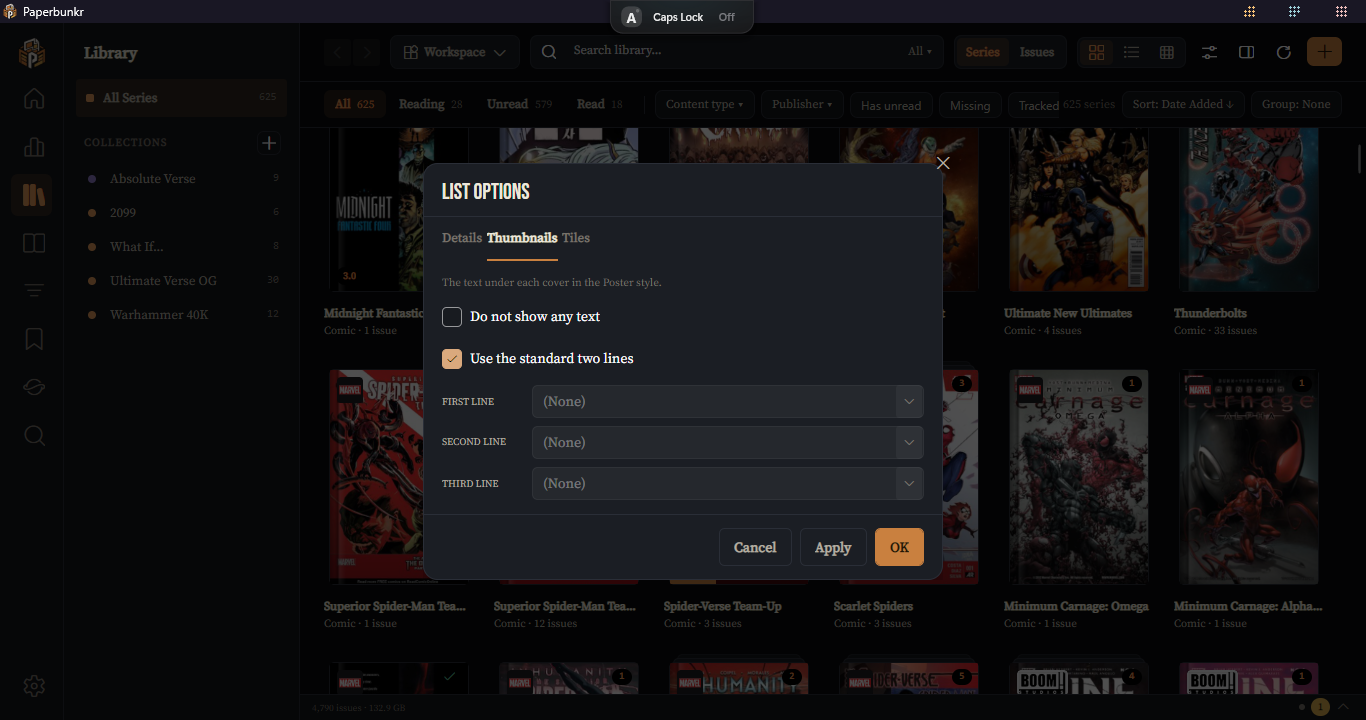
The sliders button next to the view buttons opens a short panel for how covers or rows look. It shows only what applies to the view you are in, and it is switched off in the Details table (set that table's columns from its header instead).
- Cover style: Poster (cover-forward), Panorama (covers at their real width) or Tiles (a small cover beside its details).
- Cover size (Poster and Tiles) and Show titles (Poster).
- On the cover: Unread count, Publisher logo, Progress bar, Rating (only on issues you have rated), Language (List and Tiles; Off, Text or Flag), Hover buttons and Dog-ear preview (hovering a cover peeks at its second page in the corner).
Publisher logos use ComicRack CE's publisher logo pack, including logos that change with the year.
Three switches that used to be here are now in Preferences > Appearance, because you set them once rather than per view: Fade in covers, Cover tooltips and Smooth scrolling.
The right end of the second row always shows Sort: … and Group: …. Click either to change it.
Sort
Dozens of fields — series, title, number, dates, credits, ratings, read progress, file size and date, and any Virtual Tags you defined — ascending or descending. Like ComicRack CE, text sorts ignore case and a leading article (The Flash sorts under F), and numbers sort naturally (Vol 2 before Vol 10). The current sort is always shown at the right of the second row; click it to change it.
Group
Break the view into labelled sections by the same kinds of fields, by Alphabetical (first letter), by a Virtual Tag, or None.
While sorted by series, an A–Z rail on the right jumps to a letter. It follows the same rule, so The Flash is under F.
The chips in the second row narrow the view. They combine with each other, with the search, and with the reading tabs.
- Content type and Publisher open a short list to pick from.
- Has unread shows anything with at least one issue you have not opened. This is the old Unread only filter under a clearer name. It is wider than the Unread tab: a half-read series has unread issues, so it is included here.
- Missing shows files that can no longer be found.
- Tracked shows series linked to a tracker.
- Library appears if you use another computer's shared library, to pick which library's books to show.
- Clear removes every chip at once. It leaves the reading tab and the search text alone.
On a narrow window the chips scroll sideways instead of wrapping.
When you are looking at the whole library (the All tab, no search, no chips, All Series selected), a Continue reading row heads the cover grid. It lists up to six series that have an issue you are part-way through, most recently opened first. Click a card, or focus it and press Enter, to carry on from that page. It scrolls away with the grid. Series you marked Dropped are left out.
- Top right: the number of unread issues, or a green check once every issue is read.
- Top left: the publisher logo (on by default for new installs).
- Bottom edge: a thin bar showing how far through you are, while a series or issue is in progress. This replaced the hover progress ring. Turn it off in Preferences > Appearance > Read-progress bar.
- A series with more than one issue is drawn as a small stack.
- Language, rating and the dog-ear preview are optional extras under Display options, each with its own corner.
- With Hover buttons switched on under Display options, hovering a cover shows Read and More (the same menu as a right-click). They are mouse shortcuts; from the keyboard use Enter and the menu key.
When the grid is grouped, the current group's heading stays pinned at the top as you scroll.
The panel button (or Ctrl+B) shows a panel on the right with the selected series or issue: a large cover, details, reading progress and quick actions. Sections can be folded and stay folded. It isn't shown in the Details table.
For a series:
- Continue #N opens the issue you were most recently part-way through, at that page. If none is part-read, it opens the first unread issue.
- About shows the series summary, or the first issue's summary when the series has none.
- Issues is a strip of numbered chips: filled when read, outlined for the next one to read, and a dashed outline when the file is missing. Hover a chip, or move to it with the keyboard, to see its cover and title; click it to look at that issue. Very long series show the first 150.
- Esc returns you from the panel to the cover you came from.
Scrolling through thousands of covers stays smooth: covers are cached at the size they're shown and loaded a couple of screens ahead of where you are, so they no longer pop in as you scroll.
Preferences > Appearance has a Smooth scrolling switch (on by default). With it on, each mouse-wheel notch glides to its place instead of jumping. It only affects a mouse wheel — a touchpad, the scrollbar, keyboard and touch scroll exactly as before — and it stays off if Windows is set to reduce motion. Turn it off if you prefer the instant, stepped feel.
Your sort field, direction, grouping, display mode, and filters are remembered per view and restored when you come back — including across app restarts. Different collections and Smart Lists keep their own layout.
List options (Ctrl+L) sets what a list shows: the Details columns, the lines under each cover on the Thumbnails tab, and the text on a tile on the Tiles tab.
- Double-click a cover (or press Enter) — an issue opens in the reader; a series opens its detail page. A single click selects it; arrow keys move between cards.
-
Right-click — a context menu with:
- Open, Go to Series, Show in Explorer, Edit Properties… (Ctrl+I), Quick Rate…
- Read / Unread, Add to Reading List, Add to Collection
- Content Type, Reading Direction (manga family only), Publication Status, Reading Status
- Scrape… and Organize… (see Scraping & Organizing), Write metadata to file, Compare files… (with exactly two issues selected; see Comparing Duplicates)
- Delete…, with a choice to delete the file or Remove from the library, keep the file (the file isn't imported again at the next scan)
- Continue Reading — a button on series covers jumps you to where you left off.
Ctrl+click or Shift+click (or Ctrl+A) selects several cards, and a bar appears under the toolbar. For issues it offers Bulk Edit, Plugins, Mark Read, Mark Unread, Add to List, Delete and Clear. For series cards it offers the same except Plugins; Mark Read, Mark Unread and Add to List then apply to every issue in the selected series, in order.
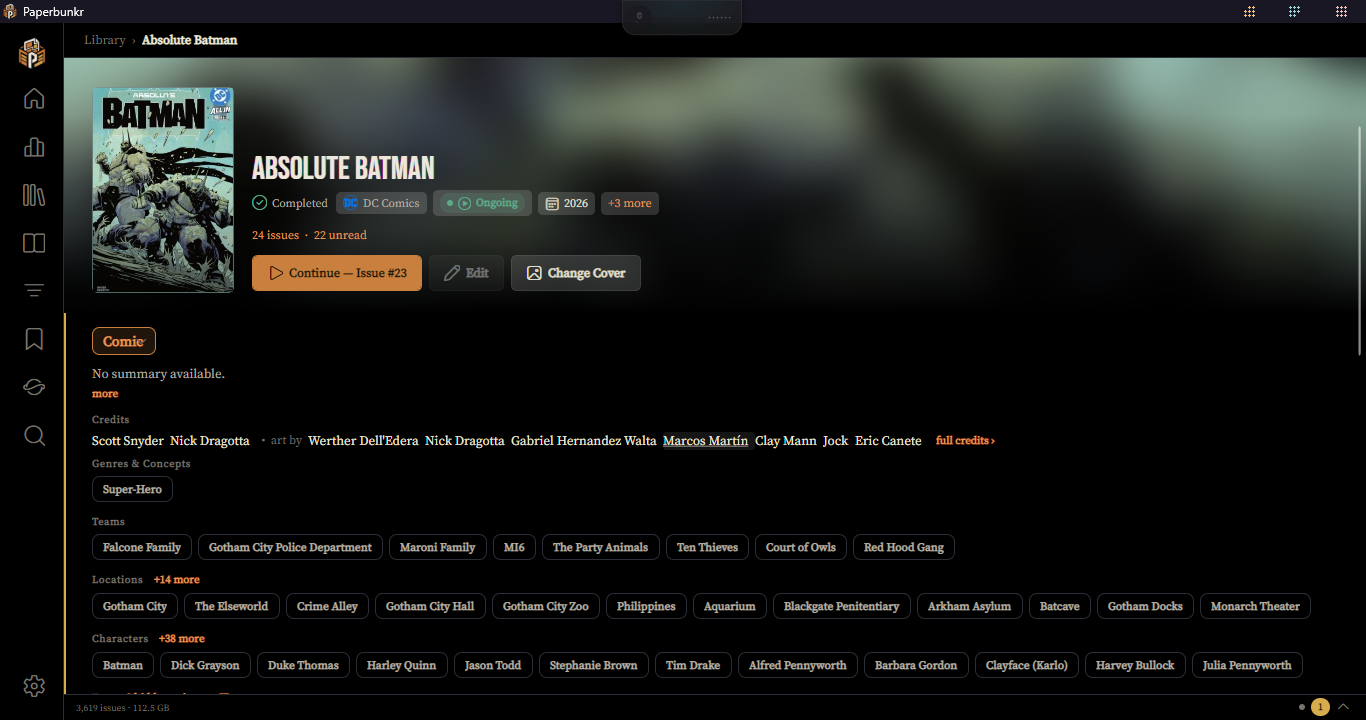
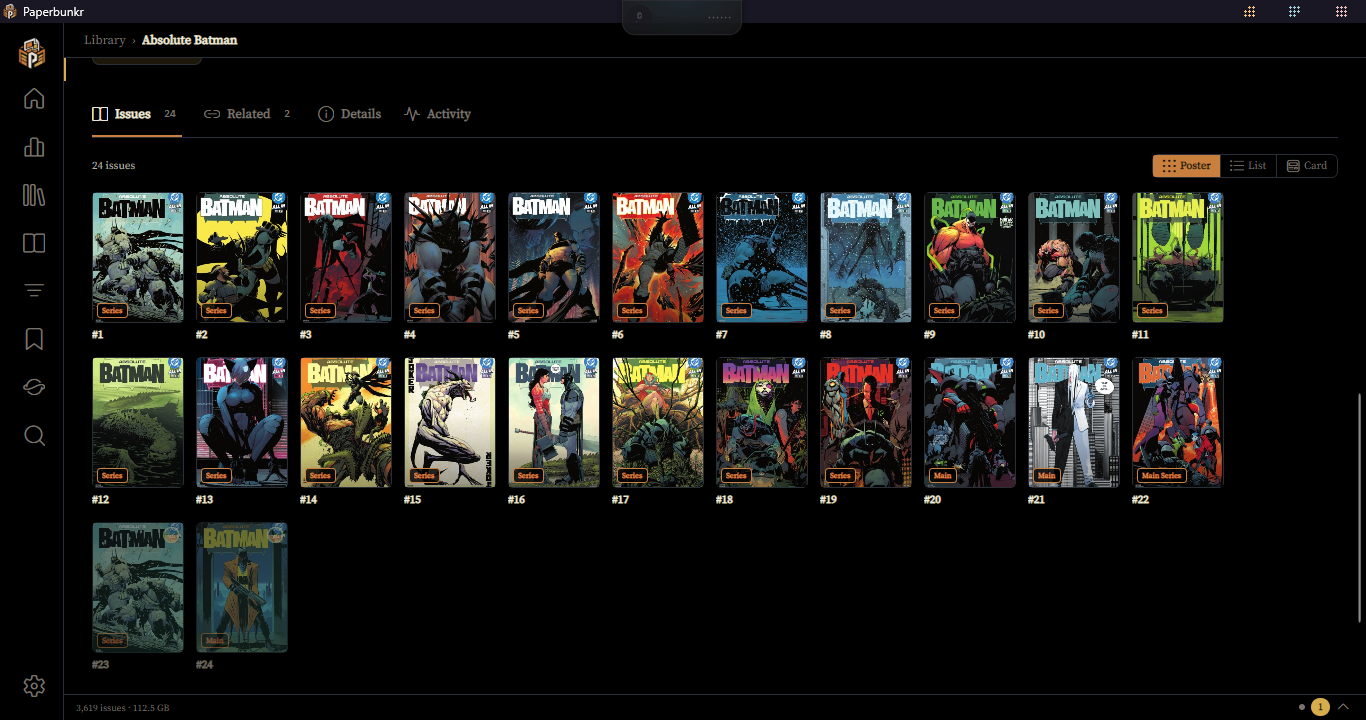
Opening a series shows its cover, metadata pills, summary, and an issue list, plus tabs for related content — see Story Events & Relations and Metadata & Editing. For manga with an online match, a richer manga detail view is shown.
Collections are named groups you assemble yourself (think shelves). Add series to a collection, then pick it in the sidebar to browse just that set. Collections are also wired into the series detail page's relationship tabs.