Repository navigation
Scraping and Organizing
Paperbunkr can fill in a comic's details from ComicVine and can move or copy your files into folders named by a template. Both used to be the Cluster Library Manager plugin; they are now built in, so there is nothing to install.
Add your ComicVine API key, a Metron login, or both, under Preferences → Connections. Every key and password lives there. Scraping without one just tells you where to add it.
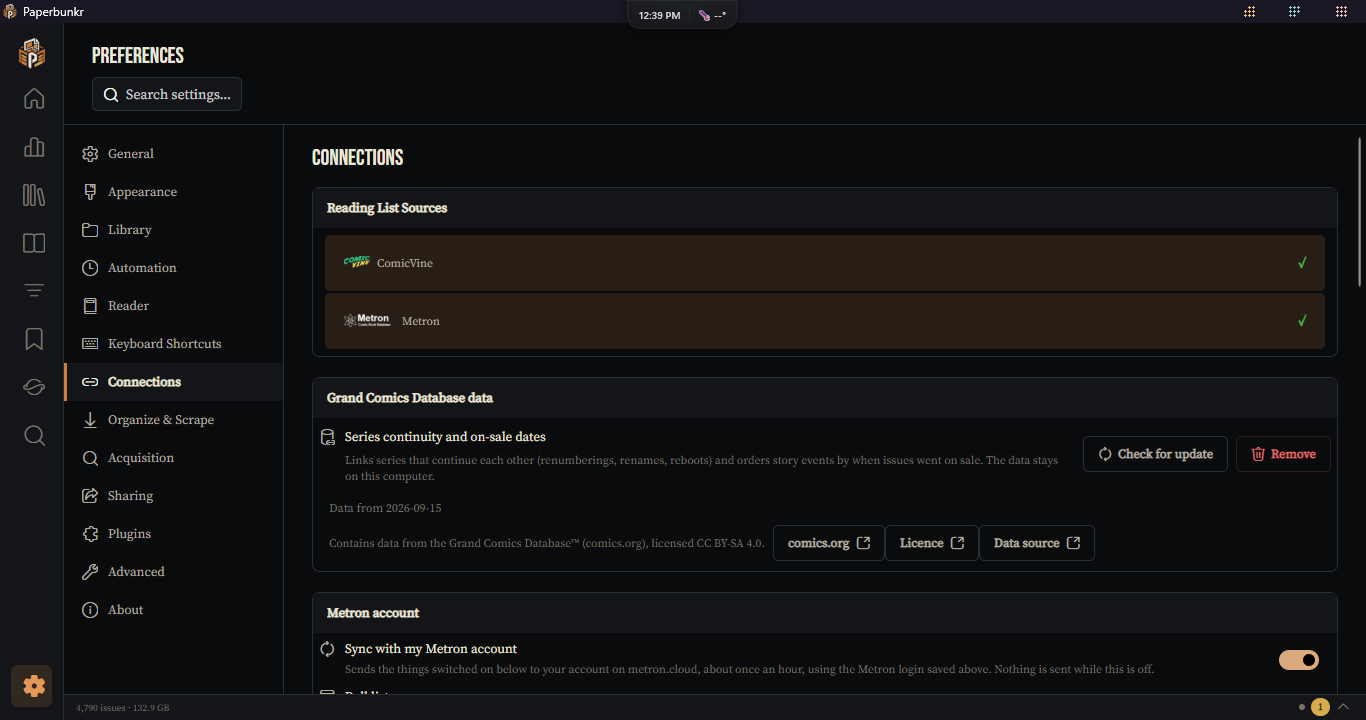
Metron is an alternative to ComicVine. Under Preferences → Organize & Scrape → Source choose which one a scrape starts on. The match dialog has a source box too, to switch a single run (its search and issue list follow it). A re-scrape starts on the source most of the chosen comics were scraped from before; scheduled scrapes use the one from Preferences.
Right-click a comic, several comics, or a series and choose Scrape….
- Paperbunkr searches ComicVine and ranks the series it finds. You confirm the right one in a dialog (or turn on Choose the best match automatically to skip it). The series and issue dialogs are tables like the ComicRack CE plugin's: click a column header to sort.
- It then shows the ComicVine issue it matched, so you can correct it.
- The details (credits, summary, characters, teams, locations, dates, and more) are written into your library, and the files are queued for tag write-back if you have that on.
An automatic match is only applied when the comic's cover also matches the one the source has, as in the CE plugin. When the covers don't agree, or no match is confident enough, you are asked instead: the dialog opens so you can search by hand and pick. In a scheduled scrape, which never asks, that comic is skipped and noted.
A batch shows one progress header across all of its dialogs, and the whole run is one job in the Activity Center. You can cancel it there. At the end a summary lists what was scraped, skipped and failed, and why. A comic's series page also has a Comic details panel (Details → Linking) with a one-click scrape of the whole series. It isn't offered for manga, which use different sources.
- Choose the best match automatically, and confirm the issue too.
- Overwrite existing values, or only fill in what is empty. Never blank a field.
- Which fields a scrape may write; Resolve imprints to their parent publisher and publisher aliases.
- Show cover thumbnails and Show the series art in the dialogs (off scrapes faster on a slow connection), and a Delay between comics.
- Filters that drop unlikely results before scoring: years, publishers, words to leave out of searches, and a cap on results considered.
Right-click comics or a series and choose Organize…. Pick a profile (if you have more than one) and Paperbunkr first shows what it is about to do: how many files will move, how many are already in the right place, which would collide with a file that is already there, which cannot be organized and why, and the first few before-and-after paths. Confirm and it moves or copies each file to the folder and file name the profile's templates describe. If a file already exists at the destination you choose Replace, Rename or Skip, and can apply the choice to the rest. Replace sends the old file to the Recycle Bin rather than deleting it.
Profiles are managed in Preferences → Organize & Scrape:
- a name, a base folder, folder and file templates (checked when you save, so a mistyped token is reported there), Move / Copy / Simulate, and what to do about collisions in unattended runs;
- Move files into folders / Rename files can each be switched off, to only rename in place or only move;
-
When a value is missing: a folder name for an empty folder part (blank leaves it out of the path), text to use when a token is empty (
publisher=Unknown), and an option to leave a book where it is when chosen tokens are empty; - what to exclude: conditions that can be grouped - "any of" / "all of" groups, inside other groups, to any depth - and folders whose books are never touched;
- a Preview that runs a few real comics from your library through the settings as you type, without moving anything (it does not apply the exclude conditions).
Tick several profiles when you organize and they run together: every Copy profile copies each comic, and of the Move profiles only the last one that can place a comic moves it (the earlier ones report it as moved by a later profile). The scheduled task runs every profile marked for it the same way.
A profile in Copy mode whose base folder is inside a folder the library watches is refused (the library would import every copy as a duplicate comic); put the copies outside your watched folders, or use Move.
Simulate shows the same preview and stops: nothing is moved, and a full report is saved. Any run that fails or skips books also saves a report listing every book with its reason; the Activity Center line gives the path.
Templates use {<token>} groups: {<series>}, { #<number2>} (a digit after the name zero-pads it; <number0> pads to the width of the series' last issue; 7.5 becomes 07.5), { (<year>)}. Text inside the braces next to a token disappears when the value is empty. Two-value forms such as {<writer( & )(series)>} join the credits of every issue of the series, so a whole series lands in one folder; (issue) joins just that comic's. {<manga(Manga)>} shows its text for manga only and {<manga(Western)(!)>} for everything else. {<first(Series)>} takes the first letter of any field, by the names the Library Organizer plugin uses.
A / or \ inside a value (a series called "Fate/Zero") is dropped rather than starting a new folder, and a book whose path would be over Windows' 259-character limit, or that would be named after a reserved Windows device (CON, NUL…), is reported instead of being organized.
Files already where the templates put them are left alone, so running an organize twice - or on a schedule - does not rewrite anything.
Undo last organize (same section) puts the most recent run's moved files back and removes the folders that run created. Only the last run can be undone; undone moves are kept in the history, not deleted.
Two tasks in Preferences → Automation, both off until you turn them on:
- Scrape unscraped comics with ComicVine matches comics that have no ComicVine details yet. It never asks anything, so anything that would need a choice is skipped unless Choose the best match automatically is on.
- Organize library runs the profile you marked Use for the scheduled Organize library task.
Downloaded issues (see Acquisition) get their ComicVine details automatically by the exact issue you asked for; failures and their retries appear under Wanted → Queue → Needs details.
An installed Cluster Library Manager is no longer loaded; the Plugins screen says it is now built in, and you can remove it. Profiles you made in the plugin were not carried over; create them again under Organize & Scrape.