Repository navigation
Story Events and Relations
PaperBunkr models how your series and issues connect — sequels, crossovers, shared universes, publishing timelines. This drives the series detail tabs and the Home recommendations.
Open a series and use the tabs:
Series connected to this one. + Add Related Series to link a title and set the relationship (sequel, prequel, spin-off, adaptation, alternate version, …). The link is bidirectional and shown on both series.
With the Grand Comics Database data installed, series that continue each other (renumberings, renames, reboots) are linked for you and marked GCD. Continuations to series you don't have are listed under Not in your library, each with a link to its page on comics.org.
+ Add to Continuity groups the series into a shared timeline / universe (e.g. a publisher's main continuity, or a self-contained reboot). Series in the same continuity surface each other as "Same Continuity".
+ Link for Tracking connects the series to an external service so its status and issue list can be checked. Sync to Trackers pushes your progress out (where the adapter supports it).
+ Link External Metadata attaches an online source record (see Metadata & Editing) used for lookups and enrichment.
A log of recent changes and reading activity for the series.
Story Events are curated event timelines — a company-wide crossover, an arc that spans several series. Each event has an ordered reading list of issues. Events and continuities share the Continuity screen on the navigation rail.
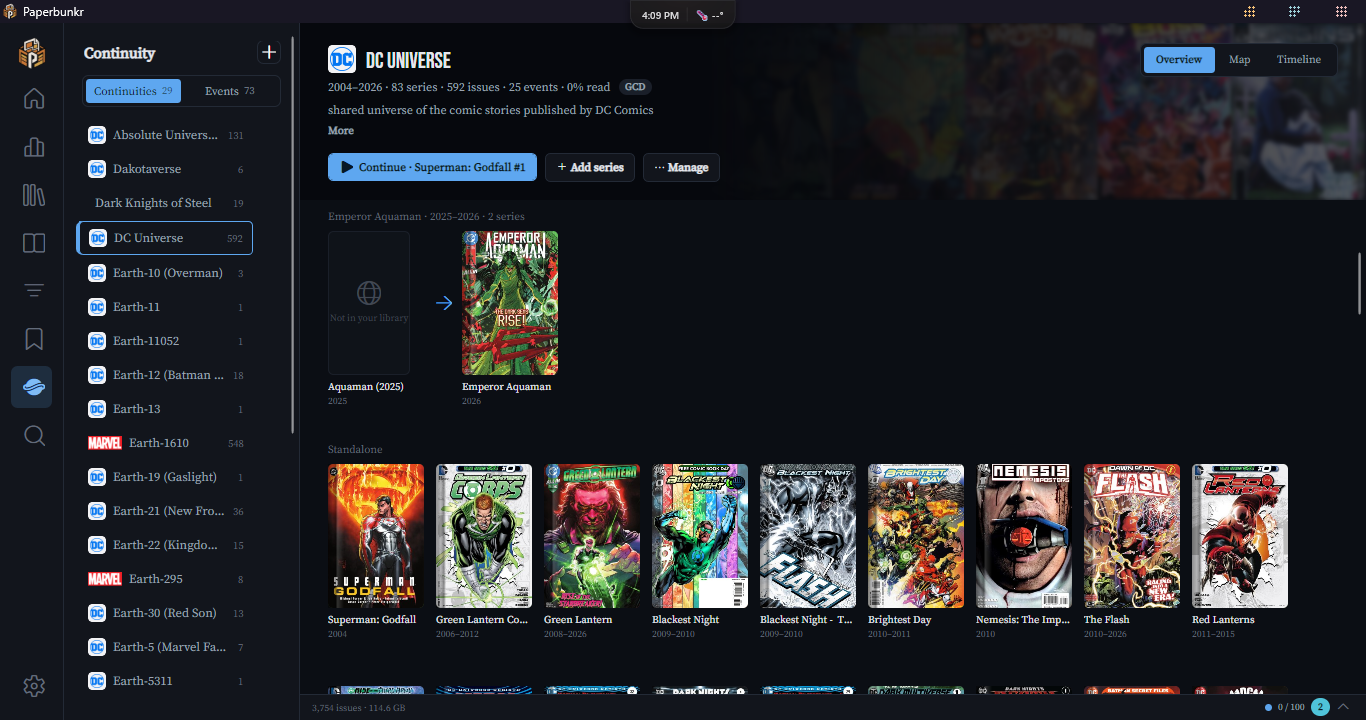
- Sidebar. A Continuities | Events switch at the top (it remembers the last one you used). Continuity rows show the publisher's logo and how many issues the continuity holds; event rows show the start year and issue count. + makes a new continuity or event. Right-click a row to open, edit or delete it.
- Suggestions & checks, the row under the list, opens one panel with everything waiting for a decision: new story-event suggestions, possible duplicate events and shared-universe suggestions, plus the Check story events and Check Wikidata buttons. Its badge counts what's waiting.
- Every page has a hero band across the top: a blurred collage of covers, the name, a stats line and the buttons, with Overview | Map | Timeline on the right.
A continuity's Overview:
- Stats: the years it covers (on-sale dates from the Grand Comics Database data when you have it), series, issues, events and how much you've read. A GCD chip shows when its series are matched to that data.
- ▶ Continue opens the first unread issue in the continuity map's order, then reading carries on in that issue's own order.
- Needs attention appears only when something's waiting: possible duplicate events, event connections to review, or series that its events use but that aren't in the continuity (each with Add).
- Series are grouped into runs: series that continue each other sit in one row, oldest first, joined by arrows. A continuation you don't have shows as a dimmed "Not in your library" poster that opens its page on comics.org. Everything else is Standalone. Switch Order to Custom to see your own arrangement instead and drag posters to change it (or Ctrl + ← / → on a poster); that order sets the map's lanes and the reading-list export. Hover a poster to add a note or remove it.
- Events in order lists the continuity's events in the order they happen, with how much of each you've read, a line where one leads into the next, and a Map button.
- ⋯ Manage has Edit details, Compare & merge (this continuity, what you share and the other side by side, with Merge into …), Create reading list, and Delete.
An event's Overview:
- Stats with where it came from (ComicVine, Metron, both, or Yours) and which continuity it's in.
- Follows ← This event → Followed by shows the events before and after it; right-click one to unlink it.
- Needs attention points at role suggestions, issue suggestions, connections to review and possible duplicates.
- The reading list stays in reading order; the chips filter it (All, Core, Hide optional, Unread, and Needs review when roles await a decision). Covers show a tick once read. + Add issues searches your library; the ⋮ menu on a row sets the role, moves it up or down, or removes it.
- Related events (crossovers and other links) and Issue suggestions fold open below.
Switch an event to Map (the Overview | Map | Timeline toggle) to see it as a swimlane timeline: one lane per series, laid out in the event's reading order.
- Spine. When one of the event's series has the event's own name (for example Secret Wars in the Secret Wars event), it becomes the spine, a trunk lane across the top. Each other series hangs off it: a dashed line shows which spine issue a tie-in follows, and Prologues and Epilogues sit on the spine too. If no series matches, the map is a relay: one card per column, and a single line follows the reading order from lane to lane. Pick a different spine, or None (relay), from the Spine box. Your choice is saved with the event.
- Filters: All, Spine only, or Hide optional (drops issues marked Optional).
- Density: three sizes, from compact badges to full covers. Use the slider, or Ctrl + mouse wheel. Shift + wheel scrolls sideways.
- Selecting a card dims everything unrelated to it and opens the inspector. The inspector shows the cover and summary, Open reader, Mark read / unread, and links to the issues it follows, leads to and ties into. On a spine map it also shows the reading order of that stretch. Click a link to jump to that card.
- Keyboard: ← / → move in reading order, ↑ / ↓ move to the nearest card in the lane above or below, Home / End go to the first or last card, Enter opens the inspector, Ctrl + Enter (or a double-click) opens the reader, Esc closes the inspector and then clears the selection.
- Reading from the map follows the event's order: Next and Previous issue, the end-of-issue card and the context strip all stay inside the event and stop at its last issue. Coming back, the map re-selects the issue you were reading.
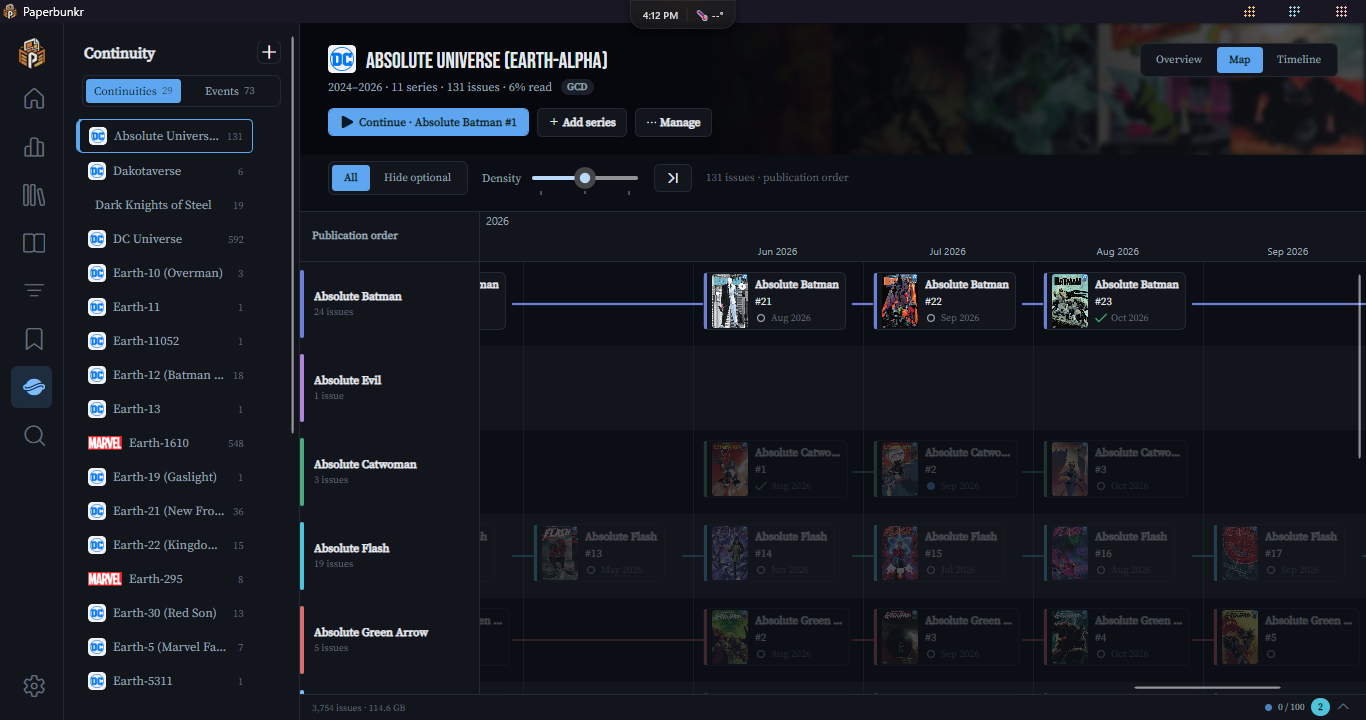
A continuity has a map too (Overview | Map | Timeline). It shows every issue of every story event that includes one of the continuity's series on one swimlane, events in chronological order:
- Event bands. The ruler names each event over its stretch of the map; click the name to open that event's own map. Every other event is lightly shaded so the events read as bands.
- Issues in no event are placed between the events by date (the on-sale date from the Grand Comics Database data when you have it, otherwise the cover date), under "Between events · 2004–2006" bands. Events only hides them; Events… lets you hide whole events.
- An issue in two events appears once, in the first; its card lists the other under Also in.
- Series outside the continuity that an event pulls in get their own lane, marked outside this continuity.
- A series that continues another (a GCD link, or a Continuation relation you set) gets the lane right below the one it continues, and that lane says continues as ↓.
- Connectors between event bands show how events relate: an arrow for Prequel, Sequel or Continues, a bracket for a Crossover. Solid lines are relations you set; dashed ones were worked out automatically. Hover for the reason.
- Open reader follows the order of the event the card sits in.
- A continuity with no events shows its series in publication order, in year bands.
Check story events (in Suggestions & checks, and the weekly task of the same name in Preferences → Automation) also works out which events come before which:
- From your library, when an event picks up exactly where another left off in a shared series (Hulk #105, then #106), when a name says so ("Prelude to …", "… : Aftermath"), or when one event's issues all come before another's in the series they share.
- From Wikidata, where it records that one storyline follows another (for example Planet Hulk → World War Hulk).
Before/after links show in an event's Follows / Followed by strip and crossovers under Related events, where the automatic ones are marked inferred or Wikidata. Weaker hints (same name years apart, overlapping events sharing issues) appear under Suggested as "Looks like the sequel of …" with Accept and Dismiss. Relations you set yourself are never changed, and removing an automatic one stops it coming back.
The Grand Comics Database (GCD) records when series continue each other and when issues went on sale. PaperBunkr can use a compact copy of it (about 34 MB):
- Open Preferences → Connections → Grand Comics Database data and click Download.. After it installs, your series are matched to it. Series scraped from Metron use Metron's own GCD ids. The rest are matched by name, start year and publisher, and only when exactly one GCD series fits.. The weekly task Match series to GCD (Preferences → Automation) keeps new series matched.
Check for update looks for newer data, and Remove deletes it along with every GCD link. Deleting a GCD link on a series' Related tab stops it from coming back. The data is licensed CC BY-SA 4.0; the credit is in the Preferences row and under About → Legal & notices. The data is published at heisehis/paperbunkr-gcd-data, one release per GCD data dump.
ComicVine and Metron often spell the same arc differently: ComicVine's "Hulk: Planet Hulk" is Metron's "Planet Hulk". Issues scraped from each site could end up in two separate events. PaperBunkr now works out which events are the same arc and merges them.
- It looks up both ids. For each event, PaperBunkr asks ComicVine and Metron for their id for the arc. It uses what the event's own issues say, Metron's link to ComicVine, and a name search checked against the arc's issue list. Two events that turn out to have the same id are the same arc.
- Sure matches are merged for you. That means two events created from suggestions or look-ups that share an id, or whose names match (ignoring a series prefix such as "Hulk:") and that share at least half their issues. The merged event keeps the name without the prefix, remembers the other spelling, and keeps both ids, so that spelling is never suggested as a new event again.
- Anything less certain waits for you under Possible duplicates in Suggestions & checks, with Merge or Not the same. "Not the same" is remembered. Events you made or renamed yourself are never merged without asking, and their names are kept.
- Sources disagree: if ComicVine or Metron give an event two different ids, it's listed with Check again instead of being merged.
- When it runs: right after you accept a suggestion (for that event), weekly as the Check story events task in Preferences → Automation, and whenever you click Check story events. It works through a batch per run and re-checks an event after 30 days or when its issues change. Results appear in the Activity Center.
PaperBunkr can propose Story Events and Continuities for you. Nothing is created until you click Accept, and anything you Dismiss stays dismissed.
- Story Events — issues that share a Story Arc (per publisher) are grouped into a suggested event, optionally checked against ComicVine or Metron. Suggestions refresh weekly in the background and wait in Suggestions & checks. In Issue Properties, a look-up button checks a single issue.
- Continuities — PaperBunkr matches your series to shared universes using Wikidata (and the recurring characters in your series), leaving out things like Elseworlds so they don't get mixed into a main timeline. Click Check Wikidata in Suggestions & checks, or use Look up on Wikidata on a series' Continuities tab. Accepting a suggestion fills in the continuity's Wikidata ID, description and publisher. It also runs daily in the background.
Progress for the manual checks shows in the Activity Center.
A Reading List can be linked to a Story Event so the two stay in sync. Issues that share an event show "Same Event" on their detail pages.
Each issue in a story event or reading list can be a Prologue, Core, Tie-in, Epilogue, Optional or Aftermath. Paperbunkr suggests these from what it can see:
- a reading-order site's own section headings and notes ("Prelude", "Tie-Ins"), when the list was built from a story arc;
- the issue's Format (Prologue, Minus 1, Epilogue);
- words in the issue's title - prologue, prelude, epilogue, aftermath, tie-in - or an issue number of 0 or -1;
- for lists built from ComicVine, the issue's story title there (which exists even for issues you do not own yet) counts like a title in your library, and its one-line summary is a weak hint;
- weaker hints: the same words only in the series name, or an issue from a different series than the rest of the arc.
When the evidence is strong the role is filled in for you and marked · auto (hover for why). A role you set yourself is never changed. A weaker guess, or a different idea about a role you set, appears as a Suggested chip with Accept and Dismiss. Detect roles in the ⋯ menu of an event or list runs detection over everything in it, and Clear detected role takes an automatic role back off. Optional is never suggested - only you mark an issue optional.