Repository navigation
Preferences
Open Preferences from the bottom of the navigation rail (or press Ctrl+, from anywhere).
Seven tabs.
Themes
- Pick the active theme from the list. Each theme is either Light or Dark and sets the
colors, corner radius, spacing and icons. Built in: the default look,
windows_11, Daylight, Overcast, Matrix, Maximum Contrast and a colour-blind-safe theme. -
Install… adds a
.crpcktheme package (a ZIP oftheme.json+ icons). It's extracted on install. Themes change colors, fonts, corner radius, spacing, and icons — not window layout or control shapes.
Theme options
- True black — forces pure black backgrounds on dark themes; saves battery on OLED screens. It is suspended automatically while you're reading.
- Matrix rain — the falling-glyph background of the Matrix theme. Turn it off for a static Matrix look; this also saves GPU and battery.
- Auto switch — follow the system Light/Dark preference, or switch on a schedule with Switch to dark at and Switch to light at (local hour, 0–23).
- Auto-enable true black at — a local hour (0–23) at which true black turns on by itself; leave blank to toggle it manually.
-
Accent color override — a hex color such as
#FF8800; blank uses the theme's own accent.
Font
- Font family — override the app's UI font, with a live preview line.
Interface
- Reduce motion — shortens UI transitions to effectively instant.
- Expand nav rail on hover — when off, the rail only expands while pinned open.
Startup
- Reopen the screen I was on last time — off means every launch opens Home.
- Scan library folders for new files at startup — picks up files added or removed while Paperbunkr wasn't running; runs in the background. Off by default.
Reading
- Resume issues where you left off
- Reading past the last page opens the next issue
- Ask me to rate a comic when I finish it — opens the Quick Rate prompt at the end of a book. Off by default.
Library
- Allow importing files by dragging them into the window — on by default; turn off to disable drag-and-drop import on the Library and Reading List screens.
Window
- Minimize to tray (closing the window minimizes to tray while on)
-
Book Folders — add/remove watched comic folders, toggle Watch for changes per folder, Scan Now, Generate Covers, Sync Metadata. See Getting Started.
-
Migrate from ComicRack CE — Migrate… opens the importer. See Importing from ComicRack CE.
-
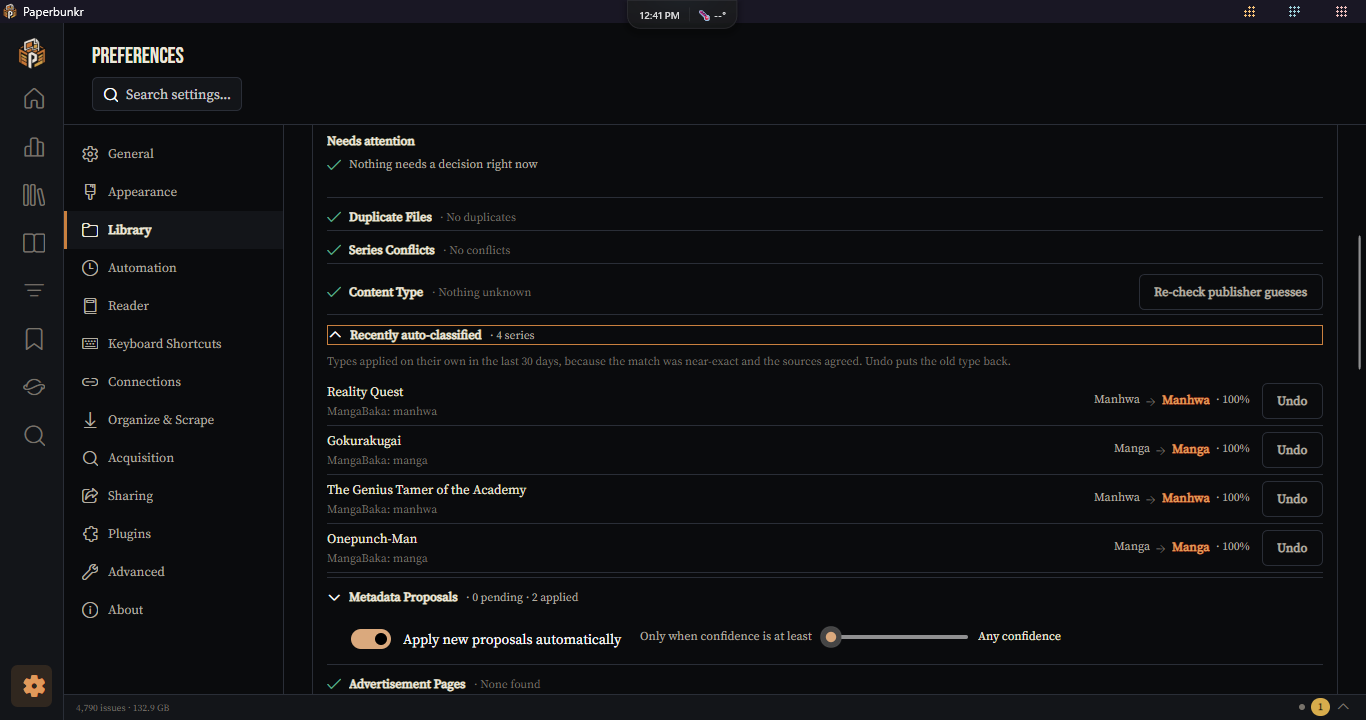
Library Health — everything that needs a decision, in three tabs (the one you last used opens next time):
- Overview — what needs attention, and maintenance: Verify & Repair Covers, Repair Missing Covers.
- Review — Content Type, Duplicate Files, Series Conflicts (Find Similar Series), Metadata Proposals, Advertisement Pages and Reported pages (pages you reported from the reader). Each says so when nothing needs a decision. Duplicate Files can Compare two copies, Remove extras, keep files, or Merge entries that share one file (when two library entries point at the same file).
- Files — Missing Files (relink, or remove confirmed-missing ones), Empty Rows, and Recently Removed (restore anything removed here within 30 days), plus how a scan treats missing and manually removed files.
The Content Type queue lists series whose type MangaBaka, AniList or MangaDex suggests. Recently auto-classified shows types applied on their own in the last 30 days, because the match was near-exact and the sources agreed; Undo puts the old type back.
 The Library navigation item shows a dot while something needs review.
- Virtual Tags — define named computed tags for Smart Lists.
- Right to Left — Reverse left/right page-turn direction for right-to-left books.
- Auto-hide toolbar when idle — fades the floating toolbar after a few seconds without pointer movement. Off keeps it always visible.
- Chrome reveal style — PerCluster: each corner control pops in only when you hover it. Ambient: any pointer movement reveals the whole toolbar at once.
- Display — default fit mode, double-page spread default, auto-rotate landscape pages, high quality page display (smoother scaling, more CPU), page transition style, whether jumping animates.
- Zoom & Navigation — reset zoom when turning the page, skip pages tagged Deleted (on) and Advertisement (off) when turning the page, pre-open the next issue (on; opens the next file in the background near the end of an issue so continuing is instant, which reads it ahead of time - turn it off on a spinning disk or on battery), mouse-wheel zoom speed.
- Panels & Zoom — start in guided view (step through a page panel by panel) and smart double-click zoom (on: zoom to the panel under the pointer; off: the plain 200%).
- Tap Zones & Input — which parts of the page a tap or click turns the page from, separately for paged and continuous reading (Default keeps the classic behaviour; L-shaped, Kindle-like, Edge, Right and left and Disabled follow Mihon's layouts), an invert option for left-handed use, whether the mouse uses the zones, whether the mouse side buttons turn pages, and whether a game controller drives the app. Live previews show each layout.
- Comfort — the reading stats chip default, eye-rest reminders (interval 10-60 minutes) and the warm tint (start and end time, strength).
- Profiles — the default profile and the list of reader profiles (rename, delete, reorder; the built-in ones are read-only). Profiles are captured from the reader's drawer.
- Image Adjustment — default brightness / contrast / saturation / gamma for every book (the reader toolbar adjusts further per book), plus Auto levels and Sharpen (0-3).
- Info panel — show the summary straight away in the reader's info panel (off: it stays behind a Show summary button because summaries can spoil).
- Auto-crop — trim plain white or black scan borders from comic pages (off by default).
- Background & Margin — canvas background (Auto app background, a fixed color, or a Background texture, including ComicRack CE's textures), optional margin around the page.
- Keyboard Shortcuts — remap every key, mouse button, wheel direction and controller button; Import Layout… / Export Layout…. See Keyboard Shortcuts.
- App Behavior — misc app-level toggles.
- Rendering — Graphics backend: Auto (GPU with software fallback — recommended), Gpu (forces GPU, no fallback), Software (CPU renderer, for broken GPUs / RDP / VMs). Also Prefer native OpenGL over ANGLE (only if the GPU renderer misbehaves — ANGLE / Direct3D is the better Windows default). Changes take effect after restart.
-
File Association — register PaperBunkr as the handler for
.cbz/.cbr/.pdf/.epub/.fb2/.mobi(tick each type). -
Backup Manager — Backup Location, Backups to Keep, Backup Now. Backups
are copies of
paperbunkr.db; see Troubleshooting for restoring. - Reading List Sources — configure the online arc-lookup sources for Reading Lists.
- Trackers — connect accounts for AniList, MyAnimeList, Shikimori, Bangumi, MangaBaka, MangaUpdates, Kitsu, MangaDex. Most need you to register your own API app and paste a Client ID (links are in the UI). Credentials go to your OS credential store.
- Tracking behavior — automatic progress updates, the mark-as-read prompt, and more. Step-by-step setup for every tracker is on the Trackers page.
Manage installed plugins — see Plugins.
The header shows your version and build. Copy version info puts the version, build, Windows and .NET versions on the clipboard, ready to paste into a bug report. Below it are three tabs:
- Overview — What's new for this release, Check now for updates, and the toggle for checking on startup. The Project group links to the source code, this wiki, issue reporting and the releases page, and its Logs and Data buttons open the folders where Paperbunkr keeps its logs and your database.
- Changelog — every release's notes, newest first. The version you're running is marked Current and opens expanded.
- Legal & notices — the license, the privacy notice (what stays on your computer and what can leave it), the terms of use, the ComicVine & Metron notice, and the open-source notices. Each opens in a reader with clickable links and a Copy text button.