Repository navigation
Web panel System
The System area of the web panel: the cabinet's status and logs, the whole Setup while you play, custom games, accounts, a terminal and lab mode.
| Tab | What it has |
|---|---|
| Setup (the first tab, the one System opens) | The whole Setup of the cabinet, in the same order, and custom games |
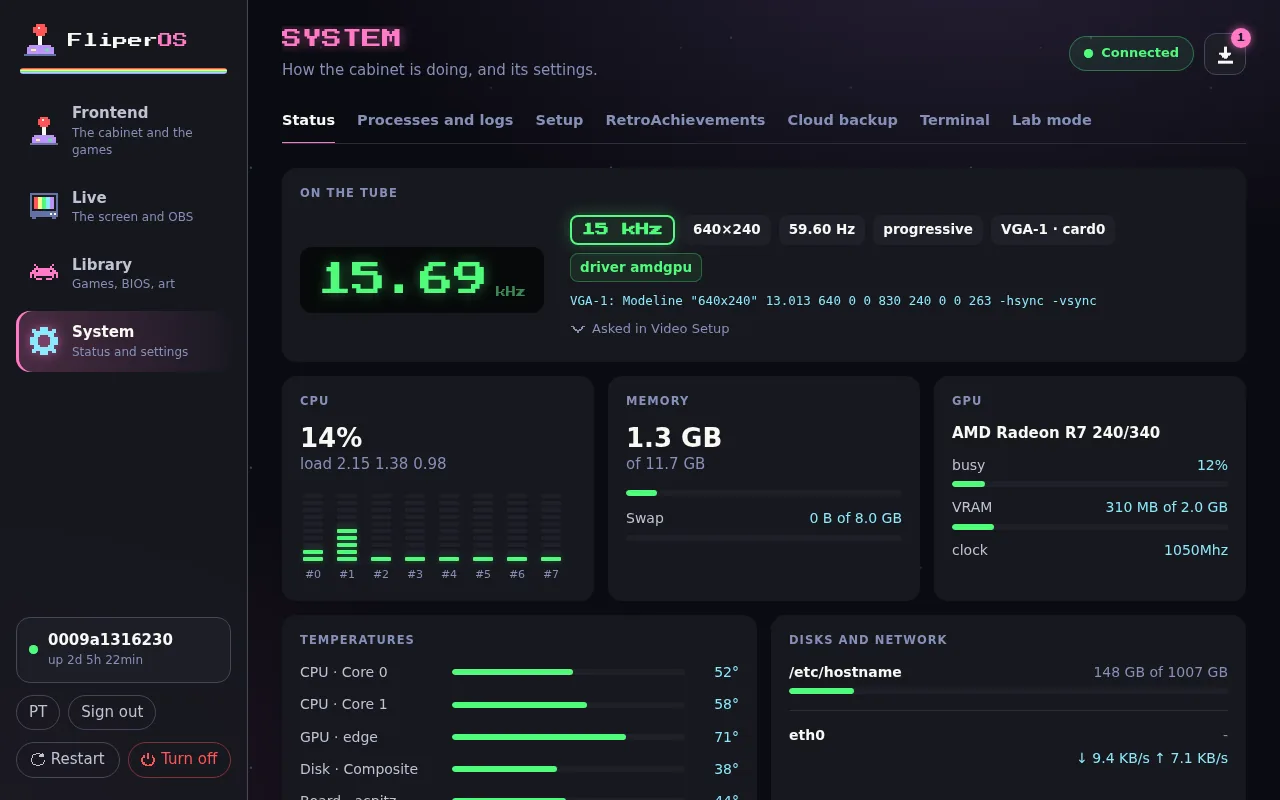
| Status | The video mode, CPU, GPU, temperatures, memory, disks, network |
| Processes and logs | What uses the CPU, and every FliperOS log |
| RetroAchievements | The account, achievements on/off, hardcore, the Web API Key |
| Cloud backup | The cloud account and syncing |
| Terminal | The cabinet's shell in the browser |
| Lab mode | A temporary internet address for remote help |
Refreshed every second:
- On the tube: the horizontal kHz on a display, then the band (15, 25 or 31 kHz), the mode, the vertical Hz, interlaced or progressive, the output and card, the driver in use, and the full modeline of each active output. Asked in Video Setup opens what Video Setup asks (monitor, frequency, resolution, connector, orientation).
- CPU: the total, the load and each core as a column of segments, like a VU meter.
- Memory and the swap; the GPU: its name and what the card reports (use, VRAM, clock, temperature, power).
- Temperatures: each sensor as a bar up to the part's limit (yellow near it, red at it).
- Disks and network: each mounted disk, each interface with its IPs, the traffic and the Wi-Fi signal.
Read once when the tab opens (not every second):
- Machine: the motherboard and BIOS, the CPU with its socket and cores, the memory modules (size, type, speed, maker) and the kernel.
- Storage devices: each disk with its model, size, connection (SATA, NVMe, USB), SSD or HDD, and its partitions.
- Sound: each sound card with its bus address (PCI or USB) and outputs; the one chosen in Setup > Audio is marked output in use, and a card that is playing now says so.
- Connected hardware: the monitors (name, maker and year from the EDID, current mode), controllers, keyboards and mice, USB devices, network adapters and Bluetooth.
-
PCI devices: every device with its address (
0000:01:00.0), type, name, ids and driver.
Copy full report, at the top, copies all of this as one Markdown text, plus the video in use, every Setup setting with its value, fliperos.conf (without passwords or tokens), and the versions of the FliperOS packages, the kernel and Mesa. Paste it into a help request. It has no IP or MAC addresses.
The processes using the most CPU, and the logs: those of /opt/fliperos/logs (each emulator and frontend, the cloud backup, OpenBOR, DuckStation…), the Setup's and the updates'. The first place to look when a game doesn't open.
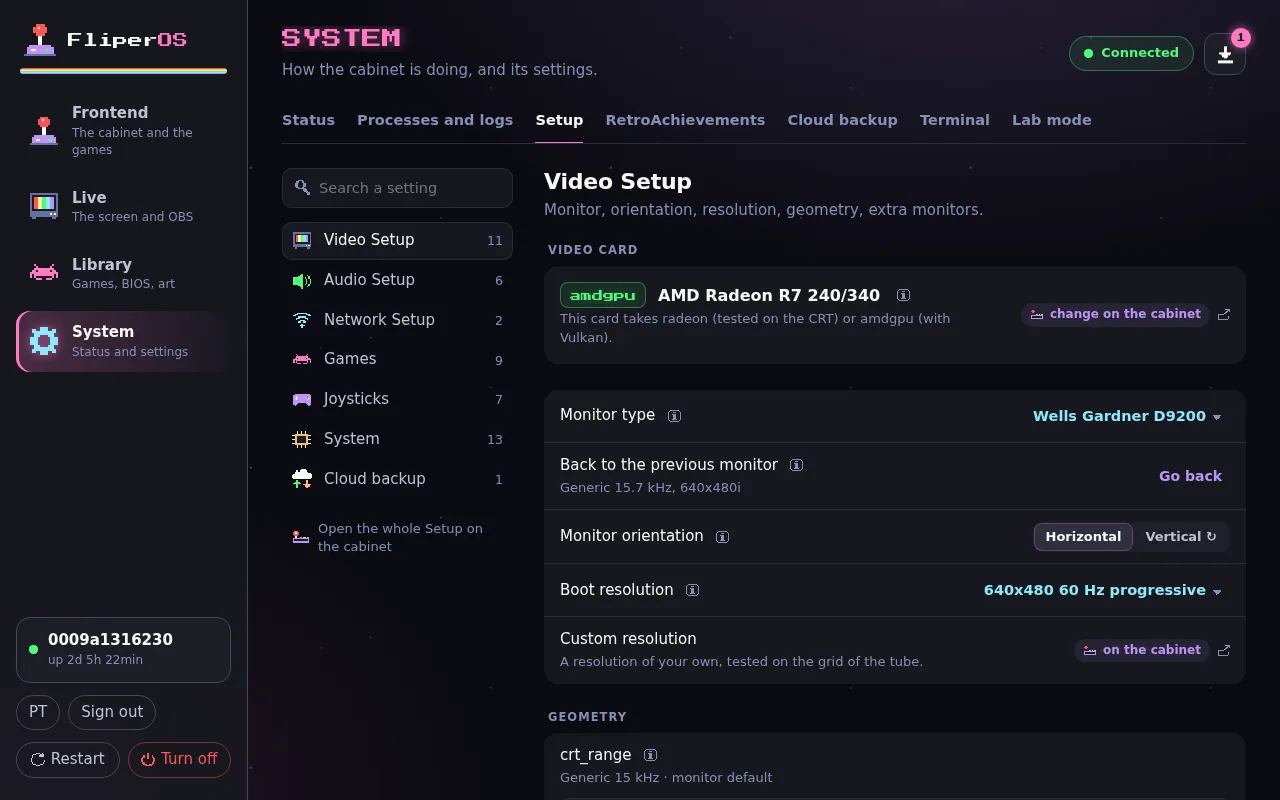
The same Setup as on the cabinet, as a list of settings like a phone's Settings: the seven groups in a column on the left (Video, Audio, Network, Games, Joysticks, System, Cloud backup, each with how many items it has here) and the open group on the right, with the same items in the same order. Each item is a section, one row per setting: the name on the left, the control on the right (a switch for on/off, side-by-side buttons for two or three short choices, a list for the rest, a slider for a number), and the explanation behind the ⓘ. Each change is saved and applied at once.
Search a setting, above the groups, looks in every group: a setting found can be changed right there, and an item without settings leads to its group. On a phone the groups are the first screen; a group opens in its place, with ‹ Setup to go back.
What can't be done from a phone (a test grid, the colour patterns, mapping the buttons, the gun targets) is a row marked on the cabinet: it asks first, then the screen opens on the tube in place of what is there, and when you leave it what was on screen comes back. Watch it live, in the same question, opens the live screen. Open the whole Setup on the cabinet, under the groups, does the same with the whole menu.
Video starts with the video card in use and its driver; with a card that takes two drivers (radeon or amdgpu, nouveau or NVIDIA's), change on the cabinet opens the choice on the tube, which goes back by itself if no picture comes. In Interlaced hacks, picking Filter for a program shows the filter level on the same row.
| Group | Here | On the cabinet |
|---|---|---|
| Video | Monitor type, Back to the previous monitor, orientation, boot resolution, geometry (typed) and its reset, multi-screen games, interlaced hacks, colour values, scanlines values, the on-screen menu | A custom resolution, the geometry grid, the monitors, the colour patterns, the scanlines picture, the output test, the video driver, low resolutions, the card firmware |
| Audio | The sound card, the volume, MAME audio latency, a test sound, menu sounds | AlsaMixer |
| Network | Wi-Fi (also a hidden network) and the connections; the live screen's sound and quality, the marquee for OBS | |
| Games | What starts at power on and custom frontends; custom games; Folders; AttractPlus ROM List; links to Emulators, Extras, Downloader, Cleaner and Scraper | |
| Joysticks | Bluetooth (pair, connect, forget), GunCon 2 values, Controller light | Button mapping, Buttons layout, the gun targets, wheel and pedals, LPT joysticks |
| System | Latency mode, services, Quirks, password, cabinet name, System Update, FliperOS version, what's new, debug mode, boot splash, restart and turn off | The latency check of the computer, the cartridge reader firmware |
Items that only some cabinets have show only there, as on the cabinet: scanlines at 31 kHz, the video driver with a card that has a choice, Bluetooth with an adapter.
A colour slider saves while it moves, so the game on screen changes with it; the − and + at its sides move it one step per tap. A new monitor or resolution counts after a restart, and the page offers to restart when it is saved.
- Video > On-screen menu: the switch, and the profiles saved in the on-screen menu with Save profile as: each one with its kind (game, core, emulator, resolution, default) and what it changes. The arrow opens its settings; the ✕ deletes it, and what it changed goes back to the profile below it from the next game. The default profile stays.
-
Audio > Menu sounds: the switch and the two sounds of the Setup's menu, When the cursor moves (
move.wav) and On Enter (select.wav): Send a.wav(or drop it on the row), play it in the browser, Replace or remove it. They are the files of thesounds/menufolder of the network share, and they stand in for Browse and Enter until other sounds are picked in the Setup, where each of the six events also has its own file and volume (Menu sounds).
-
Folders: each folder of
~(and the folders inside them) can have a shortcut to a folder of another disk: Change opens the cabinet's folders and disks; Undo brings back the one used before. See External storage. - External storage (right after Folders, Open on the cabinet): a whole disk, with the FliperOS folders or a Batocera filesystem, and formatting. It is only done on the cabinet's screen: erasing a disk is not done from a browser. See External storage. The pages of the panel that name a folder (the packages of the custom games, for one) show where it really is when it is on another disk.
- Custom frontends: a name and the command that opens it, like the other frontends; edit or delete each one.
- Quirks: pick a USB device connected now and the fix (one device per player, no GET requests, always poll, UAS off for a disk), or type the code. They count after a restart. See Wheels and quirks.
- Bluetooth: turn it on, Look for controllers (15 seconds, with the controller in pairing mode), Pair. See Bluetooth.
- System Update and AttractPlus ROM List run as tasks, with the progress in the drawer.
The panel doesn't need the tube. From a phone, open Setup > Video and pick the right monitor or resolution, or press Back to the previous monitor: it brings back the monitor and resolution from before the last change, made here or in Setup > Video Setup. Pressed again, it goes back to the new one.
Setup > Games > Custom games: the games that are not a ROM (PC games for Windows or Linux, scripts, your own emulators), in groups that are systems in the frontends. The same as on the cabinet (Custom games), in two tabs (the one you used last opens again):
| Tab | What it has |
|---|---|
| Games | everything about the games already here and the packages waiting: send a package (it installs by itself), the filter, the packages to install, and each group with its games as cards |
| Create package | a Windows or Linux game in a folder becomes a package in ~/roms/custom-packages: One package (with the preview and the test on the cabinet) or Many at once (a table); when it is ready, it asks whether to install |
Games:
-
Send a package: drop a
GAME.fliperos-customgame.zipon the dashed area (or click it). It goes to~/roms/custom-packagesand is installed by itself in the group chosen under the area (the last one used comes chosen; with no group at all, the first one is asked for). A game already installed from a zip of that name is updated in its group; one that is already in the chosen group asks before being replaced. Delete the package after installing (remembered in the browser) removes the zip once the game is installed: the game stays, and Download makes the package again when you need it. A package that is not good stays in the list with its problems. A package in parts (.zip.001,.002...) goes the same way: choose or drop all its parts together (the page checks them first: a missing number or parts of different sizes are refused before anything is uploaded), they upload one by one, the cabinet joins them into the zip (a task with progress; one that already exists asks before being replaced) and the game installs by itself. The parts go away after joining. - The filter: a search (name, category, developer, year or group), the group, the state (Installed, To install, Newer package, With problems), the type (Windows, Linux, Command) and the order (name, year, type). Group, state, type and order stay in the browser. New group is at the end of the bar.
-
Packages to install: the zips of
~/roms/custom-packagesthat are not games yet, as the same cards, above the groups: a new one has a group list and Install; a changed one has Update in group (it installs over the game in its group); one with problems lists every problem on its own line (a missing.cfgor game folder, noexe=orcommand=, files outside the structure...) and Delete the file. Each has the zip's Download icon and a bin to delete the zip. Install all puts the new ones in one group. A package already installed is not here: its game is the card. -
The games: each group with its games as cards like the frontend shows them: the picture, the video (with the cursor, or a touch on the picture), the logo, the name running when it doesn't fit, the type, video mode, players, controls and buttons as icons,
.keyand.ppdbmarks when the game has them, the year and the developer, the category and the text scrolling slowly. At the bottom of each card, Open (on the cabinet), the pencil (edit), the download arrow (the package) and ⋯, which has Rebuild and download the package, Install again and Delete the package (when the game has one) and Delete the game. A group shows twelve cards, with Show more. -
Edit (the pencil) opens a window with everything the game's
.cfgsays: the video mode, the category, the year, the developer, players, buttons and controls; for a Windows game, the.exe(a list of the files in its folder) and what opens it (PortProton, Wine or Wine Staging); for a Linux game, the command; for a command, its name, group and command too; the controller key map (keep it, clear it so the on-screen menu asks again, or say the game already works with the joystick: an empty map); and the picture, logo, video and text. The name and the group of a Windows or Linux game stay (its folder has them). What you change here goes into the next package you download. -
Download (the arrow) makes the package of the installed game with what it has now: the settings you changed after installing, the
.keymade in the on-screen menu, the art and the.ppdb. If the package the game already has (~/roms/custom-packages) carries exactly that, nothing is packed again and the browser downloads it at once; otherwise the Setup packs it (a progress bar shows, and the game becomes "installed from" the new zip) and the download starts. Rebuild and download packs it again even when nothing changed. - Edit the group (the pencil at the end of the group's title) is one window with the name and the logo: rename (the games, pictures and settings go with the new name) and give the group a one-colour logo like the systems' (upload an image, only its drawing counts: a PNG with a transparent background, or a dark logo on a light one; or pick one of ours from a list with a preview; or remove it). Nothing is saved before Save; the new logo shows on the marquee and in the frontend's ribbon.
-
Delete the group (the bin at the end of the group's title): it says first what goes with it (its games, the other files in its folder), then asks whether the game folders and the packages in the group's folder go too; kept packages go to
~/roms/custom-packages. - Packed game folders: pack a game folder into squashfs, or unpack it.
Create package: the same form as always, without a group, with Package structure (the files of a package, as an example with Street Fighter 4, and what goes in its .cfg). Two ways, chosen above the form:
-
One package. Next to Create the package:
- Preview shows the card the frontend will show, beside the form, and follows what you change.
-
Joystick: tick it when the game already works with the joystick. The package then carries an empty
<game>.key(no controller-to-keyboard map), so the on-screen menu does not open by itself asking for one and the controller is not hidden from the game. It replaces the.keythat came with the folder, and the test opens the game with that empty.keytoo. -
Test on the cabinet opens the game there, from its folder, without installing it (
~/roms/custom/.test, hidden from the frontends). When the game shows on the screen, a panel says what to do if it doesn't take the controller (the on-screen menu opens by itself on Controller configuration, and the key map made there goes into the package) and offers Take a photo and Record 30 s: they capture the cabinet's screen while you play, and the photo and the video become the package's picture and video (they replace the ones above). Both always come out in 4:3, whatever the game's own resolution (a 640x240 or 320x224 screen, or a 16:9 game, is stretched to 4:3 the way the CRT shows it). The video is 30 seconds at 60 frames per second, H.264 with AAC sound (640x480, from the same screen capture as the Live screen), and the frontend plays it. The game's sound is recorded when Live screen sound is on (Setup > Audio Setup) and the game was opened after turning it on; otherwise the video has a silent track and the page says so. The video needsffmpegon the cabinet. While the game opens, and while it runs, the page has Close on cabinet, which closes the test game (and its X) and brings back what was on the screen. A game that opens and closes by itself (a wrong command, for example) is noticed in seconds: the page shows the end of its log. A command that starts withcommand=(a.cfgline pasted whole) is refused by the check. Not seen in 2 minutes: the page points to its log. - The logo (
<game>.logo.png) is the fourth art slot, next to the picture, the video and the text.
-
Many at once. A table with one row per game: the name, the type (Windows or Linux), the folder, the
.exeor command (and the runner) and the video mode; the details of each row (category, year, developer, players, buttons, controls, Joystick and the art) open with the arrow at the end of the row, which shows how many of them are filled. Import from a folder makes one row per subfolder, with the art,.keyand.ppdbthat came with each one; Paste from a spreadsheet takes rows from Excel, Sheets or LibreOffice (a first row with the column names can put them in any order); Duplicate copies a row; Apply to all rows sets one field (mode, runner, category, year, developer, players, buttons, controls, joystick) in every row. Check shows what is wrong in each row (the reason is under the field; a field in the details opens them); Create N packages checks again, asks before replacing zips that already exist and packs one zip per row in one task: each row shows whether it was created, the ones that were leave the table and the ones that failed stay with the reason. When the table is narrow, as it is next to the Setup menu, each row turns into a card. The table stays in the browser until its rows are created.
When a package is ready (one or many), the page shows the Download button with the zip's link (a single one) and asks whether to install it now: pick the group (the last one used comes chosen, or a new one) and Install, or Not now to leave it in Packages to install, in the Games tab. The form goes back to empty.
A package bigger than 2 GB (Telegram). The free plan of Telegram takes files of up to 2000 MB (2 GB) and Telegram Premium up to 4000 MB (4 GB), so when a package is bigger than the part size (also in the Download of an installed game) the page lists it in parts under the Download button: NAME.fliperos-customgame.zip.001, .002..., a download link for each one. The size of each part is a number field in MB (1 MB = 1 MiB), 2000 by default; with Telegram Premium type 4000, and a package that fits in one part is not split (the block says so and keeps the field, so you can go back). The last part is always smaller than the others. The names go from .001 to .999, so a size that would need more parts is refused with the smallest size that works. The value is remembered in the browser. The parts are cut from the zip that is already in ~/roms/custom-packages as they are downloaded, so they take no extra space on the cabinet. Send all of them to the group: the bot reads them as one package, with a single card and a reply for each part. To install one of them, drop all its parts together in the Games tab or double-click any part on the cabinet's desktop (see Custom games). To join them by hand: cat "NAME.fliperos-customgame.zip".0* > "NAME.fliperos-customgame.zip" (Linux, macOS), copy /b with the parts in order (Windows), or open the .001 in 7-Zip.
Windows and Linux games are copied to ~/games/GROUP/NAME and packed in squashfs, like an installed package: the folder can be on a USB disk, in ~/games after sending it in Files, or on the network share. The first Windows game offers to download PortProton (about 3 GB).
A folder laid out like a package fills the row by itself when you pick it (or import its parent folder): the picture, video and text (GAME.jpg, GAME.mp4, GAME.txt), the controller map (GAME.key), PortProton's settings (GAME.ppdb) and what GAME.cfg says (the .exe or command, the mode, the category, players, buttons and controls).
Those files are found in the opened zip (pick the folder that holds GAME/ and the GAME.* files), next to the game folder, or as a picture or video with the game's name inside it (the rules). They show in the Art slots with a purple border (From the game folder) and are copied from the cabinet when the package is made, without uploading.
Create package > Many at once is a table, one package per row:
| Column | How |
|---|---|
| Name | Typed |
| Type | Windows or Linux (a package is never a command) |
| Folder | Typed, or picked in the cabinet's folders |
| Executable / command | The .exe files found in the folder (installers left out), with what runs it below (PortProton, Wine or Wine Staging; PortProton by default), or the Linux program or command |
| Video mode | 240p, 240p hack (Mugen: 640x240 on the tube, the game sees 640x480), 480i, or another (WIDTHxHEIGHT@HZ) |
| Details (the arrow) | Category (MAME's catver.ini), year, developer, players, buttons, the 13 kinds of controls, Joystick, and the art: picture, logo, video and text |
- + Row adds a row; the copy button on a row duplicates it (without the name and the art); the arrow opens its details (Open or close all details does it for every row).
-
Import from a folder: pick a folder with one subfolder per game (
~/games, a USB disk); each subfolder becomes a row, with its name, its type, its.exeand the art,.keyand.ppdbthat came with it. - Paste from a spreadsheet: copy rows in Excel, Google Sheets or LibreOffice and paste them in the window, or straight into the table. The columns are Name, Type, Folder, Executable or command, Mode, Category, Players, Buttons, Controls; a first row with the column names can put them in any order.
- Apply to all rows: pick a field and its value (for example the video mode, or Joystick) and every row gets it; the runner only goes to the Windows rows.
- Check asks the Setup what is wrong: the red fields say why (a field in the details opens them), and the page says how much will be packed and how much is free. Create N packages checks again, asks before replacing zips that already exist, and makes one zip per row in one task: each row turns green or keeps its error, the ones created leave the table, and then the page asks whether to install them.
When the table is narrow (it always is next to the Setup menu) each row becomes a card, with the same fields. The table stays in the browser until its rows are created.
Sign in to your retroachievements.org account (or open the sign-up page in a new tab), turn the achievements and hardcore mode on or off, and paste the Web API Key for the badge in the game list; the tab links to the page where you copy it. See RetroAchievements.
Install rclone, sign in (Google Drive with a code, Dropbox at its site, WebDAV, SFTP or MEGA with a user and password), Sync now, Send or Get, sync by itself after each game, and choose what to sync. See Cloud backup.
The cabinet's shell in the browser, as the fliperos user, with its own zsh and the window's size: the same as SSH, without a program on the computer. In a lab session it is root.
Starts and stops a temporary internet address to the panel, for someone helping you from far away: Copy puts it on the clipboard, and the tab shows when it expires (after 4 hours). Read what it gives the other person before you send it: Remote access.
- The video status comes from DRM, through
fliperos-video-check. The volume goes throughfliperos-setup --volume up|down|mute|get|set N. - The Setup tree (
config/web/setup.js) has the ids of the Setup's menus; a test checks the two match. Settings go through the same functions as the Setup's screens:fliperos-setup --settingslists them and--setting KEY VALUEchanges one (settings_listinlib/system.sh).--setup-itemssays which items this cabinet has;--quirks,--folders,--frontends,--bluetooth,--system-updateand--attract-romlistdo the rest without a screen. - The on-screen menu profiles are the lines of
/etc/fliperos/osd-profiles.conf(scope<TAB>key<TAB>value, the filefliperos-osdwrites); deleting one rewrites the file without its lines. The menu sounds aremove.wavandselect.wavin/opt/fliperos/sounds/menu: a file sent is checked (a RIFF/WAVE file, 2 MB at most) and belongs to the player, like the ones sent over the network. -
Open on the cabinet writes the request to
fliperos-web-launch, like a game:fliperos-tty1runsfliperos-setup --screen NAME(only the names inscreens/panel.sh), and the video screens end like Video Setup (Xorg and the kernel line again). - Custom games go through
fliperos-setup --customgames(lib/customgames.sh):describe,check,bulk(one row per game, with an@row N ok|failline each),edit,delete,group-info,group-delete,media,install,install-all,package-delete,check-create,create,test,pack,squash. The cards come fromfliperos-customgame packages(JSON), and their pictures, videos and texts are read straight from the zips (/api/customgames/package-media, only inside~/roms/custom-packages). A folder is copied byfliperos-customgame add, andfliperos-customgame scanfinds the games of a folder and what came with each one in the package's structure; that art,.keyand.ppdbgo to the Setup by their path on the cabinet (/api/customgames/artshows the picture's thumbnail). The art of a row waits in/var/cache/fliperos-web/stageuntil the game is saved (a day at most);POST /api/customgames/capture?kind=snap|videoputs a photo or 10 s of video of the screen there (the layer's frame, or the X screen on the desktop, throughffmpeg), and/api/customgames/staged?id=shows it back. - The terminal is a login shell in a pseudo-terminal (
setsid -c, so Ctrl+C and job control work), at normal priority. The page talks to it over a WebSocket (/api/terminal) that only the panel's own page can open, after the login. The screen is drawn by xterm.js 5.5.0 with its fit addon (MIT), shipped inside the panel. - RetroAchievements and Cloud backup call the same programs as the Setup:
lib/cheevos.shandconfig/fliperos-cloud.
See also: Web panel, System Setup, Custom games.