Repository navigation
Section 2 12 memory channels
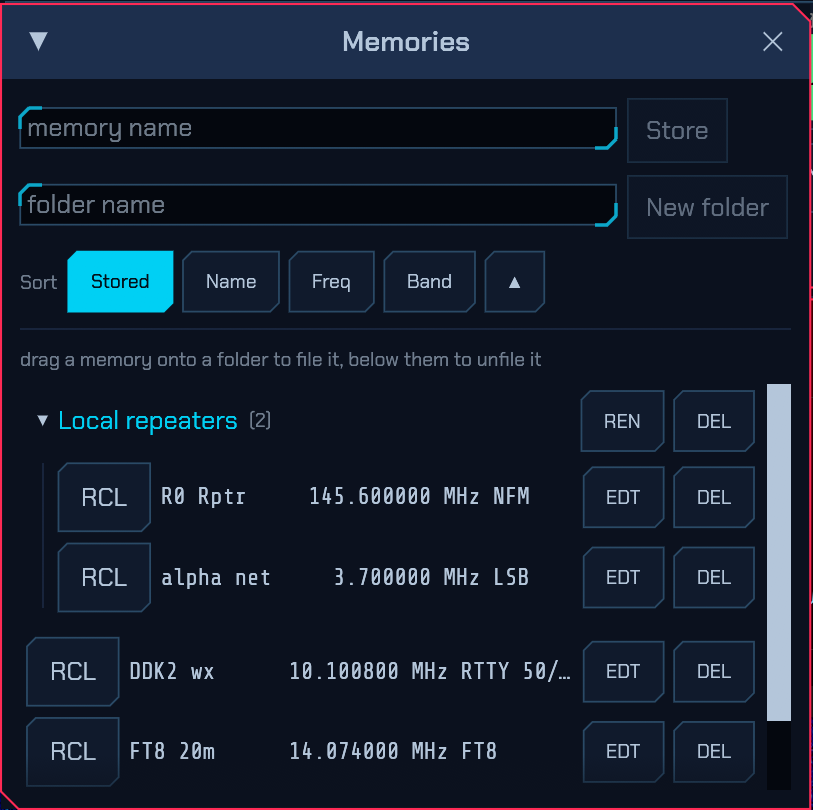
Open MEM (System module) for the memory channels window. Type a name and press Store to save the current frequency and mode. Each saved row has a RCL (recall) button, an EDT (edit) button and a DEL (delete) button.
EDT turns the row into an editor: the name, the frequency in MHz and the mode, with SAVE to keep the change (Enter does it too, from the name field) and ✖ to abandon it (so does Escape). It is the same channel afterwards — same place in the list, same folder — so correcting a typo, or a frequency that has moved, costs one edit instead of a delete and a fresh store from that frequency. The filter follows the mode: change the mode and the channel takes the new mode's default passband, leave the mode alone and a filter you chose yourself is kept.
On a receiver with more than one antenna port the editor has an antenna drop-down as well: which socket this channel is listened to on. Storing a memory captures whichever socket the radio was on at the time, and this is where you say it should have been another — the wire for a 40 m net, the beam for a 2 m repeater. The dash (—) is not the first port: it means leave the antenna alone, and it is what every channel stored on a single-socket receiver holds, so working down a list that never mentioned antennas never moves a relay. The socket is shown in square brackets at the end of the row. A receiver with one antenna has nothing to choose and gets no drop-down.
The editor also carries a RPT button, which folds out the repeater set-up
stored with the channel: the shift and its offset, the CTCSS tone or DCS code
to transmit, and whether every over opens on the 1750 Hz burst. A channel that
already has one comes up with the section open. Storing a memory captures
whatever the DUPLEX and TONE controls are set to at the time — including plainly
simplex with no tone, which is what lets the next recall take a shift back
off rather than leaving the last repeater's on a simplex channel. Every
recall sets DUPLEX and TONE, including a channel from a memories.json
written before this existed and one whose RPT section was never opened: those
are read as plain simplex with no tone, because that is what the list is
showing you. The list shows what is stored beside the mode, so two memories on
one dial read as the different channels they are. See
2.18 Repeater operation.
IMPORT reads a channel list from a CHIRP CSV file (.csv) — the format
CHIRP writes and the one every repeater directory hands out. RepeaterBook
exports it by county, most national societies publish their machine lists in it,
and the marine, PMR and aviation channel tables circulate as it too, so a list of
local repeaters is usually one download away rather than four hundred stores.
Each channel brings its frequency, its mode, the repeater shift and offset, and the CTCSS tone or DCS code to transmit. A channel already on the list — same frequency, same mode — is skipped, so re-importing an updated directory adds what is new instead of doubling what is not; the names of the channels you already have are left alone. A line the file's own format cannot account for (a blank row, a trailing note, a frequency that is not a number) is skipped and counted rather than failing the import, and the network log at the bottom of the window says how many channels were read and how many lines were not.
The columns are matched by name, from the file's header row, so a file that carries only some of them or carries them in another order still reads. A file with no header row is refused — its first line would be a real channel, and mistaking one for a heading would silently lose it.
EXPORT writes the list back out in the same format, to load into a handheld
or to keep as a backup. Not everything survives the trip: CHIRP's format has no
place for a folder, an RTTY modem setup or an antenna socket, and its Mode
column is the modulation, so a channel stored in a digital mode exports as the
sideband it rides on. The frequency, the name, the shift and the tone all do.
The Sort row above the list says what order it is drawn in — Stored (as
stored, the historic order), Name (ignoring case), Freq, or Band
(each band's channels together, general coverage last, by frequency inside
each) — and the ▲ button reads that order backwards. It is a preference of
this screen, remembered in config.toml under [ui]: the store keeps its
channels in the order they were stored, a memory scan works through them in
that order whatever the list shows, and somebody at another screen on the same
station sorts the same memories their own way.
Memories can be filed into folders. Type a name into the second field and press New folder, then drag a memory row onto the folder to file it under that folder — and drop it on the area below the folders to take it out again. Every folder header has a REN button (rename in place — Enter or clicking away keeps the new name, Escape abandons it) and a DEL button, which deletes only the folder: the memories filed under it move back to the top level. Folders collapse and expand with the arrow at the left of their header, and a memory scan works through every memory regardless of the folder it sits in.
Every memory on the visible span is also marked along the bottom of the
waterfall, as Mem: folder / name — see
2.3 Tuning.
From the User Manual. Home.