Repository navigation
Kit Team
The Team subtab (the first one in Kits) mixes shirt, shorts and socks from a team's own kits. For example, the home shirt with the away shorts and the third kit's socks. Unlike the two Custom subtabs, it doesn't copy or rewrite any .rx3 file. It writes a few lines of Lua that the Revolution Mod reads when the match loads.
Want to apply a downloaded kit pack, or build a kit from other sources? Use Custom Simple or Custom Advanced. For a comparison of the three subtabs, see the Kits overview.
- The Revolution Mod V1.3.5
player.luaindata/fifarna/lua/assets. Install it from the Set Up tab; v1.7.0 ships v1.3.5. An olderplayer.lua(V1.0, for example) can't apply combinations, so the tab, the F12 editor and the F11 mode turn read-only and say why. If you are using a patch like FIP you don't have to worry about this. - Kit drawings are only made from loose kit files in
data/sceneassets/kit/kit_<team_id>_<kittype>_<tourn_id>.rx3. A team without loose kits gets grey drawings. Its combinations still work if the kits are in the game's archives. Running the Assets Extractor once (Kit Textures) gives every team loose kits on a vanilla install.
- Pick a team (team ID or the Pick Team dialog).
- In the combination strip, click New to create a combination, or click an existing card to edit it. Duplicate, Rename and Delete work on the selected card. Drag the strip to scroll it; the mouse wheel scrolls the page.
- In the editor, choose:
- Kit the game asks for: the kit slot that is replaced by the mix (0 = home, 1 = away, 2 = keeper, 3 = third, and so on).
-
Tournament:
0= any competition, or a tournament ID for a tournament kit. - Shirt from kit / Shorts from kit / Socks from kit: which of the team's kits each garment comes from.
- Click Add / Update Mix. A combination can hold several mixes, one per kit slot. Remove Selected Mix removes one.
- Choose which combination each side wears with Home uses and Away uses (Original kits = no mix).
- Optionally force a keeper kit per side with Home goalkeeper / Away goalkeeper (Automatic = the game decides).
Every change is saved at once to the team's data/fifarna/lua/assignments/teams/team_<id>.lua and applies from the next match. The first change backs up the untouched file to teams/kitmixer_backups/team_<id>.lua.bak.
Each card shows a drawing of the mixed kit. Click any drawing to open a larger view.
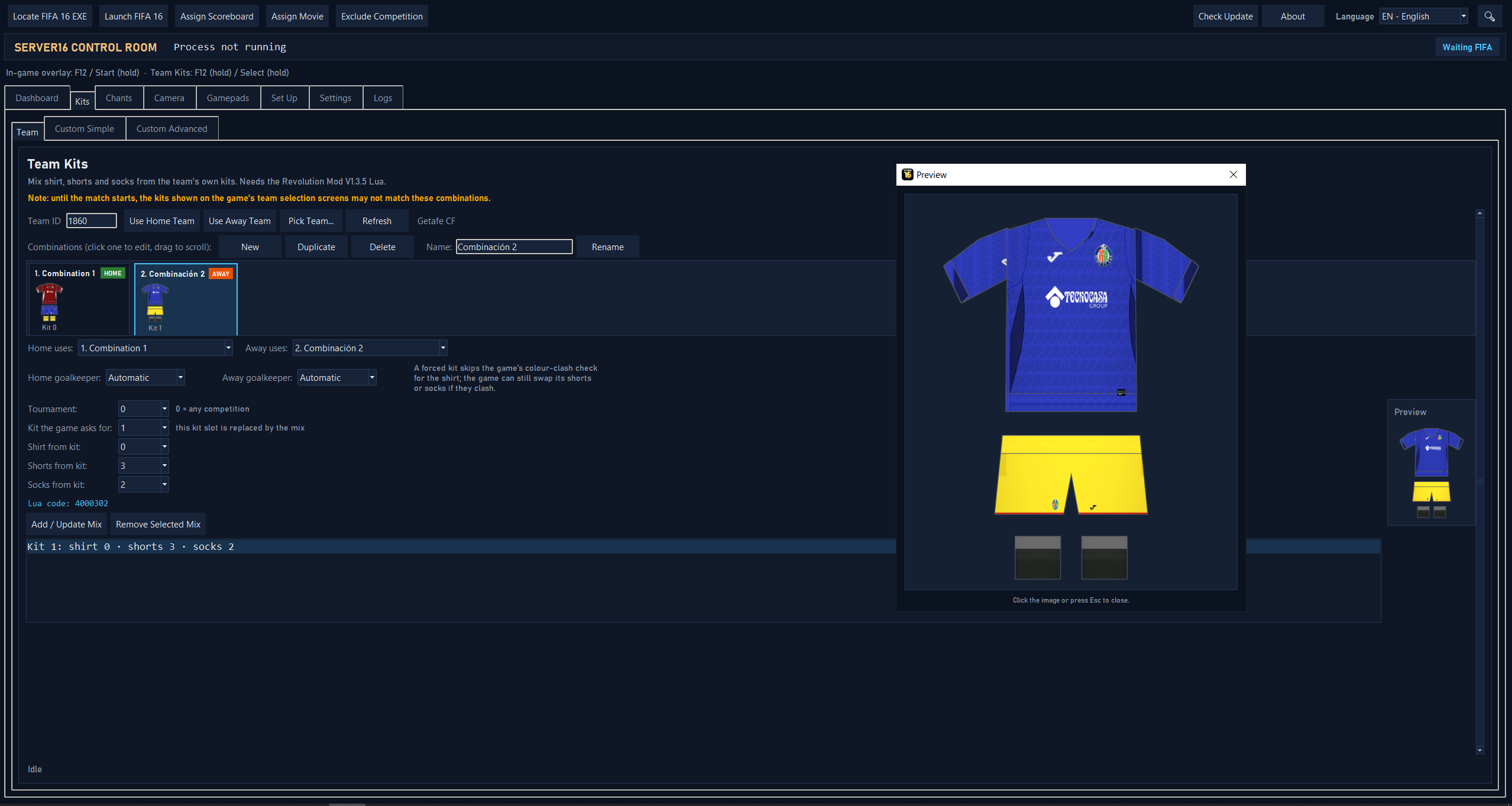
- The side is detected when the match loads. A team uses its Home uses combination when it plays at home and its Away uses one away. A team playing itself gets both.
- A forced goalkeeper skips the game's colour-clash check for the keeper shirt. The game can still swap the keeper's shorts or socks if they clash.
- Home and away changing the same kit: the game keeps one mix per team and kit. The tab warns you when both sides mix the same kit differently. Against another team it works. If the team plays itself with that kit on both sides, both wear the home mix. Use a different kit slot for one of them to avoid this.
- Team selection screens: until the match starts, FIFA's kit previews on the team selection screen may still show the original kits. The amber note under the card header is a reminder of this.
- Removing everything takes two saves to give you back the original file. The first save leaves a short cleanup block that undoes what earlier saves left in the running game. The next save of that team removes it.
- Your own lines in the team file are kept. If the file also swaps a kit outside the Team Kits block, the status line says so. The Team Kits block runs last and wins.
The overlay's Kits tab now starts on a Team Kits / Custom Kits chooser and remembers the last one used. Custom Kits is the previous flow (side → kit type → kit set, see Kit Sets).
Team Kits is a PES-style editor split in two halves: the home team on the left and the away team on the right. Each half shows the team's crest and name, the kit drawn large with the forced goalkeeper small in the corner, and six rows:
| Row | What it does |
|---|---|
| Combination | Original kits, one of the saved combinations, or + New combination. Saved at once. |
| Kit | The kit slot you are looking at (view only). It follows the combination, so one that only mixes kit 3 shows kit 3. |
| Shirt / Shorts / Socks | Which kit each garment comes from. Amber = not saved yet. |
| Goalkeeper | Automatic or a forced keeper kit for this side. |
Controls:
- Up / Down: choose a row.
- Left / Right (keys, D-pad or left stick): change it, or click the ‹ › arrows.
- A / Enter or the side's Save button: save the garments. Saving on the original kits or on + New combination creates a new combination for that side.
- B / Esc: back to the chooser. LB / RB still switch tabs.
Shortcuts:
- Hold F12 for 0.6 s: opens the menu straight on Kits > Team Kits, or moves an open menu there. A short press of F12 still opens and closes the menu.
- Hold gamepad Select (Back/View) for 0.6 s: the same, from a controller.
The editor needs a match: pick both teams in FIFA first. Saves go to the same team_<id>.lua as the Team tab, so the main window stays in sync. As in the tab, changes apply from the next match, and FIFA's kit menu may still show the old kits.
Drawings are made in the background, so a garment swaps instantly. All kits of both teams are drawn in advance; in overlay performance mode only the visible ones are drawn.

F11 now cycles five steps: Home → Away → Keeper → Third → Team combination. In Team combination mode:
- F7 / F8 step the home team's combination (original kits plus the saved ones).
- F9 / F10 step the away team's combination.
Each press is saved at once to team_<id>.lua, and the carousel draws the previous, current and next combination with the kit it actually mixes. If the team has no saved combinations, or the Revolution Mod V1.3.5 Lua is missing, the carousel shows a message and nothing is written. Picking a kit type in a Kits subtab, or pressing F11 again, leaves this mode.

The Team Kits shortcut (F12 or Select held) and the F7–F11 kit hotkeys can be rebound in Settings > Controls. See Custom Controls.
Video tutorial (by dinei):

- Kits overview: Team vs. Custom Simple vs. Custom Advanced
- Kit Sets & hotkeys: the Custom Simple subtab and the F7–F11 hotkeys for kit sets
- Kit Mixer packages: the Custom Advanced subtab
- Custom Controls: rebinding the overlay and kit keys