Repository navigation
Buildings
Animater can draw buildings straight onto the map, and it can lay out a whole map for you. A building drawn this way is not a picture: its walls are real Foundry walls, its doors open, its windows let the sun in, and its roof takes the weather and fades when you look inside.
This page covers the Buildings tab of the Map painting bar, how those buildings behave in the world, covering them with your own pictures, the scene tick for maps whose roofs are part of the picture, and Build a map. The bar itself, its tabs and the controls they share are on Map Painting.
New in 4.7.0, with additions in 4.7.1 to 4.8.0. All of it is for the GM.
Open the Map painting bar (Animater controls → Map painting) and pick the house tab, Buildings, or press 4. The changelog calls this tab Structures; the bar now labels it Buildings.

The Buildings tool on Wall, with the empty Yours row and its Pick in Nexus and From a file buttons. Taken on Animater 4.9.0.
The tab's modes come in three groups. Each button has a short name, and its full name shows when the pointer rests on it.
| Group | Button | Full name | What it does |
|---|---|---|---|
| Draw | House | Whole building | Drag a box: walls, a door, windows, a floor and a roof in one go. New in 4.8.0. |
| Draw | Room | Rectangle room | Drag corner to corner: four closed walls. |
| Draw | Round | Round room | Drag out from the middle: a ring of walls. |
| Draw | Wall | Wall | Drag along the map to lay a wall. |
| Add | Door | Doorway | Click a wall to cut a doorway and hang a door. |
| Add | Window | Window | Click a wall to cut an opening and set a window in it. |
| Add | Roof | Roof | Click inside a room to roof it, or click a roof to take it off. |
| Add | Furnish | Furnish | Click inside a room to fill it with furniture. New in 4.8.0. |
| Change | Move | Move building | Drag a whole building somewhere else. |
| Change | Region | Region | Click inside a room to make a region in its shape. New in 4.7.3. |
| Change | Erase | Erase | Click or drag over a painted wall to remove it. |
A line of hints under the bar says what a click or drag does in the mode you're in.
There is no brush on this tab, so the mouse wheel changes the number the mode is mostly about:
- Ctrl+wheel: how thick a wall is (Wall, Room, Round, House), how wide a doorway or window is, or the years on a roof.
- Shift+wheel: the years on a wall (Wall, Room, Round, House).
Ctrl+Z takes back what you laid, and Ctrl+Shift+Z lays it again, as on the other tabs.
Drag along the map and a wall is laid behind the pointer. It turns where you turn. Drag back over a corner to take that leg off again. Hold Shift to rub out instead.
The row of tiles shows each material painted as it will look:
| Material | What it is |
|---|---|
| Dressed stone | Long squared blocks in two courses. |
| Fieldstone | Unsquared rubble, packed rather than coursed. |
| Brick | Three tight courses of muted clay. |
| Timber | Planking with the grain along the wall, and iron straps. |
| Palisade | Log tops, rings and all. |
| Adobe | Rendered mud with no courses. |
| Hewn rock | Cut from the rock, showing only chisel marks. |
| Living rock | Never cut: rock that was always this shape. |
Under the tiles:
- Thick: from 0.08 to 0.4 of a square.
- Years on it: from new to ruined. The label reads kept, lived in, abandoned or ruined as you slide it. Older walls get moss, soot and crumbling tops.
- Curved: the wall bends smoothly through the corners you drag instead of turning sharply. Good for a round tower, an apse or a cave mouth. The wall is made of short straight pieces along the curve, so sight and movement follow it exactly.
- Colour (under More): a colour mixed into the material itself, such as whitewash or red sandstone. It's still stone, grain and all. Walls already up keep the colour they were drawn in. None turns it off.
They are real Foundry walls. Each one stops movement, sight and light exactly where it is painted. It carries its material, age, thickness and colour with it, and that is what Animater paints. Animater only paints walls drawn with a material like this. It never paints over walls the map came with.
Where an inside wall meets an outside one (4.7.0), the wall that carries straight on stays one wall, with one ragged edge and one ink line. Only the wall built against it starts a new stretch. A corner is always one wall, however sharp it is.
Partitions. A wall with rooms on both sides is recognised as an inside wall and drawn as one. It is thinner (about 0.62 of the thickness), stands lower, passes under the outer walls, and throws a shorter shadow.
Room (Rectangle room): drag from one corner of the room to the opposite one. Four walls close on the grid, never smaller than one square each way. The corner you started from stays where it is, so the room doesn't flip under the pointer.
Round (Round room): drag from the middle outwards, and further out for a wider ring. The middle snaps to the grid but the ring doesn't, which is what keeps it round. A round room is the one kind of room that takes a conical roof.
Both use the wall material, thickness, age and colour picked in Wall mode.
Click a painted wall and a doorway is cut there with a door hung in it. Click an opening that's already there to swap in the door you've picked.
| Door | What it is |
|---|---|
| To match | Whatever the wall would have: planked in timber, banded oak in stone, a slab in hewn rock. |
| Planked | Boards and two iron bands: a room door. |
| Banded oak | Heavy boards, three bands and studs: a strong door. |
| Stone slab | Cut from the same rock, and pivoting: a tomb or a vault. |
| Iron | Plates and rivets: a cell or a strongroom. |
| Portcullis | Bars: you can see through it, but nothing gets past. |
| Hide | Hung, not hinged: a hut, a cave mouth or a tent. |
- Wide: from half a square to three squares, in quarter steps.
- Opens: Inside or Outside.
- Double doors: two leaves meeting in the middle. Since 4.7.0 a pair is one Foundry door with one door control. Both leaves swing apart together, hung at opposite ends of the opening. The tick's own tooltip still says each half opens on its own, which is no longer true.
- Hinge the far end: hang the door on the other end of the opening. Which end it hangs on and which way it opens are separate choices. It changes nothing for a pair.
Doors swing open rather than snapping. Seen from above, a door shows a small dark handle on each face at the end it opens from. The bolts, rivets, bands and hinge pins are kept small (4.7.0).
For what a door can do beyond this (breaking, bats bursting through), see Windows and Doors.
Click a painted wall and an opening is cut there with a window set in it. Click an opening that's already there to swap in the window you've picked.
The kinds: To match (whatever the wall would have), Wooden, Shutters, Glass, Curtains, Mosaic, Leaded, Rose, Frosted, Open sill, Barred, Arrow slit and Broken out. The first eight open and shut. The last four are fixed openings.
- Wide: half a square to three squares.
- Opens: Inside or Outside.
- Can be climbed through: when the window is open, creatures can climb through it. A shut window stops everyone.
A window laid here is a full Animater window, with the same open and shut control and the same rules for light, sight and sound as one set in Wall configuration. See Windows and Doors. An open window lets the sun lie in a shaft on the floor inside (see Sun Moon and Shadows).
Click inside a room the walls close in and a roof goes over it. Shift-click puts one roof over the whole building, straight across its inside walls. Click a roof to take it off again (taking a roof off is new in 4.8.0). Putting a roof on or taking one off can be undone with Ctrl+Z.
Covering: To match (the roof that room's walls would carry), Thatch, Clay tile, Slate, Shingle, Planks, Lead, Turf or Canvas.
- Shape: To fit, Hipped, Gabled, Lean-to, Pyramid or Conical. A conical roof only fits a round room. On any other room it takes the shape that fits, and Animater tells you so.
- Years on it: new, weathered, old or falling in.
- Chimney (under More): None, Brick or Stone. Read from the code: the chimney is painted on the roof. I found no chimney smoke tied to these painted chimneys.
- Colour (under More): a colour mixed into the covering, for red pantiles or green copper.
- Dressed for holidays and Hangs out: see Feast days below.
A roof keeps its own shape, chimney, colour and holiday choice once it is laid. Changing the bar afterwards only affects the next roof.
Tick Dressed for holidays before you lay a roof and that building dresses up on a feast day. Hangs out chooses Garlands (a scalloped rope of lanterns along the eaves), Banners (cloth hung from the eaves) or Both.
On a feast day the decorations hang off the eaves in the day's own colours and swing in the wind the Weather Panel is blowing. At dusk the lanterns light up and cast their own light. The eave stops that light, so it lights the street and not the roof above.
Where the day comes from:
- Calendaria: its current festival. When several festivals fall on the same day, a building wears all their colours together.
- By hand: in Roof mode, under More, the box marked This scene has a Holiday today tick, with one to three colours. It's saved on the scene, not on the bar, and it wins over the calendar. It works without any calendar module.
New in 4.8.0. In House mode, drag a box at least one square each way. You get a whole building at once: four walls of the material picked in Wall mode, a door, windows, a floor and a roof.
- Drag down the map and the door faces south. Drag up and it faces north.
- The door, window and roof are the ones picked in Door, Window and Roof modes.
- The house is your own work, not marked as built, so Build a map never clears it. Ctrl+Z takes the whole house back in one step.
New in 4.8.0. Pick what the room is under Furnish as, then click inside a room the walls close in. It is filled with what such a room holds, kept clear of its doors and only where the room really is (a round tower is furnished along its walls and in the middle, not in the corners of its box). Click again for a different arrangement. Ctrl+Z takes it back. Afterwards, the Select tab moves any single piece.
The seventeen kinds: Home, Bedroom, Kitchen, Tavern, Shop, Smithy, Library, Shrine, Guardroom, Storeroom, Prison, Crypt, Great hall, Treasury, Lair, Barn and Stable.
The furniture is laid as a decorations region of its own, named after the room kind (such as "Tavern furnishings"). Furnishing the same room again replaces only that region. Anything else in the room is left alone. A room smaller than two squares each way is too small to furnish.
Drag from inside a building and the whole of it goes together: its walls, doorways, windows and roof. Since 4.7.0 it moves the whole building straight through its inside walls, not just the room you clicked. Drag a wall itself to move only that wall. Everything lands on the grid, and Ctrl+Z puts it back.
New in 4.7.3. Click inside a room and a Foundry region is drawn around it, following the inside faces of the walls. Shift-click draws one around the whole building, straight through its inside walls. A room built around a courtyard gets the courtyard as a hole. The region is named "Room" or "Building" and is undone with Ctrl+Z like any other stroke.
The region is worked out square by square. A wall that doesn't sit on a grid line costs the region a square on that side, so a round tower comes out as a blocky ring.
Click or drag over a painted wall to remove it. Only walls painted with this bar are removed, never the map's own. Hold Shift to draw instead.
Painted in the sun. Every wall, door leaf, window pane and roof is painted lit from where the sun actually stands. It is painted again as the sun moves (about every 12 degrees), so a building's shading turns through the day. The walls throw their shadows away from the sun, and sun through a window or an open door lies on the floor inside. See Sun Moon and Shadows.
Weather and seasons. Snow lying on the ground builds up on the roofs, and rain darkens them, taken from the same ground snow and wetness as the rest of the map (see Snow and Wet Ground). The season colours the walls and roofs, so a house looks different in spring and in autumn.
A roof keeps the room dry. The floor under a painted roof counts as indoors: rain and snow don't fall there and creatures standing there stay dry. Under a conical roof that floor is round (4.7.4).
Lamps don't light the roof (4.7.0). A lantern in a room no longer lights the roof above it. Roofs take the sky's light instead: as dark as the scene, gold at dawn and dusk, and silver under the moon.
Roofs drawn above the lighting (4.7.2). 4.7.0's first attempt left roofs looking see-through. Since 4.7.2 they are drawn above the lighting but solid: over the creatures, under the walls, templates and door controls, so the GM can still see and reach those.
A roof fades over a creature you're holding that stands under it, so you can see the room. It also opens where your creatures can actually see. That opening reaches a little past the walls so someone inside sees the stone of their own room.
- Who counts: the creatures you have selected. A player with none selected counts their own creatures that have vision. A GM with none selected uses the pointer instead (below).
- Seeing in first (4.7.2): each creature must be able to see some of the room itself before its view may open the roof. Walk up to an open door and you see in. Stand outside a shut one and the roof stays. This replaced 4.7.1's rule, which only let creatures standing under the roof open it.
- The GM's pointer (4.8.0): for a GM, the roof under the pointer fades and comes back when the pointer leaves, on the GM's own screen only.
- While placing things (4.7.0): with the lighting, sounds, templates, tiles, walls, regions, notes or drawings layer active, every roof fades for the GM. Read from the code: the same happens while the Map painting bar is open on any tab except Buildings, or on the Buildings tab's Door, Window and Furnish modes. The other Buildings modes keep roofs showing so you can see what you're building.
Fading is always on your own screen only.
New in 4.7.4. With Walls cast shadows in sunlight on, a roofed building throws one shadow, shaped like its roof, and the short shadow painted into the roof's picture is left off. With that setting off, the painted shadow is still there.
The shadow is the outline around the shadows of the roof's corners: the eaves cast from the height of the walls, the ridge or the peak from their own height. So a gable pushes a point out past its end wall, a lean-to throws further from its high side, a hipped roof narrows to its ridge, and a pyramid or a cone comes to a point. Under a high sun a hipped roof and a pyramid still end square, because the peak's shadow really does fall short of the eaves then.
- Pitch: roofs are as steep as they are wide. Their shape shows in the shadow whenever the sun is below 45 degrees.
- Eaves on the walls: a roof's eaves stand at the top of the tallest wall in its own room. On a map with levels that is the level's ceiling.
- Round towers: a cone's shadow is round, with no corners missing.
New in 4.7.0. Some maps have their roofs painted into the picture. Animater can see the walls of such a map but not the roofs, so a tavern's tables threw sun shadows as if there were no ceiling.
Scene configuration → Sun tab → Buildings here are roofed (off by default). With it on, every room the walls close in counts as under cover, for the sun and the weather alike. Furniture and creatures inside stop casting sun shadows. Light still comes in through windows, open doors and anything open to the sky, and lamps light the room as before.
Leave it off for walled yards, pens or cloisters that really are open to the sky.
New in 4.8.0. A wall, door, window or roof can be covered with a picture you own instead of the painted one. It still behaves as an Animater building in every other way, and moss, snow, soot and age are still painted over it.
On the Wall, Door, Window and Roof modes, your own pictures follow the painted materials in the same row, under Yours:
- Pick in Nexus (when you have the FA Nexus asset browser): opens it on the right tab. Click a picture there and it joins the row. Esc cancels.
- From a file: Foundry's file browser, for any other pack.
- Right-click one of your tiles to take it off the row. What is already on maps keeps it. Each row holds up to 16 pictures.
A picture can't say what it's made of or how it behaves, so one choice beside it does. Animater guesses it from the picture's name:
- Wall: Weathers as (the wall material it weathers like).
- Roof: Weathers as (the covering).
- Window: Opens as (which of our windows it acts like; fixed ones are marked).
A picture that can't work is refused with the reason, for example a wall's corner piece instead of its long strip, a door's frame instead of its leaf, or a strip offered as roofing.
How each piece wears the picture:
- Wall: the strip is laid along the wall, scaled to the wall's thickness so doorways still fit. It is cut to a mitre wherever two stretches meet, at any angle.
- Roof: the roof keeps its shape, ridge and chimney. Each slope is laid with your roofing running down to its own eave and lit or shaded by where the sun stands.
- Door: your door leaf, hung on the same hinge and swinging with the real door.
- Window: the picture's frame stays in the wall and its pane becomes the leaves (split in two for a pair), opening and shutting with it.
Nothing of your art is shipped or stored by Animater. Each picture is read from where you keep it.
New in 4.8.0. Build a map lays out a whole map on an empty scene, worked out on your own computer. Nothing is sent anywhere.
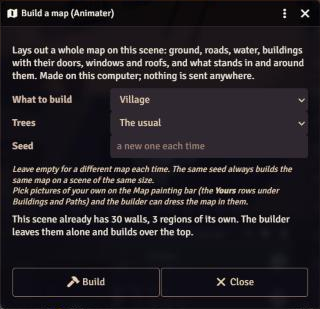
The Build a map window. Dress it with your pictures only shows once you've picked pictures of your own. Taken on Animater 4.9.0.
Where: the Build a map button in the Animater controls, beside Map painting, or Build a whole map at the top of the Map painting bar. Both show when the Map painting button is shown and Map making tools is on. Open the scene you want to build on first.
The window:
- What to build: Village (a road through a few houses, a well, perhaps a pond), Roadside inn (an inn with its stable and yard), Forest camp (a clearing with a fire and tents), Farm (farmhouse, barn, fenced fields, orchard), Graveyard (a fenced churchyard with a chapel), Harbour (a cobbled quay with piers, boats and warehouses), Ruin (roofless stone buildings round an old court), Dungeon (rooms cut from rock, a door in every wall between them) or Cave (a cavern with a ragged rock wall, pillars and a pool).
- Trees: None, A few, The usual or Thick.
- Seed: leave it empty for a new map each time, or type a whole number. The same seed always builds the same map on a scene of the same size. The box shows the last seed used here.
- Dress it with your pictures: see below.
What it writes is an ordinary painted map: floor regions, painted walls with their doors and windows, roofs, decorations regions and fires as lights. The Map painting bar and the region panel edit it afterwards like anything else.
Building again or clearing takes only its own. Everything it makes is marked as built. Once something has been built, the button reads Build again, which replaces what was built before, and Clear what was built appears, which removes only that. Your own walls, regions, roofs and lights are never touched. If the scene already has a picture, walls or regions of its own, the window says so and builds over the top of them. After building, a message gives the seed and how many buildings and things were made.
This part shows once you have picked pictures of your own in the Yours rows (walls, roofs, doors, windows, or ground on the Paths tab). Until then it points you there. What you choose is remembered for next time.
- How much: how many buildings wear your pictures, from none to every one, in steps of ten. It starts at 70%. The rest are painted.
- Walls, Roofs, Doors, Windows, Ground: one tick per picture of yours, to allow or leave it out, plus Ours too to keep the painted ones in the mix for that row. A row with none of yours says so, and the painted kind is used.
- Dealt out: Whole map alike (the same picture for the same kind everywhere), Each building its own, or Every piece (each door and window dealt separately).
- Only where it suits (on by default): a picture only goes where the painted kind it stands for would have been, such as brick on a house that would have been brick. What each picture stands for is its Weathers as on the bar.
- All yours or none (on by default): a building wears your walls and your roofing together, or neither.
The pictures are dealt by the map's seed, so the same seed and the same ticks build the same map. Raising How much never reshuffles buildings that were already dressed. A round tower always keeps the painted conical roof. Ground only takes a picture laid as the same kind of floor, and water never takes one.
| Setting | Everyone (GM) | My screen | Choices or range | What it does |
|---|---|---|---|---|
| Map making tools | On | — | — | The Map painting brush in the Animater controls. Off, its button is gone; everything already painted stays. A world that has built a map with it keeps it on. |
| Show the Map painting button | — | On | — | Shows the Map painting button in the Animater controls (and, with it, Build a map). |
| Painted walls | On | On | — | Animater paints the walls drawn on the Buildings tab, with moss, snow, soot and crumbling tops as they age; walls that meet are painted as one run. |
| Walls cast shadows in sunlight | On | On | — | Walls throw shadows away from the sun; with it on, a roofed building's one shadow is its roof's. Drawn at Balanced quality or better. |
| Wall height (squares) | 2 | — | 0.5 to 10 | How tall walls stand for their shadows when neither the Wall Height module nor the scene's level gives a height. |
See also Light through windows on Windows and Doors.
- Region mode works square by square, so walls off the grid lines give a blocky region.
- A conical roof only fits a round room.
- Furnish needs a room at least two squares each way.
- Erase and Move only work on walls painted with the bar. A map's own walls are left alone.
- Buildings here are roofed can't tell a courtyard from a room. Leave it off on maps with open, walled spaces.
Map Painting · Windows and Doors · Sun Moon and Shadows · Snow and Wet Ground · Decorations · Weather Panel · Fire and Smoke
For developers and the curious. Read from the 4.9.0 code, not run.
Source: the bar is scripts/ui/decor-brush-bar.mjs (modes WALL_MODES, wheel steps WALL_WHEEL). The strokes are in scripts/shell/map-painting.mjs: walls, roofLay, roomFurnish, roomRegion, houseLay and Move building. Painting, fading and feast days are in scripts/shell/painted-buildings.mjs. Build a map is scripts/shell/map-builder.mjs, with layouts in engines/mapbuild/map-presets.mjs, documents in map-plan.mjs, furniture in furnish.mjs and dressing in map-dress.mjs. Your own pictures are engines/mapbuild/own-art.mjs and engines/motion/roof-cover.mjs.
Where things are kept. A drawn wall is a Foundry Wall with flags.animater.material, age, thick and an optional tint (and a cover picture). Only walls with a known material are painted (wall-looks.mjs wallPainted). A door is a Foundry door with flags.animater.door (kind), hinge, swing and pair. A window is a wall with flags.animater.window. Roofs are not documents: they are a list in the scene flag flags.animater.roofs, each { id, x, y, w, h, kind, form, age, chimney, dressed, tint, hangs, material, round, cover }. A hand-called feast day is flags.animater.holiday on the scene. Buildings here are roofed is the scene flag roofedBuildings.
Roof layer. Roofs are drawn in a container at zIndex 250 in canvas.interface. They are lit by a ColorMatrixFilter from the scene darkness and the sky's colour, not by Foundry's lighting.
Roof opening. roof-sight.mjs roofOpenings clips each viewer's sight polygon to the room first. Only if enough of the room is seen does it clip to the inset box that reaches past the walls.
Partitions. A wall with rooms on both sides (building-plan.mjs partition) is drawn at PARTITION_THIN (0.62) of its thickness and height.
Build a map. It writes regions (on the current level), walls, ambient lights and roofs, then records { preset, seed, trees } in flags.animater.builtMap. builtOf finds the builder's own documents for clearing. Dressing uses its own seeded generator, and every building draws a number whether it is dressed or not, so changing How much doesn't reshuffle the others. A house from House mode goes through the same planDocuments with mark: false, so it isn't treated as built.