Repository navigation
The Animater Workspace
The main window, for browsing, building and previewing.
Open it: Alt+Shift+A, the A button in the Animater controls (players: the same A button in the Token controls), or Configure Settings → Open Animater (GM).

The Recipes page. The left-hand list scrolls, so Setup is just out of view here.
The left-hand list has these, grouped:
| Group | Page | What it's for |
|---|---|---|
| Create | Recipes | Your own animations. See Recipe Studio and Finishers. Player animations waiting for approval are at the bottom. |
| Create | Finishers | Finishing moves. See Recipe Studio and Finishers. |
| Create | Flash screens | Full-screen combat cards. See Combat Drama. |
| Library | Catalogs | Depend on your system, such as spells, feats, actions, features, weapons, items, conditions, effects and NPC abilities. See Spell and Action Animations. |
| Library | Assets | Browse and preview media. Folder sources indexes your own folders. |
| Borrowed | Borrowed from SF2e or PF2e | With Also use the SF2e catalogs (or its PF2e twin) on. |
| Tools | Creature showcase | Boss entrances and creature previews. |
| Tools | Damage showcase | GM: preview the damage lens as players see it. See Combat Drama. |
| Tools | Flagged | Looks you flagged for a new look. PF2e catalogs. |
| Tools | Tokenshade | GM: shader effects and your own presets. See Looks and Tokenshade. |
| Tools | Activity | What played and what didn't, and why, with a button to the fix. |
| Tools | Setup | Turn catalogs on and see what's missing. |
Players get a shorter list, as long as Player animations isn't Off (see Recipe Studio and Finishers):
- Create: My animations, and GM's animations to look at the GM's own recipes without copying them. New in 4.3.1.
- Library: the system's catalog pages, read-only (all but NPC abilities), and Assets. A player copies from them into My animations. New in 4.2.0.
- Borrowed from SF2e or PF2e, when the GM has that on.
- Tools: Activity.
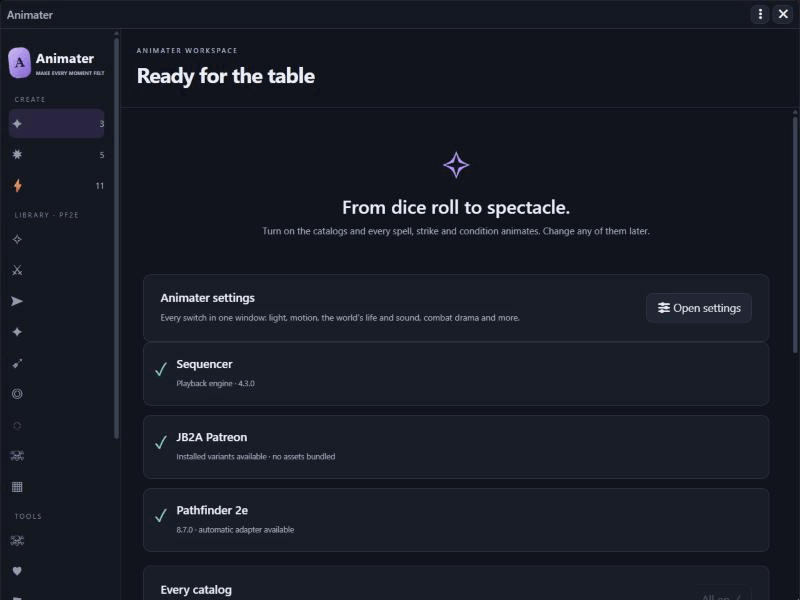
The Setup page, with the left-hand list collapsed to icons.
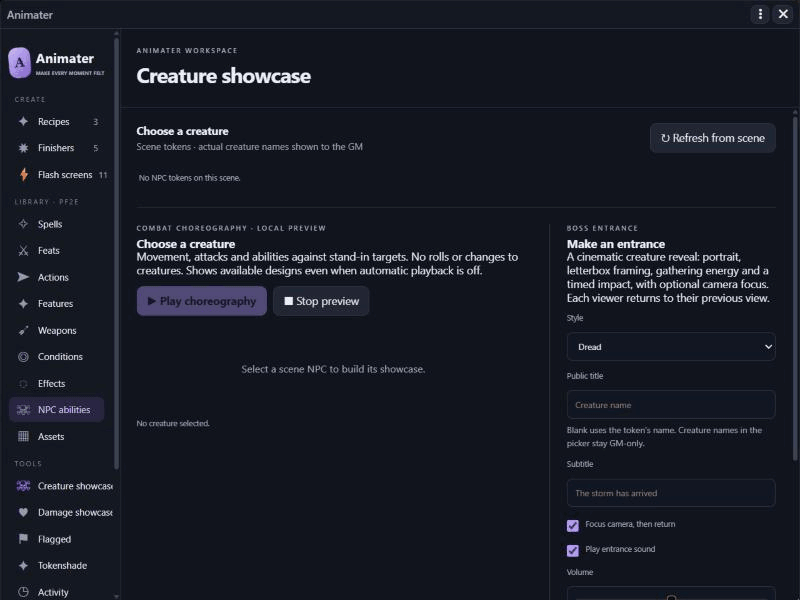
The Creature showcase, on a scene with no NPC tokens, so its creature list is empty.
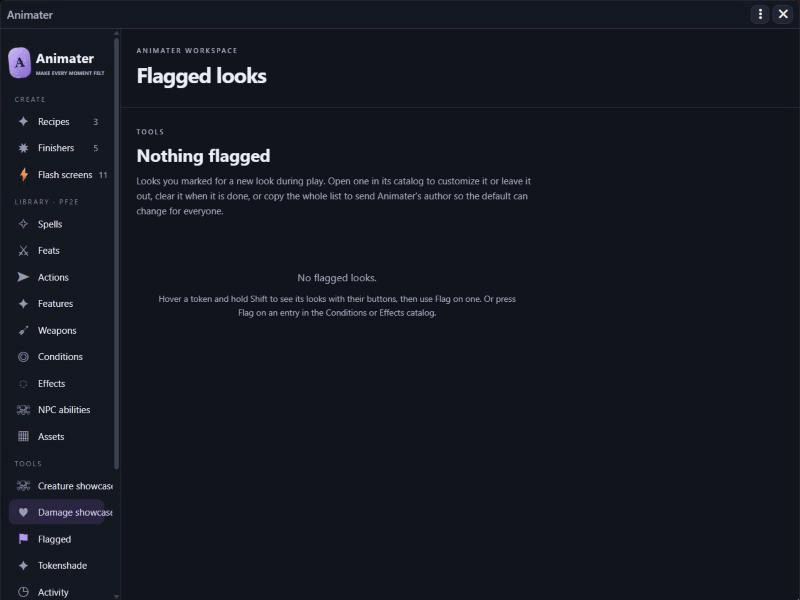
The Flagged page, with nothing flagged yet. It explains how to flag a look.
GMs have their own group in the left-hand scene controls, marked with a serif A, Animater's own letter (the same as in the workspace's header). New in 4.0.0: before, it was a wand. The group works on the token layer, so tokens stay selectable with it open. Players don't get this group; their A button to open Animater sits in the Token controls.
Changed in 4.6.0: six buttons a GM reaches for now and then became two. Blood and Tidy up each open a short list, with a line saying what each choice does, as the old buttons' tooltips did. A GM who keeps every button now has twelve tools where there were sixteen (4.8.0's Build a map came after that count).
The buttons, in the order they appear:
| Button | What it does | Hide it with |
|---|---|---|
| Select Tokens | The usual token selection, so you can pick tokens without leaving the group | Can't be hidden |
| Open Animater (the A) | Opens the workspace | Show Animater scene control button |
| Map painting (a paintbrush) | Opens the Map painting bar, for floors, decorations, structures, heights and paths. Click again to stop. New in 4.1.0, when it took over from 4.0.0's Decorations button. See Map Painting. | Show the Map painting button, and the world's Map making tools |
| Build a map (a folded map) | Lays out a whole map on this scene from a seed. New in 4.8.0. See Map Painting. | The same two as Map painting |
| Cave-in | Click where the ceiling comes down | Show the Cave-in button |
| Tidy up (a broom) | A short list: Clear rubble (every cave-in's rubble, and burrow holes), Clear ground marks, Repair broken props (every broken prop, decoration, door, window and breached wall in this scene; see Breakable Props). New in 4.6.0. | Each choice by its own switch: Show the Clear rubble button, Show the Clear ground marks button, Show the Repair broken props button. The button goes when all three are off. |
| Breach wall (a brick wall) | Click on a wall marked Breakable wall: Yes to breach it there at once; it lights up under the pointer. Escape or a right-click cancels. New in 4.0.0. See Breakable Props. | Show the Breach wall button |
| Moments (a wand) | The GM's dashboard of effects called by hand. New in 4.4.3. See Moments. | Show the Moments button |
| Blood (a drop) | A short list: Splat blood, Clear blood, Bake into the scene. New in 4.6.0. See Blood and Aftermath. | Each choice by its own switch: Show the Splat blood button, Show the Clear blood button, Show the Bake blood button. The button goes when all three are off. |
| Energy blast | Pick a kind, or one of your own, and click where it goes off. See Combat Drama. | Show the Energy Blast button |
| Weather | Opens the Weather Panel for this scene | Show the Weather button |
| Floor regions (a polygon) | Proposes water and other floor regions from this level's map. Experimental: shown only with Experimental: floor regions from the map on. New in 3.8.0 as water detection, and Floor regions since 4.0.0. See Floor Regions. | Show the Floor regions button |
| Animals | Opens the Animals panel. New in 3.3.0 | Show the Animals button |
| Weather for all scenes (a globe) | The same panel for every scene at once; a scene's own settings still come first. New in 3.7.0 | Show the Weather button |
| Clouds | Clouds over the map, on or off, for everyone. This one stays lit while on. | Show the Clouds button |
| Carrier (a group of people) | Puts the selected tokens aboard the token you've targeted, or lets everyone aboard out. New in 4.4.0. See Carriers. | Show the Carrier button, and the world's Carriers |
The order is read from the code, not checked on screen. Read from the code: the Carrier button's setting text says it is in the token controls, but for a GM the code puts it in this group.
Flames is in the lighting controls instead, because it works on selected lights. See Fire and Lights. It's hidden with Show the Flames button.
Hiding a button doesn't turn off its feature. Clouds over the map still works from the settings, a Region can still bring a ceiling down, the scene configuration still has its own Repair button, and a region's Decorations section its own Repair decorations. A hidden Breach wall has no other button: walls still breach from kegs, spells and slams.
New in 4.6.0. Map making tools (Interface & performance, for everyone) hides Map painting and Build a map for a world that doesn't make maps. Anything already painted stays as it is, and its settings keep working. The first time a GM loads a world on 4.6.0 or later, Animater decides once: a world that has painted a region with the brush, or saved one from Floor regions, keeps the tools; any other world starts with them off, and a world that already has scenes is told where the switch is. After that the switch is the GM's.
Changed in 4.6.3: Floor regions no longer depends on this switch. Experimental: floor regions from the map and each screen's Show the Floor regions button decide it alone. See How Settings Work.
New in 4.6.0. Choose your immersion opens with four starts for a GM: Animations, Combat drama, Map making and Everything. Pressing Save after pressing one or more starts also trims the bar on that GM's own screen to the buttons those starts bring, and turns the world's Map making tools on or off to match:
| Start | Buttons it keeps | Map making tools |
|---|---|---|
| Animations | Flames, Carrier | Off |
| Combat drama | Cave-in, Energy blast, Breach wall, Moments, Blood (all three), Tidy up (all three) | Off |
| Map making | Map painting, Floor regions, Weather, Clouds, Animals, Flames, Carrier, Clear ground marks | On |
| Everything | All of them | On |
Starts add together. The buttons are the same per-screen switches as ever, under Interface & performance, so any one is a tick from coming back. Ticking a box by hand after pressing a start means Save leaves the bar alone. The starts themselves are on Getting Started.
Hovering a token shows what Animater is playing on it right now: each animation's name, whether it's from a catalog or a recipe, and whether it lasts. Hold Shift while it shows for buttons to hide a lasting look, leave it out of its catalog, or flag it for a new look. It's on for GMs and off for players by default.
Right-clicking a token also gives a Tokenshade button on its HUD, for putting a look on that token for everyone. New in 4.0.0. Since 4.9.0 the Tile HUD and the Drawing HUD have the same button. See Looks and Tokenshade.
| Key | What it does |
|---|---|
| Alt+Shift+A | Open Animater |
| No key by default | Clear ground marks (GM). Bind it under Configure Controls. |
| Setting | Everyone (GM) | My screen | Choices or range | What it does |
|---|---|---|---|---|
| Show Animater scene control button | — | On | — | Shows the Animater button in the Animater controls (for players, in the Token controls). Turn off to hide it; Alt+Shift+A still opens Animater. |
| Map making tools | On | — | — | The Map painting brush in the Animater controls: for drawing floors, decorations and heights onto a map. Off, its button is not there; everything already painted stays exactly as it is, and the settings for it keep working. A world that has built a map with it keeps it on. The experimental Floor regions button (Floor & world) is its own switch and is not hidden by this one. (New in 4.6.0. Animater turns it off once in a world that never painted a map.) |
| Show the Map painting button | — | On | — | In the Animater controls: a brush for painting floors (water, grass, stone…) and decorations (rocks, trees, crates…) onto the map. A region's Decorations section can still scatter decorations. |
| Show the Cave-in button | — | On | — | In the Animater controls. Hidden, a Region can still bring a ceiling down. |
| Show the Energy Blast button | — | On | — | In the Animater controls. |
| Show the Clear rubble button | — | On | — | In the Animater controls, under Tidy up. |
| Show the Repair broken props button | — | On | — | In the Animater controls, under Tidy up, for the GM: unhides every broken prop in the scene and puts its walls, doors, windows and decorations back, as the scene configuration's Repair button does. (GMs only.) |
| Show the Breach wall button | — | On | — | In the Animater controls, for the GM: click on a wall marked Breakable wall: Yes to breach it there at once. (GMs only. Not in the Animater settings window: Configure Settings → Animater.) |
| Show the Moments button | — | On | — | In the Animater controls, for the GM: a panel that calls a shudder, a colour over everything, a grey world or a view that will not settle, on every screen at once. It changes nothing in the world and it all stops. (GMs only. New in 4.4.3.) |
| Show the Clear blood button | — | On | — | In the Animater controls, under Blood. Blood still fades by itself. |
| Show the Splat blood button | — | On | — | In the Animater controls, under Blood, for the GM: old blood on the ground around the selected tokens, kept with the scene until Clear blood. (GMs only.) |
| Show the Bake blood button | — | On | — | In the Animater controls, under Blood, for the GM: the blood on the floor becomes one tile the scene keeps, saved in the world's files. (GMs only.) |
| Show the Clear ground marks button | — | On | — | In the Animater controls, under Tidy up, for the GM. Marks still fade by themselves. (GMs only.) |
| Show the Weather button | — | On | — | In the Animater controls: choose the scene's weather and tune its amount, size, speed, colour, fog, lightning, wind and clouds. (Not in the Animater settings window: Configure Settings → Animater.) |
| Show the Floor regions button | — | On | — | In the Animater controls: propose water and other floor regions from this level's map (experimental). |
| Experimental: floor regions from the map | Off | — | — | Adds a Floor regions button in the Animater controls that proposes water and other floor regions from the level background. Off by default. It runs only when you click that button. Nothing else hides it: only Show the Floor regions button, right below, which is each screen's own. (GMs only. In the window under Floor & world, with Show the Floor regions button in the same row, since 4.6.3.) |
| Show the Animals button | — | On | — | In the Animater controls: choose how many of each animal a scene has, and put them down by hand. (Not in the Animater settings window: Configure Settings → Animater.) |
| Show the Clouds button | — | On | — | In the Animater controls. Hidden, the Clouds over the map setting still turns them off and on. |
| Show the Carrier button | — | On | — | In the token controls: put the selected tokens aboard the token you have targeted, or let them all out. The same button is on a carrier’s own token HUD either way. (New in 4.4.0.) |
| Show the Flames button | — | On | — | In the lighting controls. Hidden, each light still sets its own flame in its configuration. |
| Minimize Animater during canvas playback | — | On | — | Local preview and Play at table minimize the Animater window while the animation runs, then restore it. |
| Explain animations on hover | — | On for GMs, off for players | — | Hovering a token shows what Animater is playing on it right now: each animation's name, whether it comes from a catalog or a recipe, and whether it lasts. Hold Shift while it shows for buttons to hide a lasting look, leave it out of its catalog, or flag it for a new look. |
Spell and Action Animations · Recipe Studio and Finishers · Map Painting · Moments · Carriers · Decorations · Breakable Props · Floor Regions · Getting Started