Repository navigation
Getting Started
Any of these work:
- Alt+Shift+A (you can rebind it under Configure Controls)
- The A button: GMs find it as Animater's own group in the left-hand scene controls, players in the Token controls
- Game Settings → Configure Settings → Animater → Open Animater (GM)
A GM whose table plays nothing automatically yet starts on the Setup page, where the catalogs are turned on.
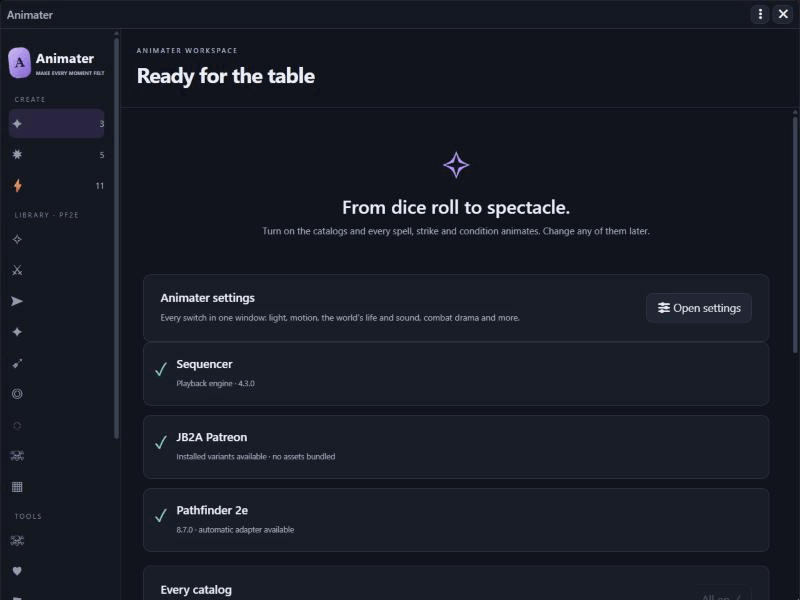
The Setup page, with each requirement checked. The left-hand list is collapsed to icons here.
Automatic playback is off until you enable it. Open a catalog in the left-hand list (Spells, Feats, Weapons and so on), then either:
- Choose Use entire catalog, or the matching Use … catalog button, to turn on the whole catalog.
- Select one entry and choose Use animation to turn on just that one.
While a whole catalog is on, hover a card and use ⊘ to leave that entry out. Excluded cards appear dimmed.
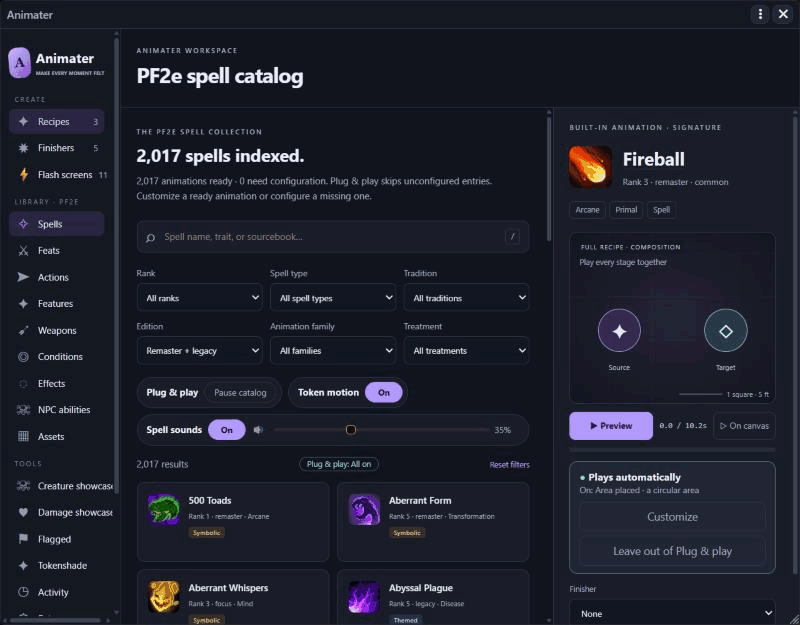
The PF2e spell catalog, in a world where it is already on.
Cast, attack or use the ability the normal way in your system. To preview without rolling anything, select a caster token, target any affected creatures, and use the preview in the workspace.
If nothing plays, the workspace's Activity page says why, in plain words, with a button to the fix.
Animater does a lot, and not every table wants all of it. Open Animater settings → Floor & world → Choose your immersion and press Show and choose. Each group of features is explained and shown live on the open scene, on your screen only, and nothing is saved until you choose.
- The GM chooses for the whole table.
- Each player chooses for their own screen, from what the GM left on.
New in 4.6.0. A new world opens the window on four starts: Animations, Combat drama, Map making and Everything. Each ticks a set of features, and you can press more than one; pressing a pressed start takes its set back out. A start saves nothing by itself: the list below shows what you'd get, and Save saves it. On Save, the buttons left in the Animater controls are the ones your starts bring. Each is still its own switch per screen, under Animater settings → Interface & performance.
The window also opens by itself once after an update that brings a new feature. From 3.4.0, that's only for the GM. Ask players to choose their immersion, in the same tab and off by default, brings it back for players, and skips features whose player settings are all hard-locked with BBMM. A soft lock still asks.
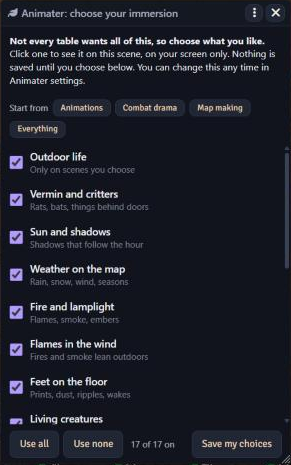
The window as a GM sees it, with the four starts at the top. The list scrolls on below these. Taken on Animater 4.9.0.
Some features are per scene or per region, and several are off until you turn them on. Water always moves now, so it has no switch per scene.
| Feature | Where | Default |
|---|---|---|
| Outdoor life (animals) | The Animals panel → Outdoor life on this scene | Off |
| Town and farm animals | The Animals panel, by giving them a count | None |
| Old tracks | Scene configuration → Animater → Old tracks | Off |
| Painted floors | Scene configuration → Animater → Region floor textures | Off |
| Sea, waterfall, river, floors | Right-click the region for its panel. See Region Steps and Painted Floors | Not set |
| Map painting: floors, decorations, raised ground, paths, buildings | The Map painting button. It needs the world's Map making tools switch. See Map Painting | Not used |
| A whole map from an empty scene | Build a map, beside Map painting. See Buildings | Not used |
| Decorations scattered over a region | The region's panel. See Decorations | None |
| Fire spreading and room smoke | Scene configuration → Animater → This place. See Fire and Smoke | Off |
| Handouts and scene arrivals | Animater settings. See Handouts and Arrivals | Off |
| Breakable props | Scene configuration → Animater. See Breakable Props | Off |
| Windows | Wall configuration → Animater window | Auto |
The full list is in Scene and Region Options.
Set a scene's Floor while you're there. Footsteps, dust and prints all follow it. See Movement Effects.
- How Settings Work
- Weather Panel
- Water
- Performance and Quality if your table has slower computers