Repository navigation
Settings Reference
Every setting in Configure Settings → Animater → Animater settings, tab by tab and in the window's own order. Names and defaults were read from the module's code at version 4.9.0, and the descriptions are the module's own text. For how the switches work, see How Settings Work.
How to read the columns
- Everyone (GM) is the default of the world setting, which only a GM can change.
- My screen is the default of the per-device setting, which each player sets for themselves.
- A dash means that side has no setting. A row marked ↳ sits under the row above it in the window.
- Rows marked Only… show in the window only in that system or with that module active.

A test world's window on Animater 4.9.0: values shown may differ from the defaults, which are in the table.
| Setting | Everyone (GM) | My screen | Choices or range | What it does |
|---|---|---|---|---|
| Animation quality (this device) | — | Full | Full / Light / Balanced / Low / Off | Lower this on slower computers. Applies only to what you see; other players keep their own setting. |
| Condition looks | Tokenshade | — | Tokenshade / JB2A | How catalog conditions show on a creature. Tokenshade: a quiet look on the creature itself. JB2A: the condition’s JB2A animation only, with no Tokenshade filters. Also set from each conditions catalog in Animater. |
| ↳ Conditions transition in | On | — | — | A condition that has just landed plays a transition before its lasting look: stone creeping up a petrified creature, sickness spreading over the sickened, a curse taking hold of the doomed, life draining from the drained, poison spreading through the veins. Only as it lands, never on a reload. Needs the Tokenshade condition looks. |
| Subtle effects, conditions and auras | Off | — | — | For tables that want only light touches: every catalog effect, condition and aura look on a creature is drawn smaller, fainter and calmer. An aura's ring keeps its size so you still see its reach. Attack, spell and other one-time animations are unchanged, and so are recipes you made yourself. To show lasting looks only when they land, each player can also set "Lasting condition animations". |
| Aura style | JB2A animations | — | JB2A animations / Tokenshade (drawn by Animater) | How an aura’s reach is drawn. JB2A animations: looping JB2A footage across the reach. Tokenshade: drawn by Animater on the ground, a crisp line exactly at the reach with a pattern in the aura’s colour and theme (flame, frost, runes, vines and more) and nothing over the creatures inside; lighter on slower computers. Either way the aura’s small accent stays around its creature. |
| ↳ On-token effect under the token | Off | — | — | With the Tokenshade aura style, draws the small effect an aura keeps on its creature under the token instead of over it. Art that fills its square hides whatever does not reach past its edge. Recipes you made yourself keep their own layering. |
| Tokenshade follows the game | On | — | — | Tokenshade effects set to follow the game change with the creature: a look that drains as it is hurt, glows on its turn, shimmers as it climbs. Off: they hold their starting look. |
| ↳ Tokenshade reacts to light and weather | On | — | — | Effects that follow the game can also follow how dark it is where the creature stands (a glow brighter in the dark, dimmer in torchlight) and rain, snow or a storm over it (none under a roof). |
| Weather on creatures | Off | — | — | In rain every creature on the scene is soaked (darker, bluer, wet), in snow dusted with snow, from Foundry’s scene weather or FXMaster’s rain and snow. A creature under a roof (a Suppress Weather region) stays dry. Needs Tokenshade token filters on. |
| Condition looks grow with their value | On | — | — | A valued condition (Frightened, Drained, Doomed, Dying…) shows a stronger Tokenshade look at each value. Off: one look for every value, only stronger. |
| Region looks | On | On | — | A region given an Animater look (its right-click panel → Look) shows it on every creature inside, fading in and out as they come and go. Needs Tokenshade token filters on. |
| Heat and cold around creatures | On | On | — | A fire creature’s air shimmers with heat; a cold one breathes a faint mist. From its traits, else its name. Needs Tokenshade token filters on. |
| Creatures lit by their surroundings | On | On | — | A creature near a light (a torch, a brazier, a glowing spell) takes on its colour and catches a rim of it on the side facing it. Strongest in the dark. Needs Tokenshade token filters on. |
| Heat haze over fires | On | On | — | The air above every fire light (a light animated as a torch or flame: braziers, campfires, a carried torch) shimmers with heat. Uses map distortion, so it shows at Full quality with Map distortion on. |
| Smoke above fires | On | On | — | Every fire light (a light animated as a torch or flame: braziers, campfires, a carried torch) sends up a thin trail of smoke that rises, sways and thins out. A bigger fire smokes more. Drawn at Balanced quality or better, only for fires you can see. |
| ↳ Smoke amount on my screen | — | 1 | 0.25 to 2 | How much smoke fires send up on this screen: 1 as drawn, less for a lighter screen, more for a smokier one. |
| Creatures hold their torches and lanterns | On | On | — | A creature whose own light burns (a light animated as a torch or flame) holds a small burning torch in its square: a flickering flame that leans back as it walks, its smoke rising from the flame. One holding a lantern carries it hanging from its hand instead, swaying. Either way its light comes from what it holds, not its middle. Drawn at Balanced quality or better. |
| Light spells float as orbs | On | On | — | A creature lit by a Light spell (PF2e’s Light or Everlight, D&D’s Light) has its light float at its shoulder as a small glowing orb, bobbing gently in the light’s own colour, the light coming from the orb. Drawn at Balanced quality or better. |
| Hide light icons on tokens | On | — | — | A creature drawn holding its torch or lantern, or with a Light spell orb at its shoulder, leaves that light’s status icon off its token (the lit torch, Spell Effect: Light): what it holds already shows it. Off: the icons stay. Only while held lights or light orbs are drawn. |
| Sustained spells show who holds them | On | On | — | While a creature sustains a spell on another (PF2e and SF2e sustained spells; D&D concentration, its summoned creatures included), a faint shimmering thread runs from the caster to it, motes flowing along it, so everyone sees who holds what. It goes when the spell ends. Drawn at Balanced quality or better. |
| Tokenshade fades | — | Smooth (0.7 s) | At once / Quick (0.3 s) / Smooth (0.7 s) / Slow (1.5 s) | How Tokenshade effects come and go on this screen: they fade in and out, and a look that changes (Frightened 2 easing to 1) crossfades into the next. |
| Auras outside combat | Show them | — | Show them / Subtle (smaller, fainter, calmer) / Hide them until combat | How aura looks (an aura's ring around its creature, often 30 to 90 feet) show while no combat has started on the scene. Subtle draws them smaller, fainter and calmer; Hide them until combat keeps them off the map until initiative is rolled. Allies inside an aura keep their small copy. In combat every aura shows as usual. |
| Tokenshade filters in catalog animations | On | — | — | Catalog animations add matching shader effects on the token itself (flames, frost, glows, shimmer). Drawn by Animater on each screen; nothing is saved to the token. |
| FXMaster scene effects in catalog animations | On | — | — | When FXMaster is active, weather-like catalog spells add brief scene effects (rain, fog, embers). Skipped automatically when the module is missing. |
| Effect lighting | On | On | — | Fire, lightning and other glowing effects light up the scene around them while they play (lasting areas and auras until they end), blocked by walls like any light. |
| ↳ Effect lighting in daylight | On | — | — | Also add a soft coloured glow around effects in fully lit scenes. |
| ↳ Flickering and flashing effect lights | — | On | — | Turn off to see effect lights as a steady glow, without flicker or strobe. |
| Screen tint | On | On | — | An elemental spell washes the view in its element's colour for a moment as it lands: a Fireball glows orange, lightning strobes blue-white, cold blinks icy blue, void dims the screen. Bigger areas tint more, and a far-off blast less. Weapon Strikes never tint. |
| ↳ Screen tint strength | — | 1 | 0.25 to 2 | How strongly the colour washes over this screen, as a multiple of the usual tint. |
| Weapon effect size | 1.5 | — | 0.5 to 3 | Multiplies the size of weapon hit and residue effects (1 = the target token's footprint). |
| Weapon rune flourishes | On | — | — | Catalog weapon Strikes show each weapon’s runes: potency adds a glint, striking a bigger hit, and each property rune (flaming, frost, shock, holy…) its own accent on a hit. Saved recipes are never changed. (Only PF2e.) |
| Wounded looks | All creatures | On | All creatures / Player characters only / Off | Creatures show how hurt they are. Blood builds on their art in stages from four fifths of their HP down, in their own blood's colour (none on a creature that does not bleed, whose colour only lowers); at a quarter or less they stand hunched and limp as they move. Healing takes it back the same way, and a defeated creature shows the defeated look instead. Blood on tokens sets how much. Choose whether every creature shows it or only player characters. |
| Defeated look | Foundry default (skull over the whole token) | — | Foundry default (skull over the whole token) / Small icon / Animater effect | How a Defeated token is drawn (combat tracker, system or finisher). Small icon: a normal status icon instead of the skull over the whole token. Animater effect: the small icon, faint skull smoke and a greyed token while it stays Defeated. Applies to tokens defeated from now on; existing Defeated effects keep their look. |
| Damage reactions | On | — | — | A token that takes energy damage (fire, cold, lightning, acid, poison and so on) flashes in that damage's look. Physical damage keeps its weapon animation only. |
| Damage-typed knockouts | On | — | — | A creature dropping to 0 HP goes down in the look of the damage that dropped it: burned to ash, frozen and shattered, fried by lightning. Off: a plain collapse. |
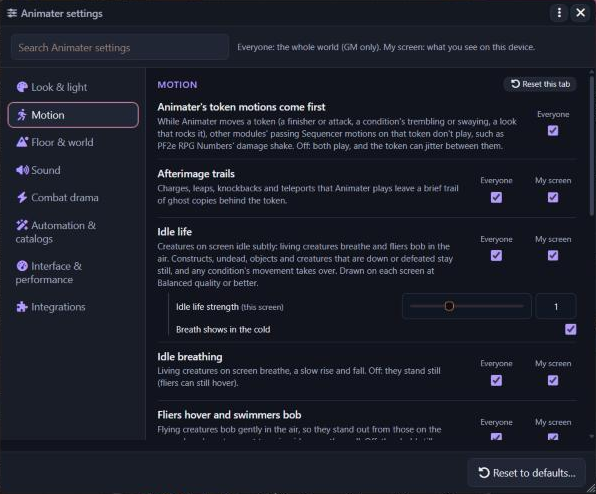
A test world's window on Animater 4.9.0: values shown may differ from the defaults, which are in the table.
| Setting | Everyone (GM) | My screen | Choices or range | What it does |
|---|---|---|---|---|
| Animater's token motions come first | On | — | — | While Animater moves a token (a finisher or attack, a condition's trembling or swaying, a look that rocks it), other modules' passing Sequencer motions on that token don't play, such as PF2e RPG Numbers' damage shake. Off: both play, and the token can jitter between them. |
| Afterimage trails | On | On | — | Charges, leaps, knockbacks and teleports that Animater plays leave a brief trail of ghost copies behind the token. |
| Idle life | On | On | — | Creatures on screen idle subtly: living creatures breathe and fliers bob in the air. Constructs, undead, objects and creatures that are down or defeated stay still, and any condition's movement takes over. Drawn on each screen at Balanced quality or better. |
| ↳ Idle life strength | — | 1 | 0.5 to 2 | How much creatures breathe and fliers bob on this screen: 1 is a visible but calm breath, 2 twice as much, 0.5 half. |
| ↳ Breath shows in the cold | On | — | — | In the cold (snow falling, a snow or ice floor underfoot, or a scene flagged cold), breathing creatures on screen puff a faint white cloud with each breath out. Constructs and undead do not. Drawn on each screen at Balanced quality or better, and not where idle life is off on that screen. |
| Idle breathing | On | On | — | Living creatures on screen breathe, a slow rise and fall. Off: they stand still (fliers can still hover). |
| Fliers hover and swimmers bob | On | On | — | Flying creatures bob gently in the air, so they stand out from those on the ground, and creatures set to swim ride a gentle swell. Off: they hold still (others can still breathe). |
| Teleport tokens | On | — | — | Teleport spells (Translocate, Friendfetch…) let whoever cast them click a spot, and the token jumps there (Friendfetch drags its targets to the caster on its own). Turn off if another module already moves tokens for these spells: they then only play their animation. |
| ↳ Teleports dissolve | On | — | — | A teleporting creature dissolves away in a look matched to the spell (sparkles, embers, shadow, light) and forms again where it lands. Off: it fades out quickly. Needs Tokenshade token filters on. |
| New creatures appear | Summoned creatures form in | — | Summoned creatures form in / Every new token forms in / Off | A creature placed on the map forms in a Tokenshade look: fiends and undead rise from shadow, celestials step out of light, fire creatures rise from the ashes, the rest form from sparkles. Summoned creatures: the ones PF2e Summons Assistant places or that have the summoned trait. Needs Tokenshade token filters on. |
| Camera shake | On | On (off at first if the browser asks for reduced motion) | — | Big blasts jolt the view for a moment on each screen, more for bigger blasts and less the further away they land. Drawn only on screens at Full or Light animation quality. |
| ↳ Camera shake strength | — | 1 | 0.25 to 4 | How hard blasts shake the view on this screen, as a multiple of the usual jolt. Above 1 it also lasts longer (4 shakes about twice as long). |
| ↳ Giant footfalls shake the view | On | — | — | Every footfall of a Huge or Gargantuan creature gives a small tremor to screens that hear it nearby, stronger the heavier it is (a stone golem or a dragon more than a giant). Needs Camera shake on. |
| Slow-motion kill-cam | Off | On | — | When a killing blow lands on an NPC, every screen that can see it eases the view towards it with a gentle zoom, slows Animater's effects on it and fades the colour for a moment, then pans back. The finisher and Finish Him! wait for it. Drawn only on screens at Full or Light animation quality. |
| ↳ Kill-cam length | undefined | — | undefined to undefined | How long the slow motion lasts, in seconds, pan back included. Longer also plays the effects slower. The finisher and Finish Him! wait this long. |
| Map distortion | On | On | — | Big blasts ripple across the map, lasting fire shimmers with heat and teleports warp the air. Drawn only on screens at Full animation quality. |
| ↳ Shockwave reach (× blast size) | 1.5 | — | 1 to 4 | How far a blast's shockwave ripples across the map, as a multiple of the blast's size. It always clears the blast by at least a square, and its ripple keeps the same width at any reach. |

A test world's window on Animater 4.9.0: values shown may differ from the defaults, which are in the table.
Choose your immersion is a button labelled Show and choose. Each immersion feature explained and shown on the scene that is open, to choose which to use.
| Setting | Everyone (GM) | My screen | Choices or range | What it does |
|---|---|---|---|---|
| Ask players to choose their immersion | Off | — | — | On, players are shown Choose your immersion when new features arrive, except features you have locked for them with BBMM. Off, they aren't asked and keep what you set; they can still open it from their Animater settings. |
| Ground marks | On | On | — | Fire, frost, acid and other elemental hits leave a fading mark on the floor where they landed. Marks are drawn on each screen and never saved. |
| ↳ Ground mark lifetime (minutes) | 5 | — | 0 to 60 | How long a ground mark stays before it is gone: fully visible for the first 40%, then fading. 0 keeps marks until the scene changes or the page reloads. |
| Element reactions | On | On | — | A new ground mark that lands on an older one can react: fire on frost puffs steam and melts it, frost on a scorch hisses out in smoke, fire on poison flares, lightning on acid arcs to the creatures standing in it, and acid on frost sizzles. Drawn on each screen that shows ground marks. |
| Spells change the floor | On | — | — | Marks spells leave on the ground change what creatures walk on: frost is ice underfoot, acid a sludge, fire melts snow to water and burns grass bare, a blast leaves cracked stone. Footsteps and footprints follow. Needs Ground marks on. |
| Movement effects | On | On | — | Moving tokens kick up dust on dirt, grass, sand and snow, ripple water and faintly scuff stone and wood; fliers cast a soft shadow on the ground. Set each scene's floor in its configuration. Footprint lifetimes below are separate for each ground (0 = natural fading). Drawn on each screen and never saved. |
| ↳ Sand footprint lifetime (seconds) | 0 | — | 0 to 3600 | Total time until footprints, creature grooves and flattened grass left on sand fully fade, including carried wet/muddy/snowy prints on that ground. 0 keeps their natural lifetime (sand 6 seconds, mud 12, snow 20). Applies to existing and new tracks on every screen. Does not create tracks where none would normally appear. Dust, blood, water ripples and burrow holes keep their own timing; track limits still remove the oldest marks when full. |
| ↳ Mud footprint lifetime (seconds) | 0 | — | 0 to 3600 | Total time until footprints, creature grooves and flattened grass left on mud fully fade, including carried wet/muddy/snowy prints on that ground. 0 keeps their natural lifetime (sand 6 seconds, mud 12, snow 20). Applies to existing and new tracks on every screen. Does not create tracks where none would normally appear. Dust, blood, water ripples and burrow holes keep their own timing; track limits still remove the oldest marks when full. |
| ↳ Snow footprint lifetime (seconds) | 0 | — | 0 to 3600 | Total time until footprints, creature grooves and flattened grass left on snow fully fade, including carried wet/muddy/snowy prints on that ground. 0 keeps their natural lifetime (sand 6 seconds, mud 12, snow 20). Applies to existing and new tracks on every screen. Does not create tracks where none would normally appear. Dust, blood, water ripples and burrow holes keep their own timing; track limits still remove the oldest marks when full. |
| ↳ Dirt footprint lifetime (seconds) | 0 | — | 0 to 3600 | Total time until footprints, creature grooves and flattened grass left on dirt fully fade, including carried wet/muddy/snowy prints on that ground. 0 keeps their natural lifetime (sand 6 seconds, mud 12, snow 20). Applies to existing and new tracks on every screen. Does not create tracks where none would normally appear. Dust, blood, water ripples and burrow holes keep their own timing; track limits still remove the oldest marks when full. |
| ↳ Grass footprint lifetime (seconds) | 0 | — | 0 to 3600 | Total time until footprints, creature grooves and flattened grass left on grass fully fade, including carried wet/muddy/snowy prints on that ground. 0 keeps their natural lifetime (sand 6 seconds, mud 12, snow 20). Applies to existing and new tracks on every screen. Does not create tracks where none would normally appear. Dust, blood, water ripples and burrow holes keep their own timing; track limits still remove the oldest marks when full. |
| ↳ Stone footprint lifetime (seconds) | 0 | — | 0 to 3600 | Total time until footprints, creature grooves and flattened grass left on stone fully fade, including carried wet/muddy/snowy prints on that ground. 0 keeps their natural lifetime (sand 6 seconds, mud 12, snow 20). Applies to existing and new tracks on every screen. Does not create tracks where none would normally appear. Dust, blood, water ripples and burrow holes keep their own timing; track limits still remove the oldest marks when full. |
| ↳ Wood footprint lifetime (seconds) | 0 | — | 0 to 3600 | Total time until footprints, creature grooves and flattened grass left on wood fully fade, including carried wet/muddy/snowy prints on that ground. 0 keeps their natural lifetime (sand 6 seconds, mud 12, snow 20). Applies to existing and new tracks on every screen. Does not create tracks where none would normally appear. Dust, blood, water ripples and burrow holes keep their own timing; track limits still remove the oldest marks when full. |
| ↳ Water footprint lifetime (seconds) | 0 | — | 0 to 3600 | Total time until footprints, creature grooves and flattened grass left on water fully fade, including carried wet/muddy/snowy prints on that ground. 0 keeps their natural lifetime (sand 6 seconds, mud 12, snow 20). Applies to existing and new tracks on every screen. Does not create tracks where none would normally appear. Dust, blood, water ripples and burrow holes keep their own timing; track limits still remove the oldest marks when full. |
| ↳ Ice footprint lifetime (seconds) | 0 | — | 0 to 3600 | Total time until footprints, creature grooves and flattened grass left on ice fully fade, including carried wet/muddy/snowy prints on that ground. 0 keeps their natural lifetime (sand 6 seconds, mud 12, snow 20). Applies to existing and new tracks on every screen. Does not create tracks where none would normally appear. Dust, blood, water ripples and burrow holes keep their own timing; track limits still remove the oldest marks when full. |
| ↳ Swimming wake lifetime (seconds) | 0 | — | 0 to 3600 | Time until fully faded. 0 keeps natural fading (1.6 seconds). Applies to existing and new effects. Burrow holes keep their own lifetime. |
| ↳ Underwater bubble lifetime (seconds) | 0 | — | 0 to 3600 | Time until fully faded. 0 keeps natural fading (1.8 seconds). Applies to existing and new effects. Burrow holes keep their own lifetime. |
| ↳ Submerged token appearance | On | — | — | Below the water surface, visible swimmers fade to a blue, translucent silhouette. Surfacing restores their original appearance. This changes artwork only, not Foundry visibility or detection. |
| ↳ Submerged token opacity | 0.35 | — | 0.1 to 1 | How clearly a submerged creature’s artwork is drawn (0.35 = 35%). Applies equally to GM and player artwork, while Foundry still decides who can see the creature. |
| ↳ Swimmers walk out of the water | On | — | — | A creature set to swim that ends its move off the water (on land, a bridge or ice) walks again, and one still under the surface comes up first. Off: its movement action and elevation stay as you leave them. |
| ↳ Burrow path lifetime (seconds) | 0 | — | 0 to 3600 | Time until fully faded. 0 keeps natural fading (8 seconds). Applies to existing and new effects. Burrow holes keep their own lifetime. |
| ↳ Hide burrow paths at relative elevation | -10 | — | -1000 to 0 | Burrowing at or below this elevation relative to the viewed level’s floor leaves no visible path. -10 hides paths 10 scene units below that floor; 0 hides every underground path. Entrance and exit holes still appear when the creature crosses the surface. Existing shallow trails fade normally. |
| ↳ Movement respects stealth | On | — | — | Players only see and hear what their characters could: an undetected or unnoticed creature moves in silence and leaves no tracks, and a hidden one is heard but leaves nothing to see (PF2e Visioner, judged from each player's own tokens, else the creature's conditions). Off: everyone sees and hears every movement drawn on their screen. Tokens the GM hid never give anything away either way. |
| ↳ Burrow holes | On | — | — | A burrowing creature leaves a hole where it goes under and a wider one where it comes up, with earth thrown out. |
| ↳ Burrow holes stay until cleared | On | — | — | On: burrow holes stay with the scene, on every screen and after a reload, until the GM takes them away with the Clear rubble button in the Animater controls. Off: each fades after about 20 seconds. |
| ↳ Burrowed creatures sink out of sight | On | — | — | A creature below the floor sinks into its hole and vanishes for players who don't own it (they still see the ground churn and hear it dig); its owner and the GM see a faint ghost. It rises back out where it surfaces. |
| ↳ How much a step kicks up | 1 | — | 0 to 1.5 | The chips, dust, splinters, blades and spray thrown up at each step, on every floor, against the usual: lower for less (fainter too), 0 for none. Footprints and trampled grass stay. |
| ↳ Feet carry mud, water and snow | On | — | — | A creature that walked through water, mud or snow leaves wet, muddy or snowy prints in its own tracks on the next floor for a few strides, fainter each stride. Creatures that slither, ooze or leave no prints carry nothing. |
| ↳ Blood on the floor | On | — | — | A hit throws blood on the floor, away from the attacker and shaped by the wound; a killing blow leaves a pool. A wounded creature can drip blood too (Wounded creatures drip blood). It darkens as it dries. Each screen draws it, and only what a scene is told to keep is saved (Blood stays until cleared, the Splat blood button). Constructs, elementals, oozes and incorporeal creatures never bleed. With Splatter painting the blood (Splatter: blood follows the damage), Splatter's blood is used instead. Off turns off all of it. |
| ↳ Wounded creatures drip blood | Always | — | Always / Only in combat / Never | A wounded creature drops blood, standing or walking: a little from any wound, more from half its HP, freely from a quarter. One that is prone and moving drags a trail. Only in combat keeps the floor clean while no combat has started on the scene. Hits still leave their blood (Blood on the floor). |
| ↳ How long blood stays on the floor | 300 | — | 20 to 600 | In seconds of game time, so it waits while the clock stands still; it fades over the last quarter of that. It darkens as it dries, in under a minute of game time. |
| ↳ Blood stays until cleared | Off | — | — | Blood on the floor never fades, and comes back with the scene, saved in it now and then by the GM's screen. Rain and water can still take it until the scene reloads; after that it is old blood they leave alone. Clear blood wipes it all; Bake blood turns it into a tile. |
| ↳ Blood from hits | 1 | — | 0 to 2 | How much blood hits, kills and Splat blood leave on the floor, against the usual: lower for less, 0 for none, up to twice as much. |
| ↳ Blood drips | 1 | — | 0 to 2 | How much wounded creatures drip and trail, against the usual: lower for less, 0 for none, up to twice as much. |
| ↳ Blood on tokens | 1 | — | 0 to 2 | How big the blood on a wounded creature's art grows, against the usual: lower for less, 0 for no wounded look on the art, up to twice as much. |
| ↳ Rain washes blood away | On | — | — | Rain thins the blood it falls on until it is gone, by the game clock: about three minutes of game time in hard rain, far longer in a drizzle. Never under a roof, or a region that suppresses weather. |
| ↳ Blood in water | On | — | — | Blood landing in a water region clouds out and dissolves, carried along where the water has a way to flow (the region's right-click panel → Water → Flows toward). Frozen water holds it like any floor. |
| ↳ Bloody footprints | On | — | — | A creature stepping in wet blood prints it, in that blood's colour, for its next few strides. Drops are too small to step in, and dried blood leaves nothing. |
| ↳ Weather on the ground | On | — | — | When it rains on the scene (Foundry's scene weather or FXMaster), every step splashes, dirt turns to mud (its sound and prints), stone, wood, grass and sand get puddles under each step, and prints on sand, dirt and mud look wet; when it snows, every step kicks up a light dusting. Never under a region that suppresses weather. |
| ↳ Walked path highlight | — | Faded | Faded / Hidden / As Foundry draws it | Foundry highlights every square a token moves through, which hides the dust, prints and splashes it leaves. Faded: the squares already walked show at a quarter strength (the way ahead stays as it is). Hidden: walked squares are not highlighted. As Foundry draws it: unchanged. |
| ↳ Dust when fliers take off and land | On | — | — | A creature that starts or stops flying blows the floor out to both sides: dust off dirt, grit off stone, spray off water, a flurry off snow, and a ring pressed flat as it lands. |
| ↳ Creatures drip out of the water | On | — | — | A creature that climbs out of deep water drips as it walks for a few seconds, fewer drops as it dries; one that waded through water (a water floor or region) drips more lightly, for less time. Its wet footprints are the floor’s own. |
| GM perceives movement | — | As my selected token | Everything / As my selected token | As my selected token: with a token selected, you see and hear only what it could, as its player would (a creature PF2e Visioner says it has not detected leaves no tracks and makes no sound); with none selected, everything. Everything: you always see and hear every creature move (except tokens hidden in Foundry). (GMs only.) |
| Sneaking is quiet | On | — | — | A creature moving stealthily steps softer, slower and duller, and only a Huge or bigger one still thuds: PF2e's Avoid Notice exploration activity or a Sneak effect, PF2e Visioner's sneaking, D&D 5e's Hiding status. |
| Old tracks | On | On | — | Where a scene asks for it (Scene configuration → Animater → Old tracks; off otherwise), prints stay and age by the game's clock, softer and fainter the older they are, so you can read who passed and how long ago. Mud and dirt keep them longest, stone hardly at all. The GM chooses for each scene whether only the GM or everyone sees them, and how long they last. Drawn at Balanced quality or better. |
| Region steps | On | On | — | The GM right-clicks a region on the map and moves it through its steps in its panel's Steps: grass goes from fresh to bloodied to burnt, a cave from dry to steam to lava. A region can also paint its floor for a bare map (Scene configuration, or its menu). A step can draw blood, wet or burnt on the floor, change what the floor walks as (its footsteps, sounds and prints), switch on a region effect such as mist or steam, and set a river's speed. The steps are set with Edit steps in the panel's Steps. Off stops the looks (the panel still opens); steps already chosen keep their floor and effects. Each screen's Animation quality sets how much it draws: Full and Light keep grass blades, moving flames and bubbles and shine on every look, Light with fewer torches; Balanced keeps floors catching the sun, moon and two lights; Low draws them still. Drawn at Balanced quality or better. |
| Experimental: floor regions from the map | Off | — | — | Adds a Floor regions button in the Animater controls that proposes water and other floor regions from the level background. Off by default. It runs only when you click that button. Nothing else hides it: only Show the Floor regions button, right below, which is each screen's own. |
| ↳ Show the Floor regions button | — | On | — | In the Animater controls: propose water and other floor regions from this level's map (experimental). |
| Shadows under every token | On | On | — | Every creature standing on the ground casts its shadows too, not only fliers, so tokens sit on the map instead of floating over it, and taking off reads at a glance. Needs Movement effects on. |
| Flier shadows fall on creatures | On | On | — | A flying creature’s shadow darkens the creatures it passes over, not only the floor between them; so does a large or bigger creature’s standing between a light and smaller creatures. |
| Shadows in creatures' shapes | On | On | — | Each creature's shadow is its own outline (wings, tail and all), laid on the floor and stretched along the light. Off: the round shadows. Art with no outline of its own (an opaque square portrait) always casts a round one. |
| A shadow for each light | On | On | — | A creature lit by both the sun and a lamp (a torch, a lantern, a Light orb, a placed light) casts a shadow from each, as dark as that light's share: in full day the torch's is faint, at dusk both show, at night only the torch's. Off: one shadow, from the stronger light. |
| Walls cast shadows in sunlight | On | On | — | Each wall that stops light throws its shadow on the floor away from the sun, longer as the sun sinks, and a creature standing in one casts no sun shadow of its own. Windows and foliage cast half, open doors none. None at night, in a scene with no sun, or inside a region that suppresses weather (a roof). Lights already stop at walls. Drawn at Balanced quality or better. |
| ↳ Wall height (squares) | 2 | — | 0.5 to 10 | How tall walls stand for their shadows, when neither the Wall Height module nor the scene's level gives a height. |
| Light through windows | On | On | — | The sun shines through windows and open doors onto the floor inside, in from where it stands: short shafts at noon, long golden ones at dawn and dusk, silver under a bright moon. Shows only under a roof, a region that keeps the weather out (as for snow and rain). Drawn at Balanced quality or better. |
| Light through trees | On | On | — | Overhead tree tiles cast their shade on the ground away from the sun, broken by sun flecks that drift and wink as the leaves move: short at noon, long and golden at dawn and dusk, silver under a bright moon, faint under clouds. A tile counts as a tree when its file name says so (tree, oak, pine, canopy, foliage…); Tile configuration → Animater → Sunlight decides for one tile. Drawn at Balanced quality or better. |
| Roof shadows | On | On | — | Overhead roof tiles cast a building's shadow on the open ground away from the sun, and let the sun in through their holes onto the floor inside (a ruin, a broken roof). A tile counts as a roof when its file name says so (roof, house, tower, tent…) or its picture is solid; Tile configuration → Animater → Sunlight decides for one tile. Drawn at Balanced quality or better. |
| Cloud shadows | On | On | — | On a cloudy day, the clouds' shadows drift over the open ground with the wind: a few under scattered clouds, more as it clouds over. From Calendaria's weather, else the scene's. Drawn at Balanced quality or better. |
| Sun on water, snow and ice | On | On | — | Small glints of sun and a faint drifting sheen on water, more in a wind; snow and ice sparkle. Golden at dusk, silver under the moon. Water, snow and ice are the regions with that floor (or named as water), and the scene's own floor. Drawn at Balanced quality or better. |
| Heat shimmer | On | On | — | The air shimmers over hot ground at midday under a clear sky: over sand, or the whole map in a heat wave (Calendaria's temperature from 30 °C). Drawn at Full quality, with map distortion on. |
| Warm light from windows | On | On | — | At night a lit room's light spills out of its windows and open doors onto the ground outside, in the light's colour, further the brighter the room. A room is a region that keeps the weather out; any light inside it that reaches the window lights it. Drawn at Balanced quality or better. |
| Flames on fire lights | On | On | — | A light animated as a torch, flame or fire burns with a real flame where it stands (the held torch's own fire), flickering, leaning with the draft; for maps whose torches and braziers are drawn without fire. Light configuration → Animater → Flame turns it off for one light, or on for any light. Drawn at Balanced quality or better. |
| Flames in the wind | On | On | — | Out of doors, flames, torches and their smoke lean with the wind, swelling in the gusts and pressed low by the strongest. Under a roof or in a room they feel none of it. Never changes the light itself. Drawn at Balanced quality or better. |
Sun is a button labelled Sun and time of day. The sun creatures' shadows are cast by, for every scene left on “World default”: following the time of day (long shadows at dawn and dusk, short at noon, none at night), fixed where you put it, or none. And which calendar gives the time, sunrise and sunset: Calendaria, Simple Calendar Reborn or Foundry's own clock. Each scene can choose its own (Scene configuration → Animater → Sun). GM only.
| Setting | Everyone (GM) | My screen | Choices or range | What it does |
|---|---|---|---|---|
| Sunrise and sunset colour | On | On | — | In scenes whose sun follows the time of day, the low sun turns everything outdoors golden, then deep orange at the horizon, with a rose afterglow just after sunset and before sunrise (and moonlight by night, below). Roofs and tokens take it too; a room seen under a faded roof keeps its own colour. Drawn on each screen: the scene's own lighting and darkness are not changed. A scene can say otherwise in its configuration. On, it turns off Calendaria's own “Sync Scene Ambience with Time of Day”, so the map is not coloured twice. |
| ↳ Colour strength | 0.6 | — | 0.1 to 1 | How strongly dawn and dusk colour the map. |
| ↳ Color the scene as the time of day | On | — | — | On (the usual), Animater colours the scene through the day and turns off a calendar module's own scene ambience (such as Calendaria's “Sync Scene Ambience” settings), so the map is never coloured twice. Off, for those who prefer that module's: Animater leaves its settings as you set them, and steps aside while it colours the scene. |
| ↳ Darkness follows the sun | Off | — | — | The active scene's Darkness Level follows how far the sun is under the horizon, as real twilight does: a little dark at sunset, half dark half an hour later, fully dark about an hour and a half after sunset until dawn's first light, then lightening the same way; a full moon high in a clear sky keeps the night a little lighter (with Moonlight on). Foundry's lighting and vision and the game's light rules follow it. It takes over from Calendaria's darkness by the time of day (turned off while this is on). Not in scenes under the ground, scenes with their darkness locked, or scenes where Calendaria was told to leave the darkness alone; a storm still darkens it further. |
| ↳ Moonlight | On | — | — | By night the moon tints the map silver-blue and casts faint shadows from creatures and walls, by how much of it is lit: bright at full moon, nothing at new moon. Needs Calendaria or Simple Calendar Reborn for the moon's phase. |
| Lightning flashes | On | On | — | In a thunderstorm (Calendaria's weather, the scene's storm, or FXMaster's lightning), lightning flashes over the map now and then, throwing the creatures' shadows hard for a moment. Drawn at Balanced quality or better. |
| ↳ Lightning flash strength | — | 1 | 0 to 1 | How bright lightning flashes are on your screen: 0 none, 1 as they come. A repeating bright flash can be hard on the eyes: this is yours to turn down. |
| Falling leaves | On | On | — | Now and then a leaf falls from the trees (the tree tiles) and drifts away on the wind: a few in summer, many and golden red in autumn, pale blossom in spring, none in winter. The season from Calendaria or Simple Calendar Reborn. Drawn at Balanced quality or better. |
| Morning mist | On | On | — | Mist gathers before sunrise, thickest over water and low ground, and burns off as the sun climbs; in fog it lies all day. Drawn at Balanced quality or better. |
| Wet ground after rain | On | On | — | Rain darkens the open ground and leaves puddles that catch the sky; it dries over a few hours of game time, faster in sun and heat. Kept on each screen per scene. Drawn at Balanced quality or better. |
| ↳ Ground gets wet in (game minutes) | 5 | — | 1 to 60 | How long the hardest rain takes to soak the ground, by the game clock. Lighter rain takes longer: ordinary rain about half as long again, a drizzle about four times as long. |
| ↳ Wet ground dries in (game hours) | 3 | — | 0.5 to 48 | How long a soaking takes to dry on a sunny, warm day, by the game clock. Everything else keeps its proportion to it: with no sun and ten degrees the same ground holds its water for most of a day, and under rain, or near freezing, it does not dry at all. Three hours is roughly life: a millimetre of water needs about an hour of full sun. |
| Snow cover | On | On | — | Falling snow whitens the open ground within minutes of game time, first in patches, and melts within minutes once it is above freezing. Kept per scene. Drawn at Balanced quality or better. |
| ↳ Snow clears in (game hours) | 34 | — | 2 to 240 | How long a full cover takes to go in a thaw at three degrees with no sun. Warmth and sun both quicken it, and below freezing it does not go at all. Thirty-four hours is roughly life: snow melts at about three and a half millimetres of water per degree above freezing per day in the open. |
| Snow on roofs and trees | On | On | — | Snow lying on the ground lies on the roofs and in the trees too (the roof and tree tiles): a roof under a blanket, a tree's leaves caught white on top, less in a wind. It melts with the ground's. A roof fading for a creature inside takes its snow with it. Drawn at Balanced quality or better. |
| Water freezes | On | On | — | In a hard frost the water freezes over, the ice creeping in from the banks: pale and matte with fine cracks, sparkling, snow lying on it, and ice underfoot. It freezes from −3 °C over some hours (faster the colder) and thaws above freezing; with no temperature known, deep snow lying for long freezes it. Turning off Freezes in the cold (the region's right-click panel → Water) keeps a hot spring open. Kept on each screen per scene. Drawn at Balanced quality or better. |
| ↳ Water freezes in at least (game hours) | 24 | — | 1 to 240 | How long water takes to freeze over, and to thaw, the whole way. Each scene takes its own time between this and the most below, by the game clock. |
| ↳ Water freezes in at most (game hours) | 48 | — | 1 to 240 | See above. The same as the least: every scene takes just that long. |
| Trees in the wind | On | On | — | The tree tiles sway with the wind, each out of step with the next, their leaves fluttering: barely in still air, a good deal in a gale. From Calendaria's weather or the scene's wind. Drawn at Balanced quality or better. |
| The ground through the seasons | On | On | — | The open ground takes the season's colour, most on grass: fresh green in spring, sun-bleached in summer, brown in autumn, dull and grey in winter; and fallen leaves lie under the trees in autumn, blown off in a wind. The season from Calendaria or Simple Calendar Reborn. Drawn at Balanced quality or better. |
| Rainbows | On | On | — | When the rain stops and the sun comes out under a clearing sky, a soft rainbow arcs over the map away from the sun, fading as the ground dries. Drawn at Balanced quality or better. |
| Weather light | On | On | — | The weather lights the outdoors its own way: a grey sky's flat, cool light, rain's grey-blue, a thunderstorm's dark green-grey (deeper the fiercer), falling snow's pale cold, a sandstorm's dusty amber; over the roofs too, while a room you look into keeps its own light. Stands in for Calendaria's “Sync Scene Ambience with Weather”, which colours the whole scene one hue (turned off while this is on). Drawn at Balanced quality or better. |
| ↳ Storm darkness | 0.5 | — | 0 to 1 | How dark the outdoors gets by day when a storm shuts the sky altogether (a thunderstorm, a blizzard, or Cloud cover at full): 0 not at all, the default about dusk. Plain cloud and overcast only dull the day. Lights show up against it. A scene can say otherwise in the Weather panel. |
| ↳ Storms change the scene's darkness | Off | — | — | A storm that shuts the sky raises the scene's real Darkness Level, and puts it back when the storm ends, so vision, the rules and modules that read it (PF2e light levels, PF2e Visioner) treat it as the darkness it is. Storm darkness says how far: at 100% the scene is fully dark. Past the scene's global light limit, creatures without darkvision or a light lose sight of the outdoors. Off: storm darkness is only a look. A scene can opt out in its configuration. |
| Weather on the map | On | On | — | Animater draws Calendaria’s weather itself: clouds seen from above with their shadows where the sun throws them, rain, drizzle, hail, snow and sleet blowing with the wind, fog, sand, ash, embers, petals and leaves, and the fantasy weathers (blood and acid rain, aurora, ley sparks, divine light, a black sun, static, spectral wisps, meteors, a tornado). All in one pass on the graphics card, whatever the weather. FXMaster’s effects for Calendaria’s weather are hidden on your screen while this is on (its settings are never changed). Drawn at Balanced quality or better. |
| ↳ Rain and snow fall down the map | Off | — | — | They always come down the map, the wind only leaning them over a little, so they never go sideways or upward. Off: the wind takes them whichever way it blows, and a strong one can. Each scene can say otherwise in its own configuration. |
| ↳ Weather changes take | 10 | — | 0 to 120 | How many seconds the weather on the map takes to change, from no rain to rain, or rain to a storm: what falls, the clouds, the fog and the light ease across. 0 changes at once. A slider being dragged in the Weather panel always shows at once. |
| Clouds over the map | On | On | — | The clouds' shade moving over the map with the wind, and how they dull the day. They show on the ground, with the sun out, not as shapes in the air (only smoke and ash do). Turn off for the weather without them; what falls, the fog and the rest stay. Drawn at Balanced quality or better. |
| Weather sounds | On | On | — | Rain, wind and hail you can hear, growing and fading with the weather and the scene's wind and muffled under a roof, and thunder after each lightning flash. Calendaria's own weather sound stands down on this screen for the weathers sounded here; its fantasy weathers keep theirs. |
| ↳ Weather volume | — | 100 | 0 to 100 | How loud rain, wind, hail and thunder are for you, in percent: 0 silent, 100 as recorded. Only on your screen; everyone sets their own. |
| ↳ Thunder from the side it struck | — | On | — | Thunder plays to the left or right of your selected token, or of the middle of your view with none selected, as it struck. Off: in both ears alike. Either way, how far off it struck says how loud it is. |
| Rain on water | On | On | — | While it rains (Calendaria's weather or the scene's), rings spread where the drops land on water and on the puddles of wet ground, more the harder it rains. Drawn at Balanced quality or better. |
| The coast | On | On | — | A water region marked as the sea (the region's right-click panel → Water) gets waves washing in and drawing back, wet sand that moves with the tide over the game's day, and crabs on the shore. Drawn at Balanced quality or better. |
| Waterfalls | On | On | — | A water region marked as a waterfall (the region's right-click panel → Water) falls the way it flows, with foam at its foot, mist on the wind and a rainbow in the spray when the sun is out. Drawn at Balanced quality or better. |
| ↳ Waterfall volume | — | 1 | 0 to 2 | How loud waterfalls are for you: 0 silent, 1 as recorded, 2 twice as loud. Heard while River sounds are on; with Waterfalls off, a fall sounds as a river and River volume applies. |
| Reflections on still water | On | On | — | Creatures and tiles (trees, statues, walls of a ruin) on the bank mirror in still water and dripping pools, falling out across it from the nearest bank; nearby fires throw long lights across it, and the moon lays a broken path on it. Swift water shows none. Drawn at Balanced quality or better. |
| ↳ Reflect token rings | Off | — | — | A token with Foundry's dynamic ring mirrors whole in still water: its ring and background with the creature, as it is drawn on the map. Off: only the creature reflects. |
| Moving water | On | On | — | Water that moves: waves run along a river's current and before the wind, the map seen through them bends, and the sun, the moon and flames glint on them. Every water region on every scene. Each screen's Animation quality sets how much is drawn: Full and Light in full, Balanced simpler, Low not at all. |
| Ships rock with the sea | On | On | — | A tile ticked “Animater: rocks with the sea” (Tile configuration) rolls gently with the swell: it turns a little, what stands on its deck moves with it, the sun slides across the deck and, in a storm, spray comes over the low side. Calm on still air, harder in the wind, most in a storm. Only drawn: the tile, its walls and the tokens keep their places. Drawn at Balanced quality or better. |
| River sounds | On | On | — | Running water, gentle or swift, from any water region with a way to flow (the region's right-click panel → Water → Flows toward), quiet lapping by still water (Pond), and insects and slow mud bubbles instead where its Texture style is Swamp: loudest at the bank, fading with distance, silent while frozen. A region's Sound: Off quiets its own. |
| ↳ River volume | — | 1 | 0 to 2 | How loud running water is for you: 0 silent, 1 as recorded, 2 twice as loud. |
| Cavern mist | On | On | — | Where a region is marked as mist (the region's right-click panel → Cave), low mist hugs the floor and drifts; walking through parts it, the trail closing slowly behind. Drawn at Balanced quality or better. |
| Glowing fungus | On | On | — | Where a region is marked as glowing fungus (the region's right-click panel → Cave), clusters of small glowing caps grow on a faint web of threads, breathing slowly brighter and dimmer; brushing past dims them for a few seconds. Green, blue or violet. Drawn at Balanced quality or better. |
| Crystals | On | On | — | Where a region is marked as crystals (the region's right-click panel → Cave), clusters of crystal grow out of its walls: dull in the dark, each face lit as it turns toward a nearby light, flashing when one lines up. Amethyst, clear quartz or rose. Drawn at Balanced quality or better. |
| Lava | On | On | — | Where a region is marked as lava (the region's right-click panel → Lava), a black crust drifts in plates over molten rock glowing up through the cracks; bubbles burst, the rock around is lit orange, and the air shimmers over it (with Heat shimmer). Drawn at Balanced quality or better. |
| Cobwebs | On | On | — | Where a region is marked as cobwebs (the region's right-click panel → Cave, or Air → Room dressing for any other region), dusty, torn webs hang in the corners of its walls and stir in the draft; now and then a spider lowers itself on a thread and climbs back. Drawn at Balanced quality or better. |
| Wet walls | On | On | — | Where a region is marked as wet walls (the region's right-click panel → Cave, or Air → Room dressing), water seeps down the walls: a dark wet band at their foot, with runs out from it, glistening where the light catches it. Drawn at Balanced quality or better. |
| Steam vents | On | On | — | Where a region is marked as steam vents (the region's right-click panel → Cave, or Air → Room dressing), steam breathes up from cracks in the floor, warm-lit, now and then puffing out in a burst, and drifts off on the draft. Drawn at Balanced quality or better. |
| Bad air | On | On | — | Where a region is marked as bad air (the region's right-click panel → Cave, or Air → Room dressing), a sickly haze hangs, swelling and thinning, leaning down the draft; the fires in it burn low, their light reaching less far. Drawn at Balanced quality or better. |
| Soot over torches | On | On | — | In an underground scene, the wall behind each fire light standing against a wall is blackened with soot, spreading along it. Drawn at Balanced quality or better. |
| Eyes in the dark | On | On | — | In an underground scene, now and then a pair of eyes glints back from the dark at the edge of the view, blinks, and is gone when a light or a creature comes near. Drawn at Balanced quality or better. |
| Moths and crawlers | On | On | — | In an underground scene, moths loop round the fires, their shadows flicking over the floor, and beetles and a centipede run along the foot of the walls, freezing and darting off, keeping out of the light. On any other map, moths come to a light set to them (Light configuration → Animater → Moths: On). Drawn at Balanced quality or better. |
| Pebbles underfoot | On | On | — | In an underground scene, now and then a step on stone or earth kicks a pebble skittering ahead, bouncing and rolling to a stop. Drawn at Balanced quality or better. |
| Cave-ins | On | On | — | The GM can bring a ceiling down (the Cave-in button in the Animater controls, scroll to size it): the view shakes, rocks fall and bounce, dust rolls out on the air, and the rubble stays where it fell. Drawn at Balanced quality or better. |
| Light through openings to the sky | On | On | — | In an underground scene, where a region is marked as open to the sky (the region's right-click panel → Air → Open to the sky: a hole in the ceiling, a shaft, a cave mouth), daylight falls in as a pool on the floor with a faint shaft of light and dust turning in it, away from the sun and longer when it is low; golden at dawn and dusk, silver moonlight at night. Nowhere else underground does the sun or moon reach. Drawn at Balanced quality or better. |
| Sparks from fires | On | On | — | Every fire light (a light animated as a torch, flame or fire; each light can turn its own Sparks on or off in its Animater options) throws sparks now and then, rising on the heat, flaring and dying out; brightest in the dark. Drawn at Balanced quality or better. |
| Dust in the light | On | On | — | In dim and dark scenes, fine dust turns slowly in the air where the lights reach, a soft sparkle inside each light's glow that stops at the walls. Drawn at Balanced quality or better. |
| Dust from the ceiling | On | On | — | Under a ceiling (an underground scene, or a room under a roof), a heavy creature's step shakes grit and dust down around it, settling on the floor: more and wider the bigger it is. Drawn at Balanced quality or better. |
| Dripping water | On | On | — | Where a region is marked as dripping (the region's right-click panel → Drips), water drips into dark, glistening puddles, each drop sending out a ring. Drawn at Balanced quality or better. |
| Drafts | On | On | — | In an underground scene (or one with a region marked as open to the outside), the air flows through every open door toward the way out: dust streams with it, sparks are carried along, smoke drains out. Opening a door sends a gust that settles into a steady draft; a sealed room's air stands still. Drawn at Balanced quality or better. |
| Flames in the draft | On | On | — | Where the air moves ("Drafts"), the flames of fire lights lean with it and flicker harder; when a door opens on their way out they gutter for a few seconds, then settle. Drawn at Balanced quality or better. |
| Smoke in the air | On | On | — | In an underground scene, the fires' smoke gathers in their rooms in slow rolling layers, lit by the fires, never through a wall or a shut door, and streams out through the open doors along the draft toward the way out. Drawn at Balanced quality or better. |
| Fire sounds | On | On | — | Fire lights crackle close by, each by its Fire kind (Light configuration → Animater → Fire): a torch, a quieter lantern, a brazier, a campfire, a cooking pot bubbling over its fire. Torches and lanterns creatures hold crackle too. Loudest beside it, fading within a few squares, quieter through a wall. A light's Sound: Off quiets its own. |
| ↳ Fire volume | — | 1 | 0 to 2 | How loud fires are for you: 0 silent, 1 as recorded, 2 twice as loud. |
| ↳ Held torches crackle | — | On | — | Torches and lanterns creatures hold crackle for you. Off keeps them quiet while fires on the map still crackle. |
| Rats and bats | On | On | — | In an underground scene (Scene configuration → Animater: underground, or cave or hall acoustics), rats scurry along the walls, keeping out of the light and scattering from anyone who comes close, and a few bats flit high overhead. A few walls are gnawed through: a rat that has been in one room a while slips into a hole and comes up out of another, somewhere else on the map. Drawn at Balanced quality or better. |
| Rat and bat sounds | On | On | — | The rats' claws and squeaks, sharper when one bolts, and the bats' wings and chirps, quietly and a few at a time, only near enough to be heard, ringing in the room and muffled by walls. With Rats and bats on. |
| Birds, rabbits and fish | — | On | — | Hawks, crows, songbirds, rabbits, fish, ducks, herons, gulls, frogs, deer, foxes, butterflies and dragonflies, and at night an owl and bats. Only on scenes with Outdoor life on, out of doors on grass, dirt, sand, mud or snow, and in water. Each scene sets how many in its Animals panel, and regions can keep them out. Drawn at Balanced quality or better. Turn off to never show them on this screen. |
| Wildlife sounds | On | On | — | The hawk's cry, crows passing, songbirds chirping and their wings as they burst up, a rabbit's thump when it bolts, a fish's splash as it darts, ducks quacking, gulls crying, frogs croaking and plopping in, a fox's bark, dragonflies, and by night an owl and a constant bed of crickets. A few at a time, only near enough to be heard. With Birds, rabbits and fish on. |
| Fireflies | — | On | — | On warm summer evenings on scenes with Outdoor life on, fireflies glow over the grass and by the water from sunset into the first hours of the night (none in winter, autumn or under 15 °C). Drawn at Balanced quality or better. Turn off to never show them on this screen. |
| Dawn chorus and night shift | — | On | — | Birds sing all around at first light and go quiet as the sun sets; a hush falls, and the crickets take over once it is dark. Needs Wildlife sounds on. Drawn at Balanced quality or better. Turn off to never show them on this screen. |
| Bodies draw flies and crows | — | On | — | After a while a body on the map draws flies, and out of doors by day crows come down to it (a vulture for a big one). They scatter when anyone comes near. Not for bloodless creatures. Never saved. Drawn at Balanced quality or better. Turn off to never show them on this screen. |
| Town life | On | On | — | Where a scene asks for them (Animals panel → Town; none otherwise): pigeons, chickens, a cat on the walls and a stray dog, who run from noise and from your creatures. Drawn at Balanced quality or better. |
| Tavern murmur | On | On | — | A region marked as a tavern (the region's right-click panel → Air → Tavern murmur) is full of voices: loud inside, a far-off murmur through its walls, spilling out when a door opens. Played at Balanced quality or better. |
| Energy blasts | On | On | — | The GM can set off a blast of fire, cold, lightning, acid, force, void, radiance, sound, poison or the mind (the Energy blast button in the Animater controls; scroll to size it): a flash, a shockwave bending the floor, the energy, and a mark left behind. A show only: no one is hurt. Heavy on the graphics card for the few seconds it plays. Drawn at Balanced quality or better. |
| ↳ Blasts touch the creatures | On | — | — | Creatures caught in an energy blast react: fire sets them alight a while, cold rimes them with frost, lightning crackles round them, force and sound throw them back, the void and the mind make them tremble. A show only. |
| ↳ Blast reactions last | undefined | — | undefined to undefined | How many seconds a caught creature burns, stays rimed, crackles or trembles. |
| ↳ Force and sonic blasts really push | Off | — | — | The creatures they catch are really moved half a square away from the blast (never through a wall), instead of only being thrown back and settling. It changes where their tokens stand. |
| ↳ Energy blasts break what they catch | On | — | — | A blast breaks the props, doors, windows and decorations its own energy would break: fire takes a rug and lights lamp oil, force and sonic smash stone, psychic breaks nothing at all. The same rules a spell's area goes by. Turn it off to keep blasts to the eye alone. |
| Bats and rats bursting through doors | On | On | — | A door set to it (Wall configuration → Animater door) sends a flock of bats or a run of rats through as it opens, over whoever opened it, with their sounds. Drawn at Balanced quality or better. |
| Projectiles stop at walls | On | — | — | Arrows, bolts and thrown weapons strike walls instead of passing through; a hit aims at the part of the target the shooter can see. |
| Dispels shatter lasting effects | On | On | — | After a successful counteract check (PF2e, SF2e) or Dispel Magic or Counterspell (D&D 5e), Animater's lasting areas and auras that end in the next few seconds break apart like glass. A failed one makes the lasting animations on its targets flicker, then hold. |
| Shots stick where they land | On | On | — | Arrows and bolts that hit a wall stay stuck in it, and those that miss stay in the floor, until the scene changes. Never saved. Drawn at Balanced quality or better. |
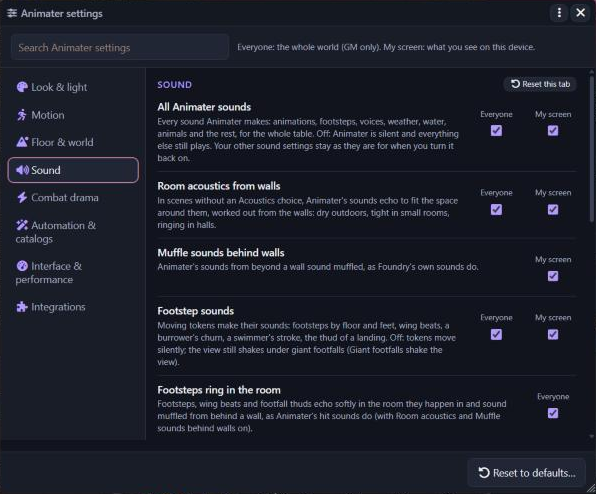
A test world's window on Animater 4.9.0: values shown may differ from the defaults, which are in the table.
| Setting | Everyone (GM) | My screen | Choices or range | What it does |
|---|---|---|---|---|
| All Animater sounds | On | On | — | Every sound Animater makes: animations, footsteps, voices, weather, water, animals and the rest, for the whole table. Off: Animater is silent and everything else still plays. Your other sound settings stay as they are for when you turn it back on. |
| Room acoustics from walls | On | On | — | In scenes without an Acoustics choice, Animater's sounds echo to fit the space around them, worked out from the walls: dry outdoors, tight in small rooms, ringing in halls. |
| Muffle sounds behind walls | — | On | — | Animater's sounds from beyond a wall sound muffled, as Foundry's own sounds do. |
| Footstep sounds | On | On | — | Moving tokens make their sounds: footsteps by floor and feet, wing beats, a burrower's churn, a swimmer's stroke, the thud of a landing. Off: tokens move silently; the view still shakes under giant footfalls (Giant footfalls shake the view). |
| Footsteps ring in the room | On | — | — | Footsteps, wing beats and footfall thuds echo softly in the room they happen in and sound muffled from behind a wall, as Animater's hit sounds do (with Room acoustics and Muffle sounds behind walls on). |
| Footstep hearing range | Normal (6 squares) | — | Close (3 squares) / Normal (6 squares) / Far (10 squares) / Very far (15 squares) | How far away footsteps, wing beats and other movement sounds can be heard (Foundry plays them only to tokens within this range). Huge and bigger creatures carry half as far again. Close 3 squares, Normal 6, Far 10, Very far 15. |
| Footsteps outside combat | Normal | — | Normal / Quieter (half volume, heard within 3 squares) / Off | Footsteps, wing beats and other movement sounds while no combat has started on the scene, for a party walking about the map in exploration. Quieter plays them at half volume, heard only within 3 squares; Off moves tokens silently. In combat they play as usual. |
| Creatures growl on their turn | On | — | — | With PF2e Creature Sounds active, a Large or bigger NPC sometimes growls from where it stands as its combat turn starts, heard only by those who could hear it. Uses that module's sound sets and volume. |
| Creatures cry out when they attack and are hurt | On | On | — | An attacking creature now and then grunts, snarls or roars as it attacks, a hurt one now and then cries out, in a voice for its creature and its creature type (a man or a woman, small folk, a wolf, a bear, a bird, a dragon, a zombie, a spider, a fiend and more), and one that falls always does, from where it stands, heard only by those who could hear it. Ghosts wail, skeletons rattle, oozes gurgle; animated objects and elementals stay silent. On PF2e, PF2e Creature Sounds voices them instead when it is active. |
| Creature voices from my own folder | Empty | — | — | A folder of your own creature sounds (in your Data folder) to use besides Animater's: each sub-folder is one voice, filed by its name (Huge Dragon, orc, banshee, Crow…), its attack, hurt and death folders holding the takes. The files stay yours and are played from your server, never bundled. Empty: Animater's own voices only. |
Hit sounds is a button labelled Hit sounds. Weapon hits that sound like what they land on, and how you hear them: on or off, volume, blood, echo, and hearing hits where they happen.

A test world's window on Animater 4.9.0: values shown may differ from the defaults, which are in the table.
| Setting | Everyone (GM) | My screen | Choices or range | What it does |
|---|---|---|---|---|
| Momentum | On | — | — | Hits in a row by the same attacker on the same target, in one turn (or within 12 seconds out of combat), land harder: bigger, louder and with stronger ripples. A miss starts the streak over. In PF2e and SF2e, a third Strike in a turn that misses looks strained. |
| Hero Point glow | On | On | — | A character awarded a Hero Point glows gold for a moment, on every screen that can see their token. A recipe with the Heroic resource trigger plays instead. (Only PF2e and SF2e.) |
| ↳ Mythic Point glow | On | — | — | A character who gains a Mythic Point pulses violet and gold; one who spends one flares violet. A recipe with the Heroic resource trigger plays instead. (Only PF2e and SF2e.) |
| Heroic Inspiration glow | On | On | — | A character given Heroic Inspiration glows gold for a moment; one who spends it flares bright. On every screen that can see their token. A recipe with the Heroic resource trigger plays instead. (Only D&D 5e.) |
| Hope glow | On | On | — | A character who gains Hope glows gold for a moment; one who spends it flares bright. On every screen that can see their token. A recipe with the Heroic resource trigger plays instead. |
| Victory glow | On | On | — | A hero who earns a Victory glows gold for a moment, on every screen that can see their token. A recipe with the Heroic resource trigger plays instead. (Only Draw Steel. New in 3.3.0.) |
| Hero and Mythic Point glow on my screen | — | On | — | Turn off to never draw these glows on this screen. |
| Damage lens | On | On (off at first if the browser asks for reduced motion) | — | Blood on the lens, on players' screens only. When a creature is hurt, its blood splats on the screens of players whose creature stands next to it, whoever struck it (Enemy blood reaches), more for more damage, on the side it is; a ranged attacker far off sees none. When the player's own creature is hit, the view closes in (tunnel vision) and its own blood splashes the screen; a badly hurt creature keeps a faint tunnel in combat. Uses Splatter's blood colours and bloodless creatures when Splatter is active. Bloodless creatures, creatures that screen cannot see and hidden tokens never bleed on it. Players' Blood sounds choice (Hit sounds) Off turns it off, Subtle makes it subtle. |
| ↳ Damage lens amount | — | Heavy | Heavy / Subtle / None (no blood) | Heavy: bigger splats that drip and stay about four and a half seconds for a big hit. Subtle: a few small splats near the edges for about three seconds, and a lighter tunnel vision. None: no blood on the screen, with tunnel vision and the heartbeat kept by their own switches. Low animation quality draws Subtle in place of Heavy. How long it stays is set with Damage lens duration. |
| ↳ Tunnel vision when hurt | — | On (off at first if the browser asks for reduced motion) | — | When your creature is hit, the view closes in from the edges for a few seconds, harder hits closer. Off at first when this browser asks for reduced motion. |
| ↳ Heartbeat when hurt | — | On | — | When your creature is hit, a few heavy heartbeats under the tunnel vision, harder hits louder and faster; while it stays at or under a quarter of its HP in combat, a quiet heartbeat that quickens the lower it gets. Played at the Hit sounds volume. |
| ↳ Wounded view | — | On | — | With the damage lens on, your own creature's state stays on your screen: from half its HP the edges darken red, deeper as it falls (beating with the heartbeat at a quarter HP in combat, much fainter out of combat), each hit taken leaves a stain or two on the edges that stay until it is healed, and under a quarter HP in combat the music and ambience close in. At 0 HP, dying or unconscious, the view closes to a dim blurred window, the world goes nearly silent and a faint heartbeat goes on; waking up gasps back to the light. Damage lens amount Subtle halves it; Low animation quality keeps only the edges. |
| ↳ Show a friend's blow | — | On | — | With the damage lens on, when a friend hits the enemy next to your creature, their blow crosses your screen first, big and from their side: the weapon's swing or shot, or the spell's bolt, then a flinch and a hit flash before the enemy's blood lands. Needs JB2A. |
| Damage type effects | On | On (off at first if the browser asks for reduced motion) | — | On players' screens only, with the same rule as the damage lens: each energy damage type their creature takes, or a creature next to it takes, leaves its own short mark on the screen beside the blood. Fire scorches the edges and throws embers, cold frosts them over, lightning arcs across, acid drops and bubbles, poison sways the view, sonic ripples it, force cracks the lens, void drains its colour, vitality flares, mental damage doubles the view, spirit sends pale wisps; Daggerheart's magic shimmers. Stronger for more damage, clearly stronger for critical hits. Damage lens amount Subtle and Subtle gore tone it down; Low animation quality keeps only the marks. |
| Enemy blood reaches | Adjacent creatures | — | Adjacent creatures / Within one square (reach) / The attacker, wherever it is | Whose screens a hurt creature's blood splashes: players whose creature is adjacent to it, also those one square away (reach), whoever struck it; or only the player whose creature struck it, wherever it stands (a ranged shot too). With adjacent or reach, a ranged attacker far off sees none. |
| Damage lens shows | Hits taken and creatures hurt nearby | As the GM set | Hits taken and creatures hurt nearby / Only hits taken / Only creatures hurt nearby | Which blows reach a player's screen: hits their creature takes and blood from creatures hurt next to it, only hits it takes, or only creatures hurt next to it. Covers the blood, tunnel vision, the heartbeat on a hit and the damage type effects. The wounded view of a hurt creature stays with its own switch. |
| Blood on portraits | Off | — | — | A hurt creature's picture shows blood, more the more it is hurt and in its own blood colour: on its character sheet, and in the Image Hover module's picture when that is on. Only those who could see the sheet or picture see it, and nothing is saved. |
| Damage lens duration (seconds) | 4.5 | 0 | 2 to 20 | How long a big hit's blood stays on players' screens, in seconds (4.5 by default). Smaller hits stay proportionally shorter, drying and fading stretch with it, and damage type effects hold longer or shorter to match. The Wounded view's stains on the edges are apart: they stay until the creature is healed (turn off Wounded view to drop them). |
Blood colours is a button labelled Blood colours. What each creature type bleeds on the lens, on the ground and in the damage showcase: its colour, or no blood at all. A token can have its own (Token configuration). With Splatter active, its Blood Sheet decides instead. GM only.
| Setting | Everyone (GM) | My screen | Choices or range | What it does |
|---|---|---|---|---|
| Show flash screen menus in the Combat Tracker | — | On | — | The ⚡ Opening and Ending menus in the Encounter tab, its popout and PF2e HUD's tracker. Hidden, combats still play the default flash screens. (GMs only.) |
| Hide the result of private GM rolls | Off | — | — | A GM's private attack or save animates without showing whether it hit or missed: the shot flies at the target and nothing lands. Off: private rolls animate their real result, like public ones (the numbers stay private either way). |
| Wait for Dice So Nice | — | On | — | Attack and damage animations start when the 3D dice for that roll have landed, so a hit or miss plays after you see the result. (Only with Dice So Nice active.) |
| Hope/Fear accent | On | — | — | Daggerheart: a duality roll with Hope adds a short gold glint on the roller's token, one with Fear a dark purple wisp, beside the item's own animation. Critical successes keep their own crit visuals. (Only Daggerheart.) |
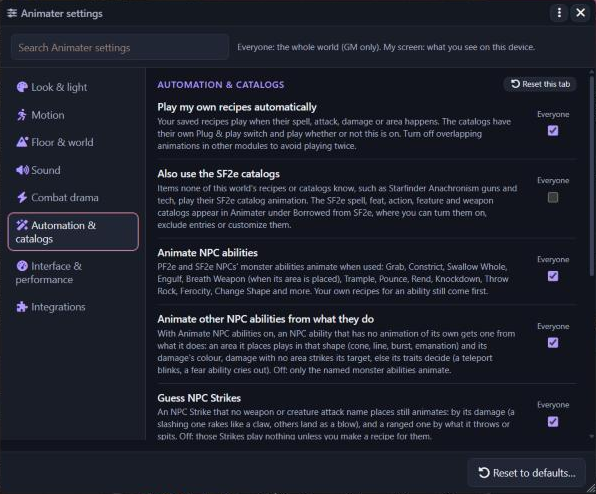
A test world's window on Animater 4.9.0: values shown may differ from the defaults, which are in the table.
| Setting | Everyone (GM) | My screen | Choices or range | What it does |
|---|---|---|---|---|
| Play my own recipes automatically | Off | — | — | Your saved recipes play when their spell, attack, damage or area happens. The catalogs have their own Plug & play switch and play whether or not this is on. Turn off overlapping animations in other modules to avoid playing twice. |
| Also use the SF2e catalogs | Off | — | — | Items none of this world's recipes or catalogs know play their SF2e catalog animation. (Only PF2e and SF2e.) |
| Original names in brackets | — | Off | — | In a translated world, the Animater library shows each translated name with its English original after it, as translated content is often written: “Тьма [Darkness]”. Search finds either name, on or off. |
| Animate NPC abilities | On | — | — | PF2e and SF2e NPCs' monster abilities animate when used: Grab, Constrict, Swallow Whole, Engulf, Breath Weapon (when its area is placed), Trample, Pounce, Rend, Knockdown, Throw Rock, Ferocity, Change Shape and more. Your own recipes for an ability still come first. (Only PF2e.) |
| Animate other NPC abilities from what they do | On | — | — | With Animate NPC abilities on, an NPC ability that has no animation of its own gets one from what it does: an area it places plays in that shape (cone, line, burst, emanation) and its damage's colour, damage with no area strikes its target, else its traits decide (a teleport blinks, a fear ability cries out). Off: only the named monster abilities animate. (Only PF2e.) |
| Guess NPC Strikes | On | — | — | An NPC Strike that no weapon or creature attack name places still animates: by its damage (a slashing one rakes like a claw, others land as a blow), and a ranged one by what it throws or spits. Off: those Strikes play nothing unless you make a recipe for them. (Only PF2e.) |
| Lasting condition animations (this device) | — | Follow the catalog setting | Follow the catalog setting / Always visible / On application and at its turn start / On application only | How lasting conditions and effects show on your screen. "Follow the catalog setting" uses each catalog's Lasting animation switch in Animater. "On application and at its turn start" plays them when applied and again briefly whenever that creature's turn starts in combat. The Defeated look keeps its own setting. Each player's choice affects only their screen. |
| Lasting area animations | loop | — | — | How spell areas that stay on the map (walls, clouds, difficult terrain) show. "Stay while placed" loops the area until its template is removed. "Play once, then fade" plays it once when placed. "Play once and at turn start" also plays it again briefly whenever the caster's turn starts in combat, while the template stays. Conditions and effects on tokens keep their own Lasting animation switch. Applies to areas placed after the change. |
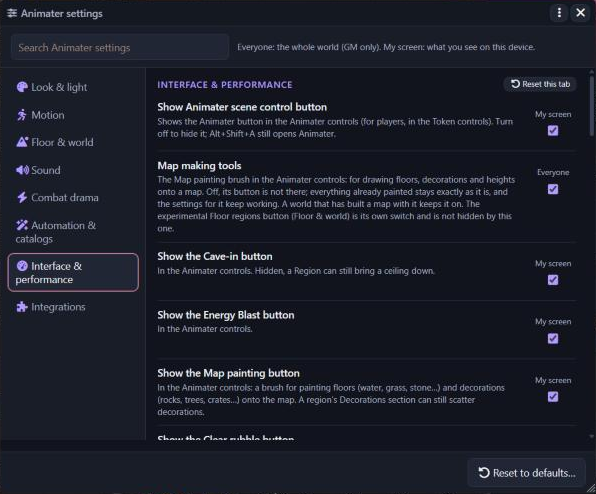
A test world's window on Animater 4.9.0: values shown may differ from the defaults, which are in the table.
| Setting | Everyone (GM) | My screen | Choices or range | What it does |
|---|---|---|---|---|
| Show Animater scene control button | — | On | — | Shows the Animater button in the Animater controls (for players, in the Token controls). Turn off to hide it; Alt+Shift+A still opens Animater. |
| Map making tools | On | — | — | The Map painting brush in the Animater controls: for drawing floors, decorations and heights onto a map. Off, its button is not there; everything already painted stays exactly as it is, and the settings for it keep working. A world that has built a map with it keeps it on. The experimental Floor regions button (Floor & world) is its own switch and is not hidden by this one. |
| Show the Cave-in button | — | On | — | In the Animater controls. Hidden, a Region can still bring a ceiling down. |
| Show the Energy Blast button | — | On | — | In the Animater controls. |
| Show the Map painting button | — | On | — | In the Animater controls: a brush for painting floors (water, grass, stone…) and decorations (rocks, trees, crates…) onto the map. A region's Decorations section can still scatter decorations. |
| Show the Clear rubble button | — | On | — | In the Animater controls, under Tidy up. |
| Show the Repair broken props button | — | On | — | In the Animater controls, under Tidy up, for the GM: unhides every broken prop in the scene and puts its walls, doors, windows and decorations back, as the scene configuration's Repair button does. (GMs only.) |
| Show the Breach wall button | — | On | — | In the Animater controls, for the GM: click on a wall marked Breakable wall: Yes to breach it there at once. (GMs only.) |
| Show the Moments button | — | On | — | In the Animater controls, for the GM: a panel that calls a shudder, a colour over everything, a grey world or a view that will not settle, on every screen at once. It changes nothing in the world and it all stops. (GMs only.) |
| Show the Clear blood button | — | On | — | In the Animater controls, under Blood. Blood still fades by itself. |
| Show the Splat blood button | — | On | — | In the Animater controls, under Blood, for the GM: old blood on the ground around the selected tokens, kept with the scene until Clear blood. (GMs only.) |
| Show the Bake blood button | — | On | — | In the Animater controls, under Blood, for the GM: the blood on the floor becomes one tile the scene keeps, saved in the world's files. (GMs only.) |
| Show the Clear ground marks button | — | On | — | In the Animater controls, under Tidy up, for the GM. Marks still fade by themselves. (GMs only.) |
| Show the Clouds button | — | On | — | In the Animater controls. Hidden, the Clouds over the map setting still turns them off and on. |
| Show the Flames button | — | On | — | In the lighting controls. Hidden, each light still sets its own flame in its configuration. |
| Carriers | On | — | — | Tokens that carry other tokens: a wagon, a boat, a sled, a mount. The GM marks one (Token configuration → Animater: carrier), then loads the party aboard with the people button on its HUD; they ride in plain sight, keeping their own light and vision, and get out round it. Walking onto a carrier boards nobody: getting aboard is always asked for. Off: no carrier button, no riding and no painted vehicle is drawn. Anyone already aboard stays where they are. |
| ↳ Carrier volume | — | 1 | 0 to 2 | How loud wagons and carts are for you: 0 silent, 1 as recorded, 2 twice as loud. |
| Show the Carrier button | — | On | — | In the token controls: put the selected tokens aboard the token you have targeted, or let them all out. The same button is on a carrier’s own token HUD either way. |
| Minimize Animater during canvas playback | — | On | — | Local preview and Play at table minimize the Animater window while the animation runs, then restore it. |
| Explain animations on hover | — | On for GMs, off for players | — | Hovering a token shows what Animater is playing on it right now: each animation's name, whether it comes from a catalog or a recipe, and whether it lasts. Hold Shift while it shows for buttons to hide a lasting look, leave it out of its catalog, or flag it for a new look. |
| Faster animations (this device) | — | On | — | Makes animations cheaper for your computer to draw, with no change in how they look. Covers every module that plays animations through Sequencer, not only Animater. In combat it also loads the next creature’s animations ahead of its turn, and it skips tiny details you could not see at your current zoom. Only your screen is affected. Turn this off if an animation from any module looks wrong. |
| ↳ Faster animations: position recheck (frames) | — | 30 | 1 to 600 | How often effects and sounds that follow a token double-check where it is, even when nothing seems to have moved. 30 frames is about half a second. Lower it if an effect trails behind a token that another module moves. |
| Player animations | Submit for approval | — | Off / Submit for approval / No approval needed | What players may do in Animater. Off: no Animater window or buttons for players, and their saved animations don't play (they are kept). Submit for approval: players make their own animations, starting from the whole library (every catalog and your recipes); each one plays for their own characters after you approve it. No approval needed: the same, but their animations play as soon as they save them; you can still turn any one off under Recipes. |
| Window icons | As usual | — | As usual / Faint / Only when near | How the open and close controls on windows show on the map. Faint: see-through until a creature of yours is near or the pointer is over one. Only when near: hidden until then (a GM with no creature selected still sees them faintly). |
| A region’s panel opens on (this device) | — | right | — | Which press opens a region’s Animater panel on the map, for you. A right-click that is held or dragged pans as it always has and never opens it, but a quick one on the open floor does — pick another gesture if you keep opening it while aiming at a token. Whatever you choose, the panel also opens from the region’s own configuration, on its Animater tab. (GMs only.) |
| Arriving on a scene | off | On | — | What the party sees in the first seconds on a map they have just been pulled to, for scenes that have not chosen for themselves. Each scene can say for itself instead, on its own Animater tab — a beat that suits a reveal is tiresome on a corridor they cross four times a session, so most scenes are best left with none. |
| Handouts arrive | off | On | — | How a handout shown to players reaches their screens. Today Foundry opens a grey window over the map; instead the page can unfold along its creases, unroll like a scroll, be laid on the table in front of them, be held up from below, or blow in on the wind. However it arrives it is lit by the scene it arrives into: warm and unsteady by torchlight, cold under rain, with the map darkening behind it. Foundry's own window is untouched underneath, with its buttons and its close. Any scene may choose its own instead (Scene configuration → Animater). |
| The interface bleeds | On | On | — | On players' screens only, from half their own creature's health down to none: the wound leaves the map and carries across Foundry's own furniture — the chat log, the hotbar, the tool strip. What each of the six looks does is set on its own below, and how strongly by Interface bleed strength. Low animation quality turns it off. |
| ↳ Interface bleed strength | — | 1 | 0 to 1.5 | How strong all six looks are together, against 1. Below 1 for a hint of it, above for a table that wants to be told. |
| ↳ Keep the chat readable | On | — | — | Blood that lands over the chat log and the sidebar is drawn smaller and much thinner, so a damage roll is never lost under it. Turn off for blood that falls wherever it falls. |
| ↳ Interface bleed: wound at the edges | On | — | — | The whole interface darkens and reddens at its outer edge as a player’s own creature goes down, from half its health to none. |
| ↳ Interface bleed: blood on the glass | On | — | — | Blood thrown across the whole window when a player’s own creature is hurt, over the chat log and the hotbar as well as the map, running and drying where it lands. Keep the chat readable thins it where text is. |
| ↳ Interface bleed: colour drains | On | — | — | The colour pulls out of Foundry’s own panels as a player’s own creature nears death. Never all the way: an unreadable sheet helps nobody. |
| ↳ Interface bleed: heartbeat | On | — | — | A slow double thump in the darkened edges while a player’s own creature is at or under a quarter of its health, the same quarter the damage lens already beats at. |
| ↳ Interface bleed: tunnel | Off | — | — | The whole interface closes in from every side. The map already does this on its own (Damage lens tunnel vision), so this is it everywhere else; off at first because doing it twice is a great deal. |
| ↳ Interface bleed: shudder | Off | — | — | The whole window jolts when a player’s own creature is hurt. The loudest of these and the first to turn off, so it starts off. |
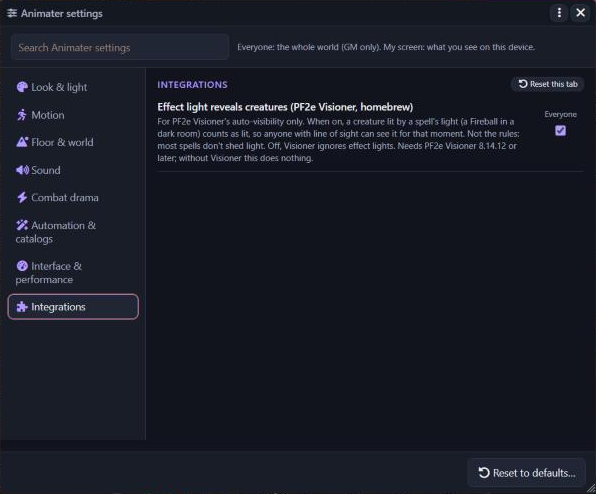
A test world's window on Animater 4.9.0: values shown may differ from the defaults, which are in the table.
| Setting | Everyone (GM) | My screen | Choices or range | What it does |
|---|---|---|---|---|
| Effect light reveals creatures (PF2e Visioner, homebrew) | Off | — | — | For PF2e Visioner's auto-visibility only. When on, a creature lit by a spell's light (a Fireball in a dark room) counts as lit, so anyone with line of sight can see it for that moment. Not the rules: most spells don't shed light. Off, Visioner ignores effect lights. Needs PF2e Visioner 8.14.12 or later; without Visioner this does nothing. (Only with PF2e Visioner active.) |
| Splatter: blood follows the damage | On | — | — | Animater sets how much each wound bleeds in Splatter: slashing and piercing most, bludgeoning less, fire and lightning little, psychic not at all. Critical hits and killing blows bleed more, and a kill's blood waits for its Finish Him! screen. The creature keeps its own blood color. Off: Splatter bleeds on its own. (Only with Splatter active.) |
| Take over from Automated Animations when Animater has an animation | On | — | — | Automated Animations skips items Animater animates. Items customized in Automated Animations stay with it. If “Only animate what Automated Animations doesn't” is also on, that one wins. (Only with Automated Animations active.) |
| Only animate what Automated Animations doesn't | Off | — | — | Items Automated Animations animates (by its Automatic Recognition or a customized item) stay with it; Animater animates the rest. Items turned off in Automated Animations play Animater's animation. (Only with Automated Animations active.) |
| Take over from Trigger Animations when Animater has an animation | Off | — | — | Trigger Animations skips attacks, actions, areas, effects and conditions Animater animates, its wildcard triggers and Trove's included. A trigger made for that very item (naming its UUID) stays with it. If “Only animate what Trigger Animations doesn't” is also on, that one wins. (Only with Trigger Animations active.) |
| Only animate what Trigger Animations doesn't | Off | — | — | Items a Trigger Animations trigger names (attack:longsword, template:fireball, condition:frightened, or the item's UUID) stay with it; Animater animates the rest. Wildcard triggers such as damage:* don't count. (Only with Trigger Animations active.) |
Animation quality (this device) is also listed directly in Configure Settings, along with the buttons below.
| Where | Name | Who | Notes |
|---|---|---|---|
| Configure Settings | Animater workspace (button Open Animater) | GM | Browse assets, build recipes, preview, and configure automatic triggers. Players open their own Studio from the Token controls or with Alt+Shift+A. |
| Configure Settings | Show the Weather button | My screen, default On | In the Animater controls: choose the scene's weather and tune its amount, size, speed, colour, fog, lightning, wind and clouds. Unlike the other button switches, this one is not in the Interface & performance tab at 3.2.1. It stays in Configure Settings. |
Opened from the Sound tab. Changes here need the window's Save button.
| Setting | Who | Default | Choices or range | What it does |
|---|---|---|---|---|
| Weapon surface sounds | Everyone (GM) | On | — | A weapon hit also sounds like what it lands on: metal armour, leather, flesh, a spider's shell, stone, a magical ward. A miss against a raised or magical shield rings off it. Every system; uses the built-in weapon animations. |
| Hit sounds on this device | My screen | On | — | Turn off to hear no surface hits, and no pitch, echo or placement on Animater's sounds, on this device only. |
| Volume | My screen | 1 | 0 to 1 | How loud surface hits are for you. Also scales token footsteps. |
| Blood | My screen | Full | Full / Subtle / Off | The splatter of blood on hits to flesh. Off also turns off the damage lens for that player; Subtle makes it subtle. |
| Echo | My screen | 1 | 0 to 1.5 | How much room the hits ring in. Also scales the room reverb Animater's sounds get from a scene's walls. |
| Hear hits where they happen | My screen | On | — | Further from your token is quieter and duller, and a hit on the left of your screen sounds on the left. |