Repository navigation
Quick Start
中文 · English
这一页按最短路径把 AutoOps 堡垒机用一遍:起服务 → 登录改密 → 加一台 Linux 主机 → 给用户和授权 → 开终端敲命令 → 看审计 → 走一次 ssh -p 2222 网关。装环境与生产部署请看 Install-and-Deploy。
开三个终端,顺序是后端 → 演示目标机 → 前端:
# 终端 1:后端
cd bastion-backend
python -m pip install -r requirements.txt
python run.py

# 终端 2:演示目标机(一台真 SSH 协议栈的假 Linux)
cd bastion-backend
python tools/demo_ssh_target.py     # 监听 127.0.0.1:2200,账号 root / s3cret

# 终端 3:前端
cd ant-design-pro
npm install
npm run dev                         # 打开 http://localhost:8000
没有 Linux 机器也能跑通全链路——tools/demo_ssh_target.py 就是给你试手的目标机。自检 API:http://127.0.0.1:5000/api/health 返回 {"success": true, ...} 即为正常。
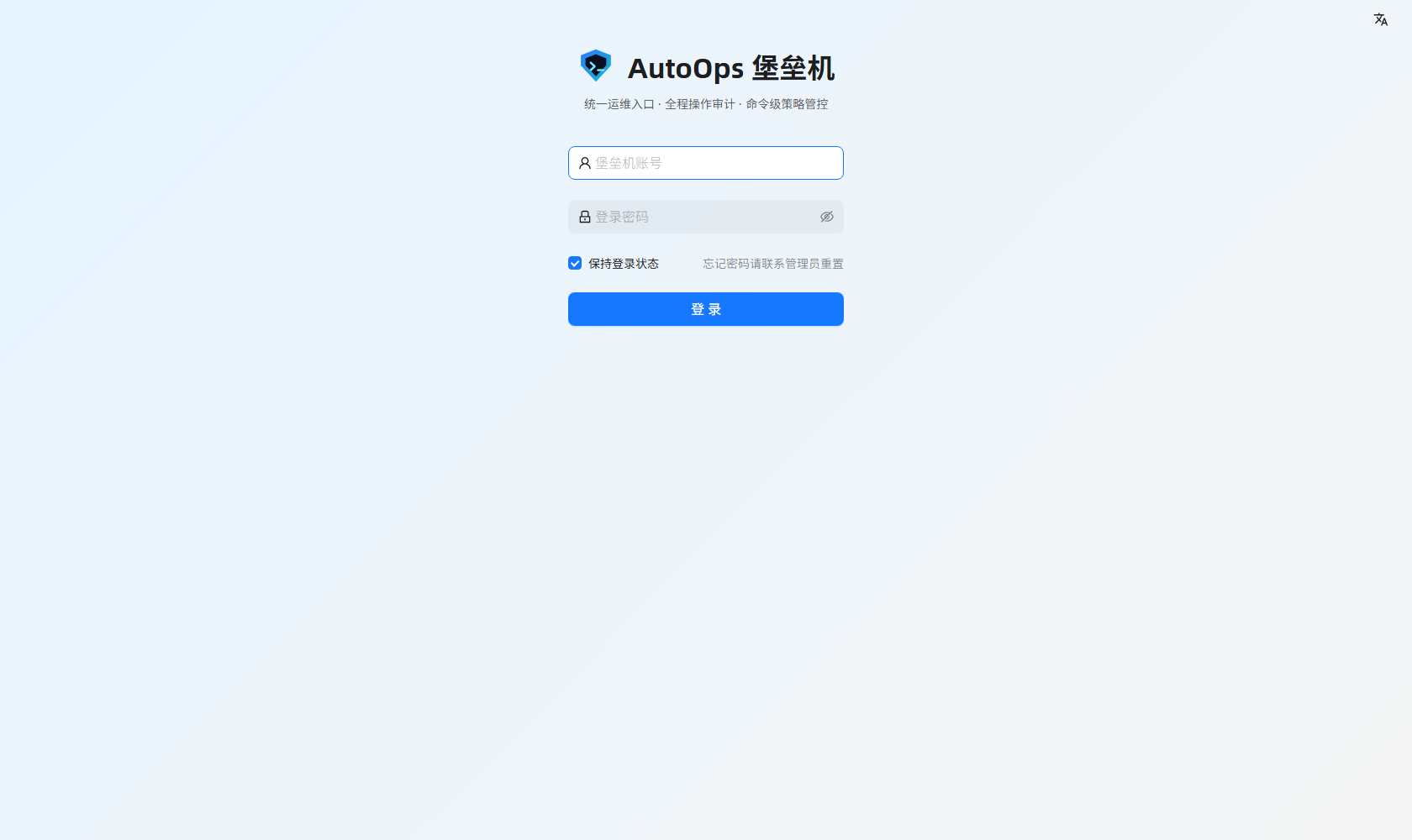
图上是一个账号口令表单加登录按钮。用 admin / admin123 登录,系统会强制你改口令,改完才能进系统。注意这里登录的是堡垒机账号,不是目标机的账号——目标机账号在后面「账号管理」里单独配,日常运维看不到它们的口令。
改密后右上角会显示当前用户;后面所有操作都以这个身份为起点。
进「概览」:资产数、在线会话、风险提示、最近审计事件都在这一屏。日常顺序建议是「先去审计中心看异常,再去资产管理加机器」。
- 打开「资产管理 → 主机列表」,点「新增」。
- 编辑抽屉里,「协议入口」选
Linux / Unix(SSH 命令行);SSH 端口默认22(演示目标机填2200,地址填127.0.0.1)。一台机器可以同时挂多个协议端点:Windows 机器可以既挂winrm:5985又挂rdp:3389。 - 保存后切到该主机的「账号管理」,加一个目标机账号:用户名 + 口令(口令落库即用 Fernet 加密)。
- 在账号行里点「测试连接」,真实跑一次命令;结果里会带回目标机声明的服务端版本与我们的客户端版本(
SSH-2.0-paramiko_<版本>)。
地址相同、只是协议不同的两条主机记录,可以在主机行里用「合并」一键合成一台,账号、授权与协议端点都会归并过去。
- 「身份与权限 → 角色管理」:权限码按模块分组勾选。给最小集合——只看不改的审计员就别给资产管理的写权限。内置角色有
admin/ops/auditor/viewer。 - 「身份与权限 → 用户管理」:每个运维人员一个堡垒机账号,指派角色。
- 前端菜单只是体验层,后端每个接口还会再校验一遍权限码(写操作一律管理员专属)。
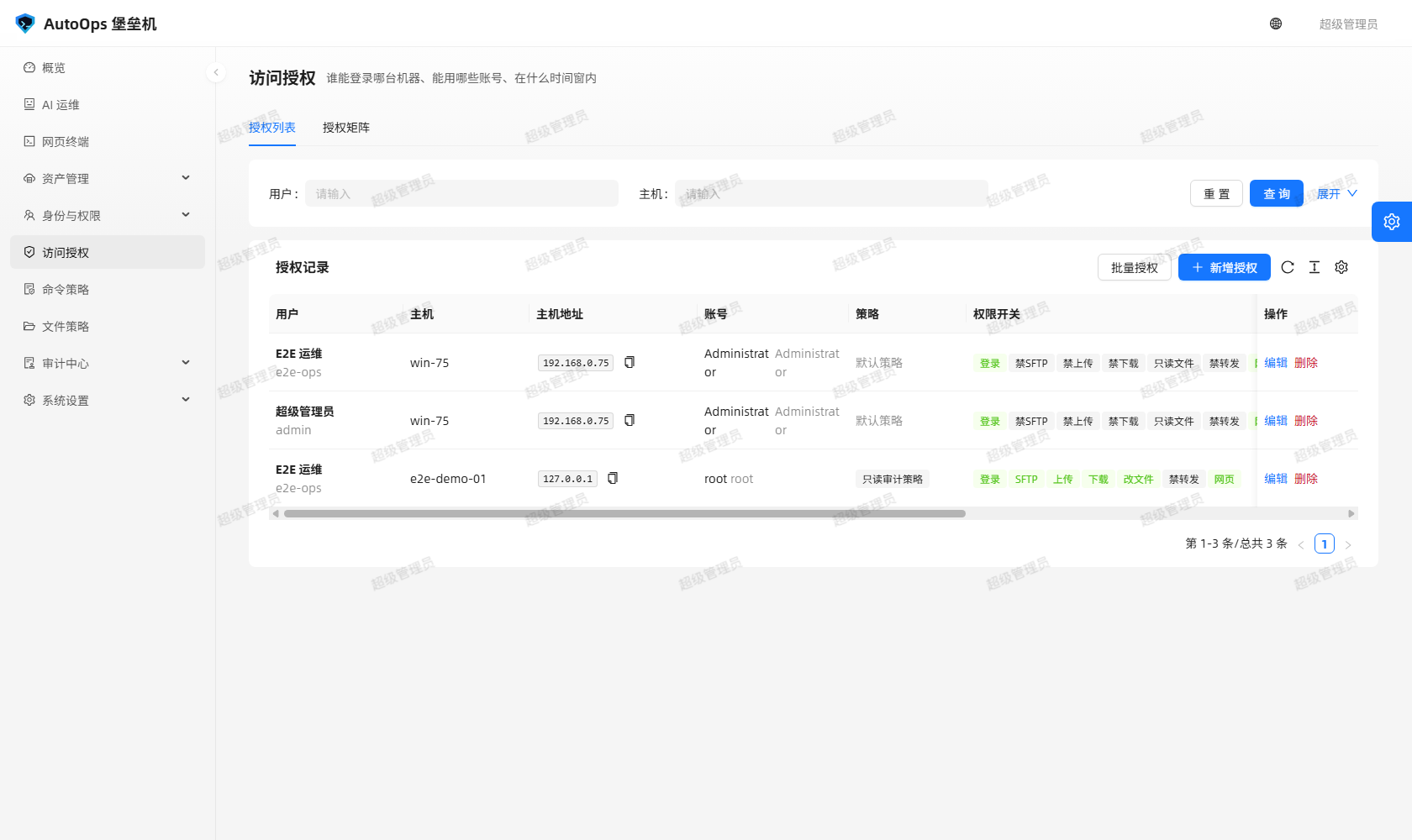
「访问授权」是核心的一张表。一条授权 = 用户 × 主机 × 账号,再决定:
- 勾选
登录/SFTP/上传/下载/ 允许改文件 /网页终端/端口转发; - 设时间窗、星期、过期时间、并发上限;
- 绑定命令策略与文件策略(文件策略留空表示走系统默认文件策略)。
没授权的机器,用户在网页终端列表和 SSH 网关菜单里根本看不到;就算手敲 hostId 直连,后端也会拒,并在审计里留下一条拒绝记录。
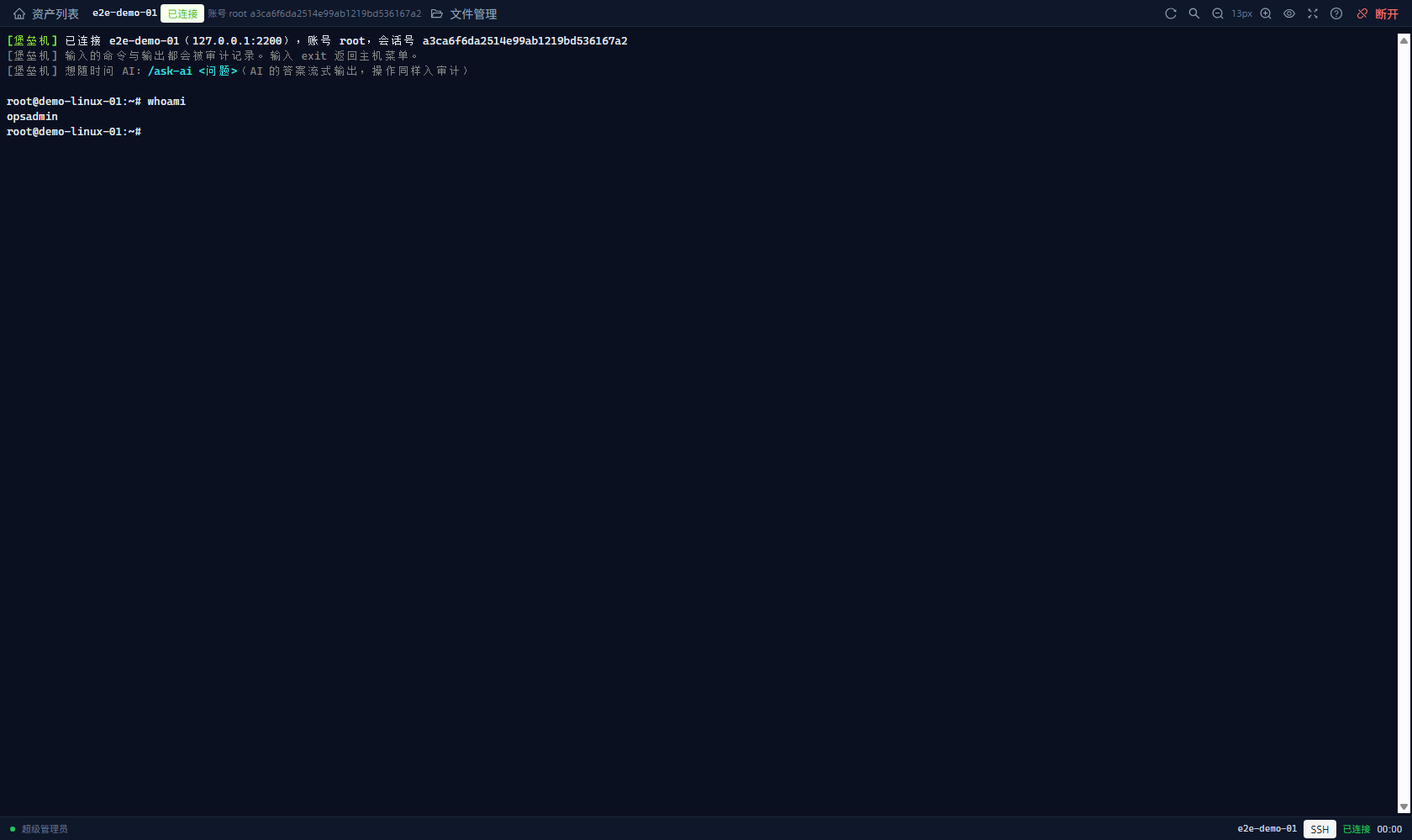
图上是一个浏览器内的终端:顶部状态条显示主机、登录账号与会话号,右上角可调字号、搜索、断开,底部显示 SSH · 已连接 · 耗时。
- 打开「网页终端」,它列出你有权限的所有主机,同一台机器有几个协议就给你几颗按钮。
- 点「连接」,浏览器会
window.open()弹出一个独立终端窗口:一个窗口只跑一条审计会话,关掉窗口即结束会话。 - 敲
whoami,回车;图里返回的是opsadmin。
命令与回显逐条进审计。想边干活边问 AI,就在这个终端里输入 /ask-ai <问题>:这一行不会被目标机执行(堡垒机会先用 Ctrl-U 把它抹掉),答案在终端里原地流式重绘,卡片降级成 ASCII,终端里不会出现 JSON。
试试被策略拦下的样子:敲 cat /etc/shadow,你会看到 ⛔ 已按命令策略拦截:命中「禁止读取口令文件」规则(风险等级 high)——被拒的命令根本不会发到目标机,但审计照常留痕。
在终端工具条点「文件管理」,会再弹一个独立窗口:左边目录树、右边文件列表,支持上传(带实时进度)、下载(单文件/打包 zip)、在线编辑保存(带 mtime 冲突检测)、新建目录、重命名、移动、复制、删除、改权限。
它走同一套授权与策略,两道闸同时成立才放行:Grant 开关决定「能不能做这个动作」,文件策略决定「这条路径上允不允许」。没开的按钮直接置灰并说明原因;被拦时会给出命中规则,例如:
文件操作被策略「默认文件策略·敏感路径拦截」拦截:操作 [read] 源路径 [/.ssh/id_rsa] 命中规则 #1
管理员改授权或策略后对已经打开的窗口立即生效,不需要重开窗口。
- 「资产管理 → 主机列表 → 新增」,协议入口选
Windows(命令行 + 远程桌面),再勾要开的通道:命令行(WinRM / PowerShell) 与/或 远程桌面(RDP);只有勾了对应通道,才会出现WinRM 认证方式/RDP 安全层与各自的端口框(WinRM 默认5985,开了 HTTPS 用5986;RDP 默认3389)。 - 保存后加一个口令认证的账号(私钥账号不给远程桌面)。
- 用「测试连接」逐协议验证;老系统在 NLA 阶段被直接断开时,把 RDP 安全层改成「强制 SSL」。
WinRM 会话(字符)与 Linux 会话共用同一个权限码 terminal:use,会话建立时会把能力边界直接写在终端里:
- 每条命令在目标机上单独执行(WSMan 无状态),
cd会保留,环境变量等进程内状态不保留; -
more/pause/Read-Host这类交互式程序不可用; - 不支持文件传输,所以 WinRM 会话的工具条上没有「文件管理」按钮,传文件请改用 Linux 主机或远程桌面。
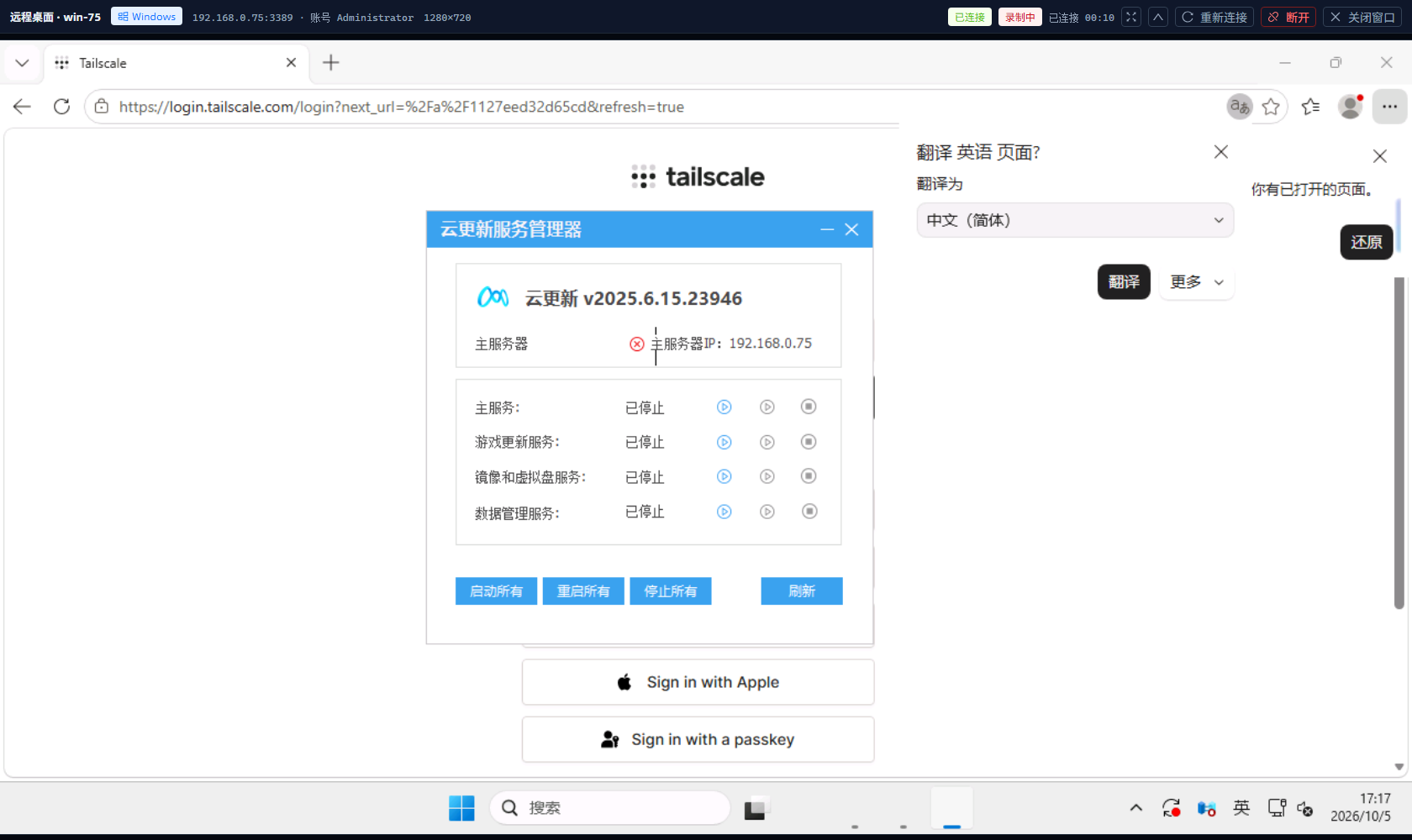
图上是一个浏览器里的 Windows 桌面,右上角显示「录制中」与已连时长。点 Windows 主机的「远程桌面」按钮即可在浏览器里操作,画面随窗口大小自适应;会话断开后弹 10 秒倒计时自动关窗,录像自动上传。
准入与终端同源:rdp:use 权限码 + 该主机的授权(账号/时段/星期/过期/并发上限)+ can_webterm,另加两条协议约束——主机协议必须是 rdp,账号必须是口令认证。
远程桌面是图形协议,命令级策略管不到它,补偿措施是「全程录像 + 录像回看权限」。
| 页面 | 看什么 |
|---|---|
| 会话记录 | 谁在什么时候从哪儿连了哪台机器、用哪个账号、走哪种协议(SSH / WinRM / RDP / SFTP)、持续多久、是否还在线;管理员可对在线会话强制中断 |
| 命令记录 | 每条命令与输出、命中了哪条策略、放行还是拒绝、风险与耗时 |
| 文件记录 | 文件管理器里每一次操作(含被拒与失败);清除文件记录需要 command:view_all
|
| 操作日志 | 登录、资产变更、授权变更、策略变更、会话建立与中断;顶部有「链完整性」徽标 |
| 远程桌面录像 | 每个 RDP 会话一段录像,按操作人/资产账号/时长/体积/时间筛选,点「回看」播 |
前面几步留下的记录现在都能查到。审计流水带哈希链(上一条的哈希参与本条计算),离线校验:
python tools/verify_audit_chain.py                # 逐表逐行重算,坏链 exit 1
python tools/verify_audit_chain.py --print-head # 抄三张表的链尾锚点,存到库外不想开网页就用命令行:
ssh -p 2222 <堡垒机账号>@<堡垒机IP>登录后是一个审计 shell:先看到「有权限的主机菜单」(编号 / 名称 / 地址 / 分组 / 策略 / 账号),输入编号选主机,多账号再选账号。菜单里同时列 Linux(ssh)与 Windows 字符终端(winrm),图形桌面(rdp)不在菜单里——它走浏览器的 /rdp 入口。
=== AutoOps 堡垒机 审计网关 ===
 1) web-01        10.0.0.11:22    [生产]  策略:标准运维策略  账号: root, deploy
 2) db-01         10.0.0.21:22    [数据库] 策略:高危需确认    账号: dba
请输入主机编号(l 刷新 / i 我的信息 / h 帮助 / q 退出):
进去之后每条命令照样过策略、照样落库。exit / quit / logout / bye 是会话控制指令,不受命令策略限制(即使策略是全白名单也能退出来)。连上主机后想顺手问 AI:/ask-ai 这台机器磁盘满了吗。
- Install-and-Deploy:环境要求、生产部署、环境变量与常见坑。
- Settings:系统参数、SSH 网关指纹页、个人设置与权限码。
更细的逐页面字段说明与截图,在仓库里的 docs/图文教程.md(18 步)、docs/使用手册.md。
This page walks the shortest path through AutoOps: start the services, log in and change the password, onboard a Linux host, create a user and a grant, open a terminal, read the audit trail, and use the ssh -p 2222 gateway once. For requirements and production deployment see Install-and-Deploy.
Open three terminals — backend, demo target, frontend:
# Terminal 1: backend
cd bastion-backend
python -m pip install -r requirements.txt
python run.py

# Terminal 2: demo target (a fake Linux with a real SSH stack)
cd bastion-backend
python tools/demo_ssh_target.py     # listens on 127.0.0.1:2200, account root / s3cret

# Terminal 3: frontend
cd ant-design-pro
npm install
npm run dev                         # open http://localhost:8000
You do not need a real Linux machine: tools/demo_ssh_target.py is the target to practise against. Check the API at http://127.0.0.1:5000/api/health — {"success": true, ...} means it is alive.
The picture shows a username/password form with a login button. Log in with admin / admin123; the system forces a password change before you can continue. Note that this is your bastion account, not a target-machine account — target credentials are configured separately under account management, and operators never see them.
Open the dashboard: asset count, online sessions, risk warnings and recent audit events all live there. A good daily habit is to check the audit centre for anomalies before adding machines under asset management.
- Go to Asset management → Host list and click "Add".
- In the edit drawer pick
Linux / Unix(SSH 命令行)as the protocol entry; the SSH port defaults to22(use127.0.0.1and port2200for the demo target). One machine can carry several protocol endpoints: a Windows box can host bothwinrm:5985andrdp:3389. - After saving, open that host's account management and add a target-machine account: username plus password (stored encrypted with Fernet).
- Click "Test connection" on the account row to really run a command; the result reports the server version the target announced and the client version we announce (
SSH-2.0-paramiko_<version>).
If two host records share an address and differ only in protocol, use "Merge" on the host row to fold them into one — accounts, grants and protocol endpoints all move over.
-
Identity & access → Roles: permission codes are grouped by module. Grant the smallest set — an auditor who only reads should not get write access to asset management. Built-in roles are
admin/ops/auditor/viewer. - Identity & access → Users: one bastion account per operator, with a role assigned.
- The frontend menu is a convenience layer only; every backend endpoint re-checks the permission codes, and writes are admin-only.
A grant is the core table. One grant = user × host × account, plus:
- the action switches
登录/SFTP/上传/下载/ 允许改文件 /网页终端/端口转发; - a time window, weekdays, an expiry and a concurrency cap;
- a bound command policy and file policy (an empty file policy means the system default).
Without a grant the host is invisible in the web terminal list and in the SSH gateway menu; even a hand-crafted hostId is rejected by the backend and leaves a denial in the audit trail.
The picture shows a terminal inside the browser: the top bar carries the host, the login account and the session id, with font size, search and disconnect on the right; the bottom bar shows SSH · 已连接 · 耗时.
- Open Web terminal: it lists every host you are allowed to use, with one button per protocol endpoint.
- Click "Connect" and the browser
window.open()s a separate terminal window: one window is exactly one audited session, and closing the window ends it. - Type
whoamiand press Enter; the picture returnsopsadmin.
Commands and output are audited line by line. To ask AI while you work, type /ask-ai <question> in that terminal: the line is never executed on the target (the bastion erases it with Ctrl-U first), the answer streams in place, cards degrade to ASCII, and JSON never leaks into the terminal.
See what a policy block looks like: type cat /etc/shadow and you get ⛔ 已按命令策略拦截:命中「禁止读取口令文件」规则(风险等级 high) — the denied command never reaches the target, yet the audit still records it.
Click "File management" in the terminal toolbar and a separate window opens: directory tree on the left, file list on the right, with upload (live progress), download (single file or zip), edit-and-save (with mtime conflict detection), create directory, rename, move, copy, delete and chmod.
It shares the same grants and policies, and two gates must both pass: the Grant switches decide whether you may do this action, the file policy decides whether this path allows it. Disabled buttons are greyed out with a reason, and a block names the rule it hit:
文件操作被策略「默认文件策略·敏感路径拦截」拦截:操作 [read] 源路径 [/.ssh/id_rsa] 命中规则 #1
When an admin changes a grant or policy it takes effect on already open windows immediately; no need to reopen.
-
Asset management → Host list → Add, choose
Windows(命令行 + 远程桌面), then tick the channels you need: 命令行(WinRM / PowerShell) and/or 远程桌面(RDP). Only a ticked channel reveals its authentication/security options and port fields (WinRM defaults to5985, use5986with HTTPS; RDP defaults to3389). - Add an account that uses password authentication (key-based accounts cannot use remote desktop).
- Verify each protocol with "Test connection"; if an old system is dropped during the NLA phase, switch the RDP security layer to "强制 SSL".
WinRM sessions (character) share the terminal:use permission code with Linux, and the capability limits are written into the terminal as the session opens:
- every command runs separately on the target (WSMan is stateless);
cdis preserved, but in-process state such as environment variables is not; - interactive programs like
more/pause/Read-Hostare unavailable; - no file transfer, so a WinRM session shows no "File management" button; use a Linux host or remote desktop to move files.
The picture shows a Windows desktop inside the browser, with a "录制中" (recording) badge and elapsed time in the corner. Click "Remote desktop" on a Windows host and you drive it from the browser; the picture follows the window size, and when the session disconnects a 10-second countdown closes the window and the recording uploads automatically.
Admission mirrors the terminal: the rdp:use permission code + a grant on that host (account, time window, weekdays, expiry, concurrency cap) + can_webterm, plus two protocol rules — the host protocol must be rdp and the account must use password authentication.
Remote desktop is a graphical protocol, so command-level policies cannot police it; the compensation is full-session recording plus permission to review recordings.
| Page | What it shows |
|---|---|
| Sessions | who connected from where to which host, with which account, over which protocol (SSH / WinRM / RDP / SFTP), for how long, and whether it is still online; admins can force-terminate live sessions |
| Commands | every command and its output, the policy it hit, allow or deny, risk level and duration |
| Files | every file-manager operation, denials and failures included; purging file records needs command:view_all
|
| Operation log | logins, asset/grant/policy changes, session open and terminate; a "chain integrity" badge sits on top |
| RDP recordings | one recording per RDP session, filterable by operator/asset account/duration/size/time, playable via "Review" |
Everything the earlier steps produced is now searchable. The audit trail carries a hash chain (each entry hashes the previous one); verify it offline:
python tools/verify_audit_chain.py                # recompute every row; a broken chain exits 1
python tools/verify_audit_chain.py --print-head # copy the three chain heads out of bandPrefer a terminal over the browser:
ssh -p 2222 <bastion-account>@<bastion-ip>You land in an audited shell: first a menu of the hosts you may use (number / name / address / group / policy / accounts); enter a number to pick a host and, with several accounts, pick one. The menu lists Linux (ssh) and Windows character sessions (winrm) side by side, while graphical rdp hosts are absent — they use the browser /rdp entry.
=== AutoOps 堡垒机 审计网关 ===
 1) web-01        10.0.0.11:22    [生产]  策略:标准运维策略  账号: root, deploy
 2) db-01         10.0.0.21:22    [数据库] 策略:高危需确认    账号: dba
请输入主机编号(l 刷新 / i 我的信息 / h 帮助 / q 退出):
Inside, every command still passes the policy engine and is still recorded. exit / quit / logout / bye are session-control commands and are exempt from command policy, so you can always leave even under a whitelist policy. To ask AI mid-session: /ask-ai this machine disk full?.
- Install-and-Deploy: requirements, production deployment, environment variables and pitfalls.
- Settings: system parameters, the SSH gateway fingerprint page, personal settings and permission codes.
For page-by-page field documentation and screenshots, see docs/图文教程.md (18 steps) and docs/使用手册.md in the repository.
相关页面 / Related pages: Install-and-Deploy · Settings · Home