Repository navigation
Settings
中文 · English
堡垒机上有两处「设置」:系统设置(管理员给整台堡垒机定规矩:超时、锁定、并发、网关、默认策略)和个人设置(每个账号管自己的口令)。前者影响所有人,后者只影响你自己。
| 位置 | 谁在用 | 管什么 |
|---|---|---|
| 系统设置 → 参数设置 | 管理员 | 堡垒机名称、SSH 网关地址/端口/横幅、会话空闲超时、命令超时、登录失败锁定、每账号并发上限、默认命令策略、录像开关、拦截提示 |
| 系统设置 → SSH 网关 | 管理员 | 只读:网关是否启用/是否在跑、监听地址与端口、主机密钥指纹、当前在线会话数、两端握手版本 |
| 个人设置(右上角账号菜单) | 每个登录用户 | 自己的口令;页面分为三个页签 |
系统设置不是安全边界的一部分:它只决定「默认参数长什么样」。能不能做某件事,永远由你的角色权限码和访问授权决定。
打开「系统设置 → 参数设置」,一屏列出全部参数。每个表单项下面都标了它的配置项 key 与默认值,方便和 bastion-backend/app/config.py、.env 对照。
| 配置项 key | 界面标签 | 类型 | 默认值 | 作用 |
|---|---|---|---|---|
site_name |
堡垒机名称 | 文本 | AutoOps 堡垒机 |
页面标题等位置显示的系统名称 |
gateway_host |
SSH 网关监听地址 | 文本 | 0.0.0.0 |
SSH 网关绑定的地址 |
gateway_port |
SSH 网关端口 | 整数 | 2222 |
用户 ssh -p <端口> 的端口,必须在 1-65535 之间
|
gateway_banner |
SSH 登录横幅 | 文本 | === AutoOps 堡垒机 审计网关 === |
网关菜单顶部的横幅文字 |
session_idle_timeout |
会话空闲超时(秒) | 整数 | 1800 |
空闲超过这个秒数的在线会话被自动断开 |
command_timeout |
单条命令超时(秒) | 整数 | 60 |
单条命令允许执行的最长时间 |
login_max_failures |
登录失败锁定阈值(次) | 整数 | 5 |
连续失败多少次后锁定账号 |
login_lock_minutes |
锁定时长(分钟) | 整数 | 15 |
锁定的持续时间 |
max_sessions_per_user |
每账号最大并发会话数 | 整数 | 5 |
同一个账号同时能开多少条会话 |
default_policy_id |
默认命令策略 | 整数 | (空) |
未绑定具体策略时生效的命令策略;留空表示未指定 |
record_raw_transcript |
记录原始字节流录像 | 开关 |
1(开) |
是否把会话原始字节流写进 instance/transcripts/
|
notify_on_deny |
命令被拦截时提示用户 | 开关 |
1(开) |
命令被策略拦截时,是否当场告诉用户原因 |
本页没有「审计保留策略」这一项。 审计数据默认长期保留,清理由「审计中心」页面上的管理员操作完成(详见
docs/审计与安全.md)。
「保存」会批量提交这一屏的参数,后端逐项校验:
- 整型项收到空值或非整数 →
400 INVALID_ARGUMENT,文案形如「会话空闲超时(秒)」必须是整数; -
gateway_port超出1-65535→SSH 网关端口必须在 1-65535 之间; -
default_policy_id填了一个不存在的策略 ID →指定的默认策略不存在;留空是允许的(等于「未指定」); -
值没有变化时不会写审计,界面提示「设置无变化」;真正有变化的项才会记录一条
update_settings操作日志,内容形如修改系统设置:session_idle_timeout, command_timeout。
几个和参数直接相关的运维事实:
-
session_idle_timeout不是摆设:后端有个空闲清扫线程按它真正断会话,超时断开的会话记录原因写的是「空闲超时自动断开」。填 0 或负数表示不清理。 -
gateway_host/gateway_port改了以后要重启后端进程才生效。 - 「恢复默认」把当前这一屏全部参数写回内置默认值,并记录一条
reset_settings日志。
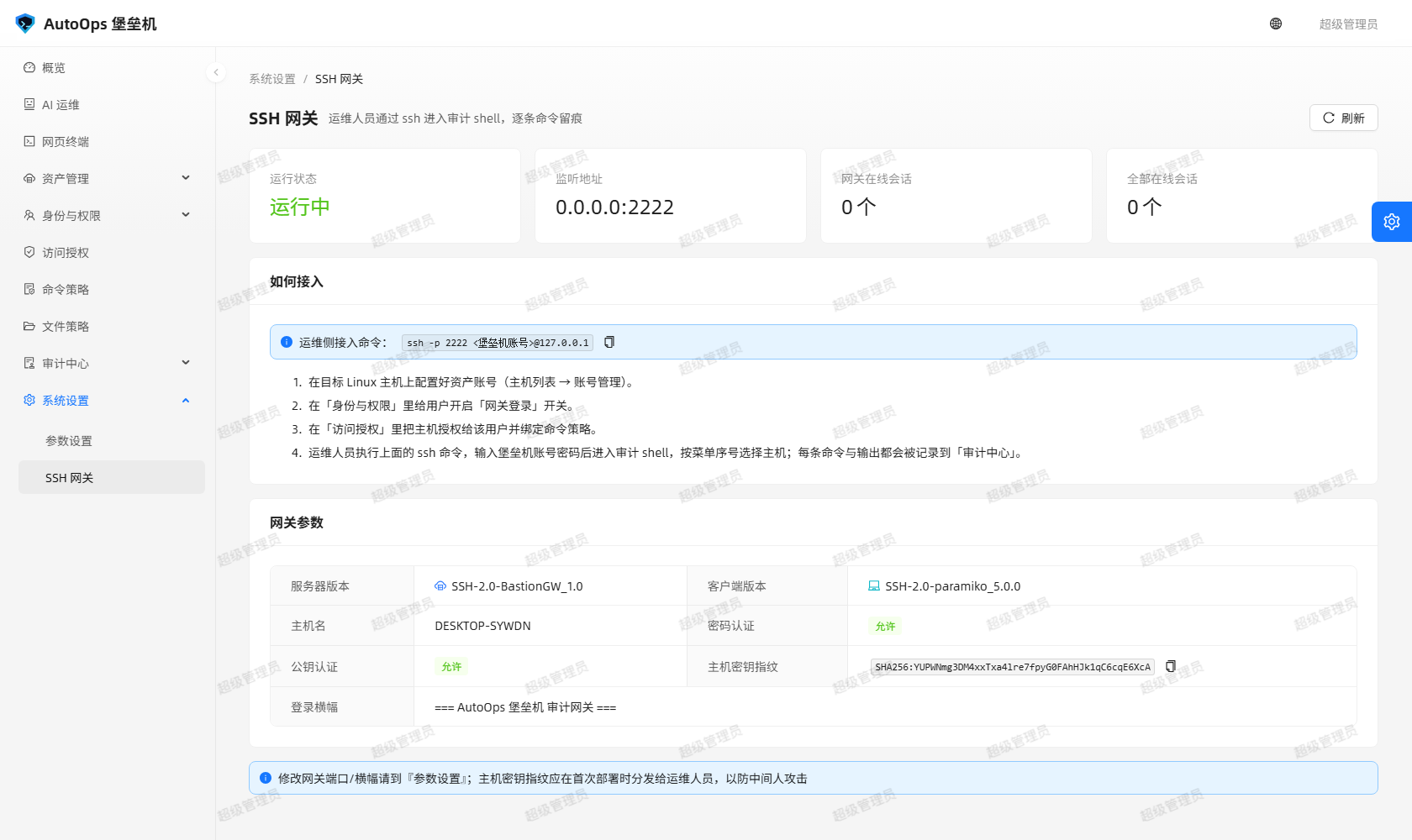
图上并排显示网关的开关与端口,以及握手两端的版本号。这一页是只读的,内容来自 GET /api/settings/gateway:
| 字段 | 含义 |
|---|---|
| 启用 / 运行中 | 是否启用网关、网关进程当前是否在监听 |
| 监听地址 / 端口 | 当前实际生效的网关地址与端口 |
| 建议地址 | 界面上直接拼好的连接命令 ssh -p <端口> <堡垒机账号>@<地址>
|
| 主机密钥指纹 | OpenSSH 风格的 SHA256 指纹,与 ssh-keyscan -p <port> <host> | ssh-keygen -lf - 的输出一致 |
| 在线会话 / 网关会话 | 当前在线会话总数与其中来自网关的数量 |
| 允许口令 / 允许公钥 | 网关接受的两种认证方式 |
| 登录横幅 | 网关菜单顶部的横幅文字 |
| 服务器版本 | 网关自己对外声明的版本:SSH-2.0-BastionGW_1.0
|
| 客户端版本 | 堡垒机作为客户端去连目标机时声明的版本:SSH-2.0-paramiko_<版本>
|
-
首次连接时核对主机密钥指纹(命令行里会出现
SHA256:xxxx那一串)——这是防中间人的唯一有效动作。指纹对不上就不要输口令。 -
「对端不接受我们的客户端版本」怎么排查:有些老交换机会按 banner 前缀做白名单,堡垒机用
SSH-2.0-paramiko_<版本>连过去可能被直接断开。这一页显示的「客户端版本」就是堡垒机即将发出的那串字符串;同一个clientVersion也出现在「主机 → 账号 → 连通性测试」的结果里,两处一对,就能确认是「我们声明的版本被拒」,而不是凭据错或网络不通。
点右上角账号菜单进「个人设置」,页面按 ?tab= 分成三个页签(账户资料 / 修改密码 / 通知设置一类,具体以界面为准)。
-
修改密码:必须提供当前口令 + 新口令 + 确认口令;改成功后新口令立即可用,旧口令立即失效(这一点在
docs/验证记录.md里有实测记录,不是「下次登录才生效」)。 -
首次登录强制改密:用初始
admin / admin123登录会被强制跳到这里改完才能进系统。 -
忘记口令:自己改不了就找管理员,或由管理员在服务器上执行
python run.py --reset-admin重设。
个人设置页其余页签的字段以界面与
ant-design-pro/src/pages/bastion/account/index.tsx为准;本页只写已在文档与验证记录里确证的行为。
| 操作 | 需要的权限 | 说明 |
|---|---|---|
| 查看系统设置 | setting:view |
读接口 GET /api/settings、GET /api/settings/gateway 都按它校验 |
| 修改系统设置 |
setting:manage(后端一律要求管理员) |
写接口 PUT /api/settings、POST /api/settings/reset 都是管理员专属 |
权限不足时后端返回的错误文案形如:
失败:权限不足,需要:setting:view
前端也不装样子:没有管理权限的账号进「参数设置」只能看,「保存」与「恢复默认」两个按钮是禁用的,悬停提示写的是「当前账号没有『设置管理』权限,仅可查看」。内置角色里 admin 是 *(全权限),ops / auditor / viewer 都不包含 setting:manage——也就是说系统参数只有管理员能改。
想自己在命令行确认一下:
curl -s http://127.0.0.1:5000/api/settings -H "Authorization: Bearer <你的 JWT>"初始管理员的 JWT 是权限最全的;换成一个只读账号再试,就能看到上面那句「权限不足」。不要把管理员 token 贴到共享终端或工单里。
- 上线第一件事:改掉初始管理员口令,并按「身份与权限」给运维建独立角色——不要日常拿超管账号干活。
- 按环境收紧
session_idle_timeout、command_timeout、max_sessions_per_user与登录锁定策略。 - 多人协作时把
default_policy_id指向本环境的基线命令策略,避免「没绑策略的会话」变成漏管通道。 - 改完参数记得看一眼「操作日志」里那条
update_settings,确认改动已经落地。
There are two places called "settings": system settings (an admin setting the rules for the whole bastion: timeouts, lockouts, concurrency, the gateway, the default policy) and personal settings (every account managing its own password). The first affects everyone; the second affects only you.
| Location | Who uses it | What it controls |
|---|---|---|
| System settings → Parameters | Administrators | bastion name, SSH gateway address/port/banner, session idle timeout, command timeout, login lockout, per-account concurrency, default command policy, transcript switch, deny notification |
| System settings → SSH gateway | Administrators | read-only: whether the gateway is enabled/running, listen address and port, host key fingerprint, live session counts, both handshake versions |
| Personal settings (account menu) | Every logged-in user | your own password; the page has three tabs |
System settings is not part of the security boundary: it only decides what the default parameters are. Whether you may do something is always decided by your role's permission codes and your grants.
Open System settings → Parameters and you get every parameter on one screen. Each field shows its config key and default value below it, so you can cross-check bastion-backend/app/config.py and .env.
| Config key | Label | Type | Default | Effect |
|---|---|---|---|---|
site_name |
堡垒机名称 | string | AutoOps 堡垒机 |
system name shown in page titles |
gateway_host |
SSH 网关监听地址 | string | 0.0.0.0 |
address the SSH gateway binds to |
gateway_port |
SSH 网关端口 | integer | 2222 |
the port users pass to ssh -p, must be within 1-65535
|
gateway_banner |
SSH 登录横幅 | string | === AutoOps 堡垒机 审计网关 === |
banner text at the top of the gateway menu |
session_idle_timeout |
会话空闲超时(秒) | integer | 1800 |
an online session idle for longer than this is disconnected |
command_timeout |
单条命令超时(秒) | integer | 60 |
longest a single command may run |
login_max_failures |
登录失败锁定阈值(次) | integer | 5 |
consecutive failures before the account locks |
login_lock_minutes |
锁定时长(分钟) | integer | 15 |
how long the lock lasts |
max_sessions_per_user |
每账号最大并发会话数 | integer | 5 |
simultaneous sessions per account |
default_policy_id |
默认命令策略 | integer | (空) |
command policy used when none is bound; empty means unspecified |
record_raw_transcript |
记录原始字节流录像 | boolean |
1 (on) |
write raw session bytes into instance/transcripts/
|
notify_on_deny |
命令被拦截时提示用户 | boolean |
1 (on) |
tell the user why a command was blocked, on the spot |
There is no "audit retention policy" here. Audit data is retained long term by default, and purging happens through admin actions on the audit centre pages (see
docs/审计与安全.md).
"Save" submits the whole screen and the backend validates each item:
- an integer field left empty or non-numeric →
400 INVALID_ARGUMENT, e.g.「会话空闲超时(秒)」必须是整数; -
gateway_portoutside1-65535→SSH 网关端口必须在 1-65535 之间; -
default_policy_idpointing at a policy that does not exist →指定的默认策略不存在; leaving it empty is allowed; -
when nothing changed no audit entry is written and the UI says "设置无变化"; only real changes produce an
update_settingsoperation-log entry such as修改系统设置:session_idle_timeout, command_timeout.
Facts that go with these parameters:
-
session_idle_timeoutis enforced, not decorative: a background sweeper really closes idle sessions and records the reason as "空闲超时自动断开". 0 or a negative value means never clean up. - After changing
gateway_host/gateway_portyou must restart the backend process. - "Restore defaults" writes the built-in defaults back for the whole screen and records a
reset_settingsentry.
The picture shows the gateway switch and port next to the versions announced by both ends of the handshake. The page is read-only and comes from GET /api/settings/gateway:
| Field | Meaning |
|---|---|
| enabled / running | whether the gateway is enabled and whether it is currently listening |
| listen host / port | the address and port in effect right now |
| suggested host | a ready-made ssh -p <port> <account>@<host> command |
| host key fingerprint | OpenSSH-style SHA256 fingerprint, identical to ssh-keyscan -p <port> <host> | ssh-keygen -lf -
|
| online / gateway sessions | total live sessions and how many come from the gateway |
| password / public key allowed | the two authentication methods the gateway accepts |
| login banner | the banner at the top of the gateway menu |
| server version | what the gateway announces: SSH-2.0-BastionGW_1.0
|
| client version | what the bastion announces as a client: SSH-2.0-paramiko_<version>
|
-
Verify the host key fingerprint on first connect (the
SHA256:xxxxstring in the CLI) — the one effective defence against a man-in-the-middle. If it does not match, do not type a password. -
"The peer rejects our client version": some old appliances whitelist banner prefixes, and
SSH-2.0-paramiko_<version>may be dropped immediately. The client version shown here is exactly the string the bastion is about to send; the sameclientVersionalso appears in the result of Host → Account → Test connection, so comparing the two proves it is the announced version being rejected rather than bad credentials or a dead network.
Open Personal settings from the account menu. It is split by ?tab= into three tabs (account profile / change password / notification settings or similar — follow the UI).
-
Change password: current password, new password and confirmation. Once it succeeds, the new password works immediately and the old one stops working immediately (measured in
docs/验证记录.md; it is not "effective at next login"). -
Forced change on first login: logging in as the initial
admin / admin123sends you here, and you cannot enter the app until you change it. -
Forgotten password: ask an admin, or have them run
python run.py --reset-adminon the server.
For the remaining fields of the personal settings page, treat the UI and
ant-design-pro/src/pages/bastion/account/index.tsxas authoritative; this page documents only behaviour confirmed in the docs and the verification record.
| Action | Permission needed | Notes |
|---|---|---|
| View system settings | setting:view |
enforced by GET /api/settings and GET /api/settings/gateway
|
| Change system settings |
setting:manage (the backend requires an admin) |
PUT /api/settings and POST /api/settings/reset are admin-only |
When you lack the permission the backend answers with:
失败:权限不足,需要:setting:view
The frontend does not pretend either: an account without manage rights can open Parameters read-only, where both "Save" and "Restore defaults" are disabled, with the tooltip "当前账号没有『设置管理』权限,仅可查看". Among the built-in roles admin is * (everything), while ops / auditor / viewer do not include setting:manage — only admins change system parameters.
Check it yourself from the shell:
curl -s http://127.0.0.1:5000/api/settings -H "Authorization: Bearer <your JWT>"The initial admin's JWT has every permission; repeat with a read-only account and you will see the message above. Never paste an admin token into a shared terminal or a ticket.
- First thing after going live: change the initial admin password and create separate roles under identity & access — do not run day-to-day work as the super-admin.
- Tighten
session_idle_timeout,command_timeout,max_sessions_per_userand the login lockout for your environment. - On a shared deployment, point
default_policy_idat your baseline command policy so sessions without an explicit binding are not an unmanaged path. - After saving, check the
update_settingsentry in the operation log to confirm the change landed.
相关页面 / Related pages: Install-and-Deploy · Quick-Start · Home