Repository navigation
Web Terminal and Files
中文 · English
「网页终端」是浏览器里的运维入口:不用装任何客户端,一台主机一行,按协议给出连接入口,点「连接」就弹出一个被完整审计的独立窗口。Linux 主机走 SSH,Windows 主机可以开 WinRM 字符会话,也可以在同一个入口点进远程桌面(见 Remote-Desktop-and-Recordings)。
- 打开「网页终端」看到的是资产列表页,不是内嵌终端 —— 它只负责选资产、选账号、开窗口。
- 列表按权限码决定列出哪些协议:有
terminal:use就列ssh与winrm主机,有rdp:use就列rdp主机,两个都有就合并成一张表;一台主机开了多个协议端点,行内就有多个入口。 - 行内按操作系统显示图标与措辞(
src/components/Bastion/osMeta.tsx):Linux / Unix 给 SSH,Windows 给 WinRM 与远程桌面;WinRM 行在地址列标注「· WinRM 网页终端」,状态栏显示WINRM。 -
没有权限的主机不出现:未授权的机器在列表里根本看不到;就算手敲
hostId调接口也会被accessible_targets()挡掉。超级管理员(is_superuser)在没有授权记录时可以看到并连上已启用的主机,避免新部署的环境把管理员自己挡在门外。 -
rdp主机不在字符入口里:POST /api/terminal/targets/<id>/check对 rdp 主机明确拒绝,并提示回资产列表点「连接」。
- 点「连接」时前端用
window.open(url, name, features)弹出独立终端窗口;第三个参数带popup=yes与按屏幕算好的尺寸(居中、可缩放),窗口名带时间戳,所以每次连接都是新窗口、只跑一条会话。 - 关掉窗口即结束会话:一条窗口对应一条审计会话;列表页本身不内嵌终端,也不再实时铺审计日志 —— 那些去「审计中心 → 会话记录 / 命令记录」看。
- 会话建立后终端先自动清屏,再重画上下文(主机 / 账号 / 会话号)与横幅,视口里不会残留目标机上一屏的滚屏。
| 项目 | 作用 |
|---|---|
| 资产列表 | 关掉本窗口,回到资产列表 |
| 资产名 / 状态 / 账号 | 连的是哪台主机、当前状态、用哪个资产账号 |
| 会话号 | 这条会话在审计里的编号 |
| 文件管理 | 弹出 SFTP 可视化文件管理器独立窗口 |
| 重新连接 | 重新建立到目标机的通道 |
| 搜索 | 在回显里搜索(Ctrl/Cmd + F) |
| 缩小字号 / 放大字号 | 调整终端字号 |
| 纯净模式 | 只留终端画面 |
| 工作区全屏 | 铺满屏幕(Ctrl/Cmd + Shift + F) |
| 快捷键说明 | 弹出「控制台快捷键」 |
| 断开会话 | 主动断开 |
- 底部状态条:登录态圆点 + 用户名|当前资产名与协议|状态(已连接 / 连接中 / 已断开 / 连接失败,含断线原因)|连接时长每秒刷新。
-
断开即关窗:点「断开」或会话在服务端结束后,终端里出现
本窗口将在 10 秒后自动关闭…的原地倒计时(逐秒刷新,不刷屏),数到 0 自动关窗;浏览器只允许脚本打开的窗口自关,被拒时提示手动关闭(Ctrl/Cmd + W)。倒计时结束前点「重新连接」可以取消关闭;网络掉线不算断开,不会关窗,仍可重连。 - 工具条上没有单独的「清屏」按钮:清空屏幕在终端右键菜单里(复制 / 粘贴 / 全选 / 清空屏幕 / 放大字号 / 缩小字号 / 全屏 / 断开或重新连接)。
-
键盘:
Ctrl/Cmd + F搜索、Ctrl/Cmd + Shift + C复制选中、纯Ctrl + C发中断(不复制)、Ctrl/Cmd + V粘贴、Ctrl/Cmd + Shift + F全屏、Ctrl/Cmd + Shift + P纯净模式、Ctrl/Cmd + Shift + A回到资产列表(关闭本窗口);长按Esc800 毫秒退出纯净 / 全屏。
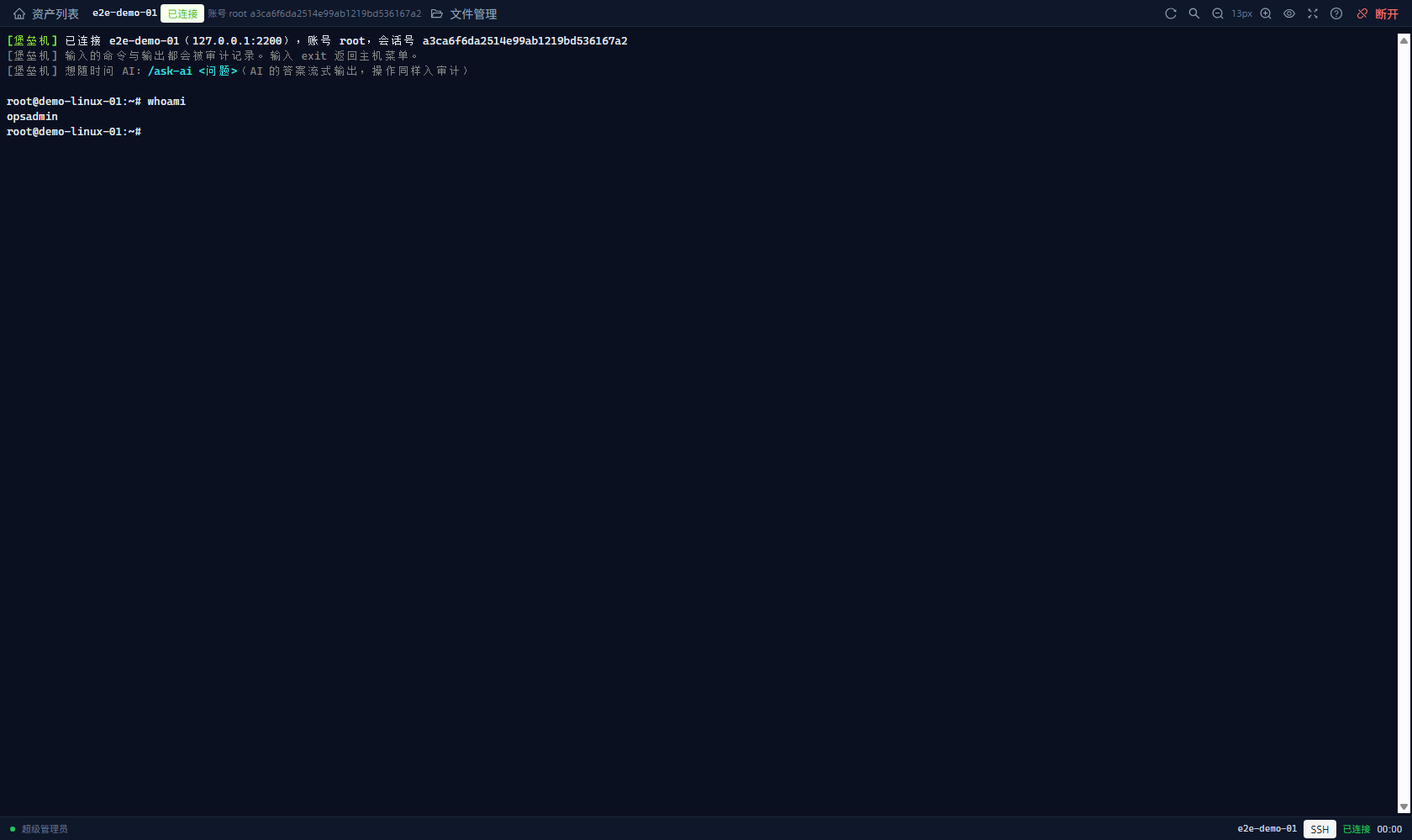
图:浏览器里连演示目标机 e2e-demo-01,敲 whoami 返回 opsadmin;顶部显示主机、账号与会话号,底部状态条显示 SSH · 已连接 · 耗时。
Windows 主机只要在资产里配成 winrm(默认端口 5985,认证方式 ntlm;basic 需要目标机开 AllowUnencrypted),就会和 Linux 主机一起出现在同一张列表里,进的都是 PowerShell 字符会话。会话建立时终端里直接打印能力边界(文案来自 app/session_notes.py,网页终端与 SSH 网关同一措辞):
[堡垒机] 这是 Windows(WinRM)会话:每条命令在目标机上单独执行,cd 会保留;环境变量、自定义变量等进程内状态不保留。
[堡垒机] more / pause / Read-Host 等交互式程序不可用,本会话也不支持文件传输;需要这些能力时请改用远程桌面。
-
每条命令在目标机上单独执行:WSMan 是无状态的,每条命令都被包成一条
-NoLogo -NoProfile -NonInteractive -EncodedCommand的 PowerShell 脚本(UTF-16LE + base64),在同一个持久 shell 里跑。 -
cd会保留:当前目录由堡垒机记住,并在下一条命令前Set-Location复原;环境变量、自定义变量这类进程内状态不保留。 -
more/pause/Read-Host等交互式程序不可用(实测cmd.exe /K的get_command_output()会阻塞 150 秒以上);需要交互的活儿请改用远程桌面。 - 不支持文件传输:WinRM 没有 SFTP 通道,所以 WinRM 会话的工具条上不渲染「文件管理」按钮(不是给一颗永远点不动的灰按钮)。
-
cls/clear/Clear-Host由堡垒机就地清屏:这条命令不发目标机(WSMan 会话没有真实控制台,PowerShell 的Clear-Host依赖$Host.UI.RawUI,在-NonInteractive+ 重定向输出下会报错),由桥接层写清屏序列并重画提示符;它仍然记一条命令日志,reason是「本地清屏指令(WinRM 会话没有真实控制台,不发给目标机)」。白名单策略下cls照旧被拒,拒绝时也不清屏。
Linux(SSH)会话没有上面这些限制:它是真 PTY,交互式程序、cd、环境变量都正常。两条入口 —— 网页终端与 SSH 网关 —— 共用同一套 open_session、策略引擎与录像存储,所以每条命令与输出都会被记录。
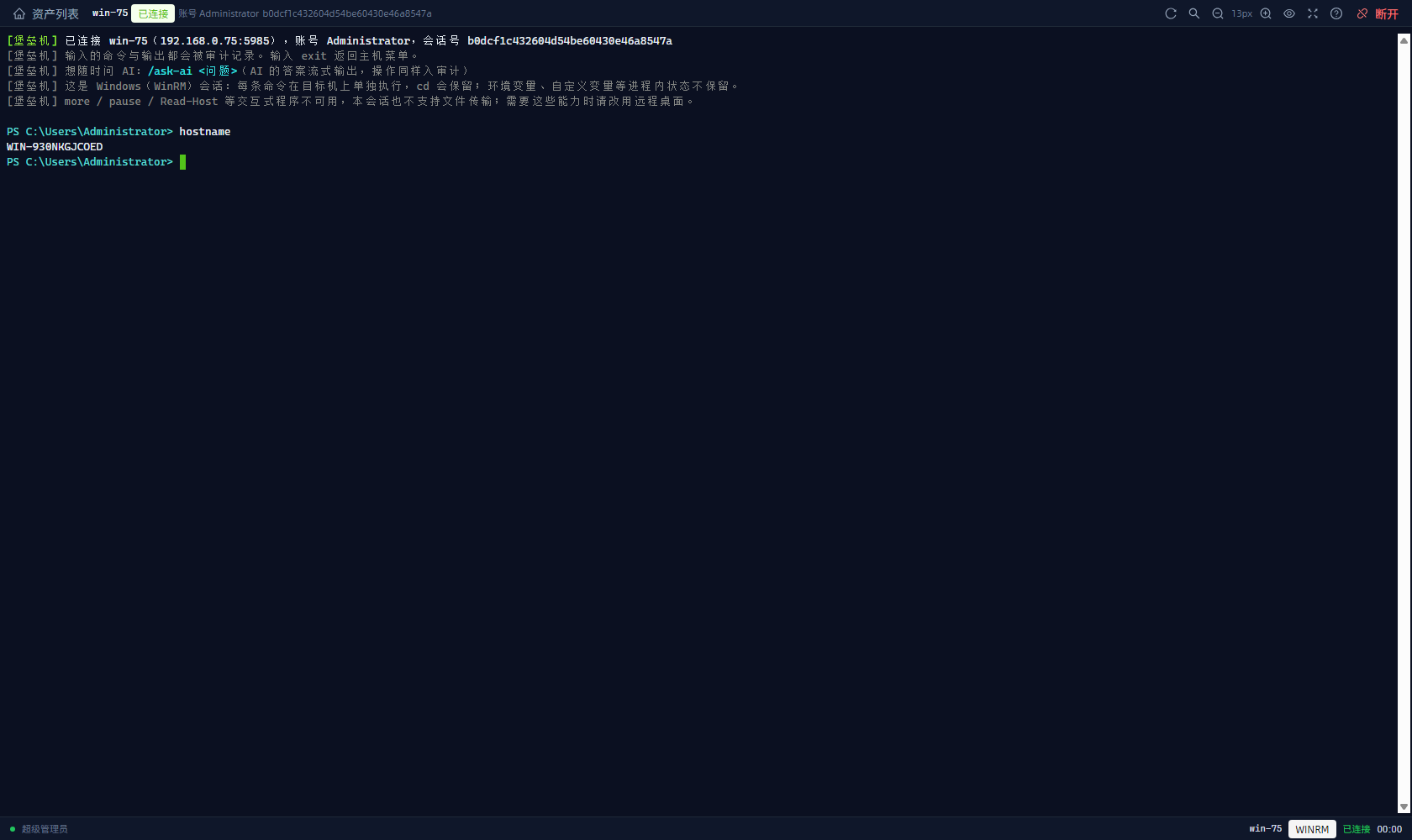
图:Windows 主机挂 winrm:5985 端点后,用同一个「网页终端」入口开 PowerShell 会话,敲 hostname 返回 WIN-930NKGJCOED。
在终端里输入一行 /ask-ai <问题>,边干活边问 AI,不用切页面:
opsadmin@demo-linux-01:~$ /ask-ai 这台机器磁盘满了吗
-
这一行不会被目标机执行:堡垒机维护一份「影子行缓冲」判断当前行是不是
/ask-ai,命中时补发Ctrl-U把该行抹掉、不转发回车,所以目标机的 shell 历史里不会留下这条命令。 - 答案以 Markdown 原地流式重绘(标题 / 列表 / 代码上色、卡片降级 ASCII);AI 要口令确认时用掩码输入,按键不会漏给目标机。
- AI 侧出错只在终端打一行
[堡垒机] AI 调用失败:…并写 warning 日志,会话继续留在 shell 里。 - 网页终端与 SSH 网关共用同一份行分流实现(
app/ai/line_split.py的LineShadow),行为完全一致。
终端工具条上点「文件管理」,会像终端一样再弹一个独立窗口(前端路由 /files/console,layout:false、不进菜单),窗口内用 paramiko SFTP 操作被管主机的文件:
- 可视化浏览:进入即该授权的主目录,面包屑逐级跳转;表格列名称 / 类型 / 大小 / 权限 / 修改时间,双击目录进入,可刷新与排序;标题带主机名,工具条显示账号、当前生效的文件策略名与会话号。
- 能做的操作:上传(多文件,带实时进度面板:文件名 / 已传字节 / 百分比 / 实时速率,可随时取消)· 下载(单文件 + 打包下载 zip)· 在线编辑并保存(带 mtime 冲突检测,文件被别人改过则拒绝覆盖)· 新建文件 / 新建目录 / 重命名 / 移动 / 复制 / 删除(可多选)· 改权限(4 位八进制)。
-
走与终端同一套授权与策略,两道闸一起判:① 授权开关
can_sftp(SFTP 传输)决定能不能进这个窗口,can_upload/can_download/can_file_write(允许上传/允许下载/允许改文件)决定具体动作,没开的按钮直接置灰并说明原因;② 文件策略(FilePolicy)按路径匹配规则(glob/ 正则 / 前缀 / 包含,优先级首条命中)判定该操作在该路径上是否允许,重命名 / 移动 / 复制会同时校验源路径与目标路径,任一被拦即整条拒绝。 - 路径不在允许范围会被拦下并写审计,窗口内直接给出原因:
文件操作被策略「默认文件策略·敏感路径拦截」拦截:操作 [read] 源路径 [/.ssh/id_rsa] 命中规则 #1:禁止通过文件管理器访问 .ssh 目录
-
全量留痕:放行、被拒、失败三种结果都写一条文件审计(用户 / 主机 / 会话号 / 操作 / 路径 / 目标路径 / 动作 / 风险级别 / 命中规则 / 原因 / 结果 / 字节数 / 耗时),并同时计入会话审计(
protocol=sftp)。 -
已打开的窗口实时跟随授权变更:管理员把「允许改文件」或
SFTP关掉,下一次操作当场被拒,不需要重开窗口。 -
关闭:点「关闭」或关掉窗口即结束这条 SFTP 会话(同样有倒计时与「返回资产列表」兜底);窗口被直接遗弃时,
idle_sweeper按session_idle_timeout(默认1800秒)扫last_active自动断开,end_reason写「空闲超时自动断开」。 - 细则:每用户在线文件会话上限
MAX_SESSIONS_PER_USER = 8;读二进制文件返回415 FILE_BINARY;chmod的审计权限值取自改完后重新stat读到的真实值(测试断言after与随后stat一致),不假设平台一定改得动。
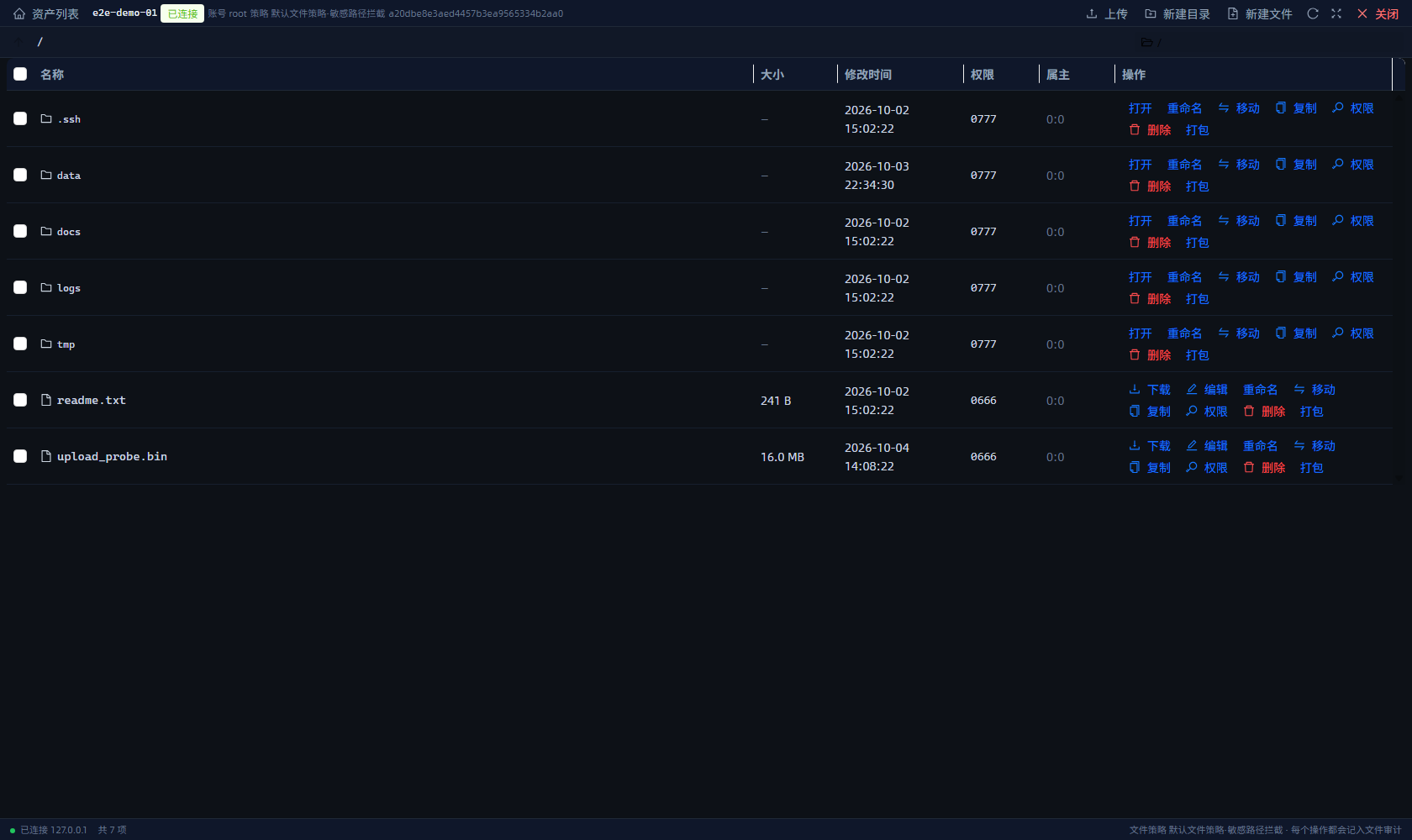
图:左边目录树、右边文件列表,支持上传、下载、新建目录、改名、改权限、删除;它走的是同一套授权与策略。
The Web Terminal is the browser-side entry point to managed hosts: no local client to install, one row per host, one connection entry per protocol, and clicking Connect opens a separate, fully audited window. Linux hosts are reached over SSH; Windows hosts can run a WinRM character session, or open a remote desktop from the very same list (see Remote-Desktop-and-Recordings).
- The Web Terminal page is an asset list, not an embedded terminal. It only picks the host and account and opens the window.
- Which protocols appear depends on your permission codes: with
terminal:usethe list containssshandwinrmhosts, withrdp:useit containsrdphosts, and with both they merge into one table. If a host has several protocol endpoints, the row offers an entry for each of them. - Rows are labelled by operating system (
src/components/Bastion/osMeta.tsx): Linux / Unix points at SSH, Windows points at WinRM and Remote Desktop. A WinRM row shows· WinRM 网页终端in the address column andWINRMin the status column. -
Hosts you are not authorized for simply do not appear: unauthorized machines are absent from the list, and hand-crafting a
hostIdrequest is still blocked byaccessible_targets(). A superuser (is_superuser) with no grant records can see and connect to enabled hosts, so a fresh deployment never locks its own administrator out. -
rdphosts are not part of the character entry points:POST /api/terminal/targets/<id>/checkrejects an rdp host and tells you to go back to the asset list and click Connect.
- Connect calls
window.open(url, name, features): the third argument carriespopup=yesplus a screen-derived size (centred, resizable), and the window name carries a timestamp, so every Connect opens a new window that runs exactly one session. - Closing the window ends the session. One window maps to one audited session. The list page never embeds a terminal and never streams audit logs — read those in Audit Center → Sessions / Commands.
- Once the session is ready, the terminal clears the screen first and then redraws the context (host / account / session number) and the banner, so the previous screen of the target host does not linger in the viewport.
| Item | What it does |
|---|---|
| Asset list | Closes this window and returns to the list |
| Host name / status / account | Which host, current state, which asset account |
| Session number | This session's id in the audit trail |
| File manager | Opens the visual SFTP file manager in its own window |
| Reconnect | Re-establishes the channel to the target host |
| Search | Searches the output (Ctrl/Cmd + F) |
| Smaller / larger font | Changes the terminal font size |
| Clean mode | Leaves only the terminal canvas |
| Workspace fullscreen | Fills the screen (Ctrl/Cmd + Shift + F) |
| Keyboard shortcuts | Opens the "Console shortcuts" dialog |
| Disconnect | Ends the session from your side |
- Bottom status bar: login dot + user name | current host and protocol | status (connected / connecting / disconnected / connection failed, including the reason) | session duration, refreshed every second.
-
Disconnect closes the window: after you click Disconnect, or after the session ends on the server, the terminal shows an in-place countdown
本窗口将在 10 秒后自动关闭…(refreshed every second, no scrolling spam). At zero the window closes itself; browsers only let script-opened windows close themselves, so if that is refused the UI tells you to close it manually (Ctrl/Cmd + W). Clicking Reconnect before the countdown ends cancels the close; a dropped network is not a disconnect, the window stays open and you can reconnect. - There is no separate "clear screen" button in the toolbar: Clear screen lives in the terminal right-click menu (copy / paste / select all / clear screen / larger font / smaller font / fullscreen / disconnect or reconnect).
-
Keyboard:
Ctrl/Cmd + Fsearch,Ctrl/Cmd + Shift + Ccopy selection, plainCtrl + Csends an interrupt (it does not copy),Ctrl/Cmd + Vpaste,Ctrl/Cmd + Shift + Ffullscreen,Ctrl/Cmd + Shift + Pclean mode,Ctrl/Cmd + Shift + Aback to the asset list (closes this window); holdingEscfor 800 ms leaves clean mode / fullscreen.
Figure: a real terminal in the browser, connected to the demo target e2e-demo-01; typing whoami returns opsadmin. The top shows host, account and session number, the bottom bar shows SSH · 已连接 · 耗时.
Set a Windows host's protocol to winrm (default port 5985, authentication ntlm; basic needs AllowUnencrypted on the target) and it shows up in the same list as Linux hosts, opening a PowerShell character session. The capability limits are printed into the terminal when the session is established (the wording comes from app/session_notes.py and is identical in the web terminal and the SSH gateway):
[堡垒机] 这是 Windows(WinRM)会话:每条命令在目标机上单独执行,cd 会保留;环境变量、自定义变量等进程内状态不保留。
[堡垒机] more / pause / Read-Host 等交互式程序不可用,本会话也不支持文件传输;需要这些能力时请改用远程桌面。
-
Every command runs separately on the target: WSMan is stateless, so each command is wrapped into a
-NoLogo -NoProfile -NonInteractive -EncodedCommandPowerShell script (UTF-16LE + base64) that runs inside one persistent shell. -
cdis preserved: the bastion remembers the current directory and restores it withSet-Locationbefore the next command; in-process state such as environment variables and custom variables is not preserved. -
Interactive programs such as
more/pause/Read-Hostare unavailable (measured:get_command_output()oncmd.exe /Kblocks for more than 150 seconds). Use Remote Desktop for interactive work. - No file transfer: WinRM has no SFTP channel, so the WinRM session toolbar does not render the File manager button at all (rather than showing a greyed-out button that can never work).
-
cls/clear/Clear-Hostclear the screen locally on the bastion: the command is not sent to the target (a WSMan session has no real console, and PowerShell'sClear-Hostdepends on$Host.UI.RawUI, which errors out under-NonInteractivewith redirected output). The bridge writes the clear sequence and redraws the prompt, and still records a command log with the reason 「本地清屏指令(WinRM 会话没有真实控制台,不发给目标机)」. Under a whitelist policyclsis still denied, and nothing is cleared when it is denied.
An SSH (Linux) session has none of these limits: it is a real PTY, so interactive programs, cd and environment variables behave normally. Both entry points — web terminal and SSH gateway — share the same open_session, policy engine and recording storage, so every command and its output is recorded.
Figure: after a Windows host is given a winrm:5985 endpoint, the same Web Terminal entry opens a PowerShell session; hostname returns WIN-930NKGJCOED.
Type a line /ask-ai <question> in the terminal to ask the AI without leaving the session:
opsadmin@demo-linux-01:~$ /ask-ai 这台机器磁盘满了吗
-
That line never reaches the target: the bastion keeps a shadow line buffer to decide whether the current line is
/ask-ai, and on a hit sendsCtrl-Uto erase the line and does not forward the Enter, so the target shell history never contains the command. - The answer is streamed as Markdown, redrawn in place (headings / lists / code coloured, cards degraded to ASCII). When the AI needs a password confirmation it uses masked input, and your keystrokes are not leaked to the target.
- If the AI side fails, the terminal gets one line
[堡垒机] AI 调用失败:…plus a warning log, and the session stays in the shell. - The web terminal and the SSH gateway share one implementation of the line splitter (
LineShadowinapp/ai/line_split.py), so behaviour is identical.
Click File manager in the terminal toolbar and, just like the terminal, it opens another separate window (front-end route /files/console, layout:false, not in the menu). Inside, paramiko SFTP works on the target host's files:
- Visual browsing: you land in the authorized home directory, breadcrumbs navigate level by level, and the table lists name / type / size / permissions / mtime; double-click enters a directory, with refresh and sorting. The title carries the host name, and the toolbar shows the account, the currently effective file policy name and the session number.
- What you can do: upload (multiple files, with a live progress panel: file name / bytes sent / percentage / current rate, cancellable at any time) · download (single file, plus download as zip) · edit in place and save (with mtime conflict detection — if someone else changed the file, the overwrite is refused) · new file / new directory / rename / move / copy / delete (multi-select) · change permissions (4-digit octal).
-
It runs through the same authorization and policies as the terminal, with two gates:
-
Grant switches:
can_sftp(SFTP 传输) decides whether you may open the window at all, whilecan_upload/can_download/can_file_write(允许上传/允许下载/允许改文件) decide individual actions; disabled buttons are greyed out with the reason. -
File policies (
FilePolicy): path rules (glob/ regex / prefix / contains, first match by priority wins) decide whether an operation is allowed on that path; rename / move / copy check both the source and the target path, and one denial rejects the whole operation.
-
Grant switches:
- A path outside the allowed range is blocked and audited, and the window shows the reason:
文件操作被策略「默认文件策略·敏感路径拦截」拦截:操作 [read] 源路径 [/.ssh/id_rsa] 命中规则 #1:禁止通过文件管理器访问 .ssh 目录
-
Everything is recorded: allowed, denied and failed outcomes each write a file audit entry (user / host / session number / operation / path / target path / action / risk level / matched rule / reason / result / bytes / duration), and the same event lands in the session audit (
protocol=sftp). -
An open window follows authorization changes live: if an administrator turns off
允许改文件orSFTP, the very next operation is refused without reopening the window. -
Closing: click Close or shut the window and the SFTP session ends (it has its own countdown and a "back to asset list" fallback). If a window is simply abandoned,
idle_sweeperscanslast_activeand disconnects it aftersession_idle_timeout(default1800seconds), writingend_reason = "空闲超时自动断开". - Details: the per-user online file session limit is
MAX_SESSIONS_PER_USER = 8; reading a binary file returns415 FILE_BINARY; thechmodaudit takes the permission from a freshstatafter the change (the test assertsafterequals thatstat) rather than assuming the platform changed it.
Figure: a directory tree on the left and a file list on the right, with upload, download, new directory, rename, change permissions and delete — all through the same authorization and policies.
相关页面 / Related pages: Remote-Desktop-and-Recordings · SSH-Gateway · Home