Repository navigation
Compare
Compare two computers, two mobile devices, or 2–4 Jamf Pro servers, side by side. Read-only.
Compare has three modes. Choose one with the switch at the top of the first screen.
| Mode | Answers questions like |
|---|---|
| Compare Computers | "Why does this Mac get a policy and that one doesn't?" |
| Compare Mobile Devices | "Why does this iPad get an app and that one doesn't?" |
| Compare Instances | "What's in TEST that isn't in PROD?" |
Compare never changes anything in Jamf Pro.
- Connect to Jamf Pro and click Connect. Magic Toolbox checks Read access for computers, policies, macOS configuration profiles and computer groups. Click Continue →.
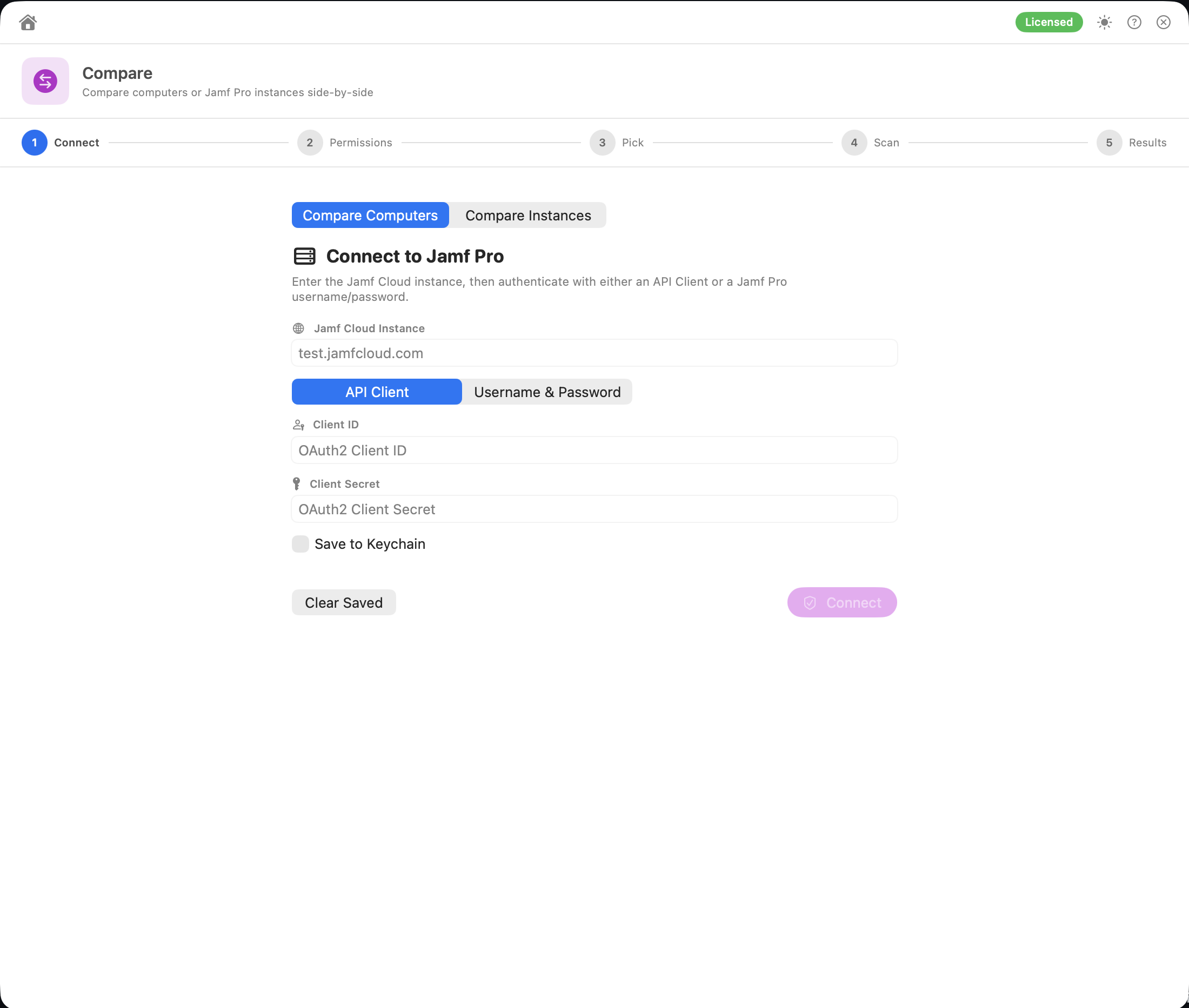 2. On Pick Two Computers, search Computer 1 and Computer 2 by name or serial number, choose one from each list (up to 25 matches are shown), then click Compare.
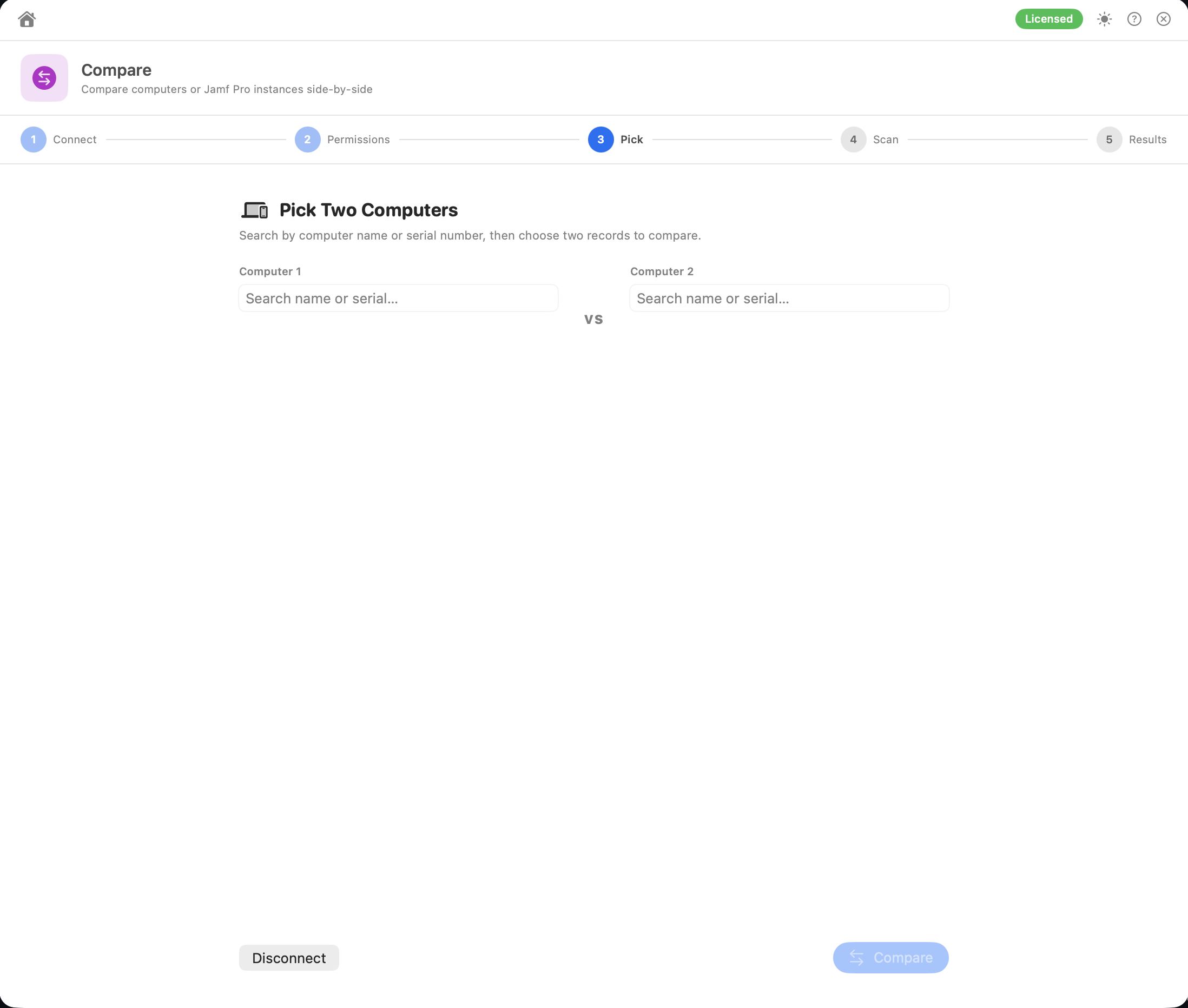 3. Magic Toolbox reads both computers' records and checks every policy against them. Abort (or Esc) cancels.
- Computer cards: serial, model, macOS version, IP address, user, department, last seen and MDM status (Managed or Unmanaged) for each Mac.
- Summary cards for Policies (scoped), Groups and Config Profiles, split into shared, only on computer 1 and only on computer 2.
- Three sections (Policies, Computer Groups, Configuration Profiles), each with search and filters: All, Shared, name 1 only, name 2 only.
How policies are matched: a policy counts for a computer if it is enabled and is scoped to All Computers, to that computer directly, to a computer group the Mac belongs to, or to the Mac's building or department. Network segment limitations are checked against the Mac's IP address. Exclusions by computer, group, building, department or network segment are then applied, so a Mac excluded from a policy doesn't count it. Disabled policies are left out.
Limitations and exclusions by user, user group or iBeacon can't be worked out from inventory. A policy that uses them counts when its other targets match, and the results show a Partial scope evaluation note listing those policies.
If some policies couldn't be read, an Incomplete result banner says how many. A policy missing from one Mac may be one of those.
Group memberships and configuration profiles come from each computer's inventory record.
Works the same way as Compare Computers, for two iPhones or iPads. Instead of policies, it compares the apps scoped to each device.
- Connect to Jamf Pro and click Connect. Magic Toolbox checks Read access for mobile devices, mobile device apps, mobile device configuration profiles and mobile device groups. Click Continue →.
- On Pick Two Mobile Devices, search Mobile Device 1 and Mobile Device 2 by device name or serial number, choose one from each list, then click Compare.
- Magic Toolbox reads both devices' records and checks every mobile device app against them. Abort (or Esc) cancels.
- Device cards: serial, model, OS version, IP address, user, department, last inventory update and MDM status (Managed or Unmanaged) for each device.
- Summary cards for Apps (scoped), Groups and Config Profiles, split into shared, only on device 1 and only on device 2.
- Three sections (Apps, Mobile Device Groups, Configuration Profiles), with the same search and filters as Compare Computers.
How apps are matched: the same way as policies: All Mobile Devices, the device directly, a mobile device group it belongs to, or its building or department, with network segment limitations and exclusions applied. Mobile device apps have no enabled/disabled setting, so every app is checked. The same Partial scope evaluation and Incomplete result notes apply.
Group memberships and configuration profiles come from each device's inventory record.
- Connect to Instance 1. Magic Toolbox checks Read access for policies, macOS configuration profiles, computer groups, scripts, computer extension attributes and packages. Click Continue →, then Connect to Instance 2.
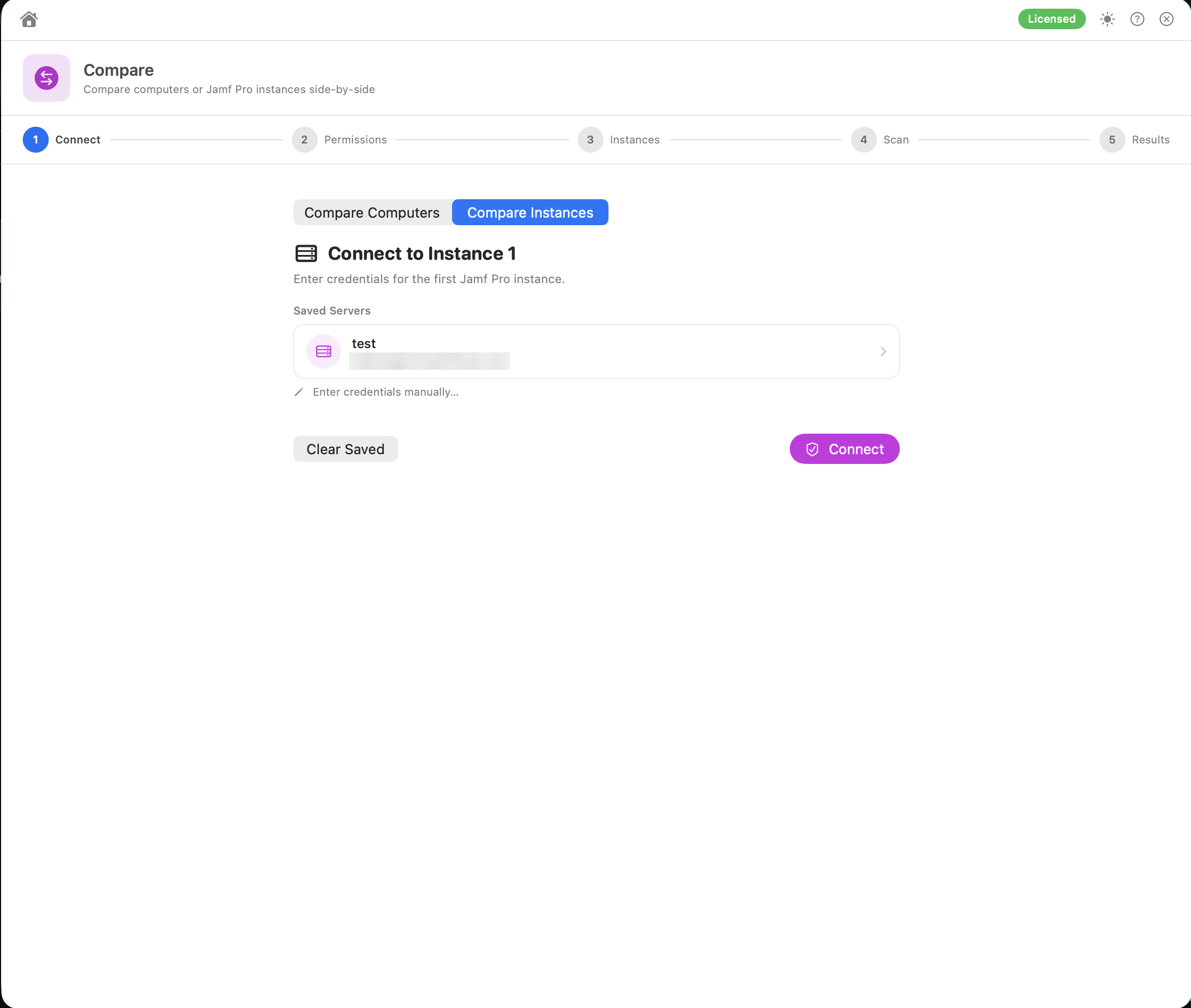 2. Optionally add Instance 3 and Instance 4. To skip, click Compare with 2 (or Compare with 3).
3. Magic Toolbox reads the object lists from each server. Abort cancels.
| Section | |
|---|---|
| Policies | ✅ |
| Smart Computer Groups | ✅ |
| Static Computer Groups | ✅ |
| Configuration Profiles (macOS) | ✅ |
| Scripts | ✅ |
| Extension Attributes (computer) | ✅ |
| Packages | ✅ |
Summary cards show, for each section, the total number of names, how many are in all instances and how many are unique to one instance.
Each section shows a grid with a ✓ for every instance an object exists on. Search by name, or filter by:
- All: every object
- All N: objects on every instance
- Partial: objects on more than one instance but not all of them (shown with 3 or 4 instances only)
- Unique: objects on only one instance
Spaces at the start and end of names are ignored. By default, capitalisation must match too. Turn on Ignore case when matching names to treat names such as Office and office as the same object. The results update straight away, without reading the servers again.
Mobile device objects aren't included in Instance comparisons.
Click Export HTML Report and choose where to save it. The saved file's path is shown in the app. The report uses the organisation name and logo from Preferences.
- Computers and Mobile Devices reports: both device cards, the summary cards, and the three sections with search and the same filters as in the app.
- Instances report: each instance's URL, the summary cards, and the seven sections with search. Each row shows ✓ or — for every instance. A note says whether names were compared with or without capitalisation.
| Mode | File name |
|---|---|
| Computers | jamf_compare_computers_<id1>_vs_<id2>_<timestamp>.html |
| Mobile Devices | jamf_compare_mobiledevices_<id1>_vs_<id2>_<timestamp>.html |
| Instances |
jamf_compare_instances_<inst1>_vs_<inst2>…_<timestamp>.html, where each name is the first part of the server's host name |
- Each comparison reads the server again, so results always reflect its current state.
- Compare works by name, not by contents. Two policies called Install Chrome with different settings count as shared. To compare actual settings, use Downloader to export items from each server and compare the files.
- In Computers and Mobile Devices modes, pick two different records. Choosing the same one twice shows "Choose two different items to compare." If the connection to Jamf Pro has been lost, Compare says so and takes you back to the Connect step.
- The permission check covers Instance 1. Make sure the accounts for Instances 2–4 have the same read privileges.
- Credentials for Instances 2–4 are only saved to the Keychain with a full licence (see Licensing).
Permissions: see Jamf API Permissions → Read-only tools.