Repository navigation
Downloader
Download scripts, extension attributes and configuration profiles from Jamf Pro as ready-to-use files. Read-only.
Useful for backups, code review, keeping Jamf content in Git, or reusing a script or profile somewhere else.
- Connect to Jamf Pro, click Connect & Check Permissions, then Continue →.
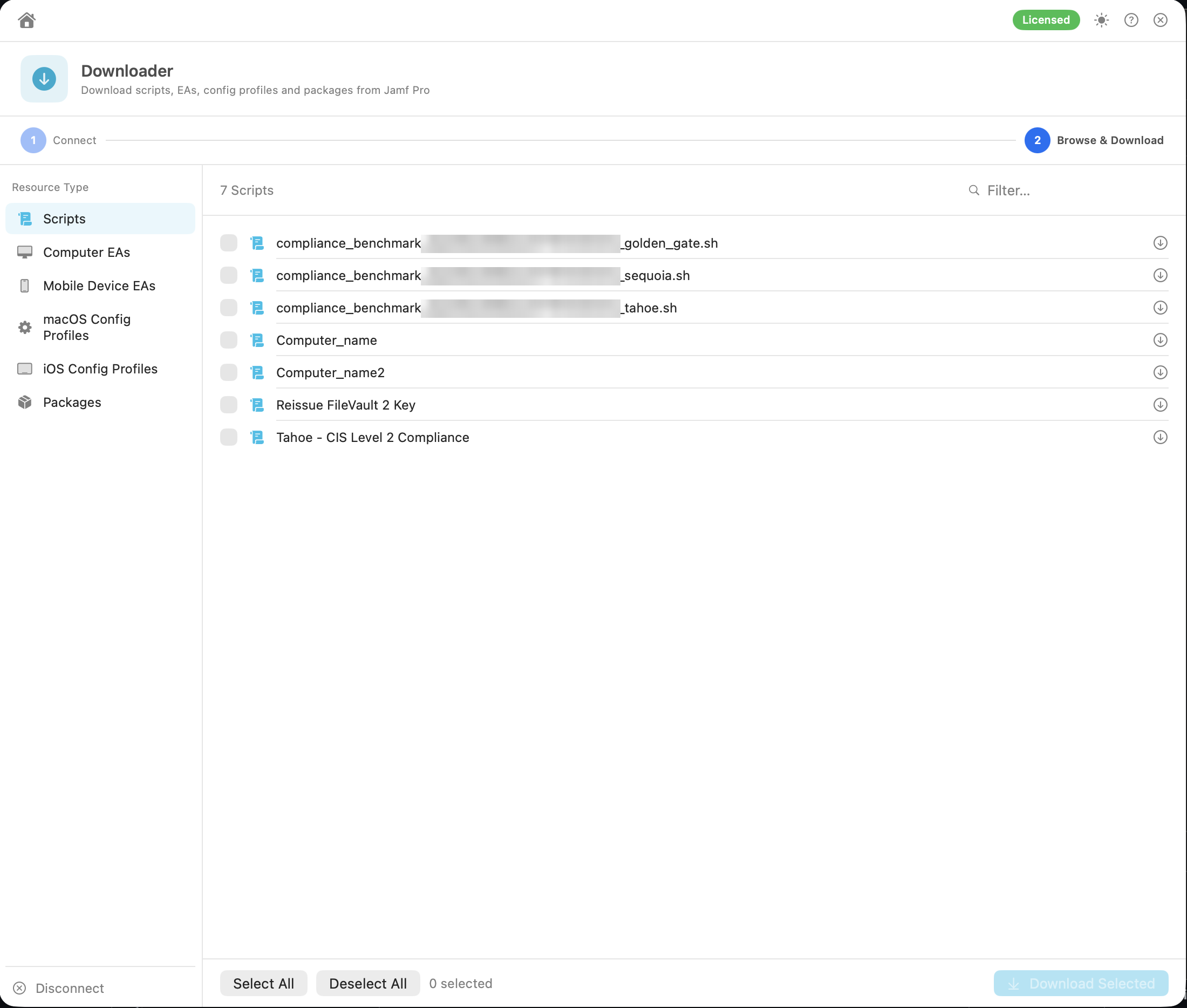
- Pick a Resource Type in the sidebar:
- Scripts
- Computer EAs
- Mobile Device EAs
- macOS Config Profiles
- iOS Config Profiles
- Use Filter… to find items. To check an item before downloading it, click its 👁 Preview button (see Preview). Then either:
- click the download button on a single row and choose where to save it (row buttons are unavailable while another download is running, so downloads happen one at a time), or
- tick several items (or Select All) and click Download Selected, then choose a folder.
- Each row shows ✅ or ❌ (with the error).
- After downloading, click Export Report (N) for an HTML summary, saved where you choose as
DownloadReport_<server>_<yyyyMMdd_HHmmss>.html. It lists every download attempted since you connected, grouped by type, with each item's name, saved file name and outcome (filter by Downloaded or Failed), and Downloaded and Failed totals. - Disconnect when you're finished. This also clears the report history.
The 👁 button on each row opens the item's content in a window, without saving anything: the script, the EA script (or definition), or the profile's .mobileconfig XML, exactly as it would be downloaded.
- Copy puts the content on the clipboard. You can also select text in the window.
- Download closes the preview and downloads the item in the usual way.
- Close (or Esc) closes it.
Preview isn't available for packages, and is unavailable while a download is running.
| Type | Saved as |
|---|---|
| Scripts |
<name>.sh, containing the script. The extension is always .sh, even for Python or zsh scripts. The script's own first line shows the real interpreter |
| Extension Attributes (script) |
<name>.sh, containing the EA script |
| Extension Attributes (pop-up menu, text field, etc.) |
<name>.xml, the full Jamf Pro definition |
| Configuration Profiles |
<name>.mobileconfig, the profile payload as indented, readable XML |
If a script or profile comes back with no content, the full Jamf Pro XML record is saved as <name>.xml instead.
Characters that aren't allowed in file names (/ \ : * ? " < > |) are replaced with -.
While a download is running, the type sidebar, Disconnect and Download Selected are unavailable.
- Select All selects every item of the current type, including ones hidden by your filter. Clear the filter first if you only want what's shown. Deselect All clears the selection.
- When downloading to a folder, a file that already has the same name is kept, and the new file gets
-1,-2and so on before the extension. When you save a single item, the save dialog asks before replacing a file. - File names from Jamf Pro are made safe: path separators and reserved characters become
-, control characters are dropped, names that would be hidden (starting with.) are renamed, and very long names are shortened. - Profiles downloaded from Jamf Pro are unsigned. Certificates and passwords that Jamf Pro doesn't return through the API aren't included.
- Packages show "Package Downloads Coming Soon". Package download isn't available yet.
Permissions: Read Scripts, Read Computer Extension Attributes, Read Mobile Device Extension Attributes, Read macOS Configuration Profiles, Read iOS Configuration Profiles.
The permission screen also lists Read Packages and Read Jamf Cloud Distribution Service Files. These are only needed for package downloads, so you can ignore them for now.