Repository navigation
Unused
Find clutter on a Jamf Pro server: unused packages, scripts, dock items and categories, profiles, apps and restricted software with no scope, disabled policies, smart groups and advanced searches with no criteria, and buildings, departments and network segments nothing refers to. Optionally delete them, with an encrypted backup saved first.
| Category | Found when… | On by default |
|---|---|---|
| Packages | The package isn't used by any policy (enabled or disabled), patch software title or computer PreStage | ✅ |
| Scripts | The script isn't in any policy (enabled or disabled) | ✅ |
| Config Profiles | A macOS profile has no targets: not All Computers, and no computers, computer groups, buildings or departments | ✅ |
| Disabled Policies | The policy is disabled | ✅ |
| Smart Groups | A computer smart group has no criteria, so it matches every computer, and nothing uses it: no scope, and no other group's or search's criteria. Slower on large servers | ⬜ |
| Mac Advanced Searches | An advanced computer search has no criteria (this may be intentional, for example a search saved as an inventory report) | ✅ |
| Mobile Advanced Searches | An advanced mobile device search has no criteria (may be intentional) | ✅ |
| Mac Applications | A Mac App Store app has no scope at all (see below) | ✅ |
| Mobile Applications | A mobile device app has no scope at all | ✅ |
| Mac Dock Items | The dock item isn't in any policy's Dock Items payload | ✅ |
| Mac Restricted Software | A restricted software title has no scope at all | ✅ |
| Buildings | Nothing refers to it: no scope, smart group or advanced search criterion, network segment or PreStage. Device and user assignments aren't checked | ⬜ |
| Departments | Same rule as buildings | ⬜ |
| Categories | No policy, profile, app, eBook, printer, script, package or patch title is assigned to it | ⬜ |
| Network Segments | It isn't linked to a building, department or distribution point that exists, and nothing uses it in a scope | ⬜ |
No scope at all means the item targets nothing, excludes nothing and has no limitations: no All Computers / All Mobile Devices / All Users, and no devices, groups, buildings, departments, users, user groups, network segments or iBeacons.
The four infrastructure categories (buildings, departments, categories, network segments) are off by default. Turning any of them on makes the scan read many more objects (scopes, criteria, PreStages and so on) to see what refers to them, so it takes longer.
If anything a category depends on can't be read, for example one policy's details or the whole patch title list, that category is marked incomplete. Its list shows a red banner naming what couldn't be read, deleting from it is disabled, and an empty list says "Nothing found, but some objects couldn't be read — this result can't be trusted." Fix the access problem and scan again. The scan never treats something it couldn't read as unused.
- Target Jamf Pro: connect to the server you want to audit.
-
What to Scan: switch categories on or off:
- Packages not assigned to any policy
- Scripts not assigned to any policy
- Configuration profiles with no scope
- Disabled policies
- Smart groups with no criteria
- Under Apps, Searches & Dock Items: Mac advanced searches with no criteria, Mobile advanced searches with no criteria, Mac applications with no scope, Mobile applications with no scope, Dock items not linked, Restricted software not linked
- Under Infrastructure: Buildings not linked, Departments not linked, Categories not linked, Network segments not linked
- Click Check Permissions →. The permission screen checks Read and Delete access for the categories you picked, plus Read access to everything those categories are checked against. Click Continue → (or Proceed Anyway →) to start the scan.
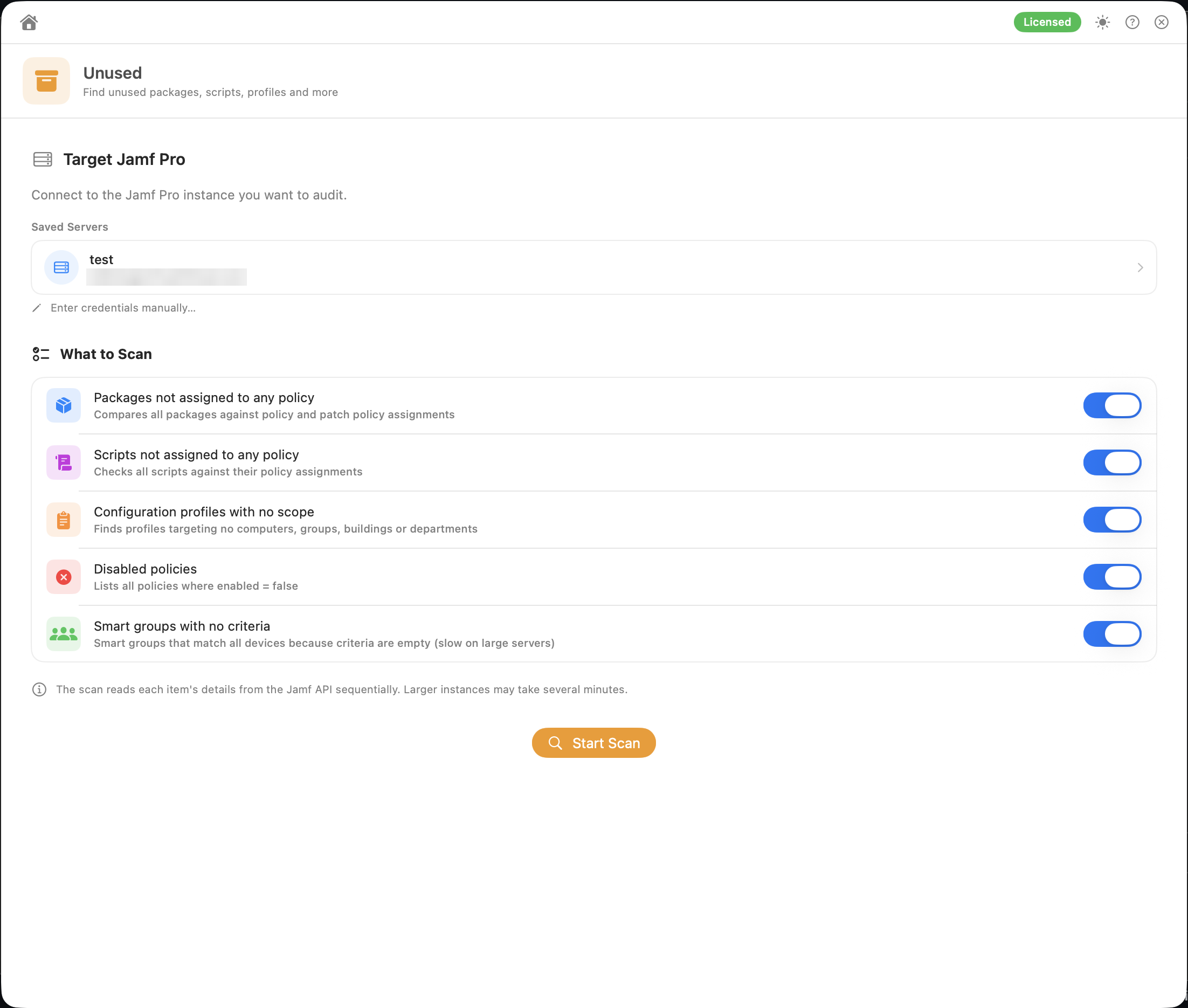
Each item is read one at a time, so large servers can take several minutes. There's no Abort button. 4. Results: pick a category on the left to see what was found. Categories you didn't scan show "Not included in this scan".
-
Copy List copies the items as
[id] namelines. -
Export HTML asks where to save
Unused_<server>.html, then opens it. It has a section for each scanned category, listing each item's name and ID. It uses your organisation name and logo if you've set them in Preferences.
- Tick items (or Select All) in the current category.
- Click Delete Selected. The "Delete N Items?" window explains that references are re-checked first.
- Most categories list what Unused doesn't check, or why a result may be intentional (for example "Disabled policies may be kept intentionally"). Tick I've checked these myself to continue.
- For packages, a warning explains that only the package record is backed up, not the file, and that on Jamf Cloud (JCDS) deleting a package also deletes its file.
- Enter a Backup passphrase (at least 12 characters) and confirm it, then click Delete. You'll need the passphrase to open the backup in Restore, and it can't be recovered if you lose it.
-
Save the backup. Unused reads the full record of each selected item, then asks where to save the backup. The suggested name is
Unused_<Category>_Backup_<yyyyMMdd_HHmmss>.json. Nothing is deleted until the backup is saved. If you cancel the save dialog, or the file can't be written, the delete is cancelled.
Just before deleting, Unused checks each item's references again. Anything that has started being used since the scan is skipped. Items are then deleted one at a time, and each deletion is written to a journal file. Delete works in every category.
If an item's record can't be read for the backup, it isn't deleted. It stays in the list and the message says how many were skipped.
The backup file is encrypted and laid out the same way as a Wipe backup, so Restore can re-create the deleted items from it, with the passphrase. Restored items get new IDs.
⚠️ Deletions are permanent. Restore re-creates items as new objects; anything that referred to the old ones may need re-linking.
- Treat the results as a list to review, not a list to delete. Check a sample in Jamf Pro before deleting.
- Packages and scripts can be used in places Unused doesn't check, such as App Installers, extension attributes, or scripts and tools that install packages by name outside Jamf Pro.
- Profiles count as scoped if they have any target, exclusion or limitation, including users, user groups, network segments and iBeacons, the same check used for apps and restricted software.
- Buildings and departments: computer, mobile device and user inventory assignments aren't checked. A building or department used only by devices can show up here.
- Categories: other object types than those listed above aren't checked.
- Smart groups: use by features outside scopes and criteria (webhooks, Jamf Protect, API workflows) isn't checked.
After deleting, a message shows how many items were deleted, how many failed and how many were skipped. Only deleted items are removed from the list. Failed and skipped items stay listed so you can try again or check them in Jamf Pro.
Permissions:
- Read (and Delete, if you'll delete) for each category you scan: Packages, Scripts, macOS Configuration Profiles, Policies, Smart Computer Groups, Advanced Computer Searches, Advanced Mobile Device Searches, Mac Applications, Mobile Device Applications, Dock Items, Restricted Software, Buildings, Departments, Categories and Network Segments. The permission screen only checks the categories you switched on.
- Each category also needs Read for everything it's checked against, for example policies, patch software titles, PreStages, printers, smart groups and advanced searches. The permission screen lists these for the categories you switched on.
- If an object can't be read, the categories that depend on it are marked incomplete and can't be deleted from.