Repository navigation
Getting Started
When you open Magic Toolbox you see its 21 tools in four categories: Jamf Pro Tools, Audit & Health Check, Profile Builders and Content & Packages. Each category shows how many tools it has. Click a category to open or close it, then click a tool to open it.
If you've set up the MDM Reporting Tool in Preferences, its tile appears below the categories. It opens the app if it's installed, or the MDM Magic tools page if it isn't.
Tools protected by Tool Lock ask for your PIN before they open.
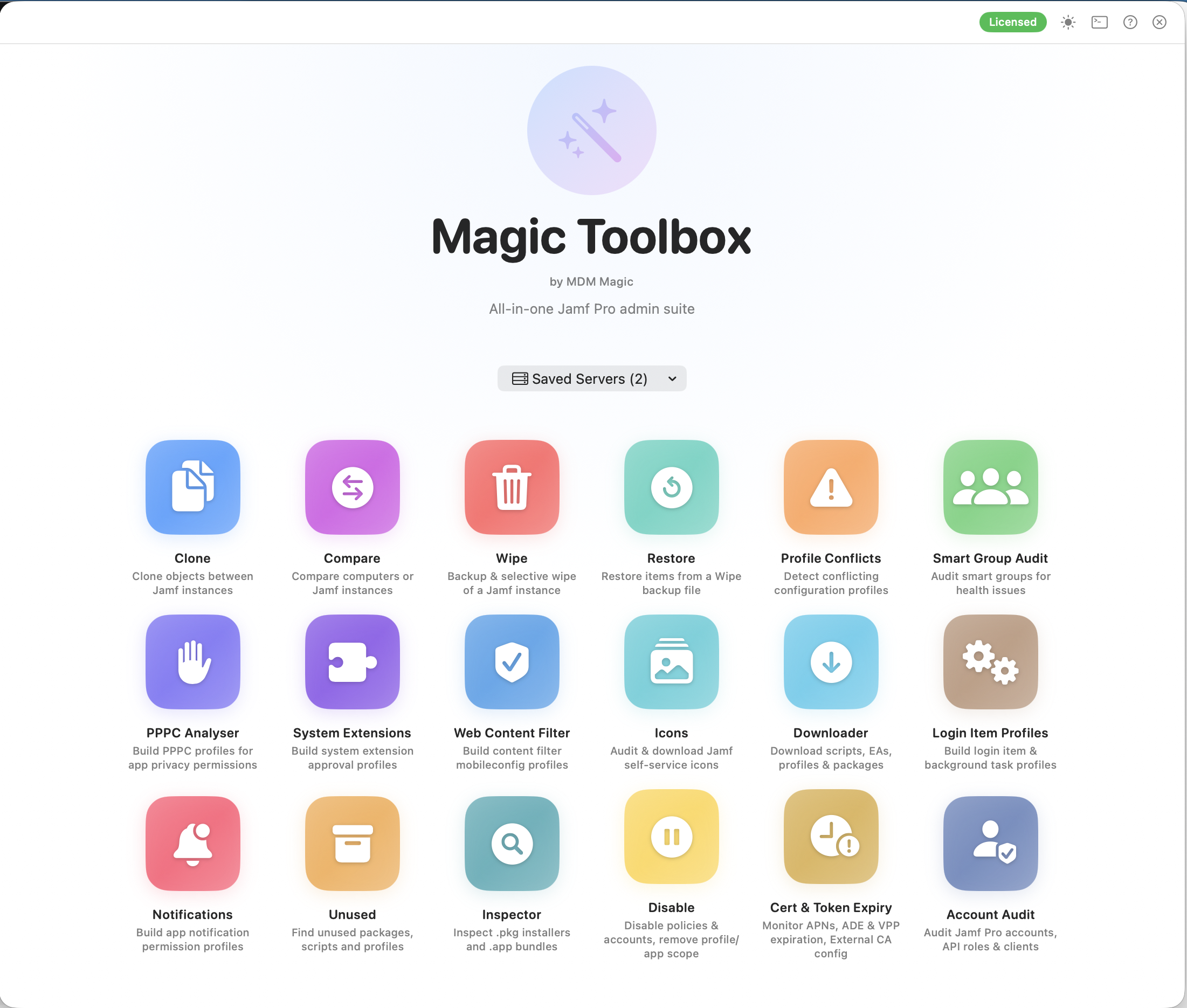
The toolbar at the top of the window has these buttons:
| Button | What it does |
|---|---|
| Home | Goes back to the tool grid. Only shown while a tool is open |
| Licence badge (Licensed / Trial – 41h 12m / Unlicensed) | Opens About, where you activate or deactivate your licence |
| Appearance | Cycles through following the system, Light and Dark |
| Debug Log | Opens the captured logs (see Preferences) |
| About (?) | Shows the version, licence details, and links to the website and GitHub |
| Close | Hides the window. The app keeps running in the menu bar |
Magic Toolbox keeps a wand icon in the macOS menu bar. From there you can:
- open the main window, or go straight to any tool
- open Preferences… (also ⌘,)
- Quit Magic Toolbox (⌘Q)
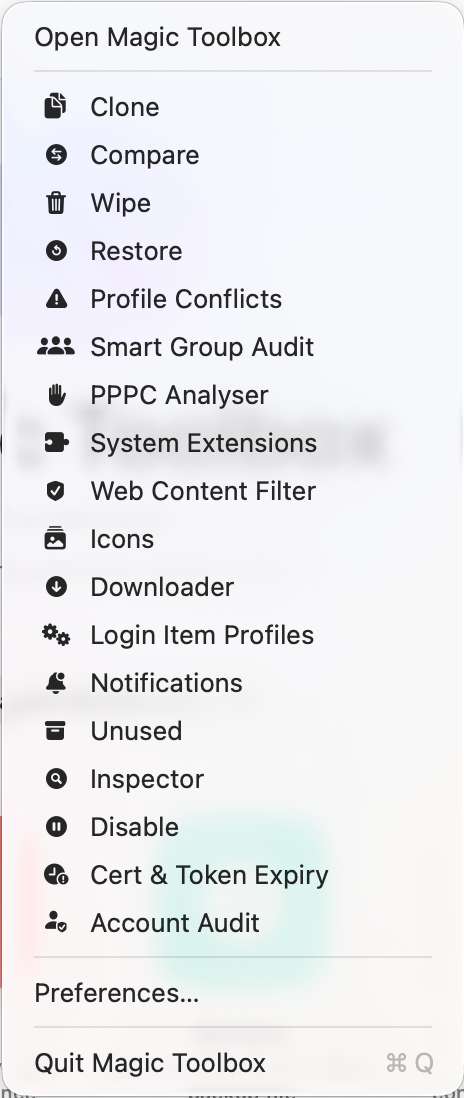
Closing the window does not quit the app. Use Quit in the menu bar menu to quit it completely.
While a tool is writing to Jamf Pro (cloning, wiping, disabling, restoring, deleting or uploading), the rest of the app waits for it:
- Home and the other tools are unavailable until it finishes.
- Closing the window or quitting asks first. Keep Running is the default. If you choose Close Anyway, the run carries on in the background and the Home screen says so when you reopen the window.
- If the trial ends during a run, the activation screen appears once the run has finished.
Only one copy of Magic Toolbox runs at a time. If you open it again, the window that's already running comes to the front.
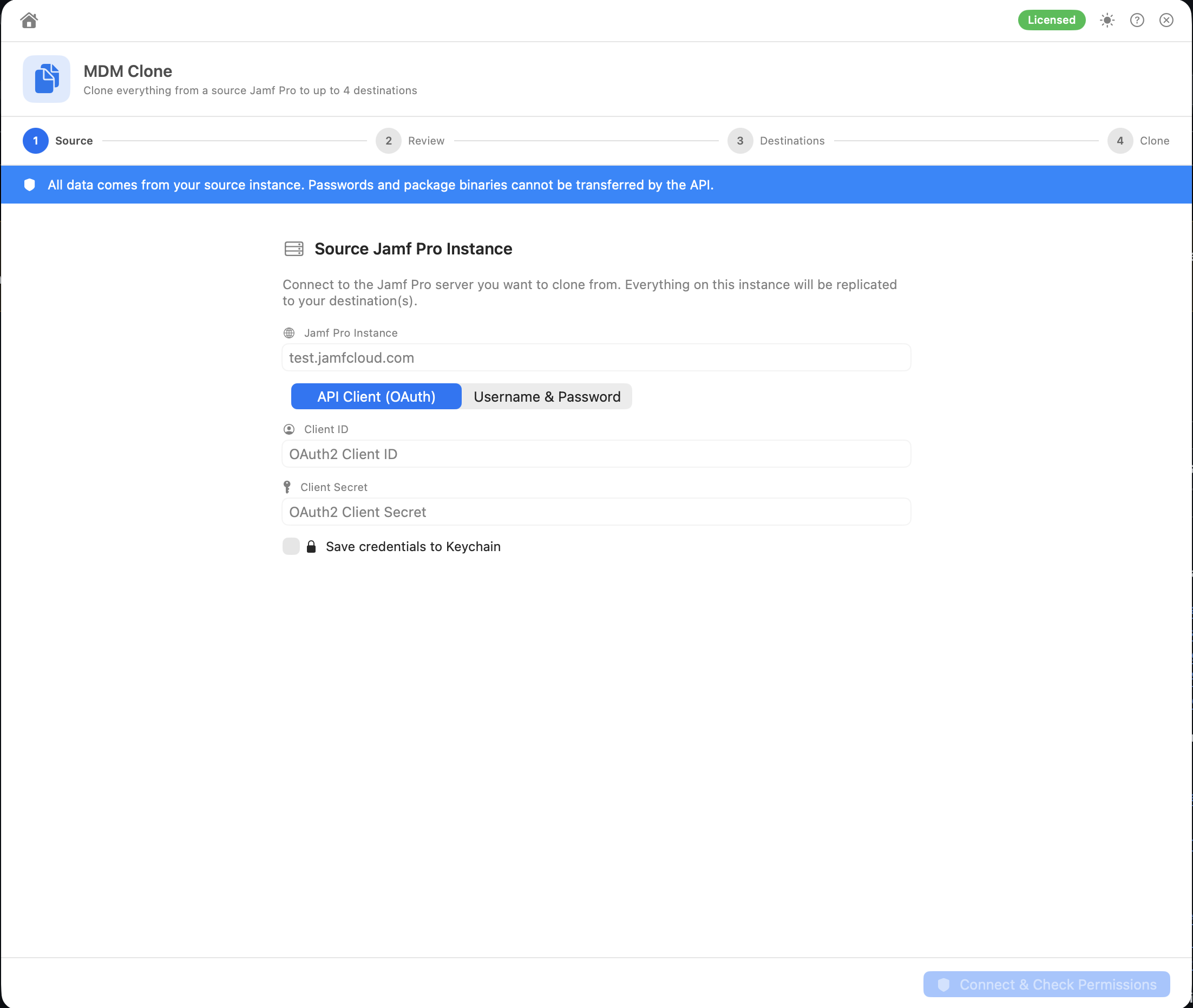
Most tools start with a Connect step. The form looks the same everywhere:
-
Jamf Pro Instance: your server address.
- Typing just the tenant name, for example
acme, fills inacme.jamfcloud.com. - Magic Toolbox always connects over HTTPS.
https://is added if you leave it out, and anhttp://address is changed tohttps://. - On-premises servers work too: enter the full URL, including the port if you use one, e.g.
https://jamf.acme.com:8443. The server needs a valid certificate your Mac trusts and TLS 1.2 or later.
- Typing just the tenant name, for example
-
Authentication, one of:
- API Client (OAuth): a Client ID and Client Secret. Recommended.
- Username & Password: a Jamf Pro user account.
- Save credentials to Keychain (optional) fills in the form automatically the next time you open that tool. The credentials are saved when you move on from the Connect step, not while you're typing. Turning the switch off, or clicking Clear Saved, removes the saved entry. If you have Saved Servers, click one to fill in the form, or click Enter credentials manually… to show the fields.
- Click Connect & Check Permissions.
Compare has its own connect form, with a Save to Keychain switch for each instance.
-
API Client (OAuth): the app requests an access token from
/api/oauth/tokenwith the client credentials grant. -
Username & Password: the app requests a token from
/api/v1/auth/tokenwith basic authentication.
The access token is kept in memory only and is never saved. Shortly before it expires, the app signs in again with the same credentials. When a step finishes, the app asks Jamf Pro to revoke the token, so it can't be used again (see the Security FAQ). Each request times out after 30 seconds.
If Jamf Pro is busy and answers Too Many Requests (429) or Service Unavailable (503), the request is retried a few times before it fails. If sign-in fails for a reason other than wrong credentials, such as a wrong URL or a server error, the error shows what Jamf Pro actually returned rather than Authentication failed.
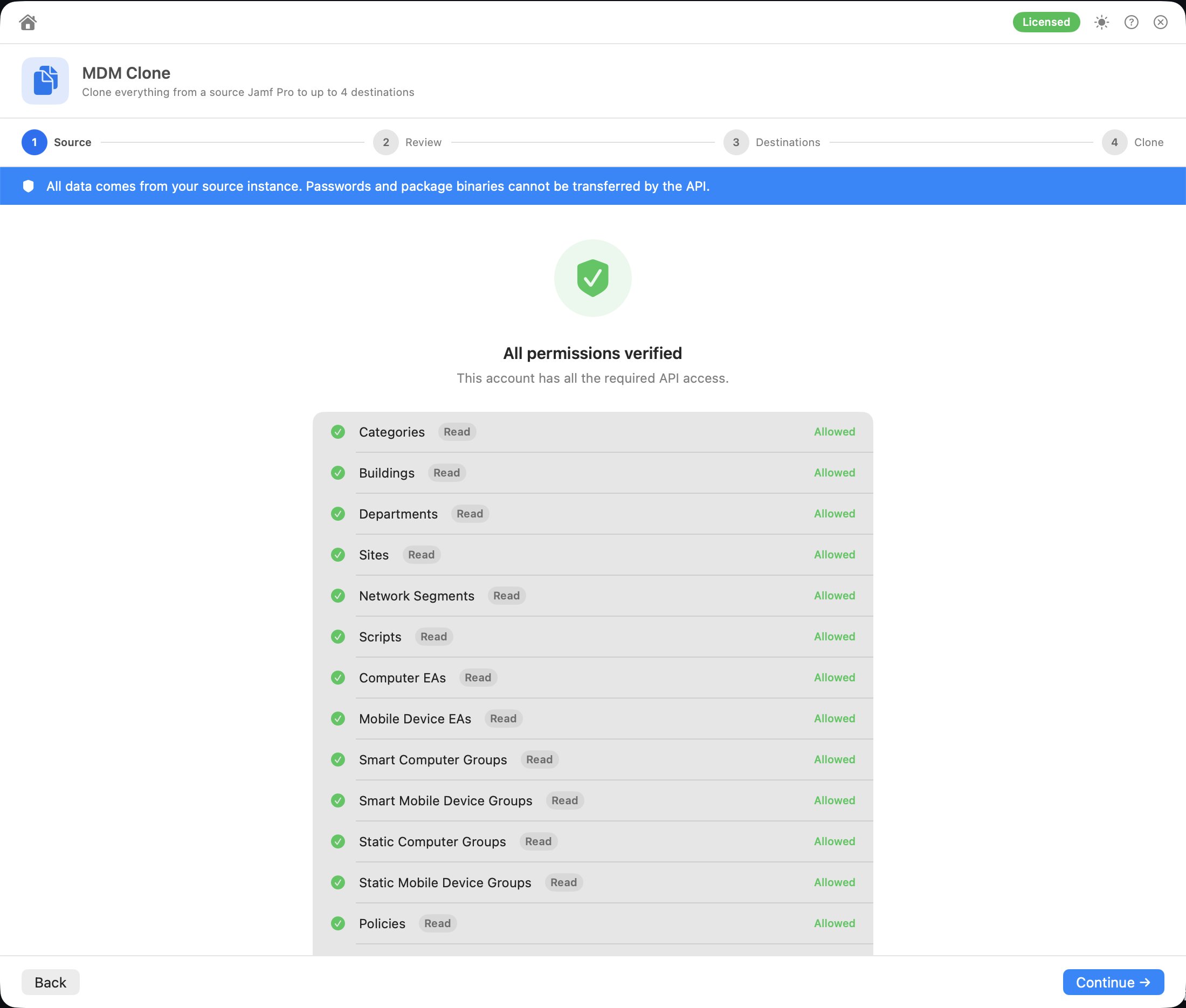
After you sign in, Magic Toolbox looks up what your account is allowed to do and lists each privilege the tool needs as Allowed or Denied:
- All permissions verified: click Continue →.
- Permission issues detected: you can fix the account in Jamf Pro (Settings → System → API Roles & Clients), or click Proceed Anyway →. Actions that need a missing privilege will fail, and the tool reports each failure.
- Back returns to the Connect step.
For the privilege checks to work, the account also needs to be able to read its own permissions. See Jamf API Permissions.
For a username and password account set to Group Access, the check combines the privileges of every local Jamf Pro account group it belongs to. Privileges that come from an LDAP group can't be read through the API, so the check says so and you can Proceed Anyway →.
- In Jamf Pro, go to Settings → System → API Roles and Clients.
- API Roles → New: give it a name (e.g. Magic Toolbox – Read Only) and add the privileges from Jamf API Permissions.
- API Clients → New: give it a name, assign the role, set a token lifetime, and enable the client.
- Click Generate Client Secret, then copy the Client ID and Secret into Magic Toolbox.
Tip: make separate roles for different jobs, for example a read-only role for auditing and a role with write access for Clone and Wipe, so you only use write access when you mean to.
If you work with several Jamf Pro servers, save them once and choose them from any tool.
- On the Home screen, open Saved Servers → Manage Servers…
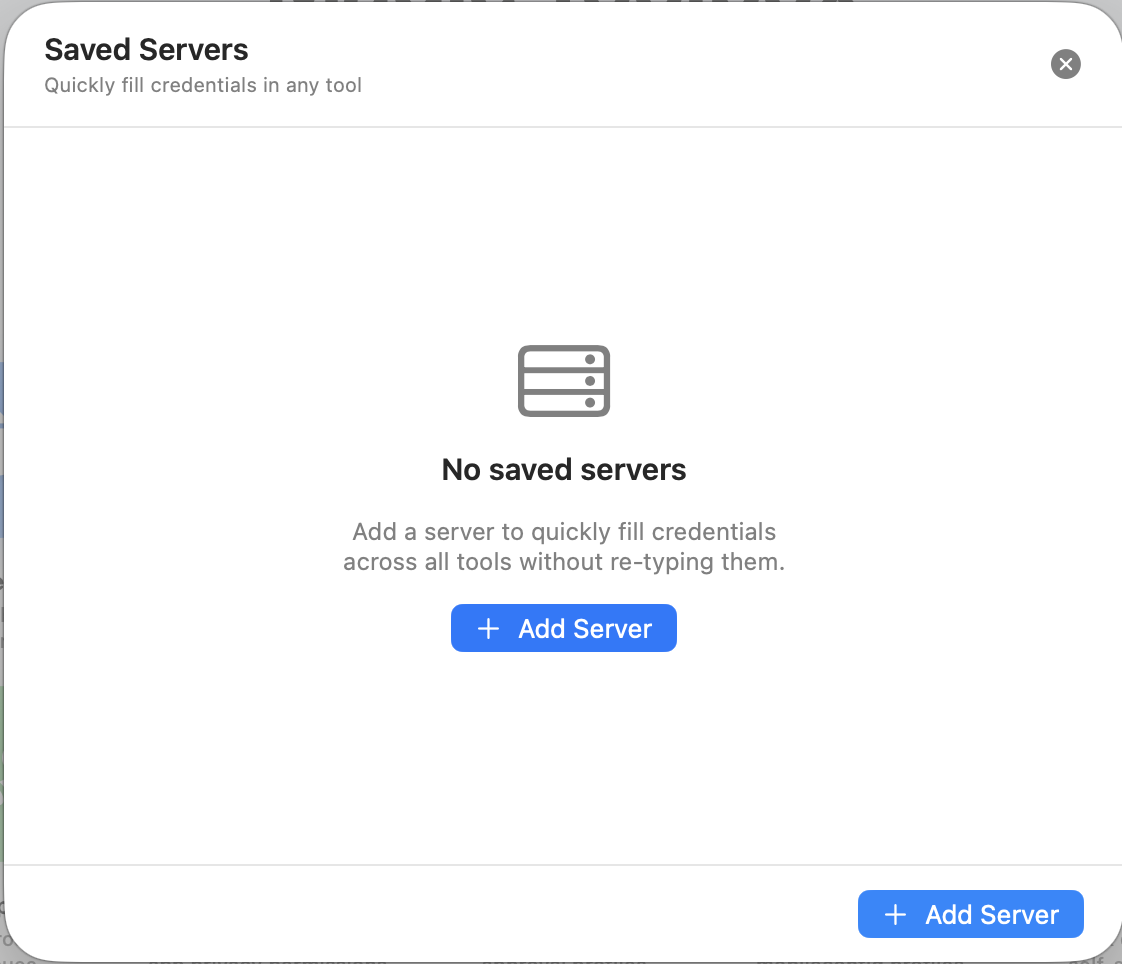
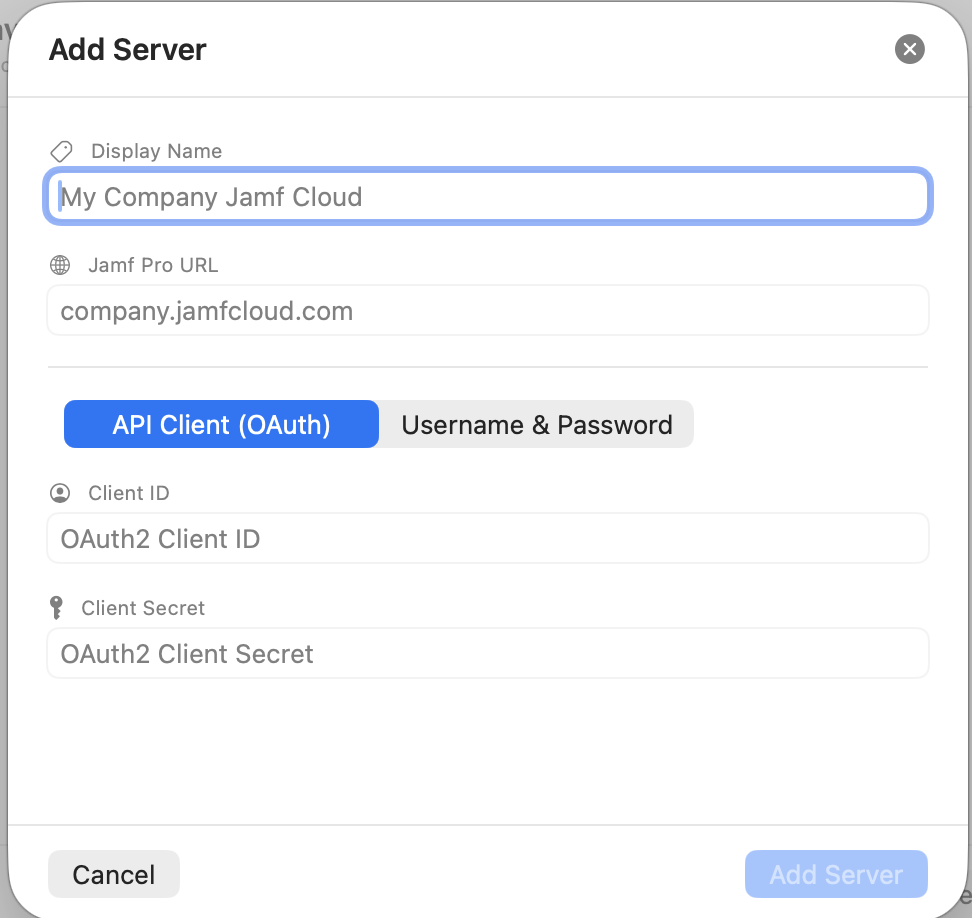
- Click Add Server and fill in:
- Display Name, e.g. Acme Production
-
Jamf Pro URL, e.g.
company.jamfcloud.com - API Client (OAuth) or Username & Password details
- Click Add Server.
From then on, the Connect step of each tool shows a Saved Servers list. Click a server to fill in the form, or choose Enter credentials manually… to type different details. When you click a saved server and connect, the tool remembers which server you picked. It keeps a link to the saved server, not a copy of its password or secret, so the secret is only stored once.
The display name, URL, authentication type, username and Client ID are kept in the app's preferences. The full credentials, including the password or client secret, are kept in the macOS Keychain. In Manage Servers… you can Edit a saved server (tools pick up the change the next time you open them) and drag servers to change their order. The trash button deletes a server straight away, with no confirmation. Deleting a server also removes every copy of its credentials that tools had saved, including in Compare.
- Step bar: most tools show a step bar at the top (for example Connect → Options → Scan → Results) so you can see where you are.
- HTML reports: many tools can Export HTML. Reports are single, self-contained files that open in any browser. They all share one layout: a header, summary cards, collapsible sections you can search and filter, Expand all / Collapse all, and a light/dark switch that's remembered across every Magic Toolbox report. In Preferences you can set the accent colour and add your organisation's name and logo, used by every report.
- Drag and drop: tools that work on a local app or package (Inspector, PPPC Analyser, System Extensions, Web Content Filter, Notifications, and the Icons Extract from .app window) accept a file dropped onto the window. If you drop several files, only the first one is used. Profile Signer and Profile Unsigner take several files at once.
-
Journals: Clone, Wipe, Disable, Restore and deleting in Unused write every change to a journal file as it happens, so there's a record even if the app is force-quit. It's saved next to the backup file when possible, otherwise in your Downloads folder, otherwise in the app's Application Support folder (
MagicToolbox/Journals). The results screen shows where, with Show in Finder. - Incomplete results: when something can't be read from Jamf Pro, tools say the results are incomplete and name what's missing, rather than showing an all-clear.