Repository navigation
Inspector
Look inside a .pkg installer or .app bundle without installing or running it. Everything happens on your Mac. Inspector doesn't connect to Jamf Pro, doesn't run any command-line tools (such as pkgutil, xar or codesign), and doesn't unpack anything to a temporary folder. It reads the package in memory and uses the macOS Security framework for signatures. When it verifies a package's signature, macOS may contact Apple's certificate servers to check whether the certificate has been revoked.
Check a vendor's installer before you upload it to Jamf Pro: who signed it, what it installs, which scripts it runs, and whether any of those scripts do something risky.
Drag a .pkg, .mpkg or .app onto the window, or click Choose File…. Disk images (.dmg) aren't supported. Mount the image and drop the .pkg or .app from inside it.
Inspect Another starts over. If the file can't be read, Try Another File takes you back.
The header shows the package title, identifier, version and a signature badge (see Package signatures). A sidebar on the left lists the sections (Overview, Scripts, Items, Receipts and Review), with a count next to each: scripts, installed items, components already installed, and Review warnings (or cautions, if there are no warnings). Drag the edge of the sidebar to make it wider or narrower.
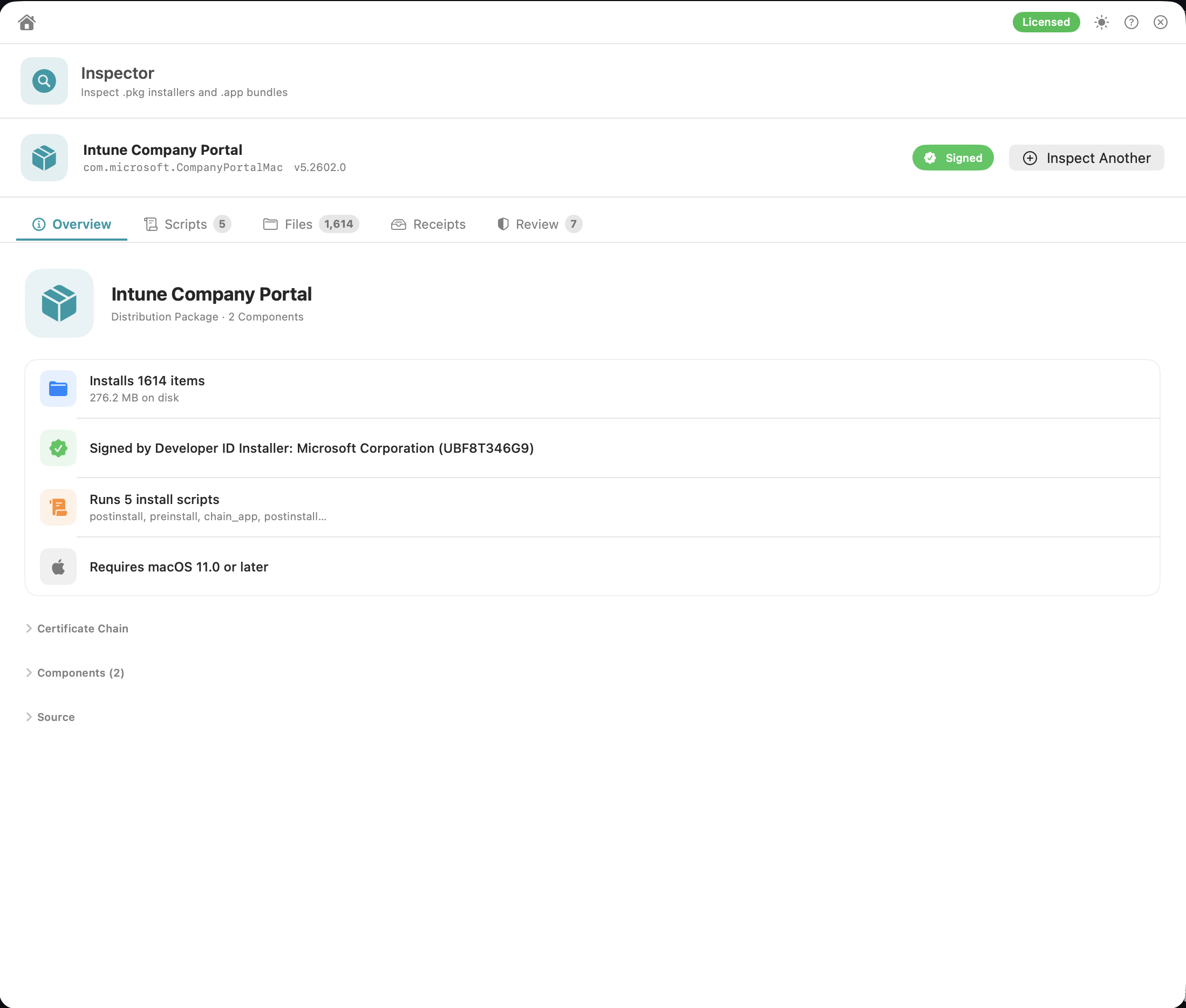
- Package type: Distribution Package with the number of components, or Flat Package with its identifier
- Installs N items and the size on disk
- Signed by (the developer certificate) when the signature is verified, the signature status and signer when it isn't, or Unsigned package
- Runs N install scripts, or No install scripts (Installs files only)
- Requires macOS X or later, if the package declares it
- Certificate Chain: click a certificate for its issuer and expiry date. Expired certificates are flagged.
- Components or Package details: identifier, version, install location
- Source: the file name and folder of the package you dropped
The signer and Team ID come from the certificates embedded in the package.
View Distribution XML shows the package's Distribution file: its choices, OS requirements and titles.
Inspector checks that the package's signature matches its contents and that the certificate is trusted.
| Badge | Meaning |
|---|---|
| Signed | Verified, with a Developer ID Installer certificate issued by Apple |
| Signed (not Developer ID) | Verified and Apple-rooted, but not a Developer ID Installer certificate. Gatekeeper expects Developer ID Installer for distributed packages |
| Signed (non-Apple CA) | Verified, but the certificate isn't issued by Apple, for example an internal CA |
| Valid signature — certificate expired (timestamped) | The certificate has expired, but the package carries a secure timestamp from when it was valid, so Installer still accepts it |
| Untrusted Signature | The signature matches, but the certificate isn't trusted. The reason is shown |
| Invalid Signature | The signature doesn't match the package. It may have been changed or damaged |
| Certificate present (not verified) | A certificate is embedded but the signature couldn't be checked |
| Unsigned | The package has no signature |
- Every file in each component's
Scriptsarchive (for examplepreinstall,postinstalland any helper scripts they call), with syntax colouring. - For distribution packages, any Installer JavaScript in the Distribution file, listed under Distribution.
- Scripts containing
curl,wget,sudo,rm -rforchmod 777get a⚠️ marker and a red banner. - Toolbar buttons to search in the script (Find in script…), copy it to the clipboard, and export it to a file. Export saves the script's original bytes.
- Compiled (binary) scripts can't be shown or copied, but Export saves the original file.
- Filter scripts… to narrow the list.
- A folder tree of every file the package installs, read from the package payload (or from its bill of materials if the payload can't be read). Bundles such as
.app,.framework,.plugin,.kextand.systemextensionare shown as a single item with their total size. - Filter files… searches by name.
- Hidden (dot) files are shown, labelled hidden: they're invisible in Finder but installed like any other file. The eye button hides or shows them.
- If only part of the payload could be read, a note says the listing is incomplete.
- The
⚠️ toggle shows only files installed to temporary locations (/tmp,/var/tmp,/var/foldersand their/privateequivalents), which is a common sign of an installer that stages and runs something else. These items are labelled Writable system path. - Select an item to see its kind (app, framework, launch item, system extension, kernel extension…), architecture (Apple Silicon, Intel or Universal), size, permissions, owner and group, and for bundles its identifier and version.
- Copy Path copies the install path.
- Export File / Export Folder extracts an item from the package straight to the place you choose, for example to inspect an embedded app or launch daemon plist. Nothing is installed. Paths in the package that would write outside the chosen folder are refused.
- Right-click for Copy Path / Copy Name.
Shows whether each component is already installed on this Mac, with the installed version and date. Handy for checking what an upgrade will replace. Inspector reads the receipts in /private/var/db/receipts/ on the Mac you're using, not your fleet.
A rule-based safety review of the package signature and the text of each script, with findings graded Warning, Caution and Info. Matches are not case-sensitive.
| Severity | Finding |
|---|---|
Script downloads from the network (curl, wget) |
|
Script changes security settings (csrutil disable, spctl --master-disable, systemextensionsctl reset) |
|
Script runs decoded or piped code (base64 --decode, base64 -D, | bash, | sh, | python, eval) |
|
| Install scripts are compiled binaries, so they can't be reviewed as text | |
| Package signature is invalid, or not trusted | |
| Installer JavaScript in the Distribution file runs shell commands | |
| 🟠 Caution | Package is unsigned, signature not verified, signed with a non-Apple certificate, or signed but not with a Developer ID Installer certificate |
| 🟠 Caution | The Distribution file contains Installer JavaScript, or allows external scripts |
| 🟠 Caution | Package installs Launch Daemons, Launch Agents or privileged helper tools |
| 🟠 Caution | The file listing is incomplete |
| 🟠 Caution | Script mentions /Library/LaunchDaemons or /Library/LaunchAgents (installs a Launch Daemon or Launch Agent) |
| 🟠 Caution | Script uses rm -rf
|
| 🟠 Caution | Script changes network configuration (/etc/hosts, networksetup, scutil --set) |
| 🟠 Caution | Script loads a kernel extension (kextload, kextutil, or mentions /Library/Extensions) |
| 🟠 Caution | Script sets world-writable permissions (chmod 777, chmod a+rwx, chmod o+w) |
| ℹ️ Info | Package signature verified (developer and Team ID), signing certificate expired but timestamped, number of scripts or No install scripts, component installs somewhere other than /
|
The review looks for text patterns. Patterns that start or end with a word are matched as whole words, so
evaldoesn't match medieval and| shdoesn't match| shasum. It flags possible concerns, including matches inside comments, and it is not malware detection. Use it to decide what to look at more closely.
The header shows the icon, name, bundle ID, version and a signing badge: Signed, Not Apple-issued, Invalid Signature, Ad Hoc, Invalid Ad Hoc or Unsigned. The app is read from disk and never launched.
The sidebar on the left has two parts. Bundle holds Overview, Signing and Review (with a count of warnings or cautions). Contents lists every embedded component. Drag the edge of the sidebar to resize it.
-
Contents: embedded frameworks (
Contents/Frameworks), plug-ins (Contents/PlugIns), XPC services (Contents/XPCServices), login items (Contents/Library/LoginItems), system extensions (Contents/Library/SystemExtensions), Quick Look and Spotlight plug-ins, and helper tools (Contents/MacOS,Contents/Helpers,Contents/Library/PrivilegedHelperTools,Contents/Library/LaunchServices). Click one to see its details, including its version, architecture and signer. This section only appears if the app has any. - Overview: version and build, signer and Team ID, signing authority (Developer ID, Mac App Store, Apple-issued or not), architecture, minimum macOS, copyright, category, main executable.
-
Signing: signature status (Signed (Valid) or Signed (Invalid)), Team ID, Hardened Runtime, Sandbox, the certificate chain and every entitlement. Code-signing exceptions (
com.apple.security.cs.allow…andcs.disable…) are shown in orange, and private Apple entitlements (…private…) in red. - Review:
| Severity | Finding |
|---|---|
| App is unsigned · Code signature is invalid (the bundle has been changed or damaged) · Not signed with an Apple-issued certificate | |
| 🟠 Caution | Ad hoc signed · Hardened runtime not enabled · Not sandboxed |
| 🟠 Caution | Bundled login items (can launch automatically at login) · System extensions (run with elevated privileges) |
| 🟠 Caution | Entitlements: Allow JIT, Allow Unsigned Executable Memory, Disable Library Validation, Allow DYLD Environment Variables |
| 🟠 Caution | Bundled Launch Daemons (run as root at boot) or Launch Agents (run at user login), found in Contents/Library/LaunchDaemons and Contents/Library/LaunchAgents
|
| ℹ️ Info | Signed (developer, Team ID and signing authority), hardened runtime, sandboxed, helper executables |
Entitlements are only flagged when set to true.
Many legitimate apps aren't sandboxed, especially admin and security tools. Treat Caution findings as context, not as problems.
-
Signatures are verified, notarisation isn't. Inspector checks package signatures and app code signatures, but it doesn't check notarisation or ask Gatekeeper. To confirm Gatekeeper will accept a file, run
spctl -a -vv(add-t installfor packages) in Terminal. - Very large packages show up to 10,000 items per component.
- Useful with: PPPC Analyser and System Extensions. Use Inspector to find the app or extension inside a package, export it, then drop it on those tools.