Repository navigation
Web Content Filter
Build a content filter profile (com.apple.webcontent-filter, plug-in type) for a security or filtering app, with the filter details filled in from the app itself.
Content filter profiles need exact bundle IDs and code-signing requirements for each filter extension. If you get one wrong, Jamf Pro rejects the profile, or the filter quietly never starts. This tool reads those values from the vendor's app.
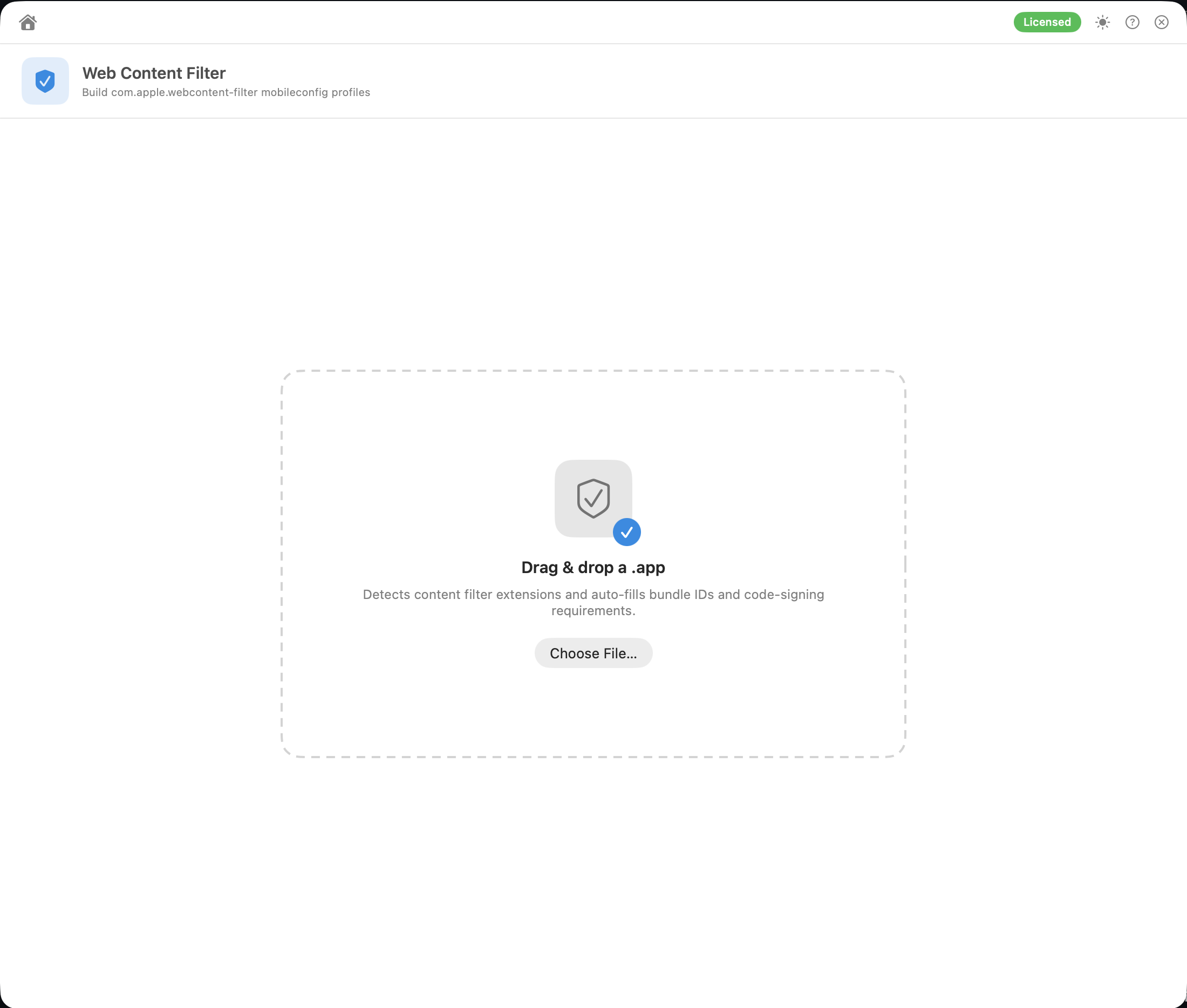
- Drag the vendor's
.apponto the window, or click Choose File… Only.appis accepted. - Review and complete the form:
Defaults to Web Content Filter — <app>, with your prefix in front if you've set one. The saved file uses the same name.
| Field | Notes |
|---|---|
| Display name |
UserDefinedName. Shown to users in System Settings → Privacy & Security. Defaults to the app name |
| Organisation |
Organization. Optional |
| Plugin Bundle ID |
PluginBundleID. The main app's bundle ID (filled in automatically) |
| Filter grade |
FilterGrade: inspector (the default) or firewall. firewall needs extra entitlements from Apple, so use it only if your vendor says so |
Filled in automatically when the app contains filter extensions. Magic Toolbox looks at each .systemextension in the app's Contents/Library/SystemExtensions/ and checks the EXExtensionPointIdentifier in its Info.plist:
-
Socket Filter: an extension point containing
filter-data. Fills inFilterDataProviderBundleIdentifierandFilterDataProviderDesignatedRequirement. -
Network Filter: an extension point containing
filter-packet. Fills inFilterPacketProviderBundleIdentifierandFilterPacketProviderDesignatedRequirement.
The designated requirement is read from the extension's code signature with the macOS Security framework. No other tools are run.
If nothing is detected you'll see a note. Enter the values from your vendor's documentation instead.
| Switch | Default |
|---|---|
| Filter Browsers: WebKit/Safari traffic | On |
| Filter Sockets: socket-level connections | On |
| Filter Packets: packet-level filtering | Off |
| Auto-Filter: start automatically | On |
These are written as FilterBrowsers, FilterSockets, FilterPackets and AutoFilterEnabled.
When Filter Sockets is on, the Socket Filter fields are REQUIRED. When Filter Packets is on, the Network Filter fields are REQUIRED. Missing fields are outlined in red.
Server address, Username, Password (ServerAddress, UserName, Password), for filters that sign in to a remote service. Empty fields are left out of the profile.
⚠️ The password is hidden on screen, but it's stored as plain text in the profile. Use a certificate if your vendor supports it.
Key/value pairs for vendor-specific settings (VendorConfig). Click Add Key-Value Pair. Values are saved as text. Pairs with an empty key are left out.
- Save .mobileconfig… or Upload to Jamf Pro… (see Uploading Profiles). The profile is uploaded unsigned, at Computer level, with no scope or category. If a profile with that name exists, you're asked before it's overwritten.
Analyse Another starts over.
One com.apple.webcontent-filter payload with FilterType set to Plugin, plus the fields above. Optional fields are only included when they have a value.
Save .mobileconfig… and Upload to Jamf Pro… are both disabled until the profile is valid, and every problem is listed in orange, for example:
Socket Filter requires a Designated Requirement (System Extensions → Socket Filter)
The checks are:
- a Plug-in bundle ID is required
- at least one of Filter Sockets or Filter Packets must be on. Filter Browsers on its own has no effect on macOS
- the Bundle ID and Designated Requirement for each filter that's switched on, with the requirement in valid requirement syntax
A profile that doesn't pass these would be rejected by Jamf Pro, and by a Mac if installed another way.
- Jamf Pro can refuse a second profile with a content filter payload. If the upload names another profile that already has a
com.apple.webcontent-filterpayload, update or delete that profile instead. If no other profile is named, the 409 error usually means a required filter field is missing. - If the Designated requirement fields come up empty for a signed vendor app, copy the values from the vendor's documentation, or run
codesign -dr - /path/to/extension.systemextensionin Terminal. - Deploy the vendor's system extension approval profile alongside this one.