Repository navigation
Clone
Copy Jamf Pro objects from one source server to one or more destination servers.
Use Clone to promote configuration from TEST to PROD, set up a new tenant from a known-good template, or keep several environments in step. The source server is only ever read. Clone never changes it.
⚠️ Clone writes to your destination servers. If an object with the same name already exists on a destination, it is overwritten. Clone asks you first and saves an encrypted backup of each object it's about to overwrite, which Restore can put back. Try it on a non-production destination first.
| Section | Object types |
|---|---|
| Infrastructure | Categories, Buildings, Departments, Sites, Network Segments |
| Content | Scripts |
| Extension Attributes | Computer EAs, Mobile Device EAs |
| Groups | Smart Computer Groups, Smart Mobile Device Groups, Static Computer Groups, Static Mobile Device Groups |
| Management | Policies, macOS Config Profiles, iOS Config Profiles |
| Apps | Mac Apps, Mobile Device Apps, Restricted Software |
Types are listed, and copied, in the order above. Clone reads, creates and updates objects through the Classic API, as XML. Self Service icons are uploaded through the Jamf Pro API.
Not cloned: package files, PreStage enrollments, advanced searches, patch policies, App Installers, accounts and other object types not listed. Passwords and other secrets aren't returned by the Jamf API, so they can't be copied either.
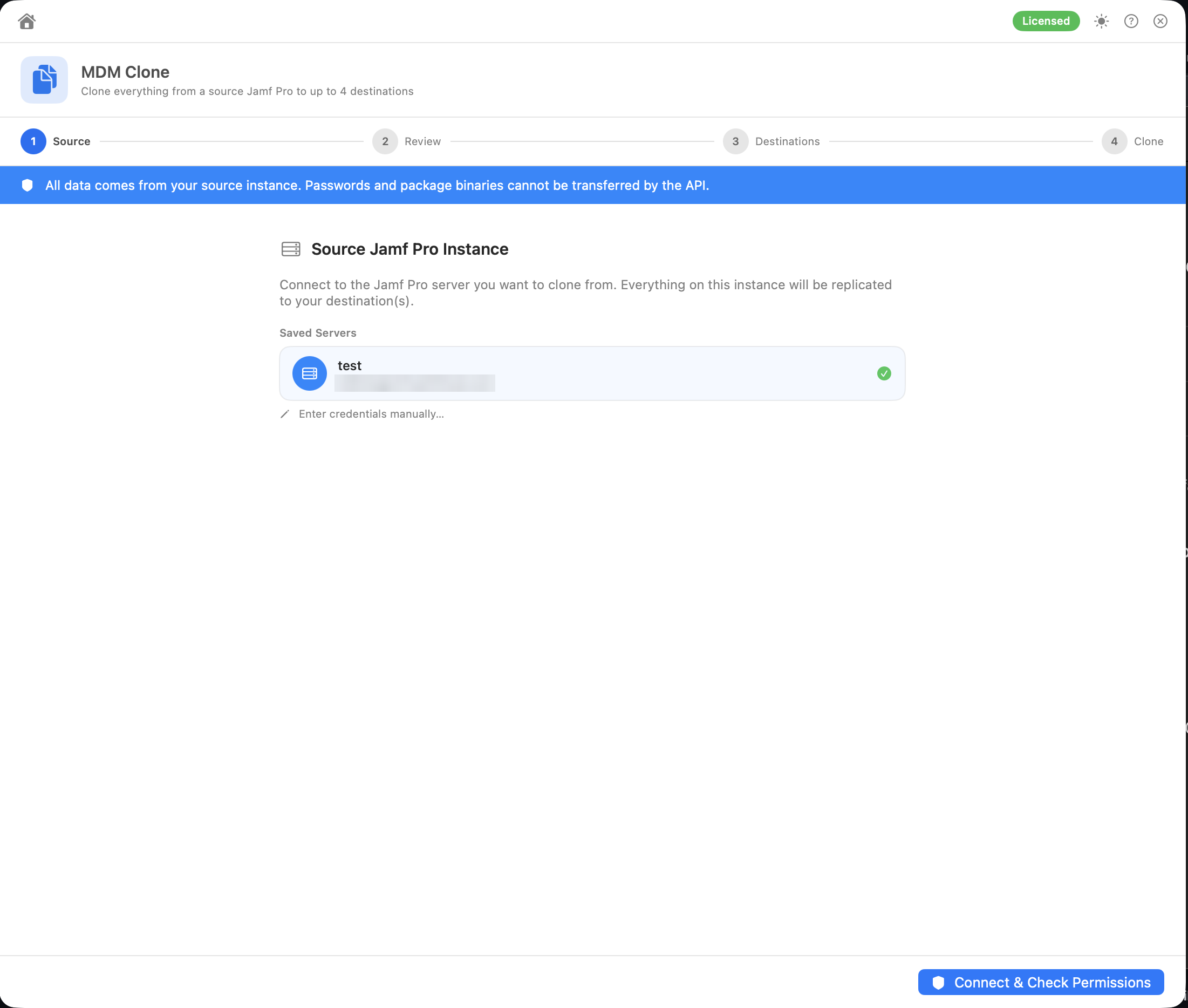
Enter the Source Jamf Pro Instance details and click Connect & Check Permissions. On the source, only Read access is checked, for every supported type. Click Continue → (or Proceed Anyway → if some checks failed).
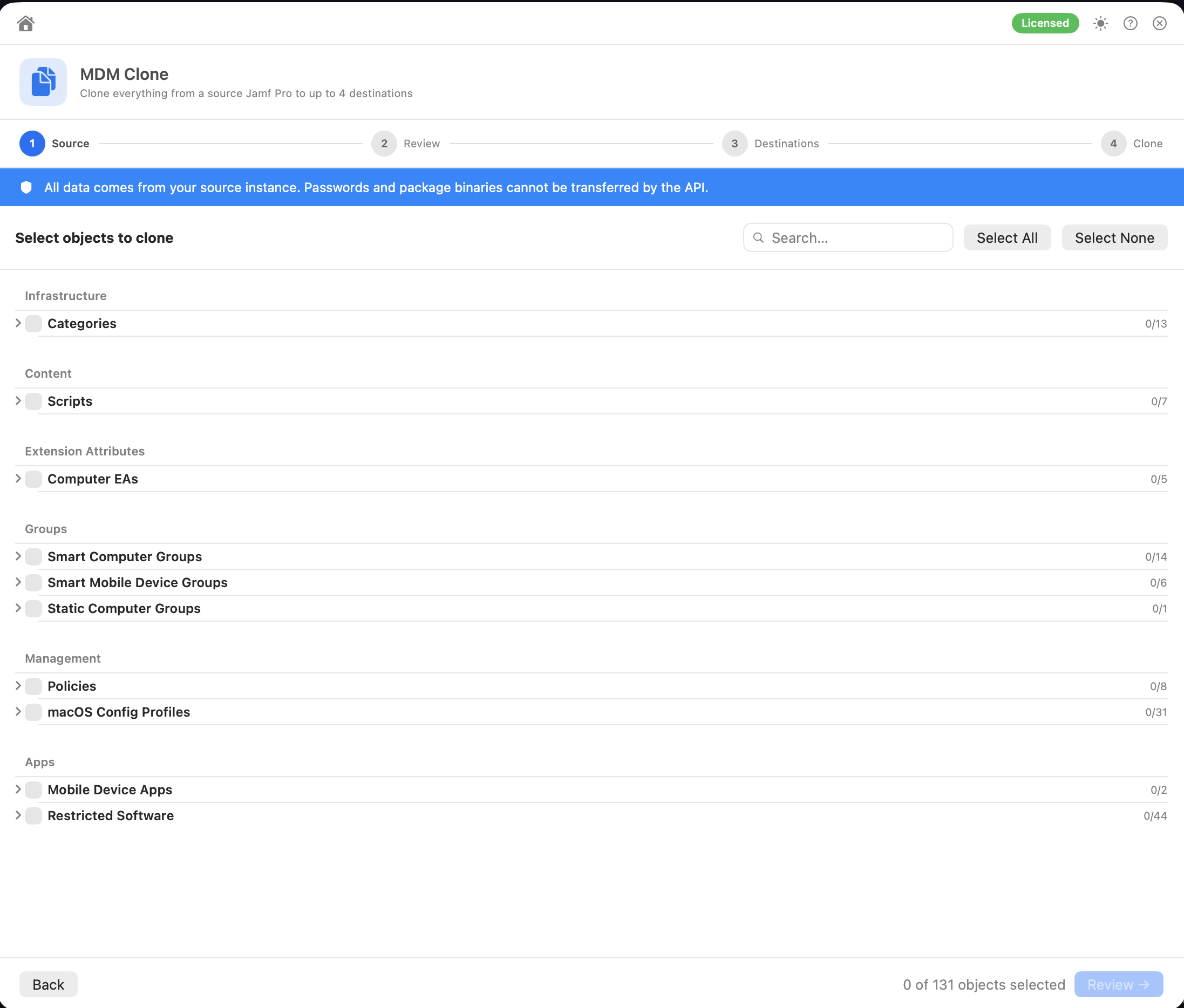
Clone loads every supported object from the source, grouped by section.
- Tick a whole type, or expand it and tick individual objects.
- Click an object's ⓘ to see its category, scripts, packages, criteria and scope.
- Use Search… to filter by name. Select All and Select None work across every type. While you're searching, they become Select Matching and Deselect Matching, and only affect the objects that match.
- If a type can't be read from the source, a message names it. Check the API role's read privileges and try again.
Click Review →.
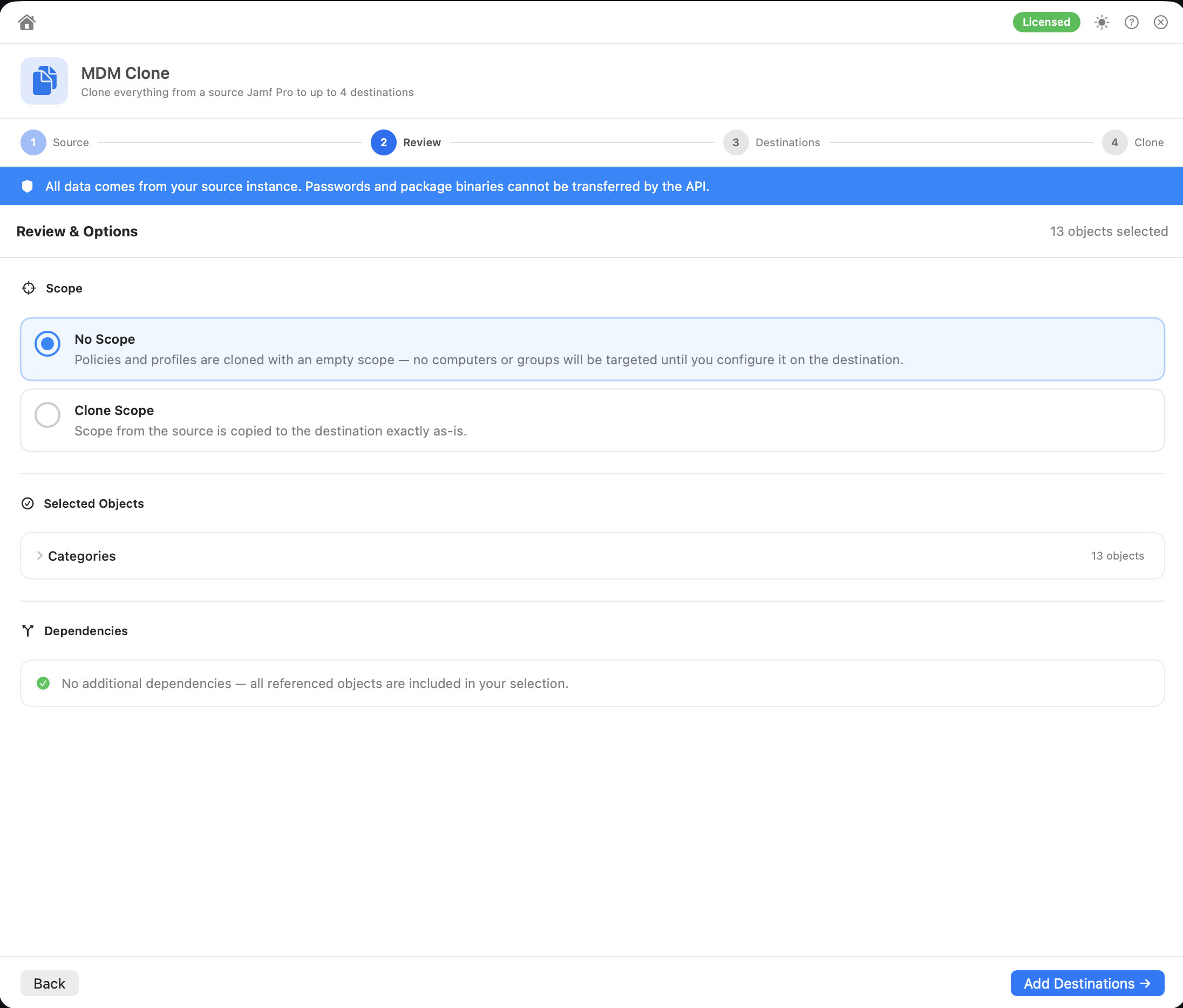
Scope: choose how policies, profiles, apps and restricted software are scoped on the destination:
| Option | Result |
|---|---|
| No Scope (default) | New objects arrive with an empty scope: no targets, exclusions or limitations, and All Computers, All Mobile Devices and All Users turned off. Nothing is deployed until you scope it on the destination. Objects that already exist on the destination keep their current destination scope. |
| Clone Scope | Scope is copied from the source. Computer and mobile device groups are matched by name to the groups on each destination. Clone never lets a scope get wider than it was on the source (see below). Individually scoped devices aren't copied. |
How Clone Scope handles things that are missing on a destination:
| Missing on the destination | Result |
|---|---|
| A target group | Left out of the scope, which makes it narrower. The results note which groups were left out |
| A group in an exclusion or limitation | The object fails. Leaving the exclusion out would widen the scope. Clone the group first |
| A building, department, network segment or user group in an exclusion or limitation | The object fails, for the same reason. Create it on the destination first |
| Individual devices in the exclusions | The object fails. Device IDs differ between servers, so they can't be matched |
Static Groups: static group members are device IDs from the source, which don't match devices on the destination. By default, a static group that has members fails. Turn on Create static groups without members to clone it anyway: new groups are created empty, and groups that already exist on the destination keep their current members.
Dependencies: Clone checks what your selected objects rely on:
| Dependency | What happens |
|---|---|
| Categories used by selected objects | Created automatically on the destination if missing (name only) |
| Scripts used by selected policies | Copied automatically if missing |
| Extension Attributes used in smart group criteria | Copied automatically if missing |
| Packages used by selected policies | Must be uploaded manually. Clone can't transfer package files. Missing packages are listed as failures in the results |
Dependencies are matched by name. One that already exists on the destination is left as it is, not updated. Dependencies you've already selected are cloned in the normal way instead.
Groups used in scope or in Member of criteria, and sites, buildings and departments, are not added automatically. Select them yourself if they don't already exist on the destination.
If some of your selected objects couldn't be read from the source, a warning names them, because their dependencies couldn't be checked.
Click Add Destinations →.
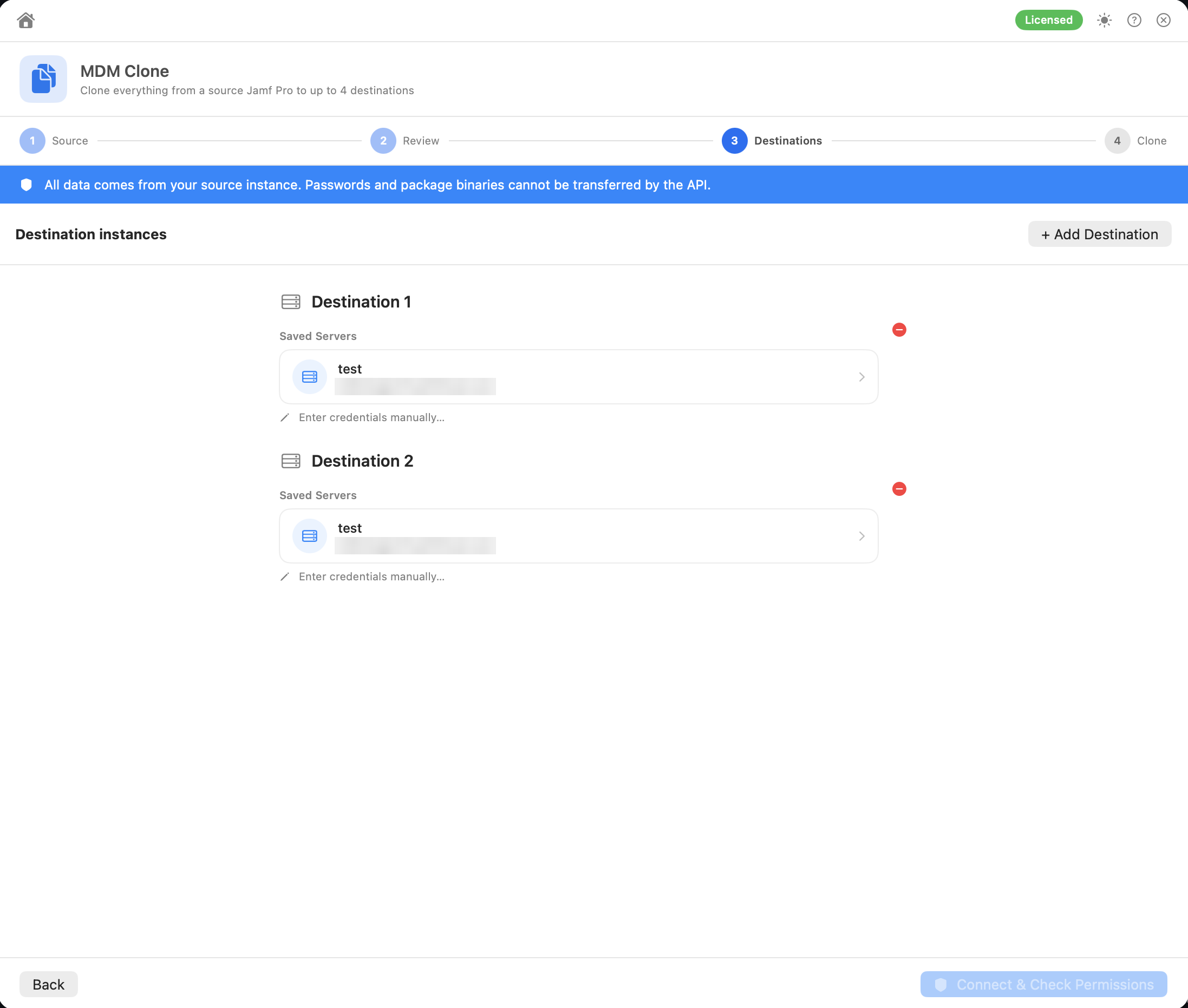
Enter credentials for Destination 1. Click + Add Destination to add more. There's no fixed limit. Then click Connect & Check Permissions. A destination can't be the source server, and the same server can't be added twice.
Clone checks Read, Update and Create on each destination, for the types you selected only.
The clone starts as soon as you click Continue → (or Proceed Anyway →) on the destination permission screen. Review your selection before this step.
First, Clone checks each destination for objects with the same name as the ones you selected. If it finds any, it pauses and shows Overwrite N Existing Objects?. This lists them and explains what will change: with No Scope, their settings are replaced but their destination scope is kept; with Clone Scope, their scope is replaced too.
To continue, enter a backup passphrase (at least 12 characters, typed twice) and click Choose Backup Folder & Overwrite…. Before anything is changed, Clone saves each destination's existing objects to an encrypted backup, Clone_Backup_<server>_<timestamp>.json, and reads it back to check it. You can open it in Restore to put the old objects back. Keep the passphrase: it can't be recovered.
Cancel goes back to the destination permission screen. If Clone can't read a destination's objects or groups, or can't write the backup, it stops before changing anything and says "Nothing was changed."
Missing categories, scripts and EAs (the dependencies above) are then created. After that, your selected objects are copied type by type, in the order shown in What can be cloned: infrastructure, scripts, EAs, smart groups, static groups, policies and profiles, then apps. Each type is copied to every destination before the next type starts.
Clone matches objects by exact name (including capitalisation) within each type:
- No match on the destination: the object is created.
- Match found: the destination object is updated (overwritten). Smart and static groups share names in Jamf Pro, so a static group with the same name as a destination smart group (or the other way round) is treated as a match too.
Before an object is sent, Clone adjusts it for the destination:
- References to other objects (category, site, scripts, packages, printers, buildings, departments and so on) are matched by name on the destination, not by the source's IDs. If a referenced object doesn't exist there, that object fails with a clear error instead of pointing at an unrelated object that happens to have the same ID.
- Device lists and static group members are removed (see Static Groups).
- The scope is handled as described in Review & Options.
- An object that refers to a Disk Encryption Configuration by ID fails, because that can't be matched.
Self Service icons on policies are uploaded to the destination too. If an icon can't be copied, the policy is still cloned without it, and the results note this.
Every change is written to a journal file as it happens.
Abort Clone stops the clone straight away, without asking. Anything already copied stays, and the results show what was done.
The results show counts for Created, Updated and Failed, and a table (Category, Object, Destination, Outcome) you can filter by outcome. Failed rows show the reason. Notes, such as target groups left out of a scope, are shown in orange. Banners show where the destination backups and the journal were saved. Dependencies appear as their own rows, for example Category (dependency), and missing packages as Package (missing — upload manually).
Click Export HTML to save a report (CloneReport_<source>.html). It has the Created, Updated and Failed totals and a section per destination, each with a searchable table you can filter by outcome. Start Over goes back to the source screen.
- Package files are never copied. Upload them to each destination (or use your distribution point's replication), with the same package name, before or after cloning.
- Static groups can't be copied with their members, because device IDs differ between servers. See Static Groups.
- Secrets such as account passwords in policies, and certificate passwords in profiles, aren't available through the API. Re-enter them on the destination.
- Clone compares by name only. Two different objects with the same name on the source and destination are treated as the same object, and the destination one is overwritten (after it's been backed up). If the destination has more than one object with that name, the first one found is updated.
- Run Compare → Instances afterwards to confirm the environments match.
Permissions: see Jamf API Permissions → Clone.