Repository navigation
PPPC Analyser
Work out which privacy (TCC) permissions an app is likely to ask for, and build a PPPC profile that pre-approves them.
Writing a Privacy Preferences Policy Control profile by hand means looking up the app's bundle ID, its code requirement and which privacy services it uses. PPPC Analyser reads all of that from the app for you.
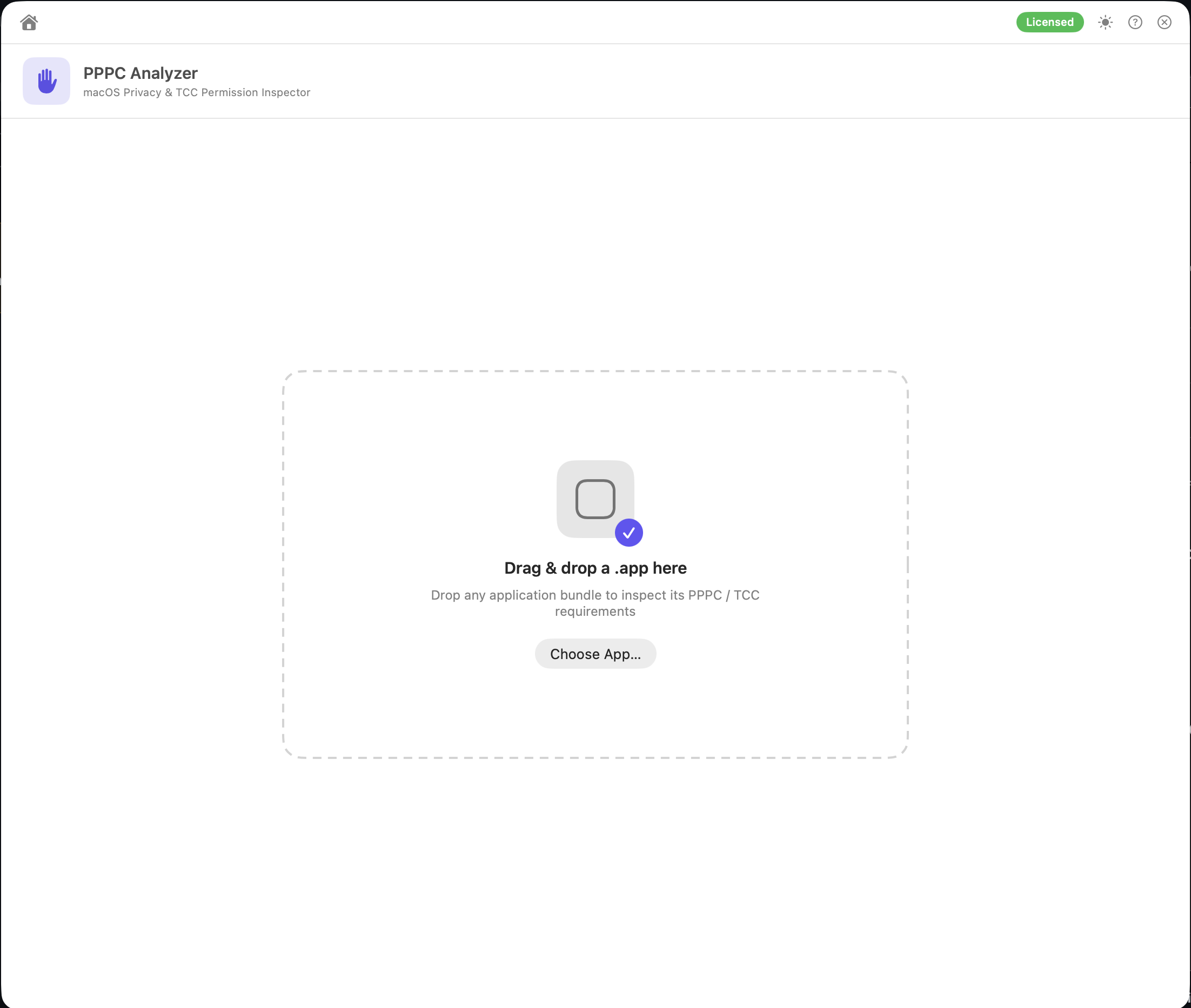
- Drag a
.appor.pkgonto the window, or click Choose App…Use the installed
.appif you can. From a.pkg, PPPC Analyser reads the app'sInfo.plistfrom inside the package, but it can't read the code signature, so Code Req and Team ID aren't available and entitlements aren't checked. You'll need to type the code requirement in (see below). You can also pull the app out of the package with Inspector. - Review the app details: Bundle ID, Code Req (the designated code requirement) and Team ID. These are read from the app's code signature.
- If there's no code requirement (the app came from a
.pkgor is unsigned), type it into the Code Req field. On the installed app,codesign -dr - /path/to/App.appin Terminal prints it. macOS rejects PPPC entries without a valid requirement, so the profile can't be saved or uploaded until there is one, and it must be valid requirement syntax. - For an unsigned or ad hoc in-house tool, Use identifier-only requirement (weak) fills in a requirement based on the bundle ID alone. Any app claiming that bundle ID would match, so only use it when there's no alternative.
- If there's no code requirement (the app came from a
- Review the detected permissions and tick the ones you want in the profile. Choose Allow, Deny or, where offered, User Can Allow for each. Permissions the app clearly declares and that MDM can approve start ticked as Allow. Others start unticked: guesses marked as possible, Apple Events (which needs a receiver, see below), and the services MDM can't approve (see Before you deploy).
- Apple Events needs the app that receives the events, for example Finder or System Events. Enter its bundle ID and code requirement, or click Choose App… to fill both in from an app.
- Choose an output:
| Button | Output |
|---|---|
| Save Profile… | PPPC-<bundleID>.mobileconfig |
| Upload to Jamf… | Creates a macOS Configuration Profile called PPPC — in Jamf Pro, with your prefix in front if you've set one |
| Export Report… | HTML report: PPPC Report.html
|
| Copy Report | Plain-text summary on the clipboard |
| Export AppSettings (macOS 27+)… | A Declarative Device Management declaration that pre-fills the privacy prompts (see AppSettings declaration) |
Save Profile… and Upload to Jamf… stay unavailable until the profile can be generated: at least one PPPC permission is ticked, there's a valid code requirement, and Apple Events has a receiver if it's ticked. Export AppSettings… needs at least one permission ticked. Analyze Another App starts over.
Before uploading, the upload window explains that the profile has no category or scope, and that you'll be asked before a same-named profile is overwritten. If a file can't be saved, an alert says why.
- One
com.apple.TCC.configuration-profile-policypayload. - Under
Services, one entry per ticked permission, withIdentifier(the bundle ID),IdentifierTypebundleID,CodeRequirementandAuthorization(Allow,DenyorAllowStandardUserToSetSystemService). Apple Events entries also include the receiver's identifier and code requirement. - Location Services has no PPPC key, so it's only used in the AppSettings declaration.
- The profile name is PPPC — , with your prefix in front if you've set one. The profile is unsigned.
macOS 27 adds a second way to manage privacy permissions: the Declarative Device Management AppSettings configuration (com.apple.configuration.app.settings). It works differently from a PPPC profile:
| PPPC profile | AppSettings declaration | |
|---|---|---|
| What it does | Silently grants (or denies) the permission | Pre-fills the system's own permission prompt with your reason. The user can still decline |
| Camera, Microphone, Screen Recording, Input Monitoring | Deny, or User Can Allow for Screen Recording and Input Monitoring | Can be suggested as Allow |
| Format | .mobileconfig |
JSON declaration |
To make one:
- Tick the permissions you want in the list, as for a PPPC profile.
- Click Export AppSettings (macOS 27+)…
- Optionally type an Organization Justification: the reason shown to the user, for example "Needed for screen sharing in support sessions."
- Check the JSON preview, then Copy JSON or Save to File… (
AppSettings-<bundleID>.json).
What goes into it: one Privacy → PermissionDefaults entry for the app, keyed on the bundle ID followed by its code requirement in braces (the bundle ID alone if the app is unsigned or came from a .pkg). Each ticked permission is set to Allow, and Location Services is set to While Using with Precise accuracy. The justification is included as OrganizationJustification.
AppSettings needs supervised devices and an AppKit-based app. PPPC Analyser can't check either from the app you dropped, so check both before deploying. The declaration can't be uploaded to Jamf Pro from Magic Toolbox. Save it to a file and deploy it with your MDM's declarative management options.
PPPC Analyser reads the privacy usage descriptions in the app's Info.plist and the entitlements in its code signature. It uses the macOS Security framework for this and doesn't run any other tools. The app is never launched.
| Permission | Detected from |
|---|---|
| Accessibility | NSAccessibilityUsageDescription |
| Camera | NSCameraUsageDescription |
| Microphone | NSMicrophoneUsageDescription |
| Address Book (Contacts) | NSContactsUsageDescription |
| Calendar | NSCalendarsUsageDescription |
| Reminders | NSRemindersUsageDescription |
| Photos |
NSPhotoLibraryUsageDescription. NSPhotoLibraryAddUsageDescription on its own (add-only) is marked possible, since full access is usually not needed |
| Screen Recording |
com.apple.security.screen-capture entitlement or NSScreenRecordingUsageDescription
|
| Documents Folder |
NSDocumentsFolderUsageDescription. Declaring document types (CFBundleDocumentTypes) is marked possible, since opening files usually doesn't need it |
| Desktop Folder | NSDesktopFolderUsageDescription |
| Downloads Folder | NSDownloadsFolderUsageDescription |
| Administrator Files |
NSSystemAdministrationUsageDescription. Full Disk Access is never suggested: add it yourself if the vendor says the app needs it |
| Location Services |
NSLocationUsageDescription, NSLocationWhenInUseUsageDescription, NSLocationAlwaysUsageDescription or NSLocationAlwaysAndWhenInUseUsageDescription (AppSettings only) |
| Apple Events |
NSAppleEventsUsageDescription, or the com.apple.security.automation.apple-events entitlement |
| Bluetooth |
NSBluetoothAlwaysUsageDescription / NSBluetoothPeripheralUsageDescription
|
| Speech Recognition | NSSpeechRecognitionUsageDescription |
| Media Library | NSAppleMusicUsageDescription |
| Removable Volumes | NSRemovableVolumesUsageDescription |
Detection is based on what the app declares. An app can still request something it hasn't declared, so test the app on a managed Mac.
Apple limits what MDM can pre-approve. Camera, Microphone, Screen Recording and Input Monitoring can't be silently approved: the user always has to grant them.
- For Screen Recording and Input Monitoring, PPPC Analyser offers User Can Allow (the default), which lets a standard user approve the app themselves in System Settings.
- Otherwise the only choice is Deny, which blocks the app on every Mac in scope, and users can't override it. These start unticked. If you tick one, a red warning explains that for conferencing apps such as Zoom, Teams or Webex this breaks calls and screen sharing.
Untick anything else that doesn't apply, and test the profile on one Mac before scoping it widely.
| Message / symptom | Fix |
|---|---|
| Code Req shows "(not signed)" | The app is unsigned. A PPPC profile for it won't work. |
Code Req is empty, from a .pkg
|
Type the installed app's designated requirement, or install the app and drop the .app. |
| Can't upload yet: … | Fix what the message names: a permission to tick, a code requirement, or an Apple Events receiver. |
| No application bundle found inside the package. | The package's payload couldn't be read or has no app. Drop the installed .app from /Applications instead. |
| Upload fails with Permission denied | The account needs Create macOS Configuration Profiles. |
Uploading: the profile is uploaded unsigned, at Computer level, with no scope or category. If a profile with the same name exists, you're asked before it's updated. See Uploading generated profiles.