Repository navigation
Preferences
Open Preferences with ⌘,, or from the menu bar icon → Preferences…. Changes are saved as you make them. Click Done to close the sheet.
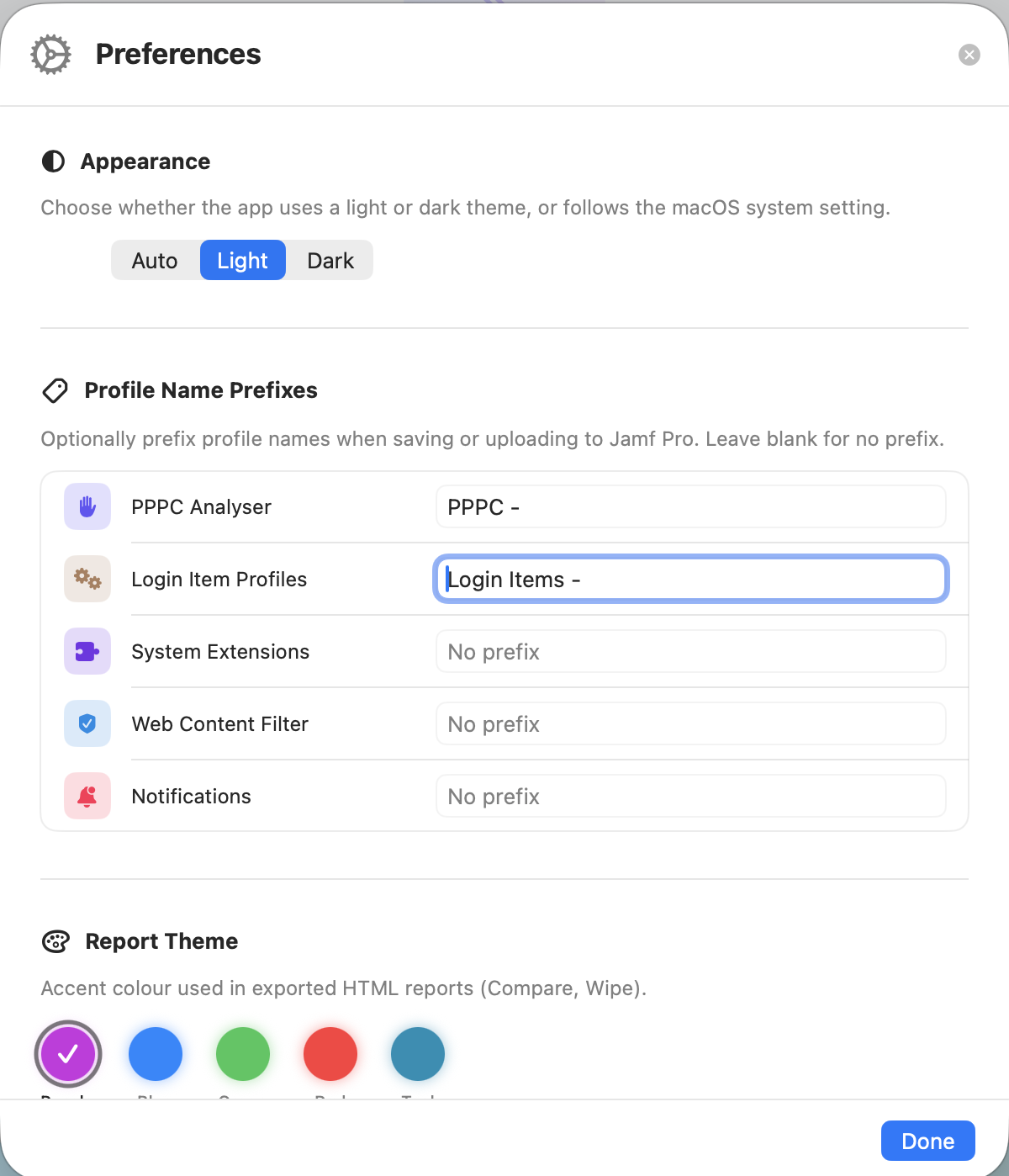
Choose Auto (follow macOS), Light or Dark. The default is Auto. The appearance button in the toolbar cycles through the same three options.
Add a prefix to the names of profiles the profile builders save or upload. For example, a prefix of ACME - turns Web Content Filter — Zscaler into ACME - Web Content Filter — Zscaler. That keeps generated profiles grouped together in Jamf Pro.
Each tool has its own prefix. Leave a prefix blank for no prefix.
Every tool trims spaces from the prefix and adds exactly one space between the prefix and the name, so you don't need a trailing space. System Extensions and Web Content Filter add the prefix when they fill in the profile name for you.
Prefixes apply to PPPC Analyser, Login Item Profiles, System Extensions, Web Content Filter and Notifications.
The profile name can also be edited in System Extensions and Web Content Filter before you save.
The certificate Profile Signer signs with. The list shows every identity in your keychain, meaning a certificate together with its private key. Choose one, or None Selected. Click Refresh after adding a certificate to your keychain.
If no identities are found, a warning says so. Import your signing certificate and its private key into your login keychain (for example from a .p12 file), then click Refresh.
Sets up the MDM Reporting Tool tile on the Home screen.
-
Choose Application… opens a file browser where only
MDM Reporting Tool.appcan be selected. The tile then opens that app, even if it's moved later. - Clear removes the link.
- If the app isn't set up, or can no longer be found, the tile opens mdmmagic.au/tools instead.
- Show tile on Home screen hides or shows the tile. It's on by default.
The accent colour used in every exported HTML report: Purple (default), Blue, Green, Red or Teal.
Put your organisation on every exported HTML report, from Clone, Compare, Wipe, Disable, Profile Conflicts, Smart Group Audit, Account Audit, Cert & Token Expiry, Unused, PPPC Analyser and Downloader:
- Organisation: a name shown in the report header, e.g. Acme Corp
- Upload Logo…: an image shown in the top-left corner of reports. You can choose a PNG, JPEG, GIF, TIFF or BMP file (PNG or JPEG recommended). The app shrinks it to fit within 400 × 160 pixels and keeps a PNG copy in its preferences, so you can move or delete the original. Remove Logo clears it.

The starting values the Notifications tool uses whenever you drop in an app. You can still change them per app before building the profile. If you turn off Notifications Enabled, the other settings are hidden.
Alert Type can be None, Temporary Banner or Persistent Banner.
| Setting | Default |
|---|---|
| Notifications Enabled | On |
| Alert Type | Temporary Banner |
| Badges Enabled | On |
| Sounds Enabled | On |
| Show in Notification Center | On |
| Show in Lock Screen | On |
| Show in CarPlay | Off |
| Critical Alert Enabled | Off |
Require a PIN before chosen tools can be opened, for example to keep Wipe away from anyone who borrows your Mac.
- Click Set Up Tool Lock…, enter a New PIN and Confirm PIN, then click Set PIN.
- Under Select which tools require the PIN, switch on the tools to lock, or use Lock All / Unlock All.
When you click a locked tool on the Home screen, it asks for the PIN. Once unlocked, the tool stays open to you until the app quits, or until you click Lock Session Now.
Change PIN… asks for the current PIN first. Remove asks for the current PIN, then turns Tool Lock off and unlocks every tool.
The PIN is stored in the macOS Keychain as a SHA-256 hash, not as the PIN itself. Tool Lock is a convenience against casual use, not a security boundary: anyone with your Mac account can remove it by deleting its Keychain item. If you forget the PIN, delete the toolLock.hashedPin item for com.mdmmagic.MagicToolbox in Keychain Access.
Turn on detailed logging for individual tools. Each of the 21 tools has its own switch, and they're all off by default. The switches are remembered between launches. This is useful when something isn't working or when reporting a bug.
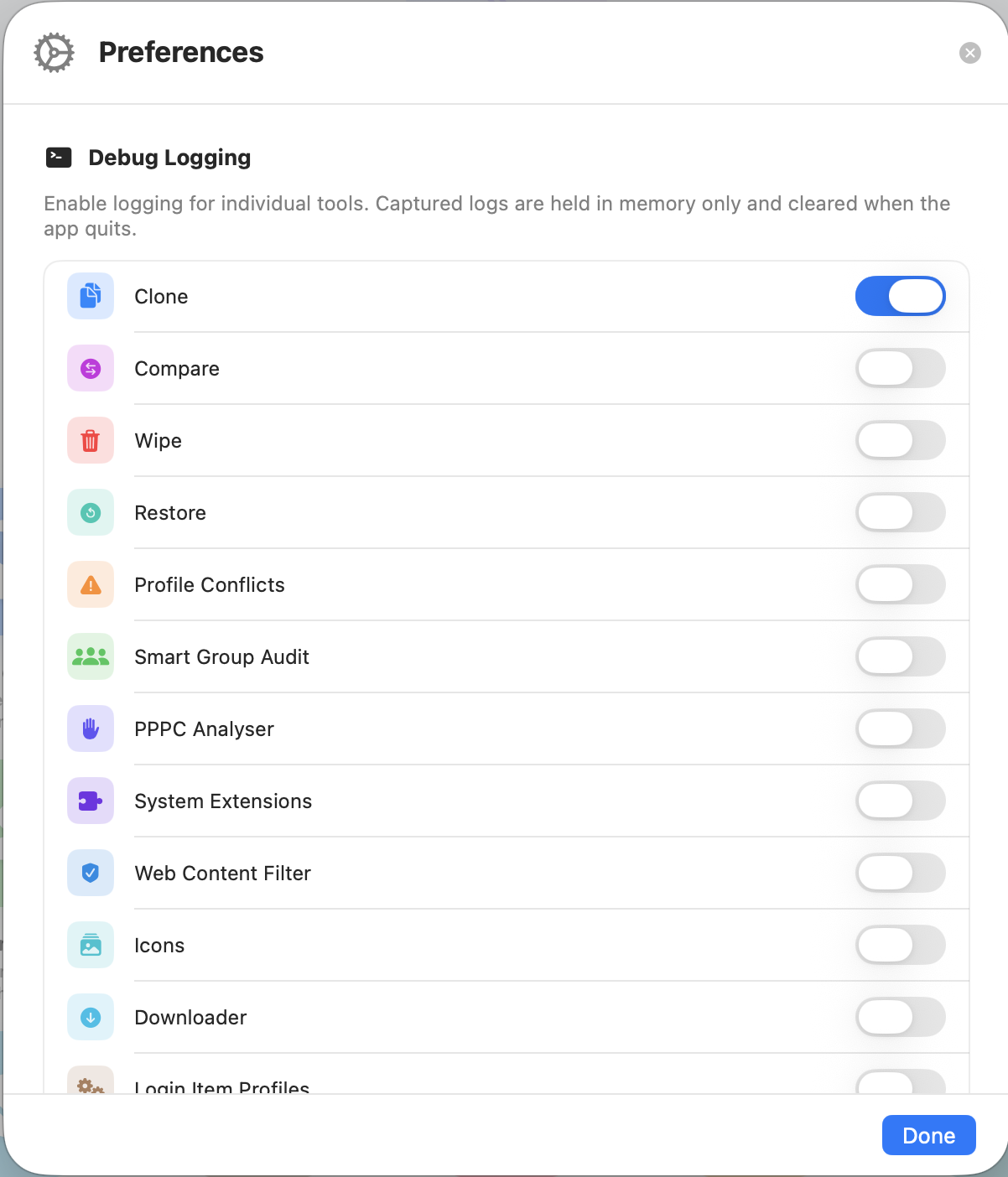
- Logs are held in memory only and are cleared when the app quits. Nothing is written to disk. The newest 5,000 entries are kept.
- Each entry has a time, the tool name and a message. Messages include things like server host names, object names and the error text Jamf Pro returns. Passwords, client secrets and tokens aren't logged. As a safeguard, anything that looks like one (a
Bearertoken, or a value after password, passphrase, secret, client secret, API key or token) is replaced with[REDACTED]before it's stored. - View Logs, and the Debug Log button in the toolbar, open the same log viewer, newest entries first. You can filter by tool, Search messages… and Copy the entries shown. Clear empties the log for the selected tool, or all of it.
- Clear All empties the log.
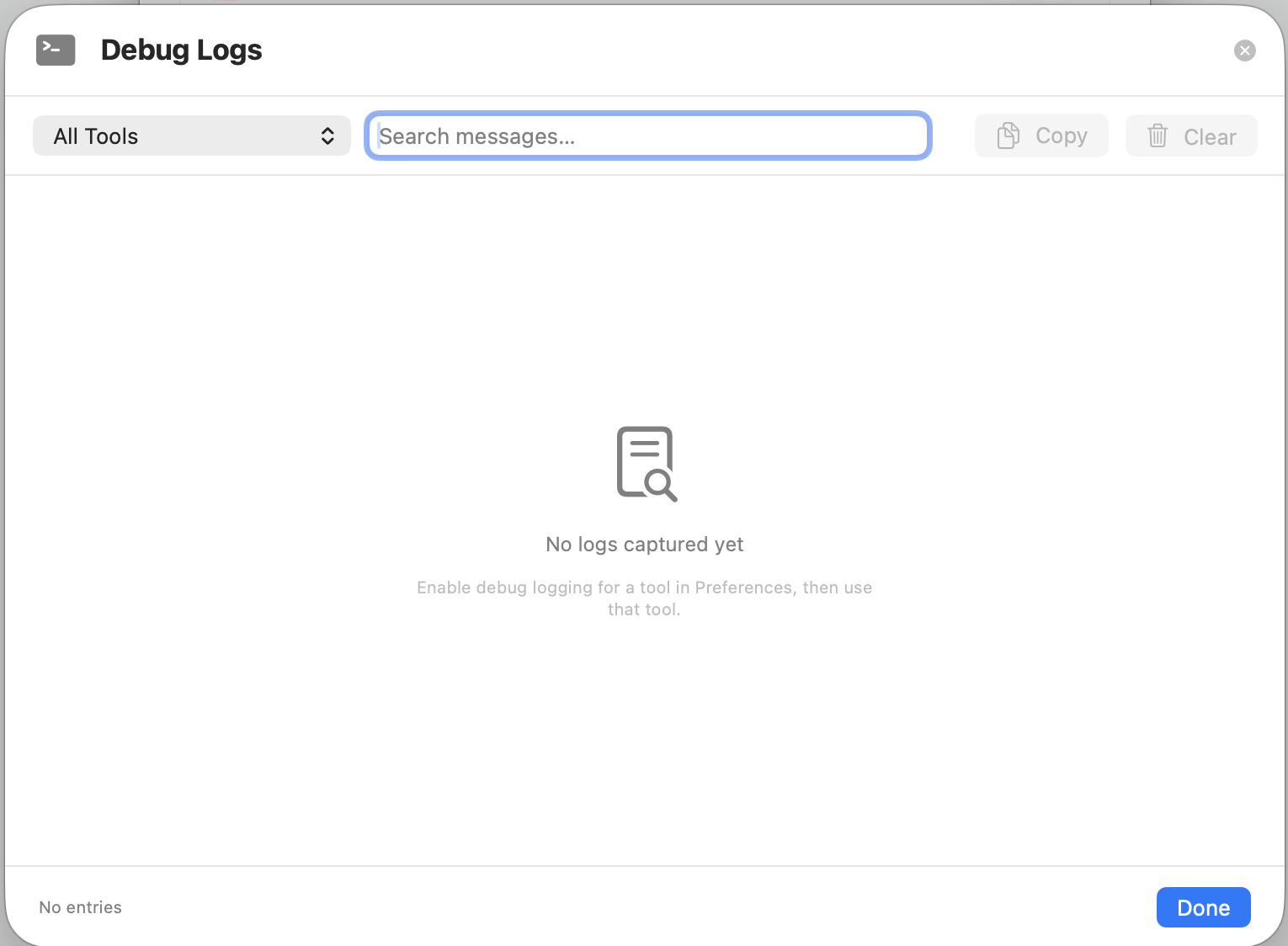
When reporting an issue: turn on logging for the tool, reproduce the problem, then open Preferences → Debug Logging → View Logs, click Copy and paste the log into your GitHub issue. Check the log first and remove anything you consider sensitive, such as server names or object names.