Repository navigation
Restore
Re-create objects from a Wipe, Unused or Clone backup file on any Jamf Pro server, or write them back over the objects that are there now.
Restore is how you undo Wipe, a delete in Unused, or an overwrite by Clone. You can also use it to copy a few objects from an old backup onto a different server.
Restore has two modes, chosen after you open the backup:
| Mode | What it does |
|---|---|
| Create new objects (default for Wipe and Unused backups) | Creates each item as a new object. Nothing existing is overwritten. If an object with the same name already exists, Jamf Pro normally rejects the create and the item is reported as failed (switch those items to Update mode). Object types that allow duplicate names may get a second copy |
| Update existing objects | Writes each backed-up item over a live object, replacing its current settings. Use it to undo a Clone overwrite, or to roll an object back. Items with no match are left alone |
Restore never deletes anything. To undo a Disable run, use Undo from backup… in Disable instead.
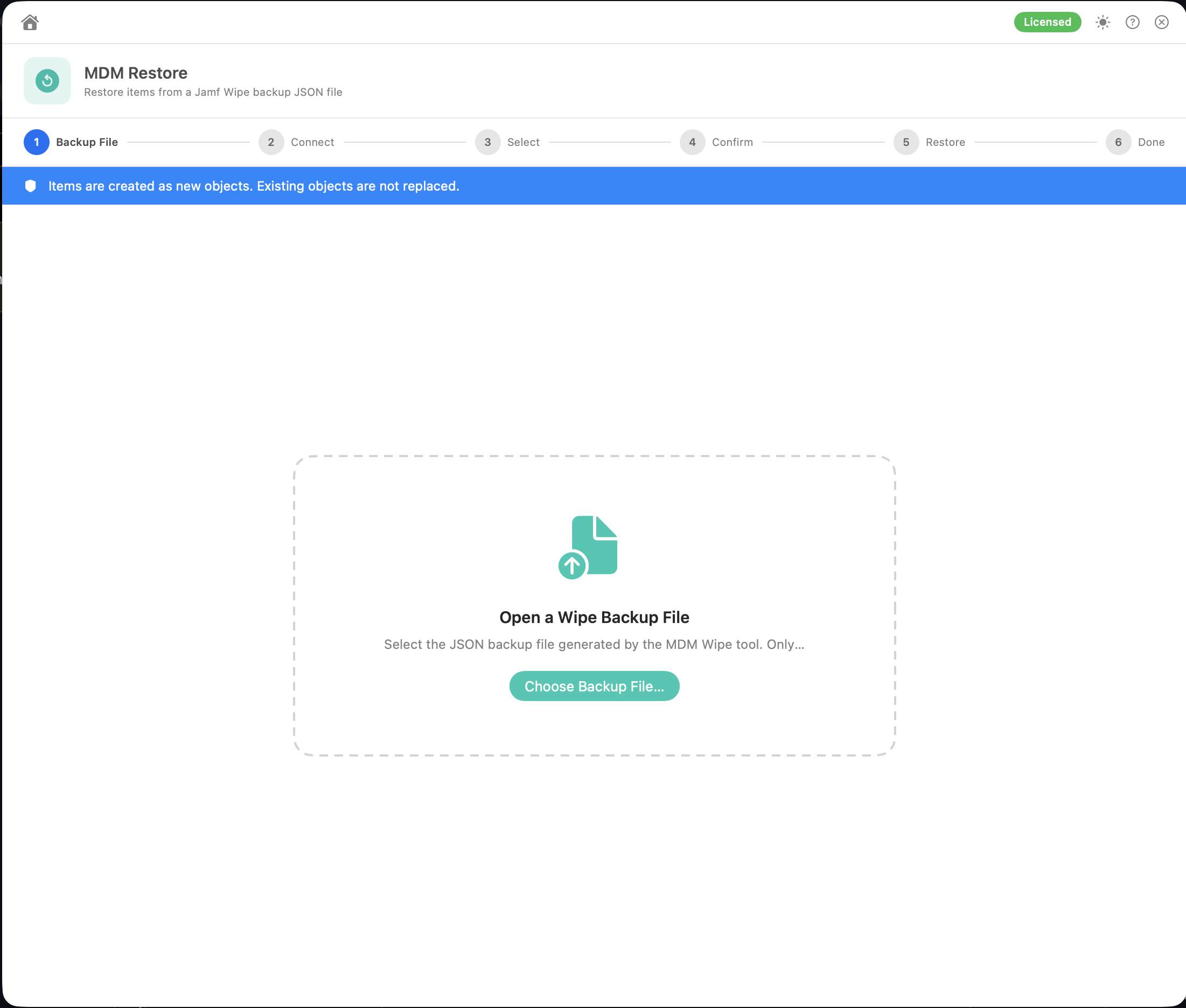
Click Choose Backup File… and pick a JamfWipe_Backup_*.json file made by Wipe, an Unused_*_Backup_*.json file made by Unused before it deleted items, or a Clone_Backup_*.json file made by Clone before it overwrote destination objects. In Enter Backup Passphrase, type the passphrase used when the backup was made, then click Decrypt & Continue. A wrong passphrase, or a file that's been changed, shows "Incorrect passphrase, or the backup file is corrupt or has been tampered with."
Restore only opens encrypted backups. Backups saved as plain JSON by older versions of Magic Toolbox can't be opened. Backups made with an older, weaker encryption format still open, with a warning suggesting you make a new backup. A file with unusual encryption settings isn't opened at all.
Choose the Mode here. Restore picks a sensible default for the kind of backup.
The screen then shows when the backup was taken (in UTC), the server it came from, and how many items can be restored. If the file has no restorable items, Restore shows an error and doesn't continue. Restore only reads the backup file. It never changes it.
Connect to the Target Jamf Pro server where the items should be restored, then click Connect & Check Permissions. This can be the original server or a different one. The permission screen checks Read and Create for each type in the backup (Read and Update in Update mode). Click Continue → (or Proceed Anyway → if some checks failed), or Back to change the server.
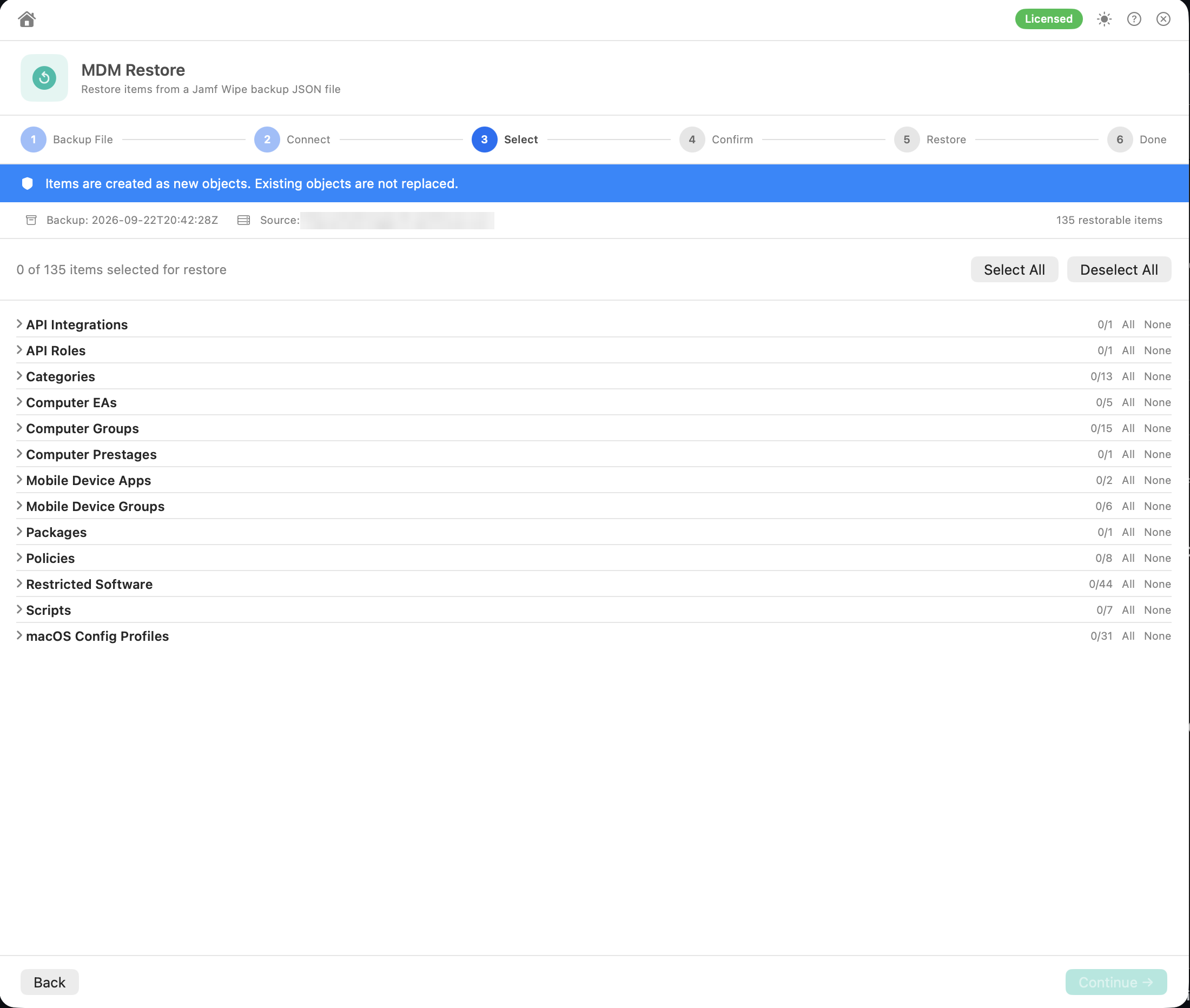
- Items are grouped by type, in alphabetical order. Use All / None for a type, or Select All / Deselect All for everything.
- Nothing is selected by default.
- Items that can't be restored show why, for example (no payload) or (reference copy only — not restorable) for App Installers and Jamf Pro Accounts. In Update mode, items that can't be updated in place say so.
Click Continue →.
Create mode: the Ready to Restore screen shows how many items will be created and on which server. Tick "I understand — proceed with restore", then click Start Restore.
Update mode: the screen says Ready to OVERWRITE N existing objects and explains how each item is matched:
- the object with the backed-up ID, but only if its name is still exactly the same
- otherwise, any object whose name exactly matches the backed-up name. That means a different object that now has that name will be overwritten
If the backup came from a different server, a warning says matching falls back to exact names. Tick "I understand this overwrites live objects", type the server's host name to confirm, then click Overwrite N Objects.
Back returns to the selection.
While the restore runs, every selected item is listed by type. Each one shows as waiting, in progress, ✅ done or ❌ failed (with the error from Jamf Pro), so you can follow along as it goes. Each change is written to a journal file.
Abort Restore asks you to confirm, then stops after the current item.
The summary shows counts for Created and Failed. Each item shows Created — ID: 123 with its new Jamf Pro ID, or the error message from Jamf Pro. Restore Again starts over.
Advanced Computer and Mobile Device Searches, Policies, macOS and iOS Config Profiles, Restricted Software, Computer and Mobile Device Groups, Scripts, Computer and Mobile Device EAs, Mac App Store and Mobile Device Apps, Package records, Categories, Computer and Mobile Device Prestages, Buildings, Departments, Network Segments, Dock Items, Jamf Users, API Integrations and API Roles.
- Every restored object gets a new ID (in Create mode). When restored objects refer to each other, for example a policy that uses a restored script, category or group, Restore updates the reference to the new ID. References to objects that weren't in the restore are matched by name on the target server.
- Objects are restored in dependency order, so the things other objects refer to are created first:
| Order | Types |
|---|---|
| 1 | Categories, Buildings, Departments, API Roles, Dock Items |
| 2 | Network Segments, Scripts, Packages, Computer and Mobile Device EAs, Jamf Pro Accounts, Jamf Users, API Integrations |
| 3 | Computer and Mobile Device Groups. Groups that refer to other groups through member of are restored after the groups they refer to |
| 4 | Advanced Computer and Mobile Device Searches, Restricted Software, Mac App Store and Mobile Device Apps, Policies, macOS and iOS Config Profiles |
| 5 | Computer and Mobile Device Prestages |
Within each step, items keep the order they have in the backup. If an item still fails because something it references doesn't exist yet, run Restore a second time and select only the failed items.
- Items are sent to Jamf Pro as they were saved: Classic API XML for most types, and Jamf Pro API JSON for prestages, buildings, departments, API integrations and API roles.
- API Integrations get a new Client ID and no secret. Generate a new secret in Jamf Pro and update anything that used the old one.
- Packages are restored as package records only. Make sure the package files are on your distribution point.
Permissions: see Jamf API Permissions → Restore.