Repository navigation
System Extensions
Build a system extension approval profile (com.apple.system-extension-policy) from an app or installer.
Security and networking tools often install system extensions that users must approve in System Settings. This tool finds the extensions and their Team IDs for you and builds the profile that approves them silently.
-
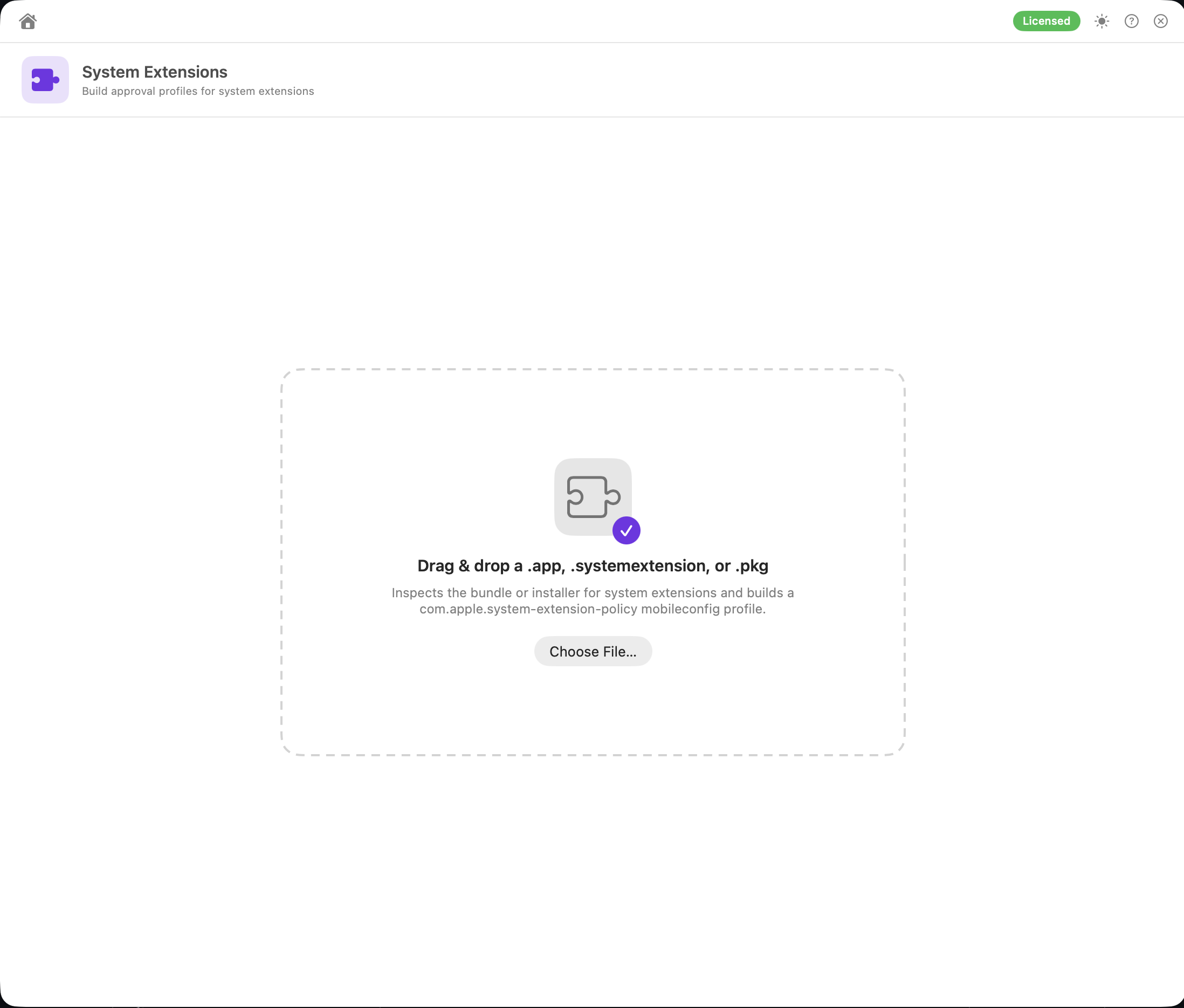
Drag a
.app,.systemextension,.dextor.pkgonto the window, or click Choose File…Use the installed
.appif you can. From a.pkg, the Team ID is taken from the installer's signing certificate and has to be confirmed (see below), and the extension's entitlements can't be read. Only extensions the package declares in itsPackageInfoare found. -
Review what was found: each extension's name, bundle ID, Team ID and types:
- Endpoint Security
- Network Extension
- Driver Extension
One extension can have several types, for example a security agent that's both an Endpoint Security client and a network filter. Every type found is included, because listing only one would stop the others from loading.
-
Fix anything flagged on a row. The profile can't be saved or uploaded until it's fixed:
- Team ID unknown: enter the 10-character Team ID.
-
Team ID taken from the installer's signing certificate (from a
.pkg): click Confirm once you've checked it matches the extension's signer. - An extension with no readable bundle ID must be unticked.
-
Untick any extensions you don't want to include.
-
Edit the Profile name if you like. The default is
System Extensions — <source>, where<source>is the file name you dropped, with your prefix in front if you've set one. The saved file uses the same name. -
Check the Profile payload preview, which groups extensions by Team ID. Anything still to fix is listed above it.
-
Save .mobileconfig… or Upload to Jamf Pro… (see Uploading Profiles). The profile is uploaded unsigned, at Computer level, with no scope or category. If a profile with that name exists, you're asked before it's overwritten.
Analyse Another starts over.
One com.apple.system-extension-policy payload, with only the ticked extensions:
-
AllowedSystemExtensions: Team ID → bundle IDs -
AllowedSystemExtensionTypes: Team ID → extension types (EndpointSecurityExtension,NetworkExtension,DriverExtension)
Types are only written when they can be read from the extension itself. If any extension for a Team ID has a type that couldn't be read, that team isn't restricted by type at all, rather than risk blocking a type that wasn't detected. A profile is never produced with an unknown or unconfirmed Team ID.
-
.app: every.systemextensionand.dextinContents/Library/SystemExtensions/ -
.systemextensionor.dext: the extension itself -
.pkg: bundles in the package'sPackageInfowhose path contains.systemextension, including nested packages. The package is read directly, without installing it or running any tools.
-
Team ID: read from the code signature with the macOS Security framework. For a
.pkg, it's read from the installer's signing certificate and needs confirming. -
Extension types, from the extension's own metadata, all of which count:
- a
.dextbundle, or thecom.apple.developer.driverkitentitlement: Driver Extension - a
NetworkExtensionorNEProviderClasseskey, or the network extension entitlement: Network Extension - the
com.apple.developer.endpoint-security.cliententitlement, or anNSEndpointSecurityMachServiceNamekey: Endpoint Security - the
EXExtensionPointIdentifierin theInfo.plist
Words in the bundle ID (such as
edrorvpn) are only shown as a hint, never written to the profile. - a
| Symptom | Fix |
|---|---|
| "… contains no system extensions." | Drop the installed .app from /Applications. Some vendors install the extension from a separate helper app, so try that app too. |
| Team ID unknown — enter the 10-character Team ID. | The extension isn't signed or the signature couldn't be read. Drop the installed, signed .app, or enter the Team ID from the vendor's documentation. |
| Type not in metadata (bundle ID suggests …) | The type couldn't be read, so the team isn't restricted by type. That's safe, but check the vendor's documentation if you want to restrict it. |
Tip: use Inspector to look at a vendor's installer before and after installing it.